Wikipedia can stop loading properly in Chrome for several reasons: stale cache, corrupted cookies, a broken extension, or an outdated browser. Most fixes take less than a minute, and you won't lose saved passwords or bookmarks.
These steps use the current Chrome settings paths on Windows, Mac, Linux, and Chromebook. They help you get Wikipedia articles, search, and login working again without guesswork.
In this guide, I have covered:
Contents
Why Wikipedia Is Not Working in Chrome
When Wikipedia stops working in Chrome, the cause is almost always local, not the site itself. Wikipedia runs on a fairly plain HTML backend, so a page that fails to load, a login loop, missing images, or an ERR_CONNECTION_TIMED_OUT or DNS_PROBE_FINISHED_NXDOMAIN error usually points back to your browser or network.
The usual culprits are a stale browser cache, corrupted cookies for the wikipedia.org domain, a Chrome extension that interferes with the page (especially an ad blocker, script blocker, or privacy tool), an outdated Chrome build with expired TLS support, or a flaky DNS resolver on the computer or router.
Wikipedia’s own troubleshooting page at Wikipedia:Troubleshooting is a good place to confirm the problem is on your end rather than on their servers.
Quick Checks Before Changing Chrome Settings
Before you change anything inside Chrome, run these quick checks. They rule out easy causes so you don’t waste time resetting settings that were never broken.
Start by opening Wikipedia in a private window using the steps in the next section. If Wikipedia works there, the problem lives in your Chrome profile, cookies, or an extension, not in Chrome itself.
Then try a different network. Switch from Wi-Fi to a mobile hotspot, or unplug and replug your router. If Wikipedia loads on another network, DNS or routing on your current connection is the problem, not Chrome.
Finally, run a quick speed test from Fast.com to confirm your connection is actually reaching the open web. If other sites are slow or down too, you have a network problem, not a browser problem.
Test Wikipedia in Chrome’s Incognito Mode
If Wikipedia misbehaves in a regular tab, open an Incognito window and test there. Incognito starts with a fresh cookie jar and runs without most extensions, so it quickly separates profile problems from Chrome or network problems.
- Launch the Google Chrome on your computer.
- Click on the More
 menu for the list.
 - Select the New Incognito Window option.
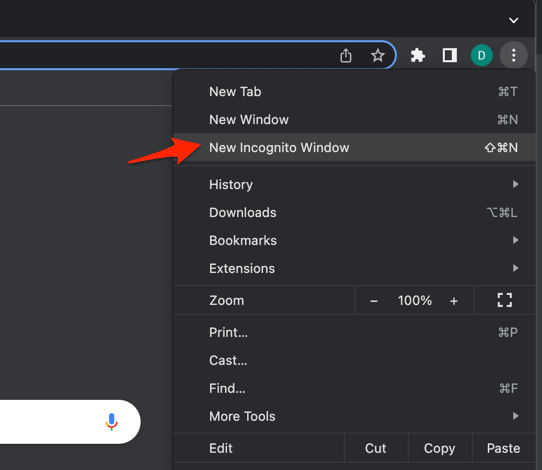 It will start a new incognito window in the browser.
Open wikipedia.org in the Incognito window. If it loads normally, an extension or stored cookie in your main profile is the problem. If it still fails, skip ahead to the network and update sections.
Update Google Chrome
If Wikipedia fails in Incognito too, your Chrome version may be too old. An outdated Chrome build can fail HTTPS handshakes with wikipedia.org or miss newer TLS fixes. The result looks like a network problem, but it is really a browser problem.
- Launch the Google Chrome on your computer.
- Click on More for the options list, and select the Settings menu.

- Switch to the About Chrome tab in the left sidebar pane.
 The browser should automatically start looking for the latest updates.
 - Hit on the button.
 It will complete the Chrome browser update process.
After Chrome relaunches, reopen wikipedia.org and try again. If you were several versions behind, this alone is often enough. You’ll know it worked when a page that previously refused to load opens normally.
Clear Chrome’s Browsing Data
If Wikipedia loads in Incognito but not in a regular tab, stale cache or cookies are the most likely cause. A cached redirect, a dead session cookie, or a corrupted image cache can all break pages that load fine elsewhere.

TIP: If every other site works, skip the full clear and use the Wikipedia-only cookie and cache removal in the next section. That keeps you signed in everywhere else.
- Go to
chrome://history/clearBrowserDatain the address bar. - Select the Time range from the drop-down.
- Enable the checkboxes for Browsing history, Cookies and other site data, and Cached images and files.
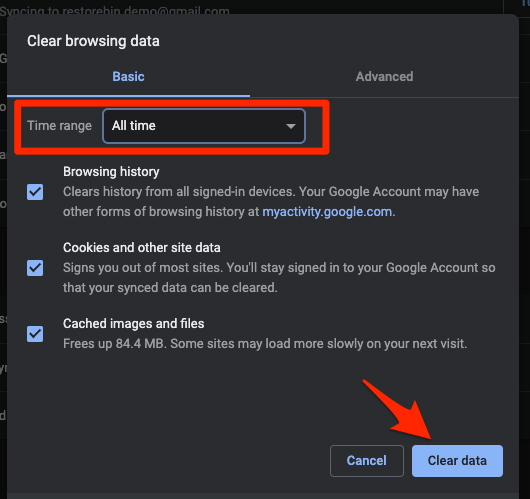
- Hit the Clear data button.
After Chrome restarts, visit a Wikipedia article. If login, search, and images all load, you are done. You’ll know it worked when a page that was stuck now opens normally.
Clear Cookies and Cache for Wikipedia Only
If Wikipedia is the only site that misbehaves, clear just the wikipedia.org data instead of everything. Clearing everything signs you out of all other sites too, but deleting the wikipedia.org entry alone leaves the rest of your saved logins intact.
- Open the Google Chrome on your computer.
- Click on the More for menu options, and hover on the More Tools menu.
- Select the Clear Browsing Data... sub-menu from the list.
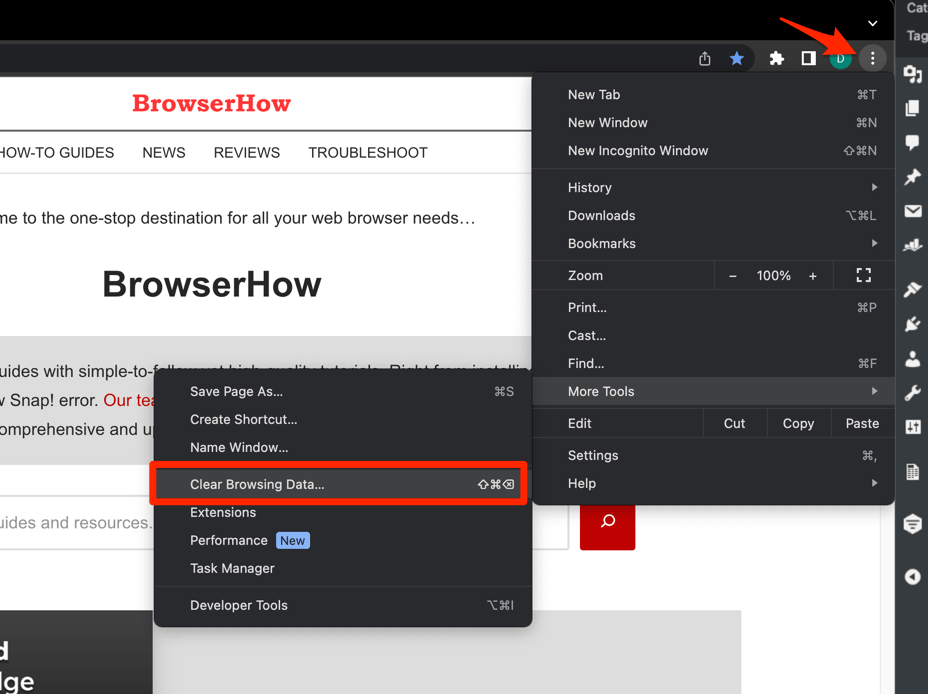 It will open the Clear browsing data settings window.
 - Choose the Time Range from the drop-down and select the checkboxes for the 'Cookies and other site data' and 'Cached images and files' options.
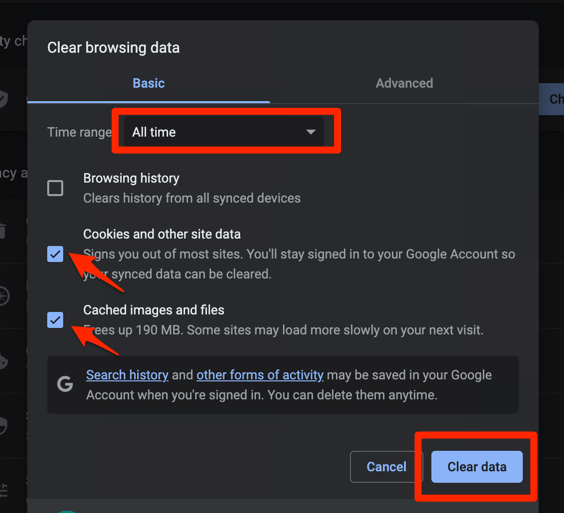
- Finally, hit the command button.
It will delete the stored cookies and cache data from your Chrome browser.
Reload wikipedia.org once the deletion is confirmed. You’ll know it worked when a stuck login, broken CAPTCHA, or article that refused to refresh starts behaving normally.
Clear Chrome’s Internal DNS Cache
If Wikipedia still fails after clearing normal browsing data, the problem may be Chrome’s internal DNS cache. Chrome keeps its own DNS cache separate from the operating system, so it can keep trying the wrong host even after the system-level DNS has been fixed.
If wikipedia.org recently changed its IP address, or if your ISP’s resolver returned a bad record, this cache can point Chrome to the wrong place.
- Launch Google Chrome on your Computer.
- Type in chrome://net-internals/#dns in the address bar, and hit key.
It will open the Chrome DNS network page. - Hit the command button.
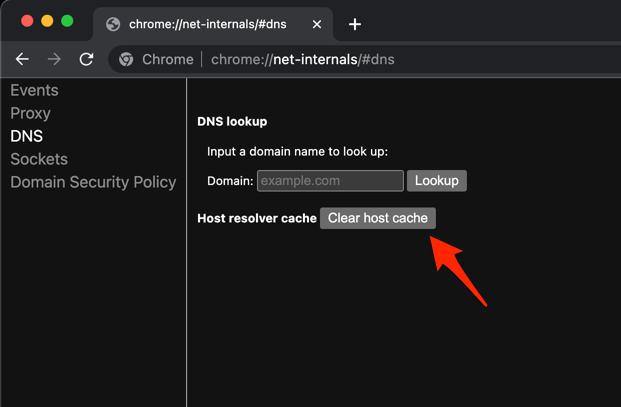
- Relaunch the Chrome browser.
It will clear the Chrome DNS host cache.
Reload the page once Chrome finishes flushing. You’ll know it worked when Wikipedia resolves again instead of showing a DNS or connection error.
Disable Chrome Extensions
An extension is the usual suspect when Wikipedia works in Incognito but not in a regular tab. Ad blockers, anti-tracking extensions, script blockers, and privacy tools are the most common reason Wikipedia breaks in Chrome.
Content blockers can hide core scripts that Wikipedia needs for search, edit buttons, or login widgets.
- Launch the Google Chrome on your computer.
- Click on the More for the list menu.
- Hover on the More Tools menu and choose the Extensions sub-menu.
 It will open the Chrome Extensions Manager page with the list of installed extensions.
 - Toggle the switch to Disable the extension.

Reload Wikipedia with extensions off. If the page works, re-enable each extension one at a time until Wikipedia breaks again. Keep that one disabled, or add a site exception for wikipedia.org inside the extension’s settings.
Check Chrome’s Site Settings for Wikipedia
If Wikipedia opens but images, popups, or scripts are missing, Chrome’s per-site permissions may be blocking them. This often happens after you accidentally change a permission while dismissing a notification or popup.
Open a Wikipedia tab, click the lock or tune icon to the left of the address bar, and choose Site settings. Under Permissions, set JavaScript, Images, and Pop-ups and redirects to Allow, not Block.
You can also review the full list at chrome://settings/content. Search wikipedia.org to see exactly what Chrome is enforcing on the domain.
Reload the tab after changing a permission. You’ll know it worked when Wikipedia renders with full images and interactive controls again.
Toggle Chrome’s Hardware Acceleration
If images or math on Wikipedia flicker, tear, or go blank, a buggy GPU driver may be to blame. On some Windows and Linux machines, toggling hardware acceleration forces Chrome to use the CPU instead of the GPU.
- Open Chrome Settings.
- Click System in the left sidebar. (If your Chrome still groups it under an expandable Advanced section, the path is Settings > Advanced > System.)
- Toggle Use graphics acceleration when available on or off, then relaunch Chrome.
After Chrome relaunches, open a Wikipedia article with several images or a math-heavy page. You’ll know it worked when the visual glitches are gone. Leave acceleration disabled until your GPU driver is updated.
Reset Chrome to Default Settings
If none of the earlier fixes worked, a full Chrome reset is the next step. It clears startup pages, the home page, pinned tabs, content settings, cookies, and extensions. It keeps bookmarks, history, and saved passwords.
Treat this as a last step, not a first one.
- Launch the Chrome browser on the computer.
- Click on the More for menu list, and select the Settings menu.
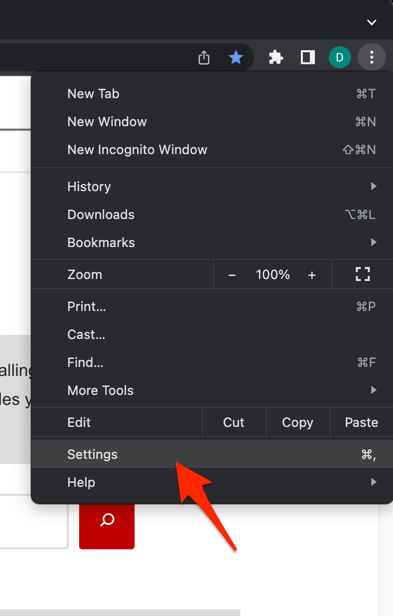 It will open the Chrome browser's Settings page.
 - Switch to the Reset settings tab in the left sidebar, and select Restore settings to their original defaults option.
- Finally, hit the command button.
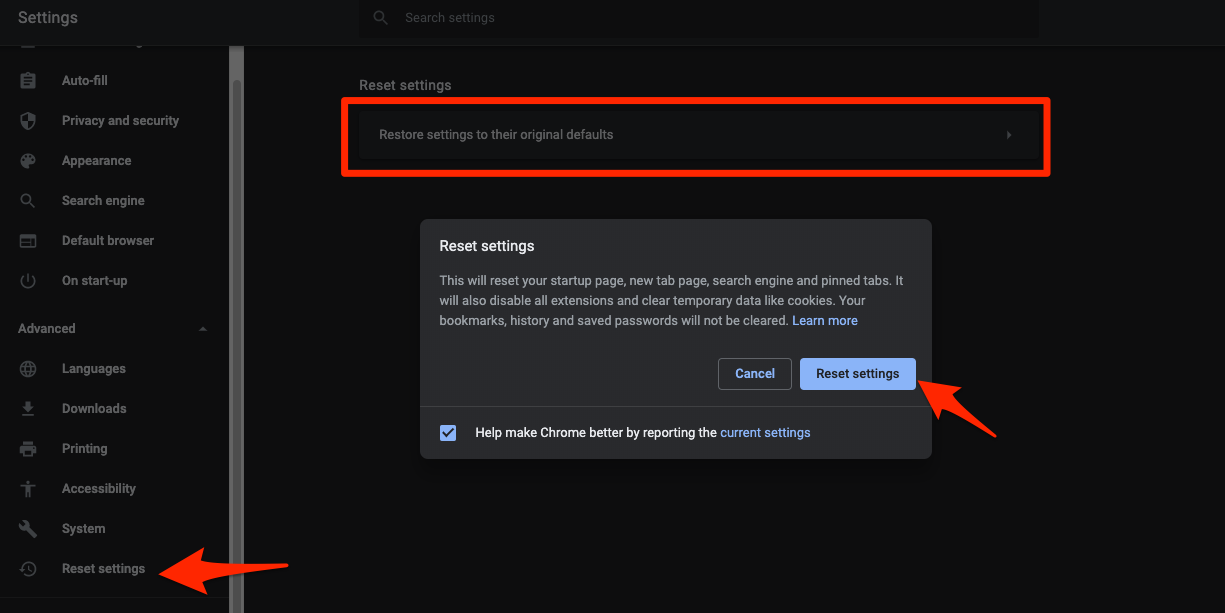 It will reset the Chrome browser settings, clear temporary data, and disable all extensions.
Open Wikipedia again after the reset and confirm that articles, login, search, and images all behave. If Wikipedia is still broken now, the problem is almost certainly your network, your DNS resolver, or a system-level firewall, not Chrome.
Check Network, DNS, and Date/Time Settings
If Wikipedia still fails after a Chrome reset, check the computer’s clock, DNS, and network next. Wikipedia serves everything over HTTPS, so an incorrect date or time or a misbehaving DNS resolver can silently break the connection while other sites still seem to work.
Start with your computer’s clock. A skewed clock fails TLS certificate validation and can knock out HTTPS-only sites like wikipedia.org even when plain HTTP pages load.
- Press the button to open the Start menu, and select the Settings
 menu.
menu.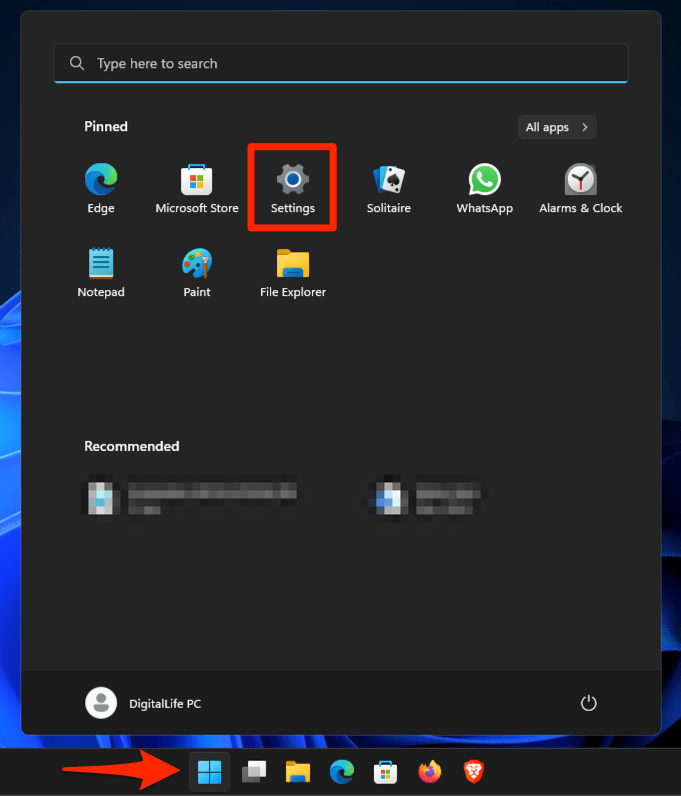 It will open the Windows Settings window.
 - Switch to the Time & Language tab in the left pane.
- Ensure the Time zone reflects correctly, and if it is incorrect, then use the drop-down in the Time zone menu to correct it.
- Enable the toggle switch for the Set time automatically option.
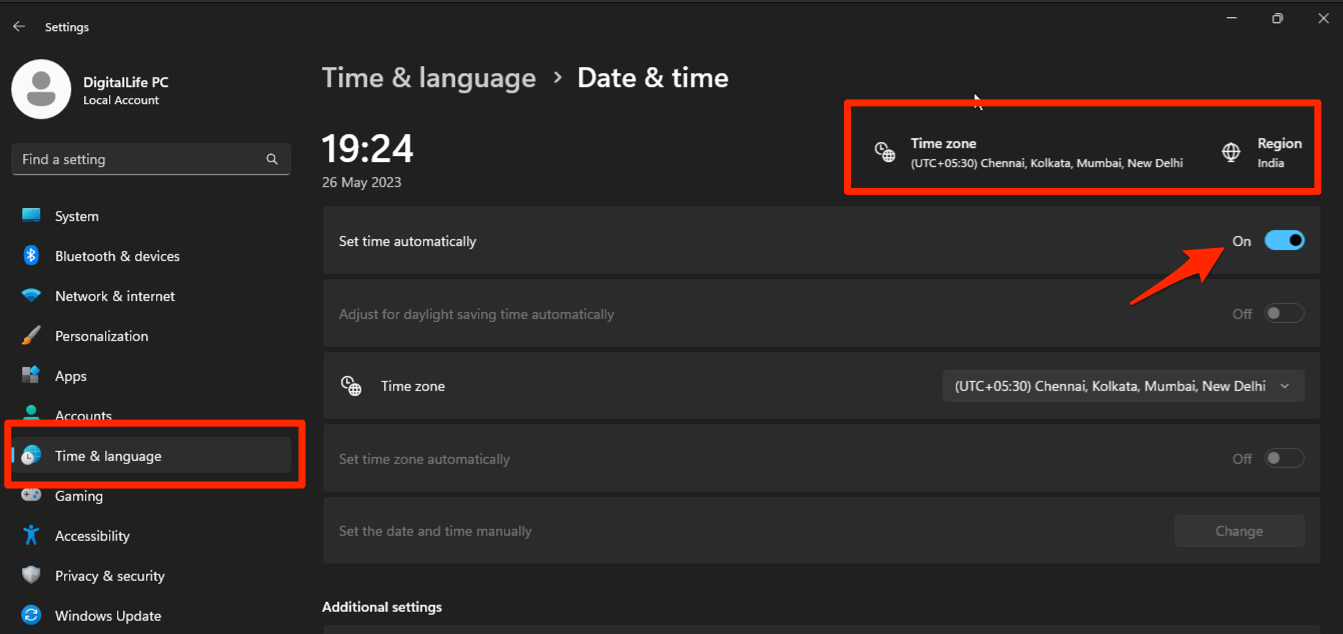
- If you want to adjust time manually, disable the Set time automatically toggle switch and use the command on the Set the date and time manually option.
Next, try a public DNS resolver. On Windows, open ncpa.cpl, edit your active adapter’s IPv4 properties, and set the preferred DNS to 1.1.1.1 or 8.8.8.8. On macOS, change DNS in System Settings → Network. Platform-specific DNS guides are linked below.
- Search and open the Control Panel using the Windows Start menu.
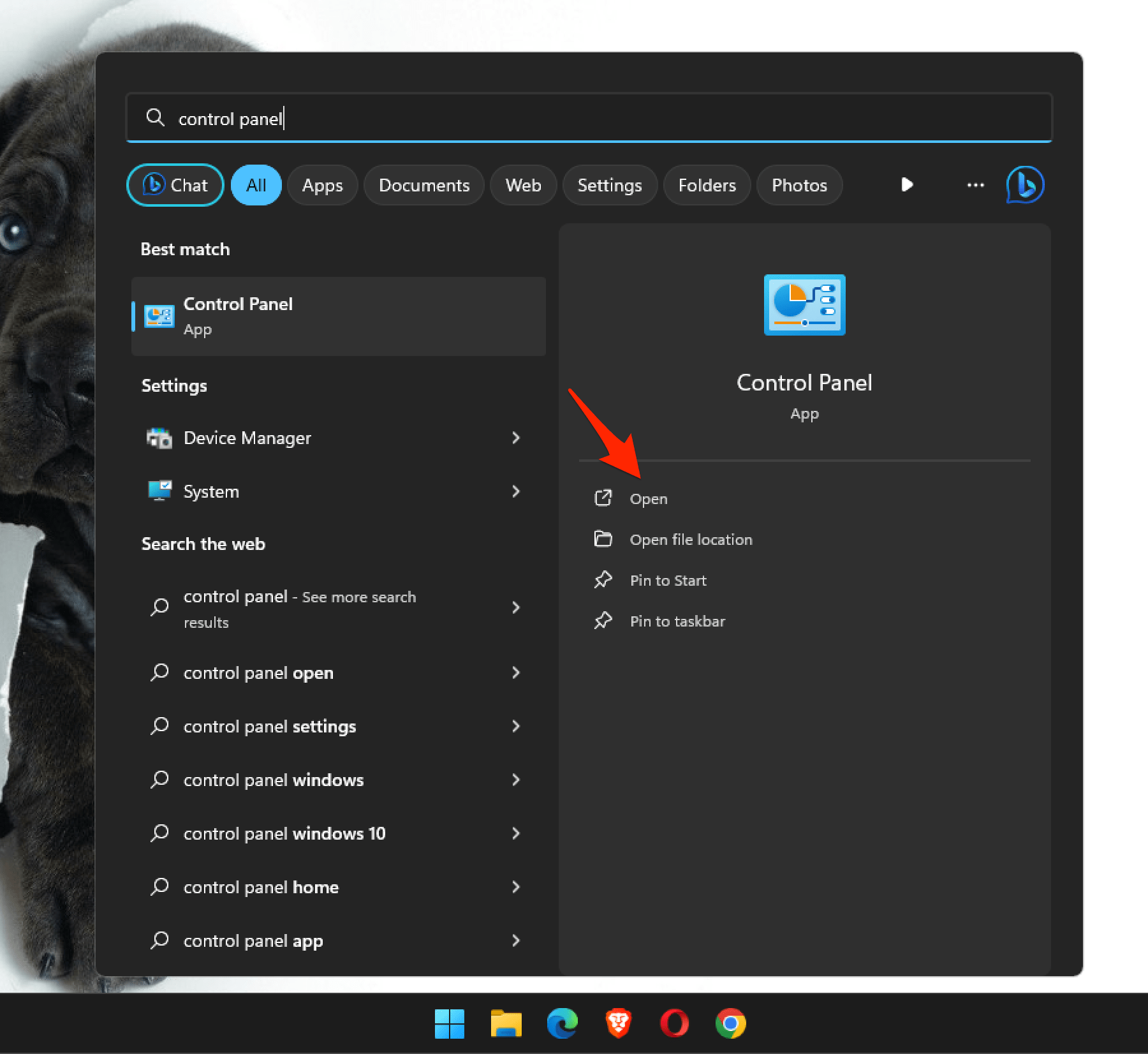 It will open the Control Panel window.
 - Switch the View by to Large icons option, and select the Network and Sharing Center menu.
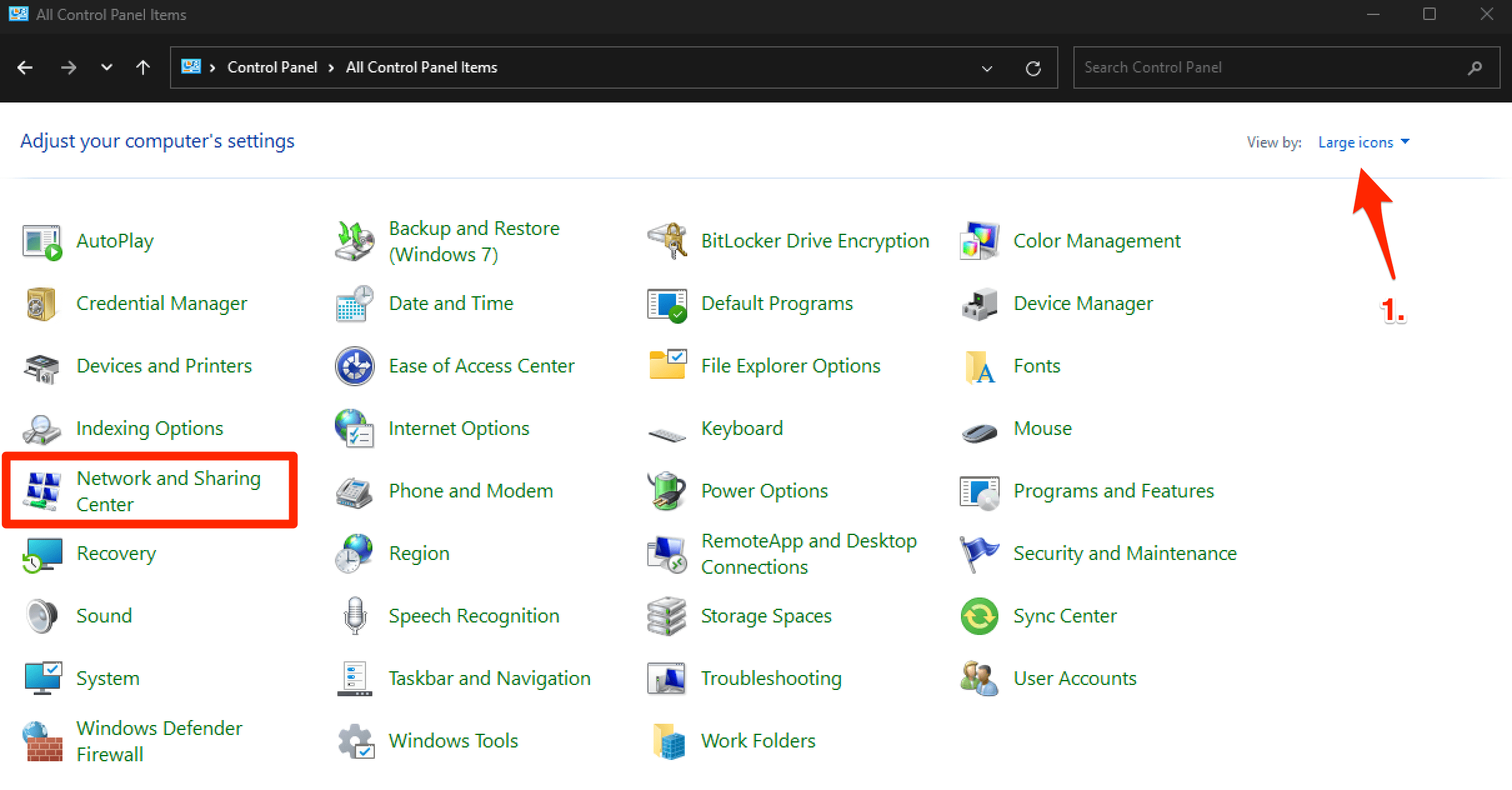
- Click on Change adapter settings from the left menu bar.
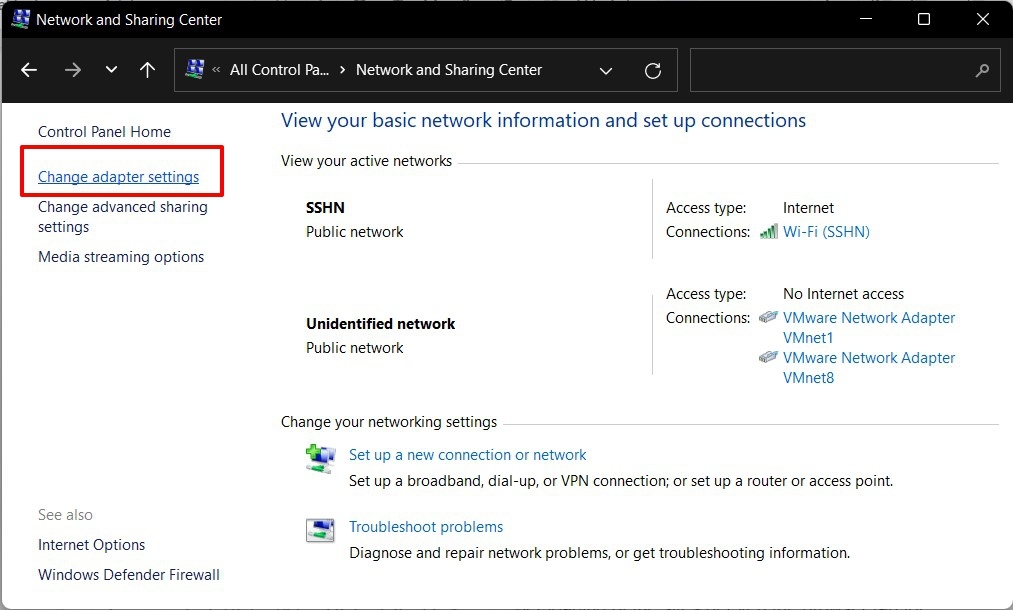
- Right-click on your active Network Adapter (Wi-Fi or Ethernet) for the context menu, and select the Properties command.
It will open the Adapters Properties pop-up window. - Double-click on the Internet Protocol Version 4 option.
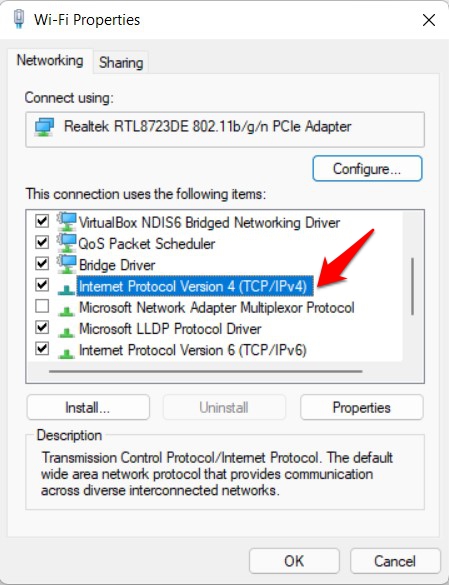
- Select Use the following DNS server addresses option, and input the following Google DNS Addresses.
Preferred DNS Address: 8.8.8.8
Alternate DNS Address: 8.8.4.4
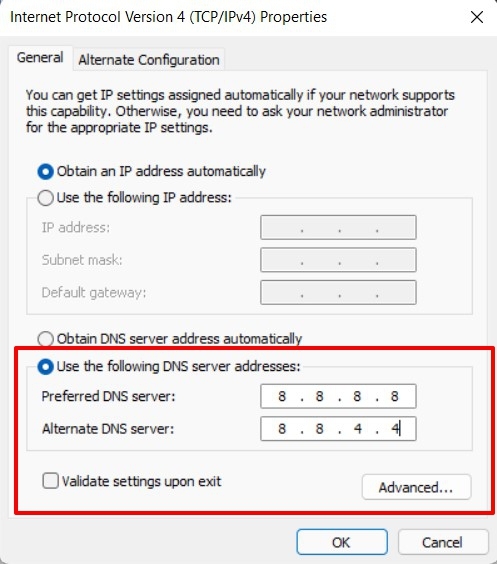
- Hit the button to save the changes.
It will change the DNS addresses of your network adapter on your Windows PC.
- Click on the Apple
 menu, and choose the System Settings... sub-menu.
 It will open the Apple Settings window.
 - Switch to the Network settings tab in the left pane, and select the Network Adapter (say Wi-Fi) that's connected for internet access.
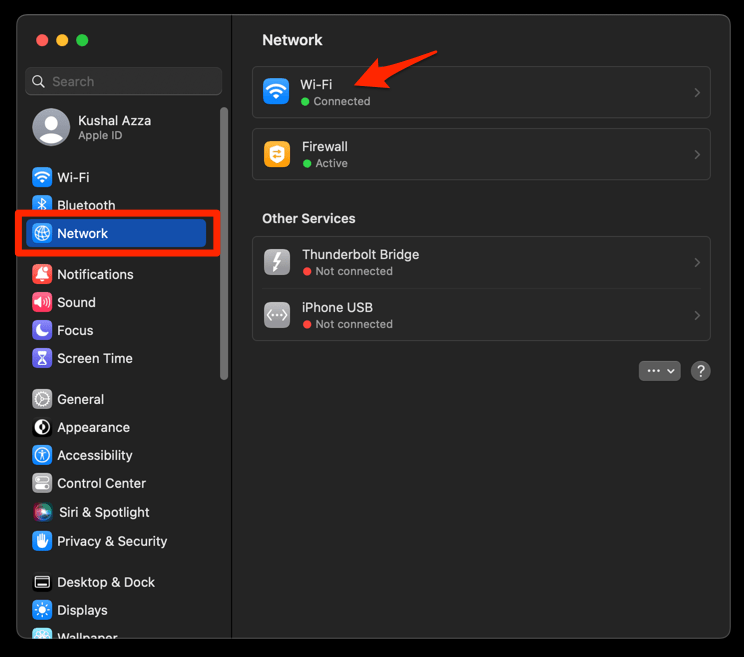
- Click the button to open the network configuration window.
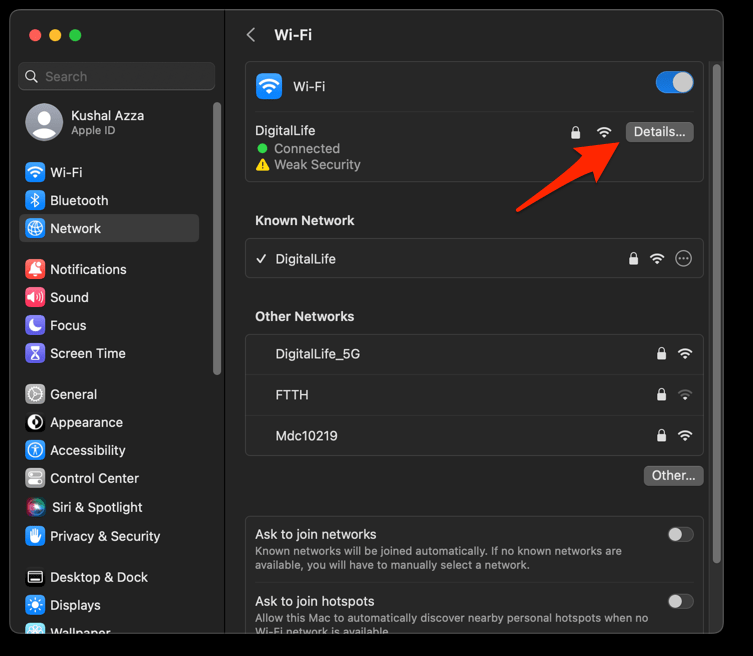
- Switch to the DNS tab in the left sidebar, and click the Plus
 button at the bottom of the DNS Servers list.
 - Enter the Google DNS Server addresses: 8.8.8.8 and 8.8.4.4.
- Finally, hit the button to save DNS addresses.
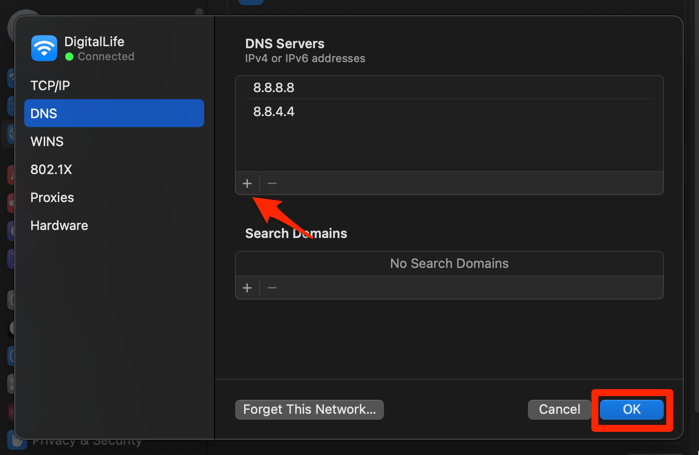 It will set the new DNS address to the selected network adapter on your Mac.
Then reboot your computer and your router. Many “Wikipedia is down for me” cases turn out to be a stale DHCP lease or a wedged router DNS cache.
- On your Windows PC, click the button in the taskbar.
It will open the Windows Start menu. - Select the button, and choose the option to option.
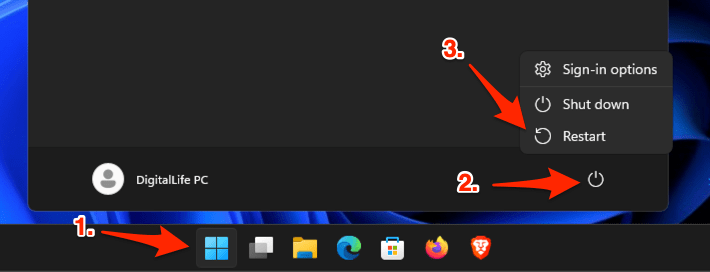 Your Windows PC will restarted.
Once the clock, DNS, and network are clean, reopen Wikipedia. If the site loads in another browser on the same machine but still fails in Chrome, the problem was inside Chrome, and the earlier fixes were the right path.
Frequently Asked Questions
Why does Wikipedia load in Firefox or Safari but not in Chrome?
When a site works in another browser but fails in Chrome, the cause is usually stored in your Chrome profile: a bad cookie, a misbehaving extension, a corrupted cache, or a stale Chrome DNS entry. Try Incognito first. If that fixes it, clear cookies and cache or disable extensions as described above.
Does clearing Chrome’s browsing data delete my Wikipedia bookmarks?
No. Clearing cookies, cache, and browsing history in Chrome does not remove bookmarks. Even a full Chrome reset keeps your bookmarks, history, and saved passwords. The only thing cleared is saved logins for websites, so you will be signed out of Wikipedia after a full reset.
Can an ad blocker break Wikipedia in Chrome?
Yes. Ad blockers, anti-tracking tools, and script blockers can hide the JavaScript that Wikipedia uses for search, edit buttons, image lazy-loading, and login. Disable extensions in chrome://extensions to confirm, then add a site exception for wikipedia.org inside the extension’s own settings.
Why is Wikipedia showing a “connection timed out” or “DNS probe” error in Chrome?
Those errors mean Chrome cannot reach wikipedia.org’s servers at all, which usually points to your network or DNS rather than to Chrome itself. Flush Chrome’s internal DNS cache, switch to a public resolver like Cloudflare (1.1.1.1) or Google (8.8.8.8), and reboot your router.
Is Wikipedia actually down, or is it just me?
Wikipedia itself rarely goes down. You can confirm by opening wikipedia.org in a different browser, on your phone’s cellular connection, or from Downdetector’s Wikipedia status page. If it loads elsewhere, the problem is local to Chrome on your computer.