
A slow Firefox page, a blank widget, or a menu that refuses to open often points at JavaScript. You can block it for one site through the padlock permissions, or switch it off across the whole browser in about:config.
Either way, reload the page afterward and watch what changes. If the site still misbehaves with JavaScript back on, check cookies before you assume the scripts are at fault.
In this guide, I have covered:
Contents
Turn JavaScript Off in Firefox on the Computer
A page that crawls, a widget that never finishes loading, or a button that does nothing. JavaScript is a fair suspect for all three. You can allow or block JavaScript in Firefox on the computer from two different places, and the one you pick decides how much you change.
Reach for the browser-wide switch when you want one quick test across every site. Reach for a site permission when a single website is the one misbehaving.
Firefox runs JavaScript by default. Mozilla’s JavaScript settings for interactive web pages article describes the same global switch and the per-site option.
Everything below is for the computer version of Firefox. On a phone the controls are different, so follow Configure the JavaScript Settings in Firefox on Android instead.

Note: Modern sites lean on JavaScript for menus, forms, maps, and content that loads after the page appears. Turning it off will break things, so treat it as a test rather than a permanent setting.
- Open Firefox on your computer.
- Type about:config into the address bar.

- Press to open the Configuration Editor.
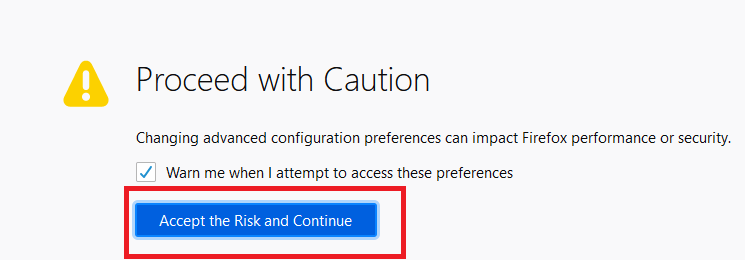
- If the warning page appears, click .
- Type javascript.enabled in the Configuration Editor’s search field.

- Click the toggle button so the Boolean value changes from true to false.

- Close the Configuration Editor tab.
- Reload a page you want to test.
You’ll know it worked when the toggle reads false and pages you load from then on stop running scripts. A tab that was already open keeps whatever it loaded before the change, so reload before you judge the result.
Block JavaScript for One Site in Firefox
One problem site doesn’t justify switching off scripting everywhere. Firefox keeps a JavaScript permission for each site, so you can block it on a single address and leave the rest of your browsing untouched.
- Open the affected website in Firefox on your computer.
- Click the site information padlock
 to the left of the address bar.
- Click More information to open the Page Information window.
- Select the Permissions tab.
- Clear the Use default checkbox for Allow JavaScript.
- Choose Block from the Allow JavaScript dropdown.
- Close the Page Information window.
- Reload the affected page.
You’ll know it worked when that page stops running scripts while your other tabs behave exactly as before. Firefox saves the choice as a site permission, so it stays in place after a restart.
Allow JavaScript for One Site in Firefox
If a site you blocked earlier now looks broken, the global setting is not your problem. Give that one address its permission back.
- Open the affected website in Firefox on your computer.
- Click the site information padlock to the left of the address bar.
- Click More information to open the Page Information window.
- Select the Permissions tab.
- Clear the Use default checkbox for Allow JavaScript.
- Choose Allow from the Allow JavaScript dropdown.
- Close the Page Information window.
- Reload the affected page.
You’ll know it worked when menus, forms, and maps respond again on that site. Choose Allow to keep an explicit permission. Re-checking Use default instead removes the custom permission and returns the site to Firefox’s normal behavior.
Enable JavaScript in Firefox on the Computer
Several sites still look half-built after a global test? Then the browser-wide preference is probably still off. Flip it back and reload the pages you care about.
- Open Firefox on your computer.
- Type about:config into the address bar.
- Press to open the Configuration Editor.
- If the warning page appears, click .
- Type javascript.enabled in the Configuration Editor’s search field.
- Click the toggle button so the Boolean value changes to true.
- Close the Configuration Editor tab.
- Reload the affected page.
You’ll know it worked when the value reads true and pages get their menus and interactive elements back. That’s Firefox’s default, so nothing unusual is left behind.
Check Other Causes if a Site Still Does Not Work
A page can load cleanly and still forget who you are. If sign-in state, carts, or saved preferences keep resetting now that JavaScript is back on, the script setting is not your answer.
Cookies are the usual suspect here. Firefox’s cookie controls sit alongside the permissions you just changed, and a blocked cookie can look a lot like a broken script from the outside.

Frequently Asked Questions
Can I turn off JavaScript in Firefox on a computer?
Yes. The browser-wide control is the Boolean javascript.enabled preference in about:config. Set it to false to disable JavaScript. The normal value is true.
Can I block JavaScript for one website only?
Yes. Firefox keeps a JavaScript choice for the current site in the Permissions tab of the Page Information window. That choice can be Block or Allow without changing other sites.
How do I turn JavaScript back on?
For every website, set the javascript.enabled preference back to true in about:config. For one website, set the Allow JavaScript permission separately in the Page Information window.
Why do websites break after JavaScript is blocked?
Many sites use JavaScript for menus, forms, maps, chat widgets, and content that loads after the page appears. Blocking it can leave a page partly blank or strip out controls even though the rest of the page is visible.
Does disabling JavaScript make Firefox safer?
It stops scripts from running, but it is not a substitute for Firefox’s built-in security protections. Most readers should keep JavaScript enabled globally and use a site permission only for a specific test.