If Pinterest stops loading, gets stuck on login, or shows no images in Chrome, the cause is usually local. Fix it by clearing cookies and cache, allowing third-party cookies for pinterest.com, disabling extensions, testing Incognito, and resetting Chrome if needed.
Try the steps in order and stop when Pinterest works again. Each fix includes a clear next step.
In this guide, I have covered:
Contents
Pinterest Not Working in Chrome? Fix It in Order
Pinterest not working in Chrome usually means something local in the browser is interfering. The page may refuse to load, the login screen may hang, or pin images may stop appearing. Most often, the cause is an outdated Chrome version, stale cookies for pinterest.com, a strict ad-blocker or privacy extension, or Chrome blocking third-party cookies that Pinterest’s login flow depends on.
Work through the fixes in order and stop as soon as Pinterest loads normally again. Each section explains what to do and what result to expect.

This article targets Chrome on a computer (Windows, Mac, Linux, or Chromebook). On an iPhone or iPad, the menu paths differ. Use the Clear Browsing Data from Chrome for iPhone and iPad guide instead.
Check If Pinterest Is Actually Down
Start by checking whether Pinterest itself is having an outage. If it is, no Chrome setting will fix it.
- Open a second browser such as Edge, Firefox, or Safari on the same computer and visit pinterest.com. If it loads there, the issue is specific to Chrome.
- Open the Pinterest app on your phone and check whether pins load.
- Search for "Pinterest down" or check a status page to see whether other users are reporting the same problem right now.
If Pinterest loads in another browser, the problem is inside Chrome and the steps that follow will help. If it is down for everyone, stop here and wait for the outage to clear.
Update Chrome to the Latest Version
An outdated Chrome build can break the scripts Pinterest uses for login and infinite scroll. Updating Chrome is the fastest fix to try first.
- Launch the Google Chrome on your computer.
- Click on More
 for the options list, and select the Settings menu.
- Switch to the About Chrome tab in the left sidebar pane.
 The browser should automatically start looking for the latest updates.
 - Hit on the button.
 It will complete the Chrome browser update process.
After Chrome relaunches, return to your Pinterest tab and reload the page. If the update was the problem, Pinterest will load normally now.
Reload the Pinterest Tab or Restart Chrome
A stuck tab is the most common reason Pinterest looks broken. A hard reload or a full Chrome restart clears that temporary state without changing your settings.
- Click the Reload button (circular arrow) on the Pinterest tab. If nothing changes, hold and click Reload, or press ++ on Windows or Linux and ++ on Mac for a hard refresh that bypasses the cache.
- If Pinterest still hangs, close the tab and reopen pinterest.com in a fresh tab.
- If the whole browser feels sluggish, force-quit Chrome from your system's task manager and reopen it.
Pinterest should reload cleanly after one of these steps. If it still hangs, move on to clearing browser data.
Clear Chrome’s Cookies and Cache
Corrupt cookies or a stale cache for Pinterest often cause the loop where login fails or images refuse to load. Clearing that data forces Chrome to fetch fresh files from Pinterest. See the full Clear Cookies and Cache from the Google Chrome browser guide for the detailed walkthrough.
- Open the Google Chrome on your computer.
- Click on the More for menu options, and hover on the More Tools menu.
- Select the Clear Browsing Data... sub-menu from the list.
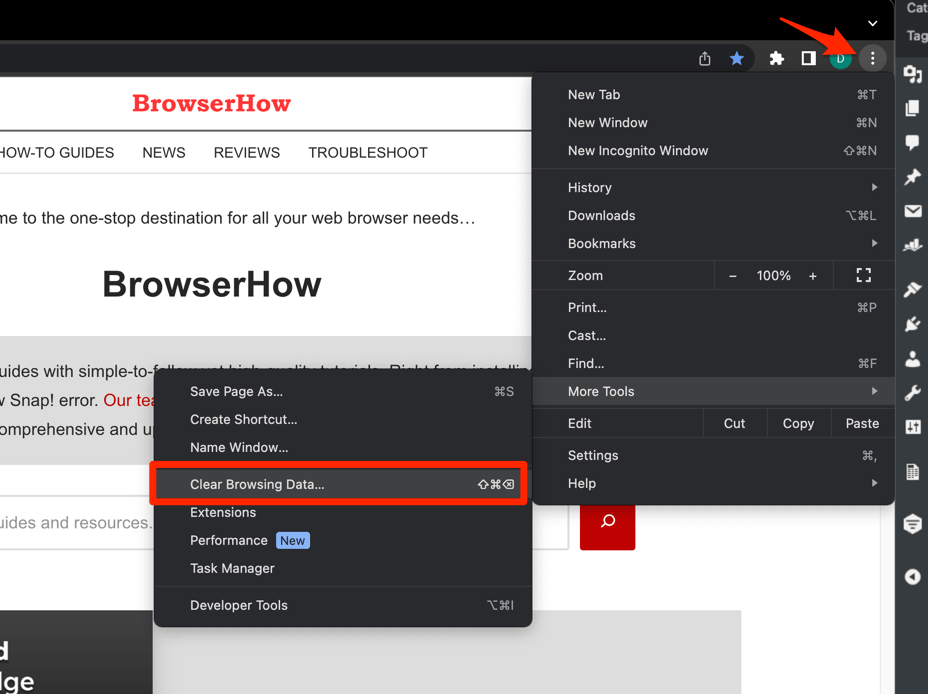 It will open the Clear browsing data settings window.
 - Choose the Time Range from the drop-down and select the checkboxes for the 'Cookies and other site data' and 'Cached images and files' options.
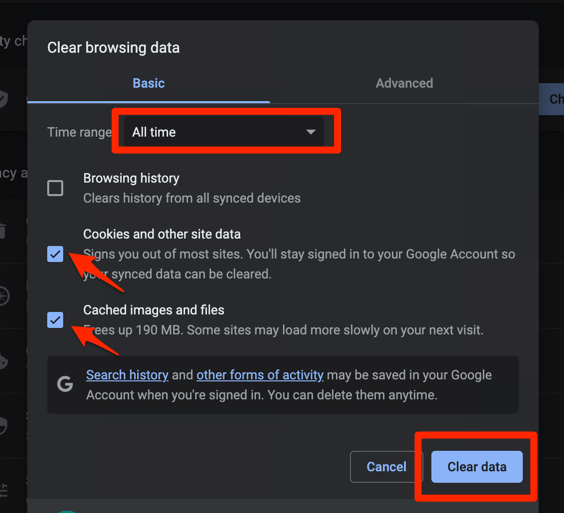
- Finally, hit the command button.
It will delete the stored cookies and cache data from your Chrome browser.
After the dialog finishes, reopen Pinterest and sign in again with your Pinterest email and password. You’ll know it worked when Pinterest asks you to log in instead of sitting on a blank page.

TIP: If you only want to wipe Pinterest and keep your other site logins intact, use the Clear Site Data for Pinterest Only section that follows.
Clear Site Data for Pinterest Only
When Pinterest is the only site misbehaving, you can wipe just its stored cookies and cache and leave the rest of Chrome untouched.
- Click the three-dot menu at the top right of Chrome and choose Settings.
- Click Privacy and security in the left sidebar.
- Click Third-party cookies.
- Click See all site data and permissions.
- Use the search box at the top to find microsoft.com, then repeat for outlook.com, office.com, sharepoint.com, and live.com.
- Click the trash icon on the right of each Microsoft entry and confirm Delete.
- Close Settings, reopen Chrome, and sign in to Microsoft 365 fresh.
Reload Pinterest and sign in again. Your other sites stay logged in.
Allow Third-Party Cookies for Pinterest
Pinterest’s login flow uses cross-site cookies. If your Chrome profile or an extension blocks third-party cookies, Pinterest can sit on a blank screen after you click Log in. Allowing third-party cookies for Pinterest is often the missing step.
- Click at the top right of Chrome and choose Settings.
- Select Privacy and security in the left sidebar.
- Click Site settings.
- Click Third-party cookies.
- If the toggle is set to Block third-party cookies, switch it to Allow third-party cookies or Block third-party cookies in Incognito mode.
- Close the tab and reload reddit.com.
Inside the Third-party cookies page, add pinterest.com to the sites allowed to use third-party cookies, then retry the Pinterest login. You’ll know it worked when the login screen progresses instead of sitting idle.
Disable Chrome Extensions
Ad blockers, privacy extensions, and even the official Pinterest Save Button can interfere with how Pinterest loads. Turn them off and try the site again to see if one of them is the cause.
- Launch the Google Chrome on your computer.
- Click on the More for the list menu.
- Hover on the More Tools menu and choose the Extensions sub-menu.
 It will open the Chrome Extensions Manager page with the list of installed extensions.
 - Toggle the switch to Disable the extension.

If Pinterest starts working with extensions off, an extension was the cause. Turn extensions back on one at a time to find the offender, then keep it disabled for pinterest.com or uninstall it.
Test Pinterest in an Incognito Window
Incognito mode skips most extensions and uses Chrome’s default cookie behavior, so it is a fast way to confirm whether a setting in your normal profile is causing the problem.
- Launch the Google Chrome on your computer.
- Click on the More menu for the list.
- Select the New Incognito Window option.
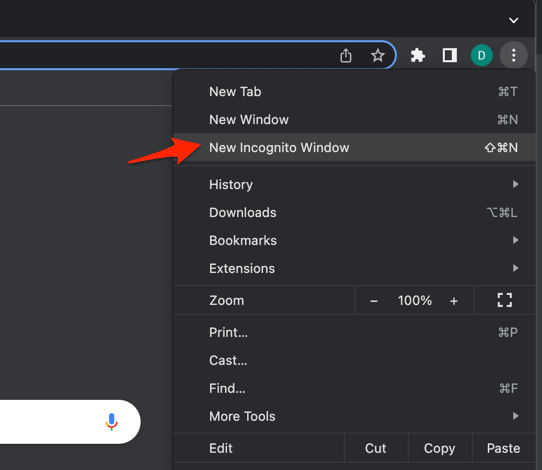 It will start a new incognito window in the browser.
If Pinterest loads in Incognito but not in your normal window, the cause is one of your extensions or settings. Jump back to Disable Chrome Extensions and Allow Third-Party Cookies for Pinterest.
Toggle Hardware Acceleration in Chrome
If Pinterest’s feed scrolls poorly, images appear pixelated, or the page hangs while you scroll, Chrome’s hardware acceleration setting can be the cause. Toggling it forces Chrome to fall back to the software renderer.
- Open Chrome Settings.
- Click System in the left sidebar. (If your Chrome still groups it under an expandable Advanced section, the path is Settings > Advanced > System.)
- Toggle Use graphics acceleration when available on or off, then relaunch Chrome.
Restart Chrome when prompted and open Pinterest again. The feed and image loading should behave normally after the toggle.
Reset Chrome Settings to Default
When nothing else has helped, resetting Chrome restores the default search engine, homepage, tab behavior, content settings, and disabled extensions. Saved passwords, bookmarks, and history are not touched.
- Launch the Chrome browser on the computer.
- Click on the More for menu list, and select the Settings menu.
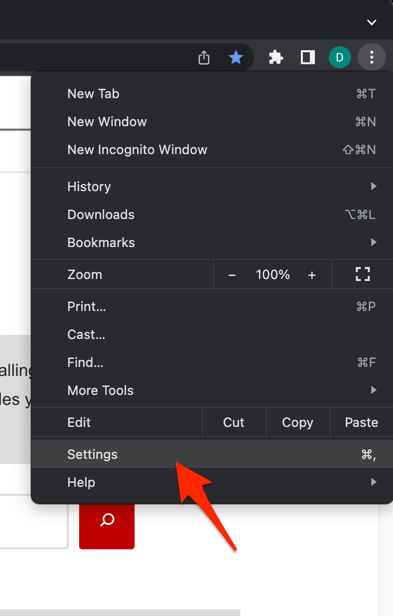 It will open the Chrome browser's Settings page.
 - Switch to the Reset settings tab in the left sidebar, and select Restore settings to their original defaults option.
- Finally, hit the command button.
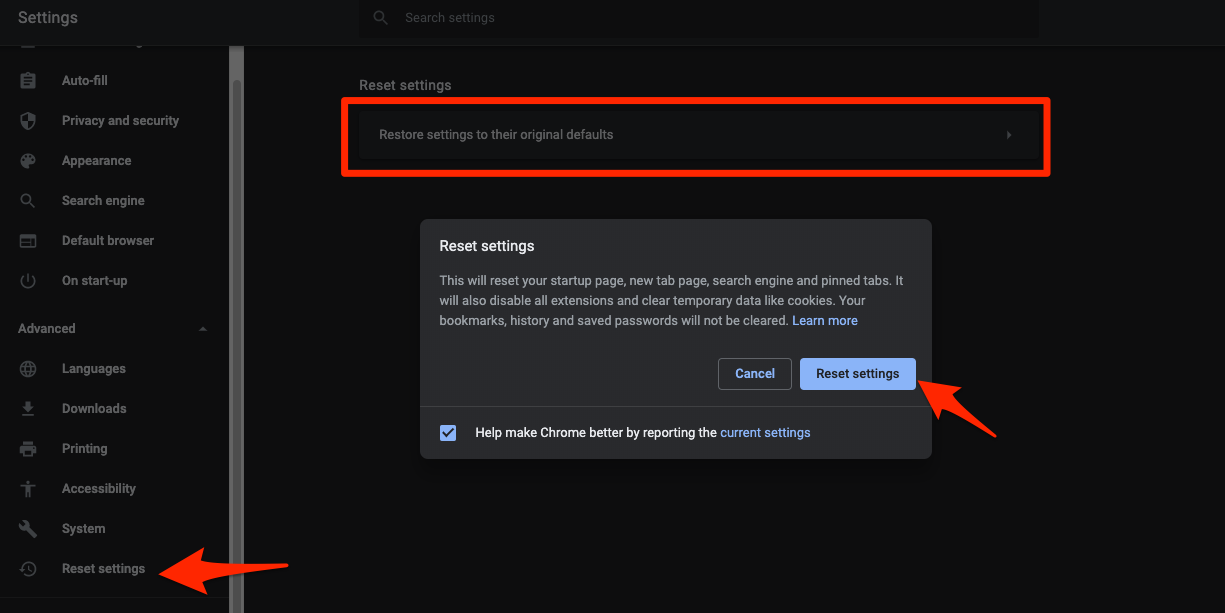 It will reset the Chrome browser settings, clear temporary data, and disable all extensions.
After the reset, reopen Pinterest and sign in again. If the site still fails, the problem is on Pinterest’s end or your network, not Chrome.

Frequently Asked Questions
Why does Pinterest show a blank white screen in Chrome?
A blank Pinterest page usually means a script or cookie failed to load. Clear Pinterest’s site data, allow third-party cookies for pinterest.com, and disable any ad-blocker or privacy extension you have installed.
Why do my Pinterest images fail to load in Chrome?
Stale cache files and over-aggressive image or script blockers are the top reasons. Clear Chrome’s cache and cookies, then test Pinterest in an Incognito window. If images appear in Incognito, the blocker is an extension on your normal profile.
Will clearing cookies log me out of other sites?
If you clear all browsing data for “All time,” yes. To log out of Pinterest only, use the Clear Site Data for Pinterest Only section above so your other site logins stay intact.
Does Pinterest work better in Incognito mode?
Incognito bypasses most extensions and uses Chrome’s default cookie behavior, so it can appear to work when your normal window has a bad cookie or extension. It is a useful diagnostic, not a permanent fix.
How do I check whether Pinterest itself is down?
Open pinterest.com in a second browser or the Pinterest mobile app. If it loads there, the issue is Chrome. You can also check a status site or Pinterest’s official social account for widespread outage reports.