Apple has begun rolling out Safari 26.6, according to the WebKit blog announcement dated July 27, 2026. The update ships through standard macOS, iPadOS, and iOS software update channels, so most devices will pick it up automatically over several days.
You can check your current Safari build, manually trigger the update on Mac and iPhone, and learn what to do if the phased rollout hasn't reached your device yet.
In this guide, I have covered:
Contents
Safari 26.6 Rollout Begins
Apple has started shipping Safari 26.6, detailed in the WebKit blog announcement on July 27, 2026. The update arrives through standard Software Update and Settings channels on macOS, iPadOS, and iOS. Most devices will pick up the new build automatically within a few days.

Safari updates roll out in phases. If your device does not show the new build right away, wait a few hours and try the manual check again.
How to update Safari on Mac
Safari on macOS updates through System Settings, not its own menu. If the phased rollout has not reached your Mac, you can force a manual check for the Safari 26.6 build.
- Click on the Apple
 menu from the menu bar and select the System Settings... sub-menu.
  It will open the System Settings window.
 - Select the General tab in the left sidebar, and choose the Software Update tab.
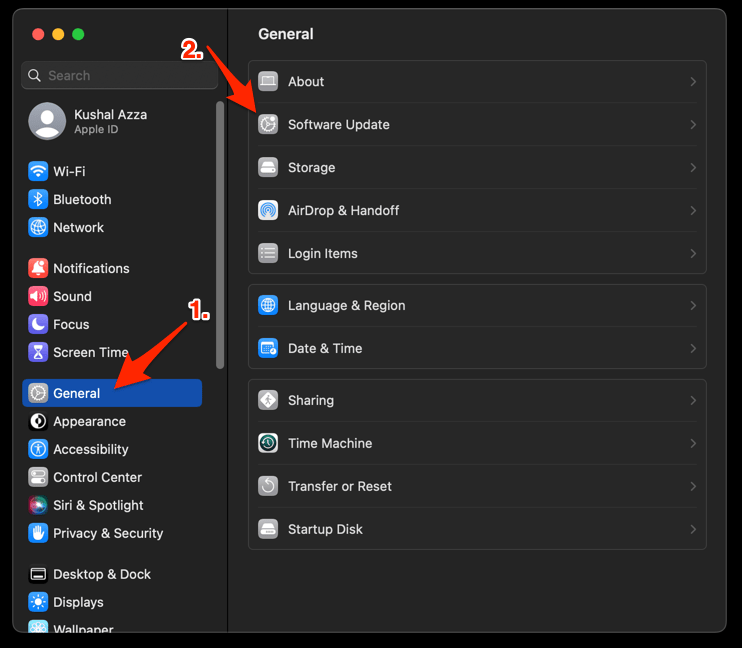 The macOS System will check for any available upgrades in the background.
 - Click on the More Info... tab and enable the checkbox for Safari updates (if any are available).
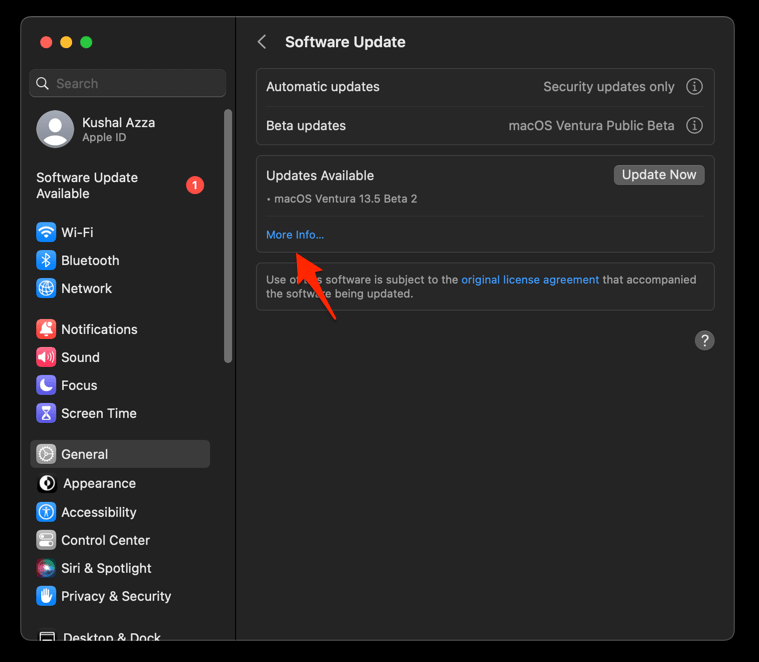
- Hit on the button.
It will update the Safari browser.
After the update finishes installing, relaunch Safari and confirm the new version from the menu by selecting .
How to Update Safari on Older Mac Versions
On older macOS releases, Safari updates ship separately through Software Update or the App Store. The steps below walks through that process.
- Open System Preferences under the Apple menu.
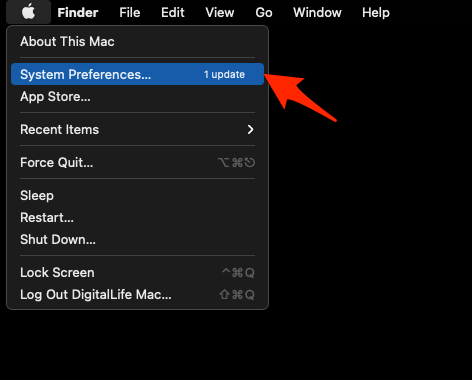 It will open the System Preferences window.
 - Select the Software Update program from the list.
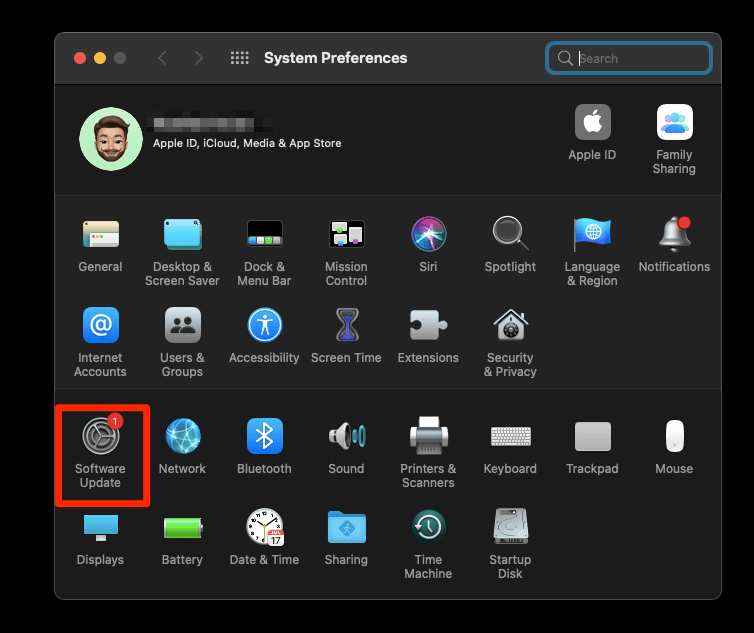 It will open the Software Update window and start checking for updates.
 - Click on the More info... link.
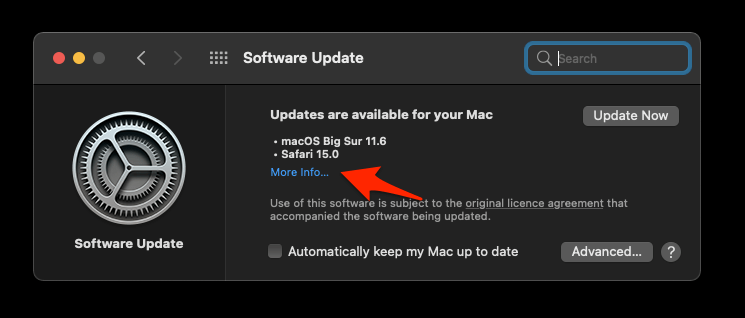
- Select the checkbox to download Safari browser updates.
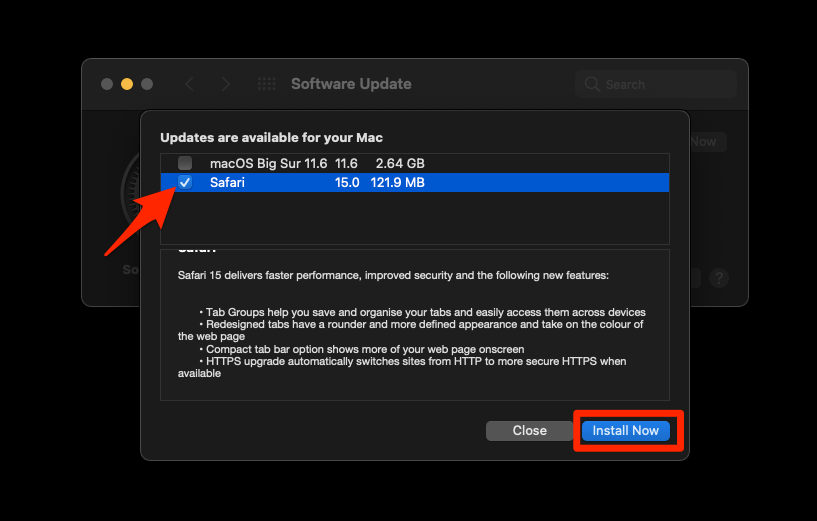
- Hit the command button.
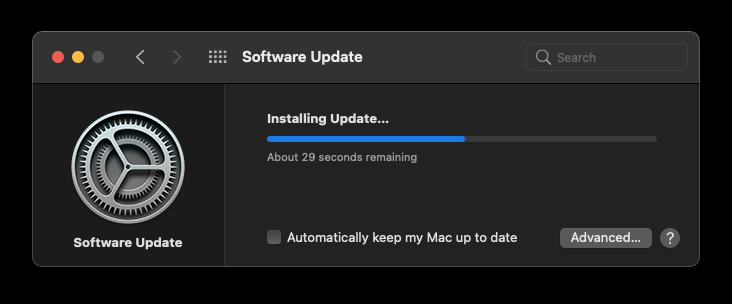 The Safari download will begin and automatically finish the update installation.
Relaunch Safari once the update completes and verify the build from the menu to confirm the new version is active on your machine.
How to Update Safari on iPhone
Safari on iPhone and iPad is part of the operating system. Updating the browser requires installing the latest iOS or iPadOS release. If the update hasn’t arrived automatically, use the steps below to check manually.
- Open Settings on your phone, and head on to the General section.
- Select Software Update to open the screen.
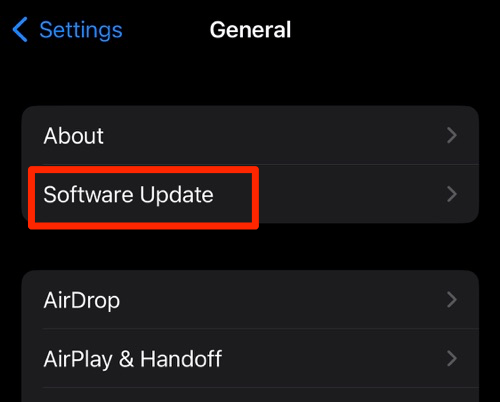 The device will automatically start looking for updates.
 - Tap the button.
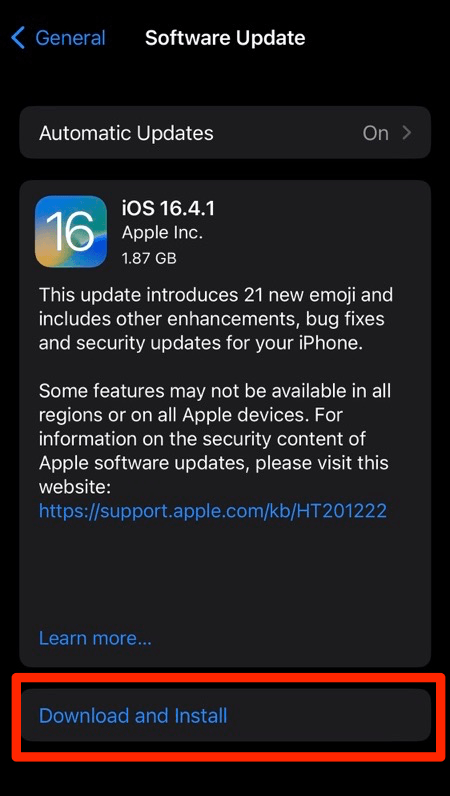 The update will download and install the latest Safari on your device, if available.
After iOS finishes installing, reopen Safari and check Settings > Apps > Safari to confirm the system-level browser version reflects the new Safari 26.6 build.
What to Do If the Update Has Not Arrived
Apple phases Safari and iOS updates over hours or days, so some users see the new build before others. If none of the manual update steps above return Safari 26.6, leave your Mac or iPhone on a stable Wi-Fi connection, plug it into power, and try again after a few hours. Restarting the device can also force Software Update to refresh its catalog the next time you open it.