Discord opens in Safari but hangs on a spinner, shows a blank page, or refuses to finish signing you in. The usual culprits are a blocked pop-up, blocked or stale cookies, an extension, or Safari's cross-site tracking setting.
Work through the Mac fixes first, then the iPhone and iPad steps if you are on a phone or tablet. Voice chat is the one thing Safari cannot do, so keep the desktop app for calls.
In this guide, I have covered:
Contents
Which Discord problem are you seeing in Safari?
Discord not working in Safari usually comes down to one of two things, and each needs a different fix. Either the web app will not load or sign you in, or text chat works fine and voice never connects.
The first is a Safari problem: a blocked pop-up, a blocked cookie, an extension, or stale website data. The second is not. Discord voice chat does not work in any web browser, including Safari, so a mic that never connects needs the desktop app rather than a changed Safari setting.
Use the loading and sign-in fixes below for a blank screen, an endless spinner, a failed login, or a Discord tab that opens without your messages.
Rule out a connection problem first
If every site is slow or unreachable, Discord is just the site that made you notice. Check the connection before you open a single Safari setting, so you do not spend an hour fixing the wrong thing.
- Launch the web browser on your device.
- Open the https://fast.com in the address bar.
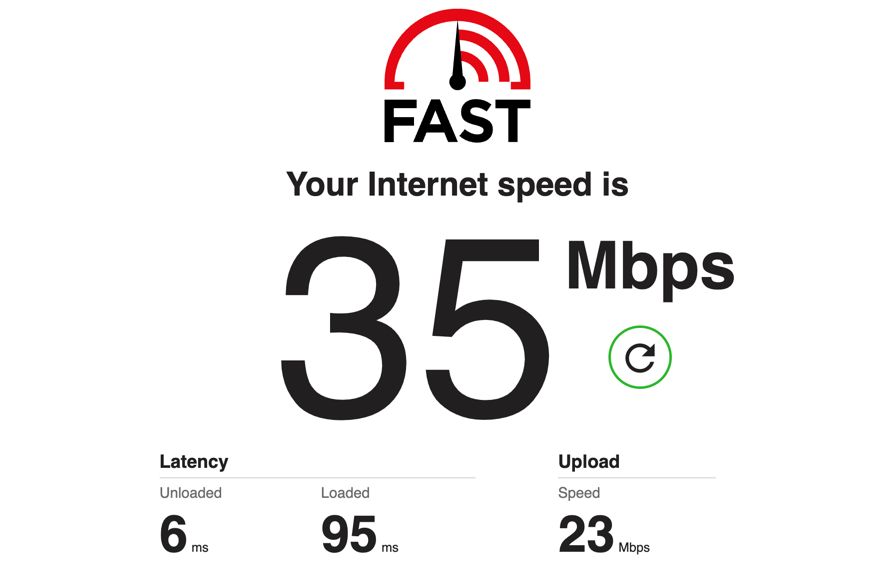
The internet speed test will begin and display the results after completion of the test.
You’ll know it worked when the test reports a download speed. That means general internet access is fine, and if Discord is the only site failing, the Safari checks below are where the answer lives.
Reload Discord in a fresh tab
A plain reload recovers a stalled page more often than people expect, and it costs nothing: no settings changed, no sign-out.
- Open the Discord web app in a new Safari tab.
- Click the reload
 button in Safari’s toolbar.
- Close the Discord tab if the page remains stuck.
- Open the Discord web app again.
- Test the sign-in screen.
You’ll know it worked when the Discord login page or home screen appears without an endless spinner. If other sites fail too, go back to the connection check.
Turn off Safari extensions on Mac
Ad blockers, privacy tools, and script modifiers can break Discord’s interface or stop the sign-in round trip from finishing. Switching them off for a few minutes tells you whether one of them is behind it.
- Launch the Apple Safari app on your Mac computer.
- Click on the Safari menu from the menu bar at the top, and select Settings... sub-menu.
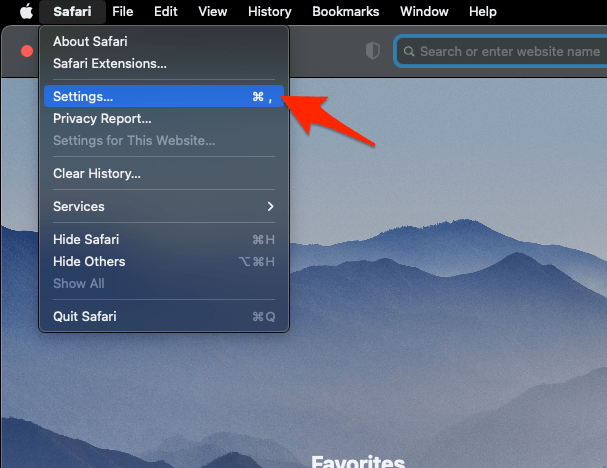 It will open the Safari Settings window.
- Switch to the Extensions tab in the Settings window.
It will display the list of all the Safari extensions installed. - Uncheck the checkbox in the left side pane to Disable the extension.
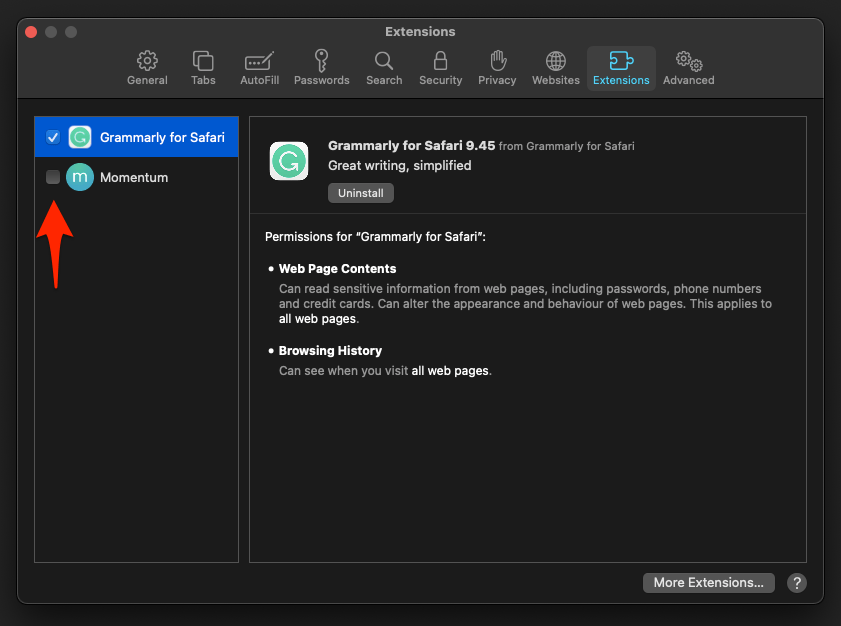
If Discord starts working, leave the interfering extension disabled until you know which one it is. The check passes when Discord loads normally with extensions off.
Allow pop-ups for Discord sign-in
Safari can block the window Discord uses to finish signing you in, and the page usually shows no useful message when it happens. Allow pop-ups for discord.com only, instead of turning the blocker off for every site.
- Choose Settings… from the Safari menu.
- Choose the Websites tab.
- Choose Pop-ups.
- If discord.com is not listed, open the Discord website in another Safari tab so Safari can add it.
- Return to Pop-ups and select discord.com.
- Turn on Allow for discord.com.
- Close the Discord tab.
- Open the Discord web app again.
- Try to sign in.
You’ll know it worked when the sign-in window opens instead of a blocked-page warning. If Discord still will not sign in, the cookie controls are next.
Check that Safari is not blocking Discord’s cookies
Discord’s web app needs cookies to keep you signed in. With cookies blocked, the main page may still draw, then sign-in fails on the next screen. If you cannot find the setting, Block or Allow Browser Cookies in Safari on Mac walks through it.
- Choose Settings… from the Safari menu.
- Choose Privacy & Security, or Privacy when that tab is separate.
- Open the Cookies and Website Data section.
- Set the cookie option to allow rather than block.
- Reload Discord.
- Try to sign in again.
Sign-in should complete once cookies are allowed. If the setting already looks correct and the page is still stuck, clear Discord’s saved website data next.
Remove Discord’s saved website data on Mac
Cookies can be present and still be stale. Deleting only Discord’s entries clears a broken login or a stuck loader without signing you out of every other site.
- Choose Settings… from the Safari menu.
- Choose Privacy & Security, or Privacy when that tab is separate.
- If Cookies and Website Data is shown, select it.
- Click .
- Search for discord.com.
- Select the Discord entries.
- Click .
- Close every Discord tab.
- Open the Discord web app again.
- Sign in.
Discord should now reach its login screen or home screen. If the website data list comes up blank instead, Fix Safari Manage Website Data Not Showing or Blank on Mac covers that case before you try again.

Test Safari’s cross-site tracking protection
When Discord draws halfway and then stalls, Prevent Cross-Site Tracking deserves a quick test. It can block one part of the web app while the rest of the page looks fine.
- Choose Settings… from the Safari menu.
- Choose Privacy & Security.
- Turn off Prevent Cross-Site Tracking.
- Reload Discord.
- Test the sign-in screen and text chat.

Use this only as a temporary diagnostic. If Discord still needs the setting off, consider the desktop app instead of leaving cross-site tracking protection disabled permanently.
Turn Prevent Cross-Site Tracking back on as soon as the test is over. The setting exists to limit cross-site tracking, and leaving it off permanently is a poor trade for one website.
Clear all Safari cache and cookies on Mac
If deleting Discord’s entries changed nothing, it is time for a full reset of Safari’s cache and cookies. That is a site-wide wipe: you will sign in again to Discord and to every other site you use. The Clear Cookies and Cache from the Safari app guide covers the same reset in more detail.
Reopen Discord and sign in. Still failing? Cookies and cache were probably not the whole story, so work through the update check next.
Update Safari on Mac
An out-of-date Safari can break modern web apps in ways no setting fixes. Install any pending update, restart the browser, then try Discord again.
- Click on the Apple
 menu from the menu bar and select the System Settings... sub-menu.
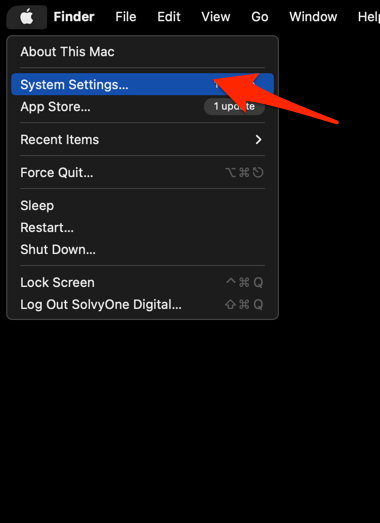 It will open the System Settings window.
- Select the General tab in the left sidebar, and choose the Software Update tab.
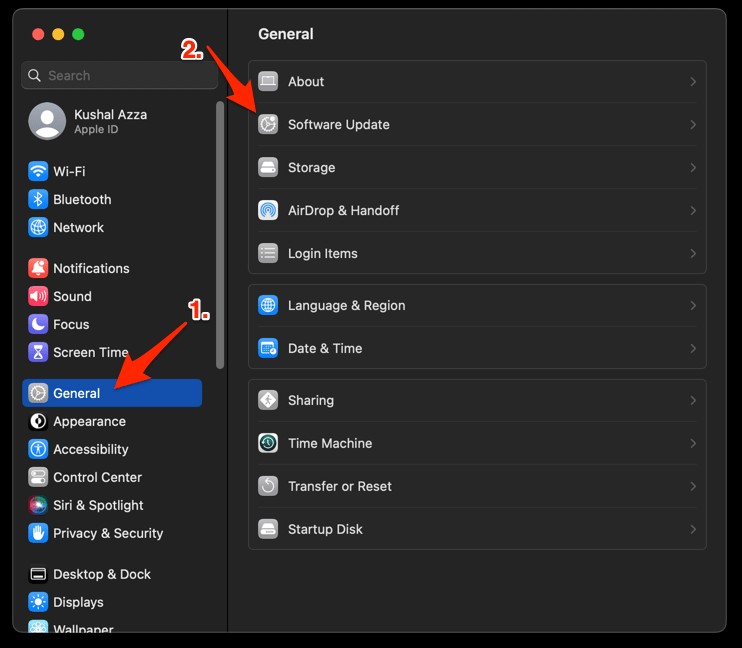 The macOS System will check for any available upgrades in the background.
- Click on the More Info... tab and enable the checkbox for Safari updates (if any are available).
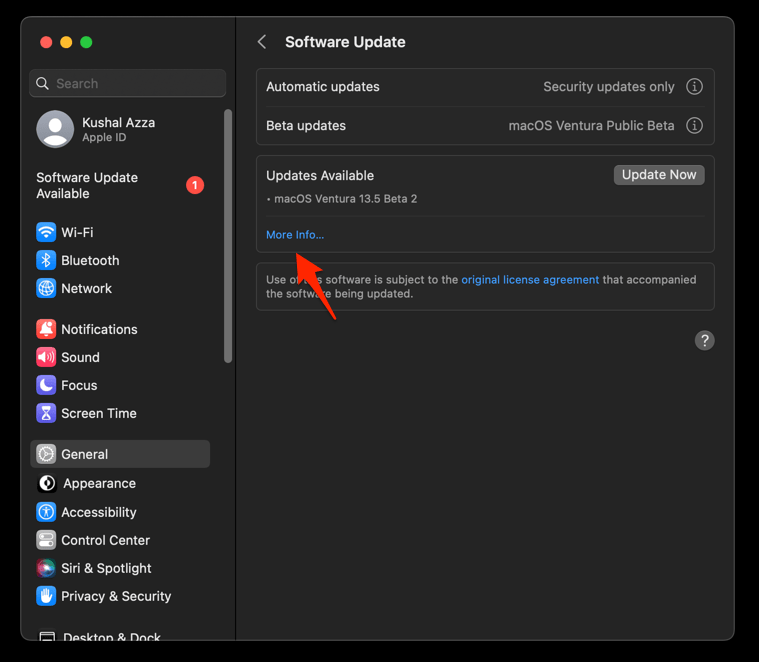
- Hit on the button.
It will update the Safari browser.
Open Discord and test both the login screen and text chat. If the update fixes it, stop here. No other Safari changes are needed.
Fix Discord in Safari on iPhone or iPad
On iPhone and iPad, Safari’s controls live under Apps in the system Settings app, not inside Safari itself. Check Discord’s per-site features before you clear anything for the whole device.
- Open Settings.
- Choose Apps.
- Choose Safari.
- Choose Advanced.
- Choose Website Features.
- If discord.com is not listed, open the Discord website in Safari once.
- Return to Website Features and select discord.com.
- Turn on Allow Pop-ups for discord.com.
- Open Discord.
- Try to sign in.
You’ll know it worked when the Discord sign-in screen appears without a blocked-page message. When per-site controls are not enough, clear Safari’s stored website data next.
Clear Safari data on iPhone or iPad
When the per-site check does not work, reset Safari’s cache and cookies. This removes website data for every site on the device, so expect to sign in again elsewhere.
Open Discord and sign in. If the app loads this time, stale Safari data was the cause.
Check iCloud Private Relay on iPhone or iPad
Private Relay changes the route your traffic takes, and Discord is sometimes the site that notices. It stays off by default unless your Apple plan includes it, so check here only if you know it is on.
- Open Settings.
- Choose Apple Account.
- Choose iCloud.
- Choose Private Relay.
- Turn off Private Relay.
- Quit and reopen Safari.
- Open Discord and test the web app.
Private Relay is a privacy protection. Re-enable it after testing whenever Discord works through another fix.
Should Discord only work with Private Relay off, treat that as a clue about the network path, not as a reason to leave the feature disabled. The desktop app is the better answer in that case.
Update Safari on iPhone or iPad
Install any pending iOS or iPadOS update, which can carry Safari fixes, then reopen Discord. Restarting the device after updating gives every app a clean start.
- Open Settings on your phone, and head on to the General section.
- Select Software Update to open the screen.
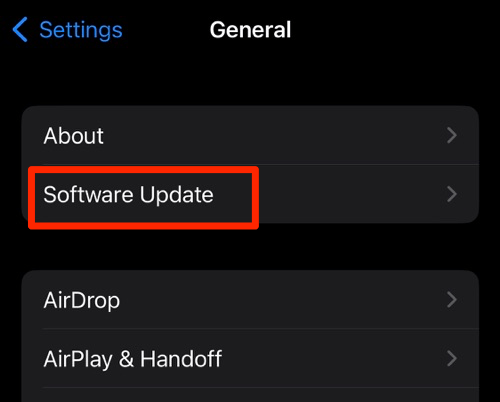 The device will automatically start looking for updates.
- Tap the button.
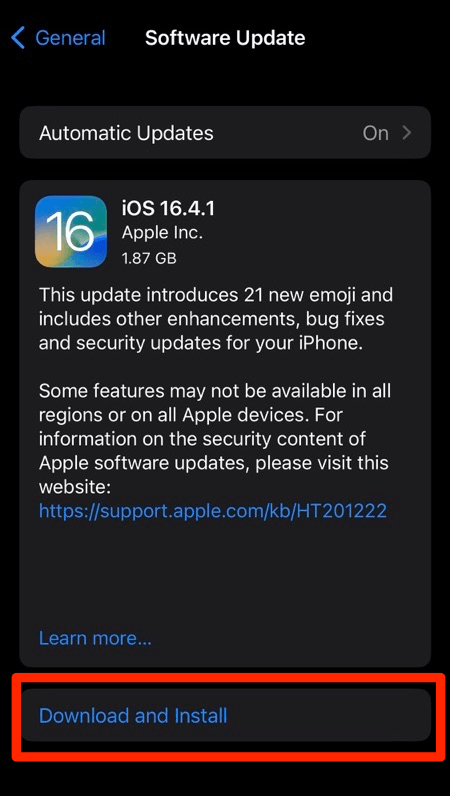 The update will download and install the latest Safari on your device, if available.
Open Discord and test sign-in and text chat. If the update resolves it, leave your other Safari settings exactly as they were.
Confirm Discord is working again
Run this list before you call it fixed. It separates a real repair from a lucky reload.
- The Discord home screen loads without a stuck spinner.
- You can sign in and send a message in a text channel.
- The sign-in window opens when Discord needs it.
- Voice calls connect through the desktop app, not Safari.
Only voice still broken? Nothing is wrong with your Safari setup. Discord voice does not run in browsers, so keep the desktop app for calls and Safari for text chat.
Frequently Asked Questions
Can I use Discord voice chat in Safari?
No. Discord voice chat does not work in web browsers, including Safari. Use the Discord desktop app for voice while Safari handles the web app and text chat.
Why does Discord get stuck loading in Safari?
Blocked pop-ups, blocked or stale cookies, extension interference, and Safari privacy controls are the usual causes. Work through the targeted checks before you clear all Safari website data.
Will clearing Safari cookies remove my Discord login?
Yes. Clearing cookies signs you out of Discord, and it may sign you out of other sites too if you clear data for all websites. Simply sign in again after the reset.
Do I need to turn off Prevent Cross-Site Tracking permanently?
No. Turn it off only for the short test described above, then turn it back on. If Discord remains blocked with the protection restored, use the desktop app if possible.
Why does Discord work after I clear Safari data?
A stale cookie or cached file was likely stopping the web app from loading or finishing sign-in. The reset clears that state, so you will need to sign in again.