Your file reaches 100% and Safari still refuses to open it. “Decompression Failed” usually means the archive arrived incomplete, or something in the browser interfered with the transfer.
Work through the checks in order: confirm the download finished, free up disk space, clear site data, then switch off content blockers and extensions. If the error survives all of that, update Safari before blaming the file.
In this guide, I have covered:
Contents
Your download finished, but Safari says “Decompression Failed”
Safari unpacks some downloads for you, ZIP archives included. When the transfer stops short, the saved file is damaged, or an extension interferes with the request, Safari cannot extract the contents and reports “Decompression Failed”.
Big files hit this more often than small ones. A multi-gigabyte archive stays on the wire far longer, so a dropped connection or an extension that cuts the request has more time to do damage.
Apple’s Safari troubleshooting discussion collects reports of the same error, along with checks involving site data, content blockers, extensions, and updates.
Work through the checks below in order, then retry the same file. Pulling a fresh partial copy over and over just repeats the failure.
Check the failed download first
Before you touch a single setting, look at what Safari actually saved. The download list shows the size and status of each file, which tells you whether the transfer finished at all.
- Press ++ to open the Safari downloads list.
- Select the failed download and check its displayed size and status.
- Delete the incomplete or failed copy before downloading the file again.
A file that finished downloading but still will not open points at the archive. A file stuck below its expected size points at the transfer.
You’ll know it worked when the new copy reaches full size and the archive extracts without a complaint.
Check that the Mac has room to unpack the file
A compressed archive and everything inside it both need somewhere to land. On a nearly full drive, Safari can fail at the unpacking stage even though the download itself completed.
- Open the Apple menu and select System Settings.
- Select General in the sidebar.
- Select Storage.
- Check that enough space is available for the download and its decompressed contents.
- Free space if necessary, then restart the failed download in Safari.
If the archive downloads and extracts after you free space, storage was the cause. Safari was fine all along.
Clear Safari cache and website data
Stale site data can leave Safari unable to finish a download request cleanly. Clearing it gives the next attempt a fresh start.
- Launch the Safari app on your Mac computer.
- Click on the Safari menu from the menu bar, and select the Settings... sub-menu.
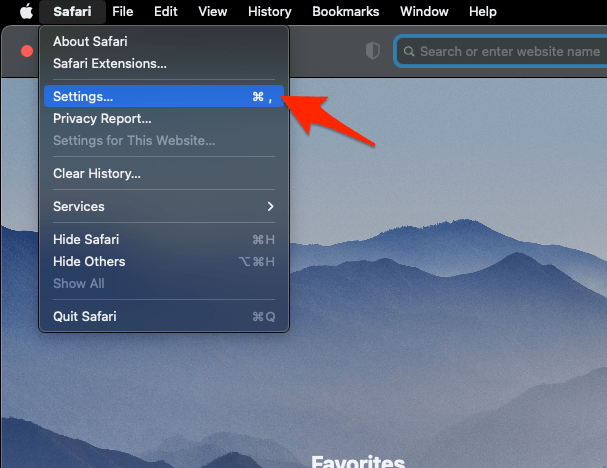 It will open the Safari Settings window.
- Switch to the Privacy tab, and click to open the button.
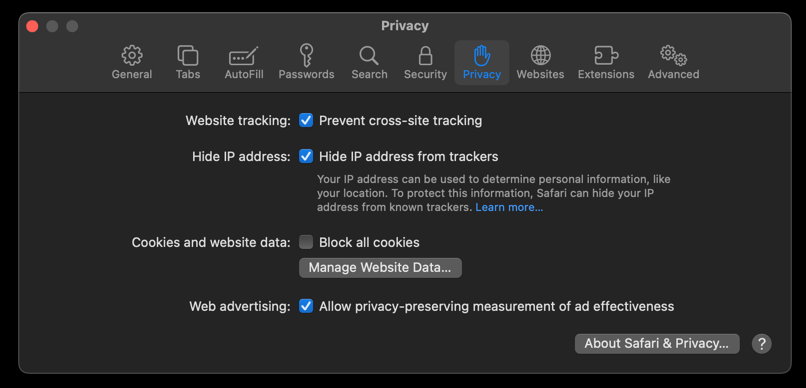 It will load the list of websites currently storing the cache and cookies in the browser.
- Hit on the command and then the button.
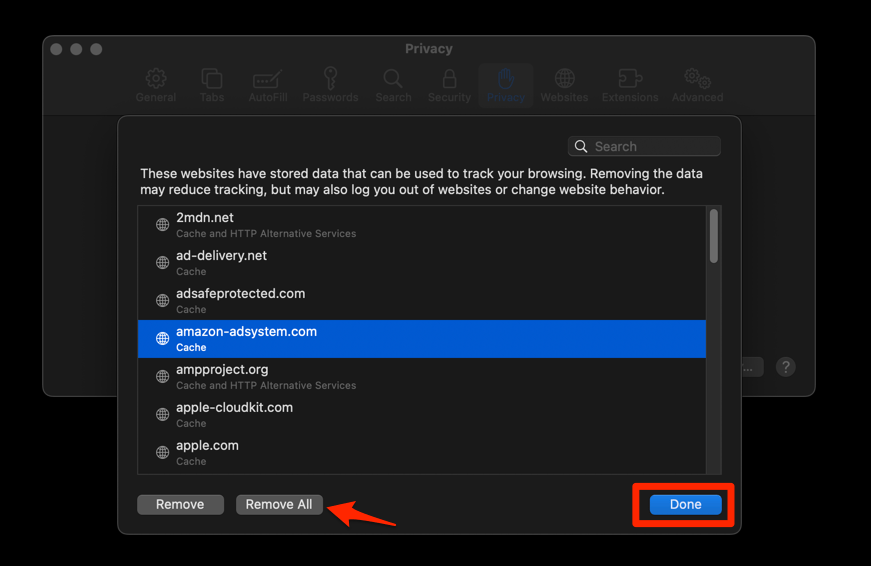 It will flush the cookies and cache for all sites in Safari.
Then return to the page that hosts the file and download it again. If the archive extracts this time, the stored site data was getting in the way.
If you would rather clear it by hand, clearing site and browsing data in Safari on Mac covers each step.
Turn content blockers off for a few minutes
A content blocker can stop the script that hands over a file, not just the ads. Switching blockers off briefly shows whether one of them is in the way.
- Open the Develop menu in the menu bar.
- Select Disable Content Blockers.
- Return to Safari and restart the failed download.
- Check whether the completed file decompresses normally.
If the error disappears, turn the blockers back on one at a time to find the culprit. Still disabled when the download succeeds? Re-enable them before you carry on browsing.

If the Develop menu is not visible, enable it in Safari’s advanced preferences before using Disable Content Blockers.
Disable Safari extensions temporarily
Download managers, privacy tools, and other extensions sit between Safari and the network. Any one of them can interrupt a long transfer.
- Launch the Apple Safari app on your Mac computer.
- Click on the Safari menu from the menu bar at the top, and select Settings... sub-menu.It will open the Safari Settings window.
- Switch to the Extensions tab in the Settings window.
It will display the list of all the Safari extensions installed. - Uncheck the checkbox in the left side pane to Disable the extension.
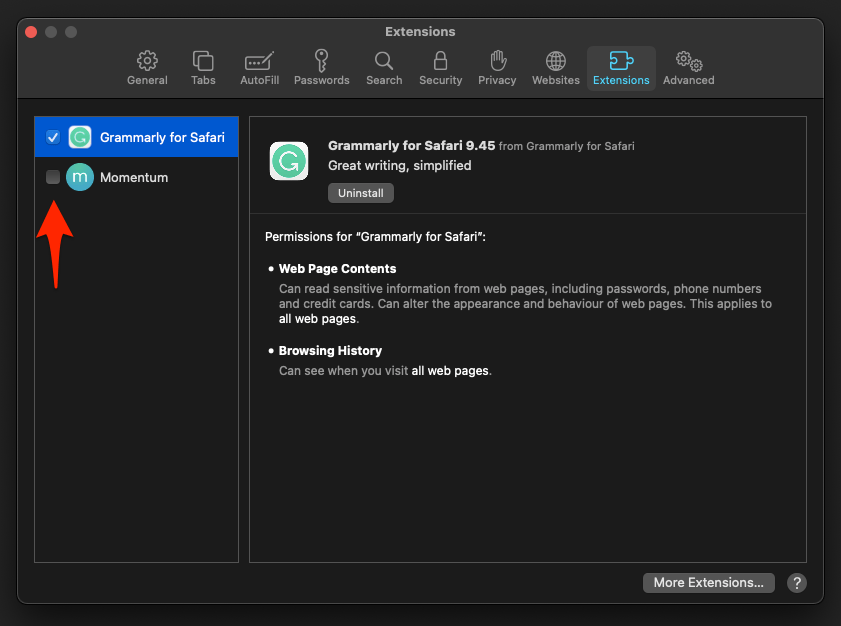
Retry the download with the extensions off. If it succeeds, switch them back on one at a time and retest after each one, so you catch the extension instead of guessing.
Clear Safari’s cache manually
Still failing after site data and extensions are handled? Safari’s own cached data may be the stale part.
- Open the Develop menu in the menu bar.
- Select Empty Cache.
- Quit and reopen Safari.
- Download the file again and check whether it opens and extracts.
If Empty Cache is grayed out or missing, skip this and move on to the next check. Changing unrelated settings here only adds variables.
Update Safari
An older Safari can carry download and decompression bugs that no amount of cache clearing fixes. Installing the available system updates is the safest repair left.
- Click on the Apple
 menu from the menu bar and select the System Settings... sub-menu.
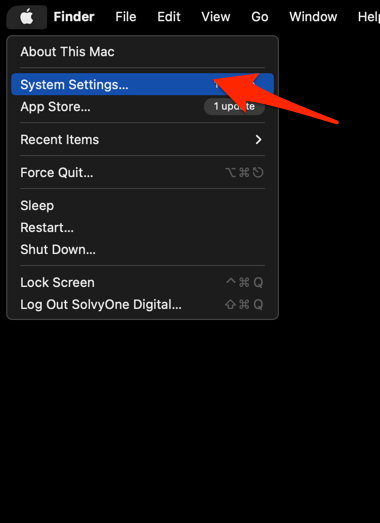 It will open the System Settings window.
- Select the General tab in the left sidebar, and choose the Software Update tab.
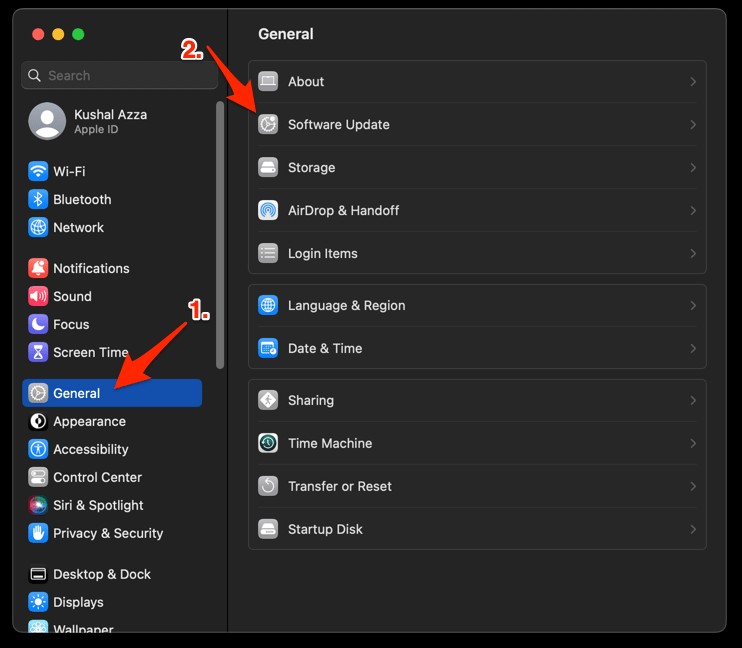 The macOS System will check for any available upgrades in the background.
- Click on the More Info... tab and enable the checkbox for Safari updates (if any are available).
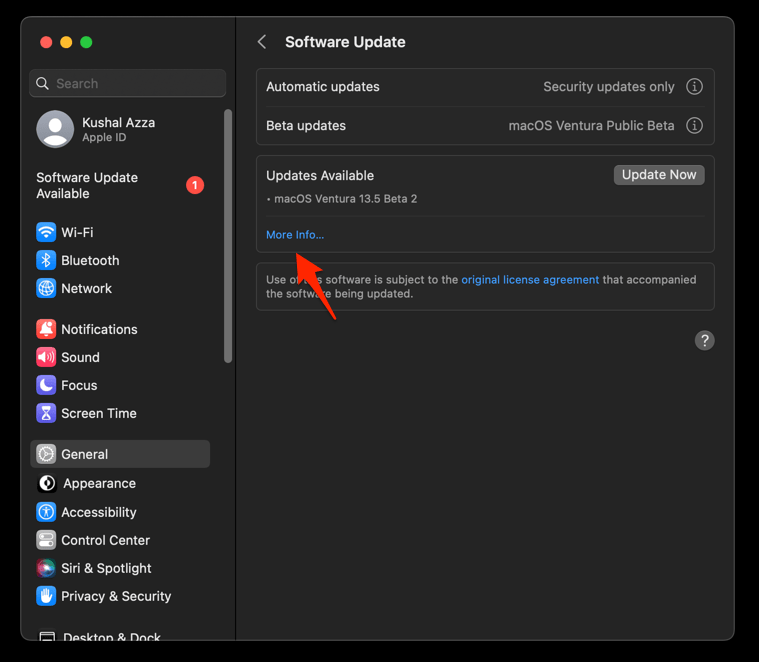
- Hit on the button.
It will update the Safari browser.
After the update, quit Safari completely, reopen it, and download the file again. You’ll know it worked when the new download finishes, opens, and decompresses with no error.
Restart the Mac after installing a macOS update if the same decompression error continues. That also helps when Safari settings changed but did not take effect during the update.
Last checks if the error remains
If every check above comes back clean, the problem probably is not on your Mac.
Confirm the source hands out a real archive rather than an HTML error page saved under a .zip name. Safari can only decompress a genuine archive, and an expired or redirected link often produces the same message.
Then try the download in a private Safari window with blockers and extensions still off. If it works there, re-enable your normal browsing data and permissions one piece at a time. Opening a private browsing window in Safari walks you through it.
If the file fails in private browsing too, and after clearing data, and after updating Safari, ask the site that hosts it. The source file may be incomplete or damaged, and no browser can rebuild missing bytes.

Frequently Asked Questions
Why does a large file fail to decompress in Safari?
Safari normally decompresses ZIP archives after downloading them. The error appears when the archive is incomplete or damaged, or when site data, content blockers, or extensions interfere with the download.
Does Safari have a maximum download size for large ZIP files?
We have not found a fixed Safari download-size limit. Failures usually trace back to the file, the connection, free storage on the Mac, or an interfering browser feature.
Should I delete the failed download before trying again?
Yes. Removing the incomplete copy stops you from opening or testing the same damaged file by mistake. Download it again only after you check storage and finish the relevant troubleshooting steps.
Will clearing cookies and website data delete my downloaded files?
No. Clearing Safari’s cached website data removes stored site information, not files already saved to your Mac. Check that a new download finishes and extracts before you change anything else.