You scroll down a long page in Safari and there is no scroll bar to grab. Nothing is wrong with the browser: macOS is set to keep scroll bars out of sight until you start moving the page.
Open System Settings, go to Appearance, find Show scroll bars, and switch it to Always. If the bar is still missing on one site only, test your Safari extensions next.
In this guide, I have covered:
Contents
Why Safari Hides Scroll Bars on a Mac
You open a long page in Safari, look for the scroll bar, and it isn’t there. Nothing is broken. macOS keeps scroll bars out of view until you start scrolling, and Safari follows that system preference.
If the display preference is set to Automatically based on mouse or trackpad or When scrolling, Safari may show no scroll bar at all while a page sits still.
This is a system-wide macOS appearance setting, not a Safari website setting. Changing it affects scroll bars in Safari and in other apps that use the standard macOS control.
The same symptom came up in an Apple support community discussion, though the current macOS Appearance control is the most direct place to check.
Make Scroll Bars Always Visible in Safari
You want the scroll bar to stay put instead of fading in and out. Set macOS to show scroll bars continuously, then go back to Safari and open a page that runs past the bottom of the window.
- Open the Apple menu, then choose System Settings.
- Select Appearance in the sidebar.
- Find the Show scroll bars setting.
- Select Always from the scroll bar menu.
- Switch back to Safari and open a page that is longer than the browser window.
- Scroll down with the mouse or trackpad and confirm that a scroll bar remains visible.
You’ll know it worked when a scroll bar stays beside the page content even while you sit still and do not scroll.

The same Appearance pane also includes Click in the scroll bar to. Its options are Jump to the next page and Jump to the spot that’s clicked. This changes scroll bar behavior, but it does not control whether scroll bars are visible.
Check the Other macOS Scroll Bar Modes
Maybe you don’t want a permanent scroll bar taking up screen space on every page. macOS offers two lighter modes, and both are worth understanding before you choose one.
- Open System Settings → Appearance.
- Locate Show scroll bars.
- Select Automatically based on mouse or trackpad to hide scroll bars until you start scrolling when the device supports gestures.
- Select When scrolling to keep scroll bars hidden until scrolling begins.
- Return to Safari and test the selected behavior on a long page.
With either of these modes, the scroll bar may appear briefly after you scroll and then fade again. That is expected behavior, even if the bar is invisible while the page is idle.
On older macOS releases, the equivalent setting may appear under System Preferences → General. If System Settings has no Appearance section, check the General pane instead.
Test Whether Every Website Is Affected
One page with no scroll bar is a different problem from every page with no scroll bar. Work out which one you have before you change anything else.
- Open a new Safari tab.
- Go to a different website that you know contains a long page.
- Scroll down and check whether a scroll bar appears.
- Return to the original website and check its scrolling behavior again.
If scroll bars appear normally elsewhere, the missing bar is likely a page-specific rendering or display problem. If they are gone everywhere, continue with the macOS setting and the extension checks below.
Disable Safari Extensions to Test for Interference
Safari extensions can change how a site looks and behaves, scroll bars included. Turning them off for a few minutes tells you whether one of them is responsible.
- Launch the Apple Safari app on your Mac computer.
- Click on the Safari menu from the menu bar at the top, and select Settings... sub-menu.
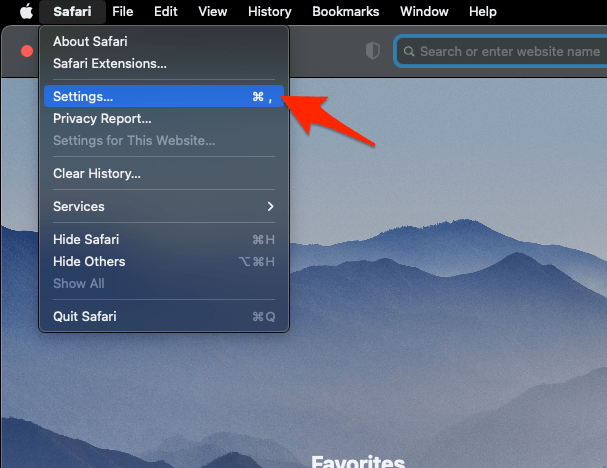 It will open the Safari Settings window.
- Switch to the Extensions tab in the Settings window.
It will display the list of all the Safari extensions installed. - Uncheck the checkbox in the left side pane to Disable the extension.
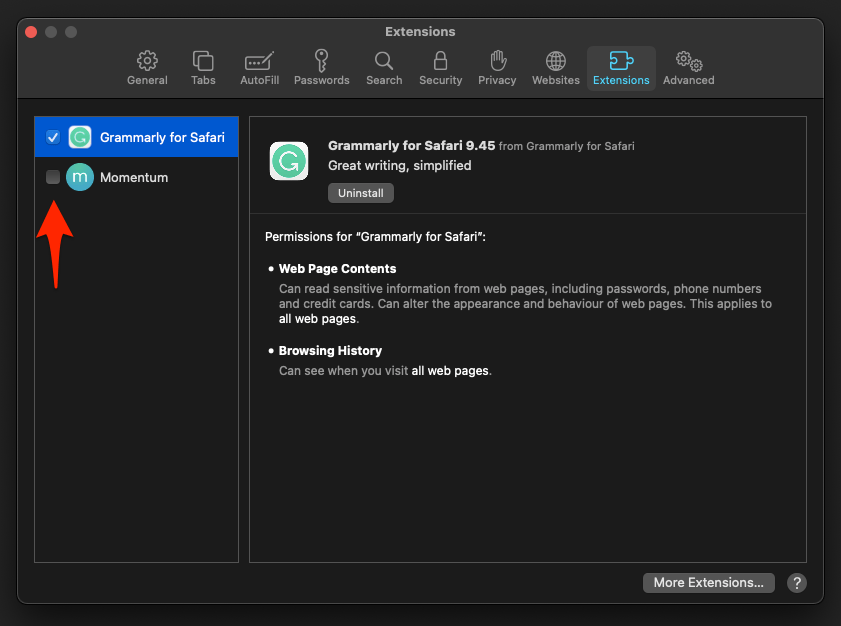
You’ll know it worked when the scroll bar comes back on the affected page with the extensions off. Reload the page to confirm, then re-enable them one at a time to narrow down which one is doing it.
- Open Safari → Settings.
- Select Extensions.
- Turn on one extension at a time.
- Reload the affected page after each change.
- Disable the extension again if the missing scroll bar returns.

TIP: Add the affected website to each extension’s allowed-site list if the extension offers that option. The extension keeps working everywhere else, but stops changing that one page.
Restart Safari and Recheck the Display
You set Show scroll bars to Always and the bar is still missing. Restart Safari so it picks up the current display state and the extension changes you just made.
- Quit Safari with +.
- Open Safari again from the Dock or Applications folder.
- Open a page that extends below the browser window.
- Check for a visible scroll bar without scrolling first.
If the bar is still gone, open another app with a scrollable window and compare. That tells you whether the problem is Safari alone or macOS itself.
Reset Safari if the Problem Still Continues
Nothing above brought the scroll bar back, so resetting Safari is what’s left. Make it the last step: a reset can clear Safari preferences, website data, and other saved configuration.
Follow the guide to reset the Safari browser on Mac and iPhone or iPad for the full process, and check that your bookmarks and passwords are available before you start.
If the scroll bar returns after the reset, the cause was a Safari configuration rather than the site. If it still vanishes on one page only, that page is the place to look next.

Frequently Asked Questions
Where is the Show scroll bars setting on my Mac?
Open the Apple menu and choose System Settings, then select Appearance. The Show scroll bars setting sits in that pane.
Why do Safari scroll bars appear only while I am scrolling?
Safari is following the macOS Automatically based on mouse or trackpad or When scrolling display mode. Select Always in Appearance if you want scroll bars to stay visible.
Does setting Always show scroll bars affect only Safari?
No. The Show scroll bars option is a macOS appearance preference, so it can affect scroll bars in Safari and in other apps that use standard macOS controls.
Can a Safari extension hide a website’s scroll bar?
An extension can alter how a website is displayed or behaves. Disabling extensions and re-enabling them one at a time shows whether one is affecting the page.
What should I check if only one website has no scroll bar?
Compare the page with another long website in a new tab. If the other page scrolls normally, check the affected website’s content and any extensions allowed to run on it.