Safari can drop search terms, bookmarks, recently visited pages, and suggested links into the address bar or Start Page. Most of what looks like an unwanted destination comes from one of those four sources.
On a Mac, turn off the two suggestion switches, stop background preloading, and hide the Start Page. Remove a bookmark or clear history only when a specific saved item is still appearing.
In this guide, I have covered:
Contents
Turn Off Safari Link Suggestions in the Address Bar
You start typing a few letters and Safari drops a list of links under the address bar. Some you recognize. Some you never asked for.
Those suggestions pull from several sources at once: your default search engine, Safari Suggestions, bookmarks, and pages you visited recently. Turning off both suggestion switches and stopping Safari from preloading its top result clears most of the noise. Whatever survives that is usually a saved bookmark or a history entry, and each one has its own fix.
- Open Safari on your Mac.
- Choose Settings… from the Safari menu in the macOS menu bar.
- Select the Search pane in the left sidebar.
- Turn off Include search engine suggestions.
- Turn off Include Safari Suggestions.
- Turn off Preload Top Hit in the background.
Close the Settings window, click the address bar, and type a few letters. You’ll know it worked when the list stays short: no search-engine guesses, no Safari Suggestions, and no page quietly loading behind the scenes.

Turning off search engine suggestions does not change your default search engine. Safari still runs a search when you type a term and press .

TIP: If a suggestion jumps into an app instead of opening a website, that is a separate behavior. See how to stop Safari from opening the app version of websites.
Hide the Safari Start Page and Its Suggested Links
You open a new tab and the window fills with tiles for sites you never chose. The Start Page does that on its own, even after address-bar suggestions are off.
- Choose Settings… from the Safari menu in the macOS menu bar.
- Select the Search pane in the left sidebar.
- Turn off Show Start Page.
- Open a new Safari tab to confirm that the suggested Start Page is gone.
You’ll know it worked when a fresh tab opens blank, or shows your plain new-tab view with no suggestion tiles on it.
Remove a Specific Unwanted Bookmark
One link keeps appearing even though both switches are off. That usually means it is saved as a bookmark, and Safari will keep offering it until you delete it.
- Open the Safari sidebar and select Bookmarks.
- Locate the unwanted bookmark.
- Control-click the bookmark and choose Delete Bookmark.
- Close the sidebar and type part of the bookmarked name in the address bar.
You’ll know it worked when that name no longer produces a match. No restart is needed if it disappears straight away.
Remove Recently Visited Sites From Suggestions
Safari keeps offering a page you opened once and never meant to return to. Recent history is one of the sources it draws on, so clearing that history removes the source entirely.
Check your bookmarks first. Clearing history wipes the browsing record for the period you pick, and there is no undo.
- Open the Safari app on your Mac.
- Click on the History and select Clear History from the menubar.
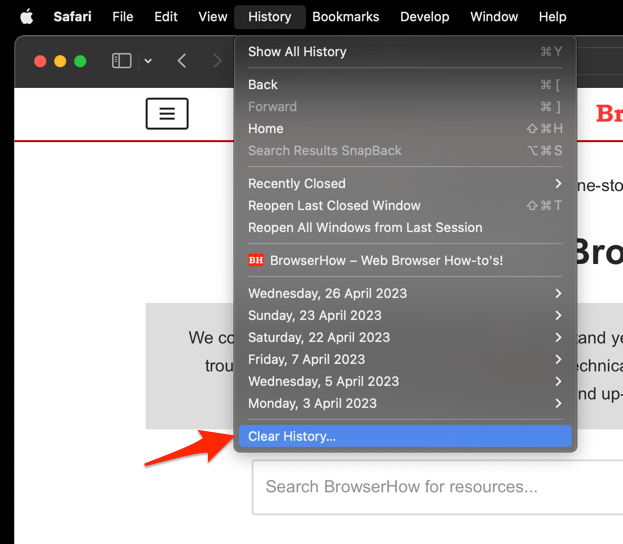 It will open the clear history pop-up window.
- Select the Time Range from the drop-down and hit on the command button.
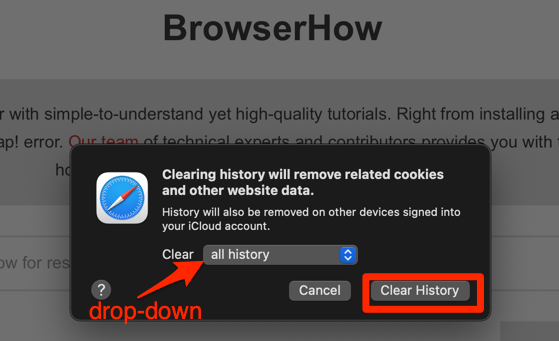 That's it, the browsing history will be removed from the selected range.
You’ll know it worked when you reopen the address bar, type the site name, and the recent-page entry is gone. If it still shows up, the culprit is a bookmark rather than local history.

ALERT: Clearing browsing history removes the selected history from this Mac. It does not delete bookmarks, saved passwords, or information stored in your iCloud account.
Adjust the Same Suggestions on iPhone and iPad
You want the same quiet address bar on your iPhone or iPad. The controls exist there too, though the path has changed in recent iOS versions.
Apple now places Safari under Apps, then Safari, rather than directly in the main Settings list. Apple’s guide to searching for websites in Safari lists the matching controls.
- Open Settings on your iPhone or iPad.
- Select Apps, then Safari.
- Turn off Search Engine Suggestions.
- Turn off Show Recent Searches.
- Open Safari and type in the address bar to confirm that the suggestions have stopped.
If you want to compare behavior without changing your normal setup, open a private tab. Its start page may differ from a regular window, so treat that as a quick check rather than the fix itself.
For a wider pass on those devices, these privacy and security settings in Safari cover more than suggestions alone.
If Safari Still Shows Unwanted Links
Both switches are off and something still shows up. Go back through the settings before you clear anything, because one missed toggle explains most cases.
Open Safari Settings, select Search, and confirm that Include search engine suggestions, Include Safari Suggestions, Preload Top Hit in the background, and Show Start Page are all off.
If the list is still there, the item is coming from a bookmark or from history. Remove the bookmark first. Clearing history is the heavier step, so save it for last. Restart Safari if an old list refuses to leave the screen after a settings change.
To see how Safari handles new tabs and private windows on those devices, read open new tabs and private tabs in Safari on iPhone and iPad.

Frequently Asked Questions
Short answers to the questions that come up most often after these changes.
How do I turn off Safari suggestions in the address bar?
Open Safari Settings, select Search, and turn off Include search engine suggestions and Include Safari Suggestions. Then turn off Preload Top Hit in the background so the top result stops loading before you pick it.
Will disabling Safari suggestions delete my bookmarks or history?
No. Those switches only control which suggestions Safari offers. Bookmarks and history stay put until you remove them yourself.
Why do old links still appear after I turn off Safari Suggestions?
A matching bookmark or a recently visited page can still show up as an address-bar result. Delete the bookmark or clear the relevant history, then restart Safari if the old list hangs around.
How do I hide suggested websites on Safari’s Start Page?
Open Safari Settings, select Search, and turn off Show Start Page. Open a new tab to confirm the tiles are gone.
Can I keep search suggestions but remove one unwanted link?
Yes, if it is a bookmark. Delete it from the Bookmarks sidebar. If it comes from a recently visited page, clear that history entry or clear history for the relevant period.