Microsoft 365 can sit on a blank page, loop back to sign-in, or refuse to open an Office app when Safari blocks website data or an extension gets in the way.
Start with a Private window test, then check Safari permissions, extensions, cached data, DNS, and updates. Each check includes a quick way to confirm whether Microsoft 365 is working again.
In this guide, I have covered:
Contents
Microsoft 365 Is Failing in Safari: Pin Down the Symptom First
You open Word, Excel, or another Microsoft 365 app in Safari and get a blank page, a sign-in loop, or a download that never starts. The symptom matters because it points to a different cause before you reset browser data.
One failing app usually means an account or app-specific access problem. Every Microsoft service failing in Safari points to permissions, extensions, site data, or the network.
These checks are for Safari on macOS. Work through them in order, and stop as soon as Microsoft 365 works again.
Run a Quick Isolation Test
Before you change a single Safari setting, find out whether the failure follows Safari or your account. A Private window gives you a fresh Safari session. A second browser shows whether the problem follows the account or the service.
- Open the affected Microsoft 365 page in Safari.
- Press ++ to reload the page without using cached files.
- Open a new Private window with ++.
- Try the same Microsoft 365 service in the Private window.
- Open the same service in another browser on the same Mac.
If the page works in the Private window, extensions and stored website data move to the top of the list. If it fails everywhere, check the Microsoft account, organization access, or service health instead.
Check Safari Permissions for the Microsoft Site
Safari may block cookies, cross-site tracking, fingerprinting, or a sign-in pop-up while you log in to Microsoft 365. When the page stalls or loops back to sign-in, check these permissions before you clear anything.
- Open Safari → Settings… → Privacy & Security.
- Review Block all cookies, Prevent cross-site tracking, and Prevent fingerprinting.
- If one control is clearly blocking the sign-in flow, turn it off for the test.
- Reload the Microsoft 365 sign-in page.
- Open Safari → Settings… → Websites → Pop-up Windows.
- Select the affected Microsoft site in the list.
- Set its option to Allow if Safari blocked a sign-in pop-up.
- Reload the page and check whether the Microsoft 365 app opens.
- Restore the broad privacy control unless you have confirmed that it is required.
If the site is not listed under Pop-up Windows, open the Microsoft sign-in page and choose Settings for This Website… from the Safari menu. Review its permissions, then repeat the test.

Restore any broad privacy controls after the test. If those settings are managed by your organization, do not bypass the policy. Ask the administrator to check the Safari access rules.
Allow a Blocked Microsoft Download
Sign-in works, the app opens, but the file will not download? That points to Safari’s per-site download permission. Change it only for the Microsoft site offering the file.
- Open Safari → Settings… → Websites → Downloads.
- Select the affected Microsoft site in the list.
- Set its download option to Allow.
- Retry the download.
If the retry succeeds, Safari had blocked the file. If it still fails, continue with the extension and account checks.
Disable Safari Extensions for the Test
Ad blockers, privacy tools, and content-filtering extensions can break Microsoft 365 scripts or downloads. Turn them off long enough to test, then turn them back on. A browser without your usual extensions is not a browser you want to keep using.
- Launch the Apple Safari app on your Mac computer.
- Click on the Safari menu from the menu bar at the top, and select Settings... sub-menu.
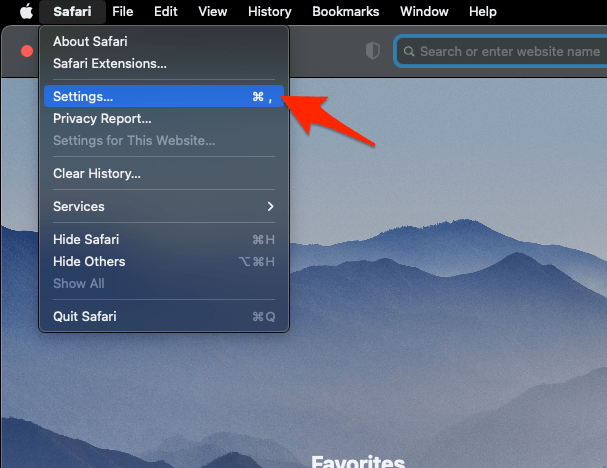 It will open the Safari Settings window.
- Switch to the Extensions tab in the Settings window.
It will display the list of all the Safari extensions installed. - Uncheck the checkbox in the left side pane to Disable the extension.
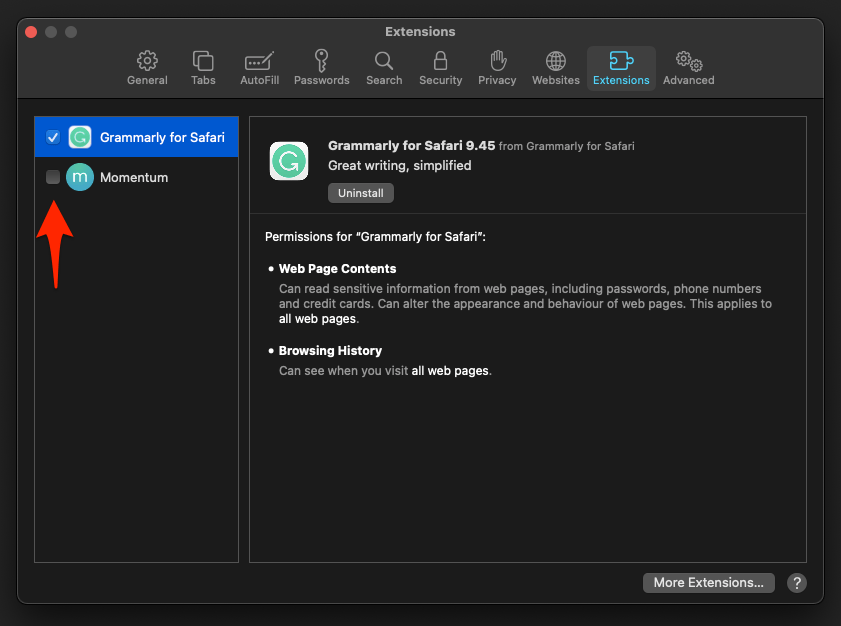
Try the affected page with extensions off. If it starts working, re-enable one extension at a time to find the conflict. The individual controls are covered in Enable or Disable Browser Extensions on Apple Safari.
Clear Safari Cookies and Cached Website Data
If Microsoft 365 gets stuck after a sign-in or password change, stale cookies and cached site data are a likely cause. The reset below clears data for all websites, so be ready to sign in again.
- Launch the Safari app on your Mac computer.
- Click on the Safari menu from the menu bar, and select the Settings... sub-menu. It will open the Safari Settings window.
- Switch to the Privacy tab, and click to open the button.
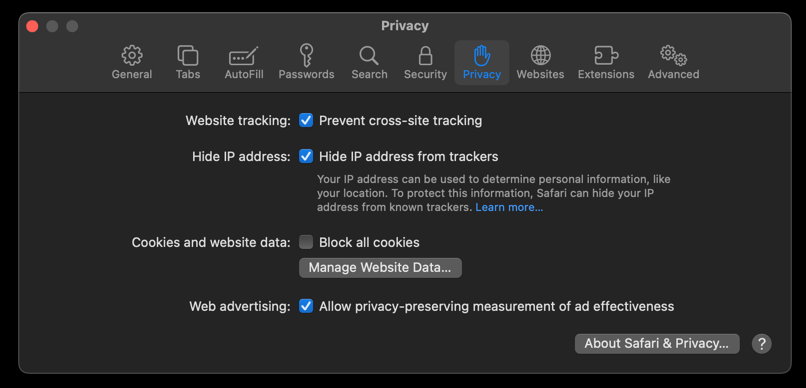 It will load the list of websites currently storing the cache and cookies in the browser.
- Hit on the command and then the button.
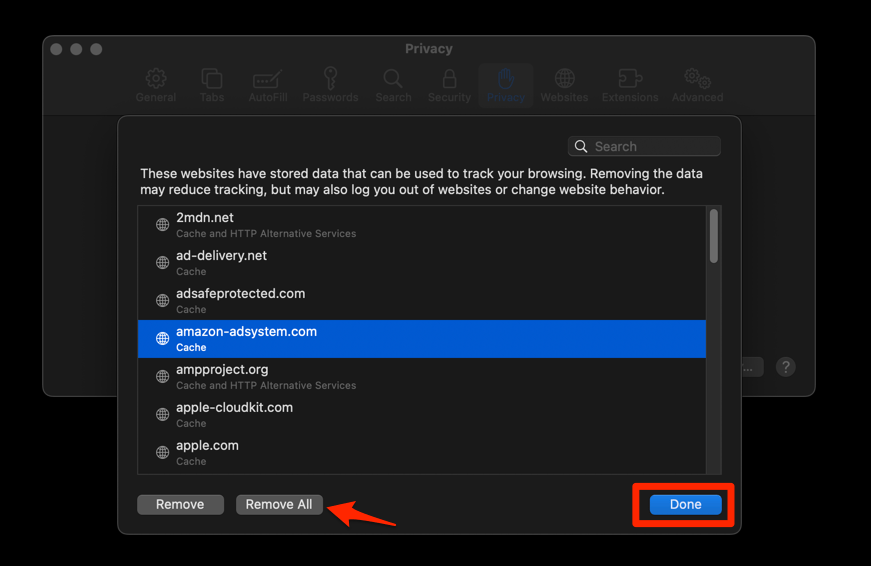 It will flush the cookies and cache for all sites in Safari.
Return to Microsoft 365, sign in again, and confirm that the affected app loads. If sign-in succeeds but the app still fails, continue with the network check.
Clearing all Safari website data can sign you out of Microsoft 365 and other services. Sign back in after the reset.
Clear Stale DNS Information
Microsoft 365 fails before the page even loads, and another browser shows the same failure? The Mac may be resolving the address incorrectly. Clear the stale DNS information, then reload Safari.
- Open the Apple Safari app on your Mac, and select Safari > Settings... from the menu bar.It will open the Safari Settings window.
- Switch to the Advanced tab, and enable the checkbox for the Show Develop menu in the menu bar option.
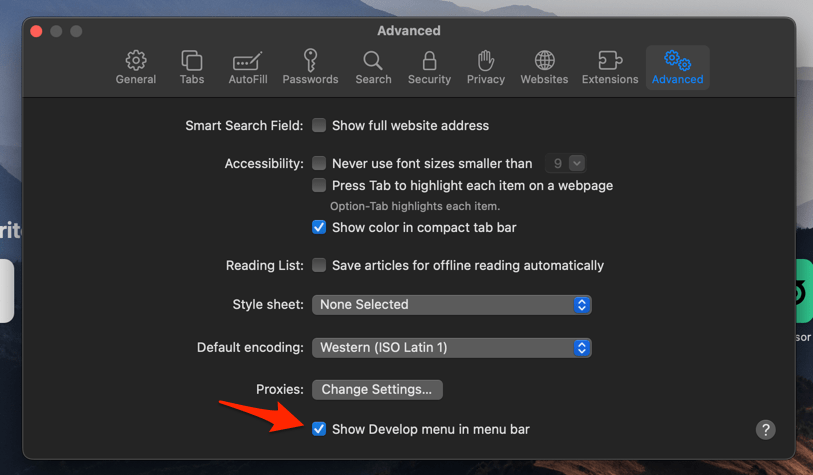 It will enable a new Develop menu in the Safari menu bar.
- Click on the Develop menu and select the Empty Caches command.
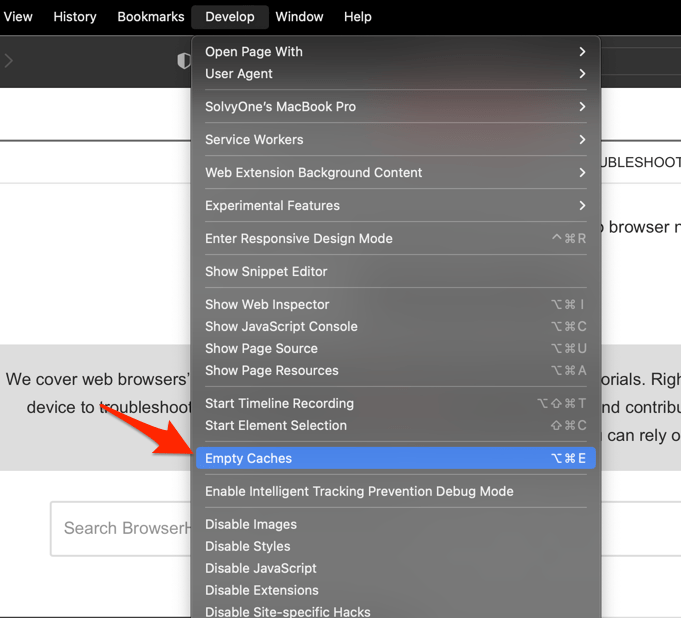 It will clear all cache, including the Safari DNS host cache.
Test the affected Microsoft 365 address again. For the complete reset and verification, see Clear DNS Cache in the Apple Safari browser.
Update Safari on the Mac
An outdated Safari can fail on Microsoft 365 pages that depend on newer web features. Install any available Safari update before you change account settings.
- Click on the Apple
 menu from the menu bar and select the System Settings... sub-menu.
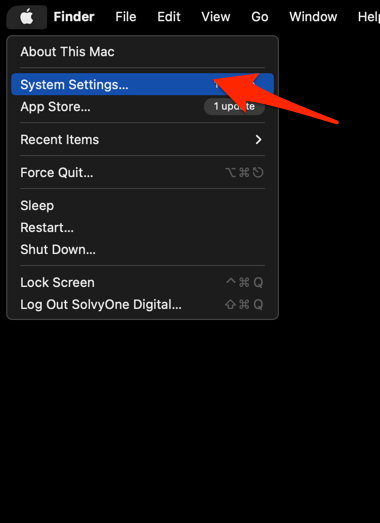 It will open the System Settings window.
- Select the General tab in the left sidebar, and choose the Software Update tab.
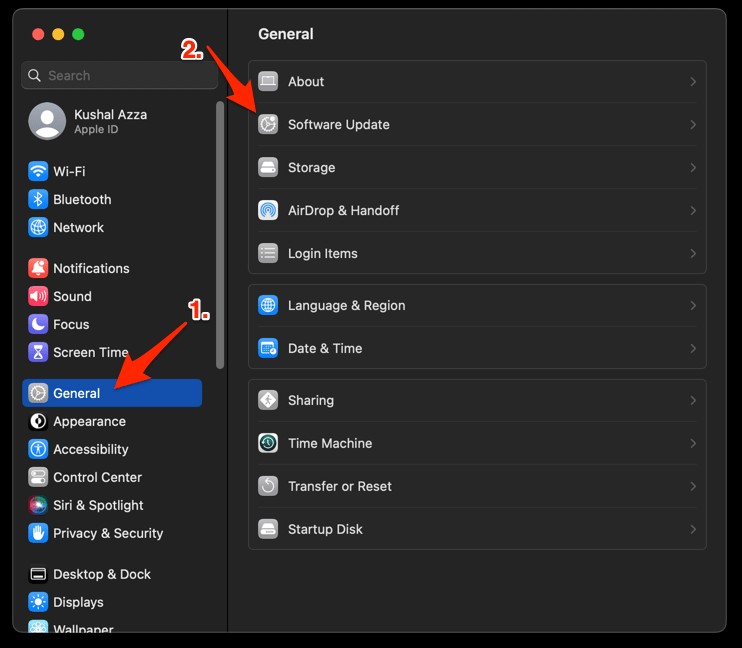 The macOS System will check for any available upgrades in the background.
- Click on the More Info... tab and enable the checkbox for Safari updates (if any are available).
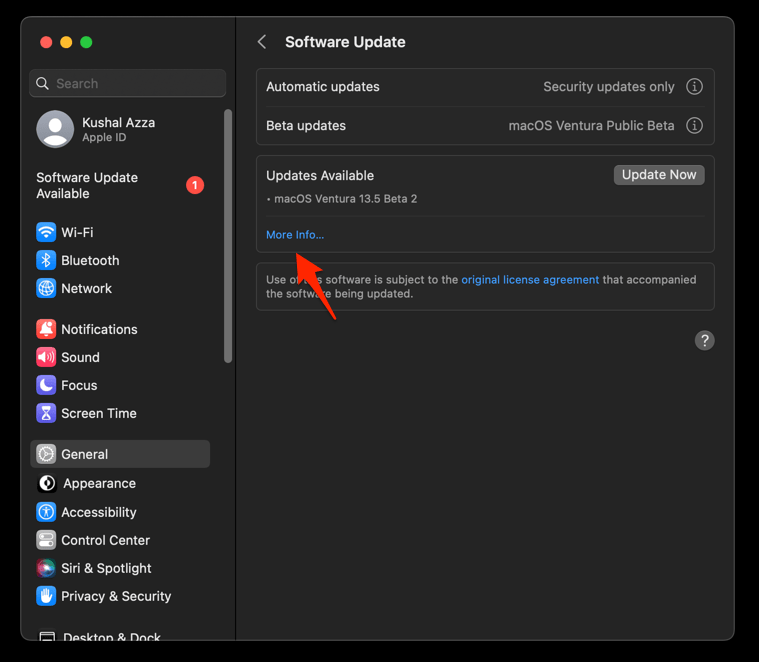
- Hit on the button.
It will update the Safari browser.
Restart Safari, open the affected Microsoft 365 service, and confirm that sign-in and the app work. No update available? Continue with the account checks below.
Separate an Account Problem from a Safari Problem
If the Private window and a second browser both fail, the problem is probably not a Safari setting. At that point, check the account, organization access, and Microsoft service health before changing anything else.
- Sign out of Microsoft 365 in Safari.
- Sign in again with the same account.
- Open the affected service and confirm whether it now works.
- Sign in with a different personal Microsoft account in a Private window.
- Open the affected service and note whether the result changes.
- Check the service-health information Microsoft publishes for the affected app.
- If the account is managed by an organization, ask its administrator whether Safari access is allowed for Microsoft 365.
If another account works but the original fails, focus on that account or its administrator. If every account fails at the same time, wait for service recovery or contact Microsoft support.
What to Try If the Problem Remains
You have tried the Safari fixes, restored your settings, and Microsoft 365 still will not cooperate. Before you change more, restart Safari, compare the failure across a second browser and network, and write down the exact error.
- Quit Safari with +.
- Reopen Safari.
- Open the affected Microsoft 365 service.
- Connect the Mac to a different network and try the service again if it failed in every browser.
- Restore any broad privacy controls that you changed only for testing.
- Record the exact error message and whether the failure repeats in a Private window.
- Use those details when contacting Microsoft support or your organization administrator.
If only Safari is affected, the evidence points to Safari settings, extensions, site data, or the network. If every browser, network, and account fails, treat it as a Microsoft service or account issue rather than a Safari-only problem.
Bring that distinction to support. It saves a round of guessing.

Frequently Asked Questions
Does clearing Safari data sign me out of Microsoft 365?
Yes. Clearing Safari cookies removes the sign-in session for Microsoft 365 and other sites, so you will need to sign in again. It also clears cached website data for all sites.
Why does Microsoft 365 work in a Private window?
A Private window separates the test from your normal Safari session, so saved site data or an extension is a likely culprit. If the Private window works, test those two items next.
Should I leave cross-site tracking protection disabled?
No. Turn it off only long enough to test whether it blocks the sign-in flow, then restore it unless you have confirmed that it is required.
How can I tell if the fault is in Safari?
If Microsoft 365 fails only in Safari but works in a Private window or another browser, the fault is likely in Safari’s settings, extensions, or site data. If it fails the same way in every browser and account, investigate Microsoft service health or account access.
What if Microsoft 365 still will not load after these fixes?
Restart Safari, restore any temporary privacy changes, and test the same account and app in another browser. Use the error message and comparison results when you contact Microsoft support or your organization administrator.