Instagram can break in Safari even when the app and other browsers work fine. A blank feed, endless spinner, or repeated sign-in screen usually points to cookies, tracking protection, extensions, or stale website data.
Start with a service and network check. Then update Safari, test a Private Browsing window, review privacy settings, disable extensions, and clear Instagram's website data. Mac and iPhone steps are included.
In this guide, I have covered:
Contents
Instagram fails only in Safari: find the cause
Instagram opens to a blank feed in Safari while the app works fine on your phone? The steps below cover the Instagram website in Safari, not the native Instagram app.
A blank feed, endless spinner, missing images, repeated sign-in screen, or failed upload usually points to site data, privacy controls, extensions, JavaScript, the network, or a temporary service problem. It rarely means Safari itself is broken.
- Open Instagram in a new Safari tab and note which parts fail: feed, images, sign-in form, or publishing controls.
- Open a different site in Safari to confirm the browser has a working connection.
- Open Instagram in another browser or on another device on the same network.
- Switch to a different network, such as mobile data or another Wi-Fi connection.
- Open Instagram again.
If Instagram fails in every browser and on every device, the service or your account is more likely than Safari. Keep going here if Instagram works elsewhere but fails only in Safari.
Test Instagram in a Private Browsing window
Does Instagram fail in your normal Safari window even though the browser seems fine otherwise? A Private Browsing window uses a separate session and fresh site data, which makes it a quick diagnostic.
- Open the File menu in the macOS menu bar.
- Select New Private Window.
- Open Instagram in that window.
- Test the feed, images, and sign-in form.
If Instagram still fails in private mode, the network, account, or service is more likely. If it works, the problem sits in your normal Safari profile, so check Instagram’s website data and Safari extensions next.

TIP: A Private Browsing window that works narrows the problem to your normal Safari profile. Check Instagram’s website data and extensions before you reset Safari.
Update Safari on Mac
Is Safari behind on updates? Update it before you change privacy settings or delete website data. That is the fastest way to rule out a browser bug that Apple already fixed.
- Click on the Apple
 menu from the menu bar and select the System Settings... sub-menu.
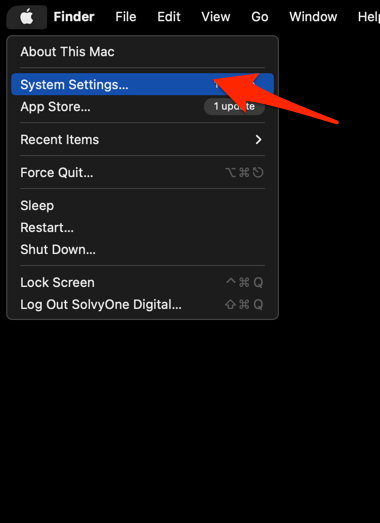 It will open the System Settings window.
- Select the General tab in the left sidebar, and choose the Software Update tab.
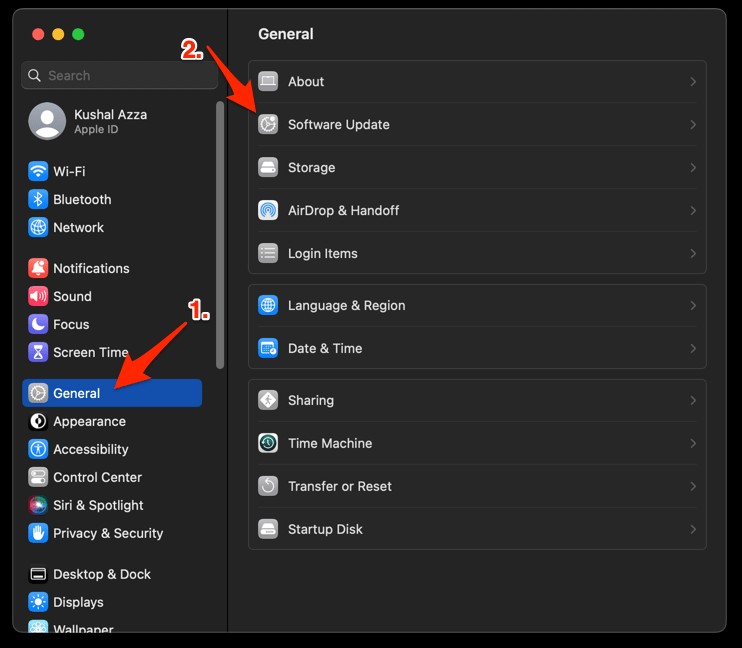 The macOS System will check for any available upgrades in the background.
- Click on the More Info... tab and enable the checkbox for Safari updates (if any are available).
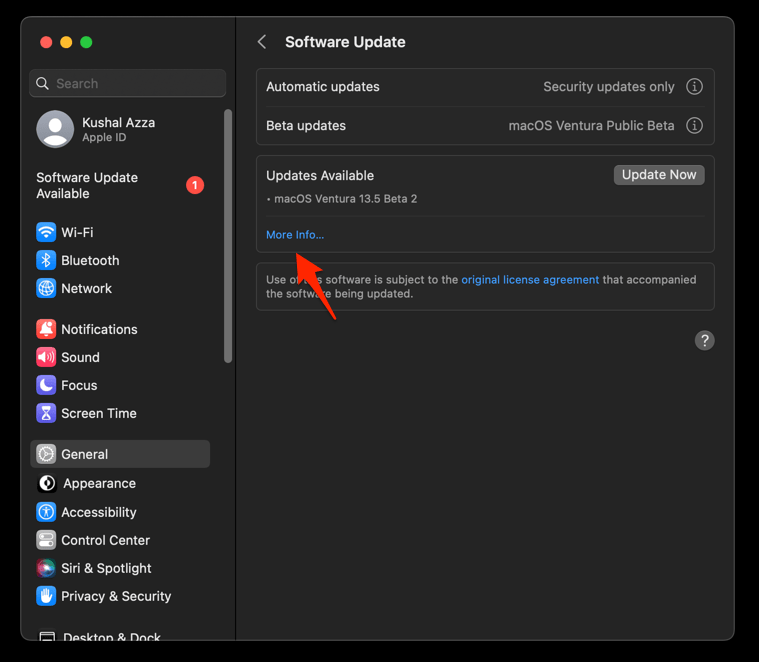
- Hit on the button.
It will update the Safari browser.
You’ll know it worked when Instagram loads after the update and the feed, images, and sign-in form behave normally. If the failure remains, continue with the checks below.
Allow cookies in Safari on Mac
Does Instagram keep returning you to the sign-in screen or leave the feed blank? Instagram needs cookies for sign-in and normal site state. Test with the global cookie block turned off.
- Open Safari > Settings… from the menu bar.
- Select the Privacy tab.
- Select Advanced Settings.
- Turn off Block All Cookies if it is enabled.
- Close the settings window.
- Reload Instagram.
- Test the feed, images, and sign-in form.
If the page starts working, the global cookie block was interfering with Instagram. Leave the setting off only if you understand that it affects every website you open in Safari.

Block All Cookies is a global setting. If you turn it back on, Instagram sign-in may fail again. Use it as a diagnostic unless you intend to allow cookies across websites.
Test cross-site tracking for embedded posts on Mac
Is only an embedded Instagram post blank while instagram.com works? Then cross-site tracking protection is the setting to test. Embedded posts can depend on third-party content that Safari handles differently.
- Open Safari > Settings….
- Select the Privacy tab.
- Turn off Prevent cross-site tracking.
- Reload the page containing the Instagram embed.
- Turn Prevent cross-site tracking back on after the test.
If the embed appears with protection off, that page’s third-party content conflicts with the setting. If the main Instagram site also fails, keep checking cookies, extensions, and website data.
Check JavaScript on Mac
Does the Instagram page load but ignore your taps and clicks? Its feed and publishing controls rely on JavaScript. Safari normally enables it, but a developer setting or testing profile can leave it switched off.
- Open Safari > Settings….
- Select Advanced, or Developer if that is the tab your Mac displays.
- Turn on Show features for web developers if the option is present.
- Open the Develop menu in the macOS menu bar.
- If Disable JavaScript is checked, select it once to turn JavaScript back on.
- Reload Instagram.
- Test the feed, images, and publishing controls.
The feed should scroll and the buttons should respond. If JavaScript was already on, leave it unchanged and continue with the next check.
Turn off Safari extensions on Mac
Did Instagram break after you installed an ad blocker, privacy tool, or script blocker? Safari extensions can stop Instagram from loading. Turn them off temporarily to find the cause.
- Launch the Apple Safari app on your Mac computer.
- Click on the Safari menu from the menu bar at the top, and select Settings... sub-menu.
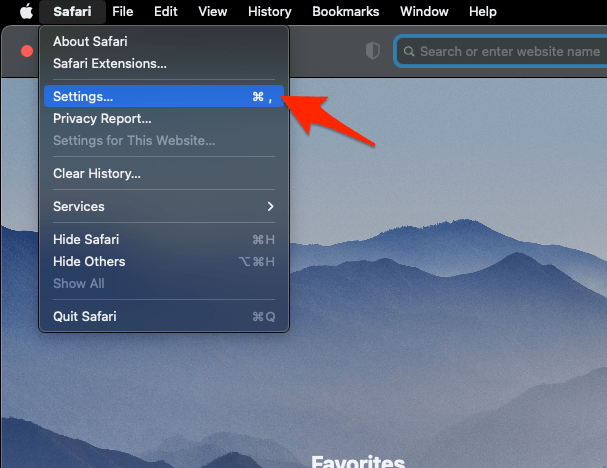 It will open the Safari Settings window.
- Switch to the Extensions tab in the Settings window.
It will display the list of all the Safari extensions installed. - Uncheck the checkbox in the left side pane to Disable the extension.
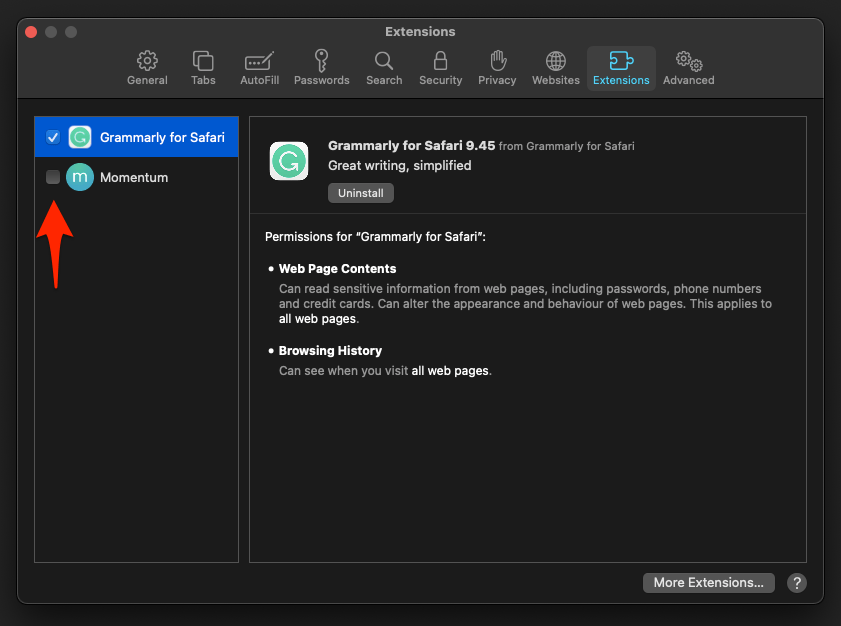
You’ll know it worked when Instagram loads with extensions disabled. If it does, re-enable the extensions one at a time to find the blocker. If nothing changes, turn them back on and continue with website data.
Clear Instagram’s website data on Mac
Does Instagram fail only in Safari while other browsers are fine? Stale Instagram data is a common culprit. Remove Instagram’s stored data first: this clears its cookies and cached site files without touching every website.
- Open Safari > Settings….
- Select the Privacy tab.
- Select .
- Find instagram.com in the website list.
- Select the Instagram entry.
- Remove its website data.
- Return to the Instagram tab.
- Reload the page.
A fresh login page or a working feed means stale Instagram data caused the failure. If Instagram still fails, test a clean Private Browsing window again.
Reset cookies and cache in Safari on Mac
Can you not remove just Instagram’s data, or did the targeted removal change nothing? Clear Safari’s cookies and cache for all sites. This broader reset can sign you out of other websites.
- Launch the Safari app on your Mac computer.
- Click on the Safari menu from the menu bar, and select the Settings... sub-menu. It will open the Safari Settings window.
- Switch to the Privacy tab, and click to open the button.
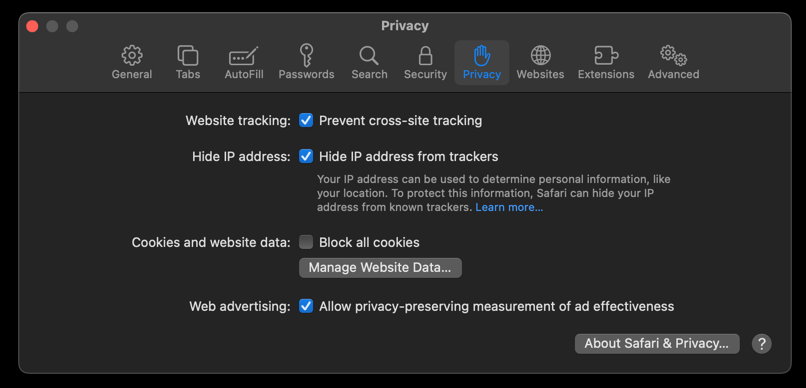 It will load the list of websites currently storing the cache and cookies in the browser.
- Hit on the command and then the button.
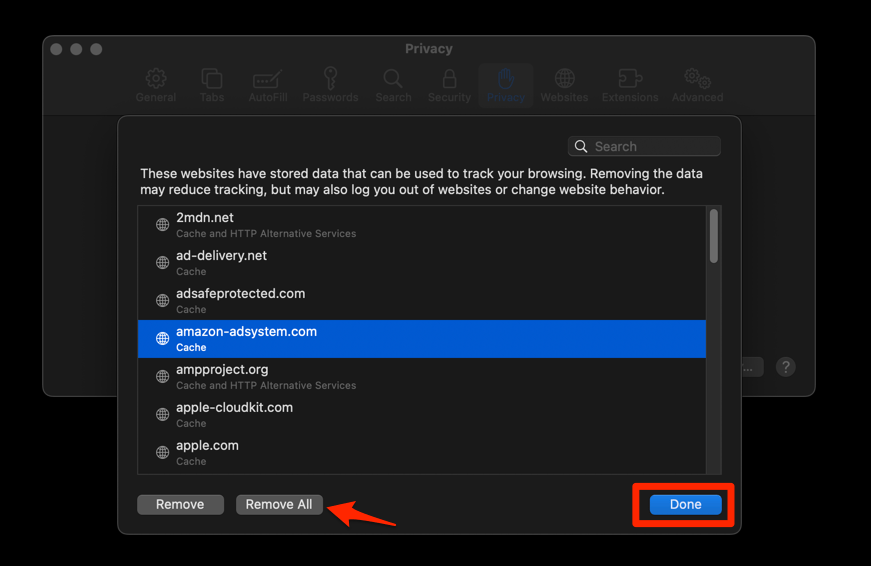 It will flush the cookies and cache for all sites in Safari.
Reopen Instagram and sign in only if needed. You’ll know the reset helped when the page loads normally. If it does, reinstalling Safari is unnecessary.
Reload from origin and restart Safari on Mac
After clearing data, a normal reload may still reuse a cached response. Force a fresh request for the Instagram page before you restart anything.
- Bring the Instagram tab to the front.
- Press ++.
- Wait for the feed, images, and login controls to finish loading.
- If the page remains broken, quit Safari with +.
- Reopen Safari.
- Visit Instagram again.
A fresh feed with working sign-in and publishing controls is the success check. If Instagram still fails only in Safari, move to the account and network checks below.
Update Safari on iPhone
Is Instagram failing in Safari on your iPhone or iPad? Update iOS and Safari before you reset website data. The same basic troubleshooting applies to the Instagram website in mobile Safari.
- Open Settings on your phone, and head on to the General section.
- Select Software Update to open the screen.
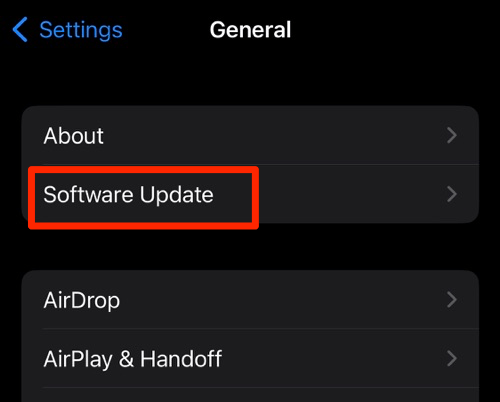 The device will automatically start looking for updates.
- Tap the button.
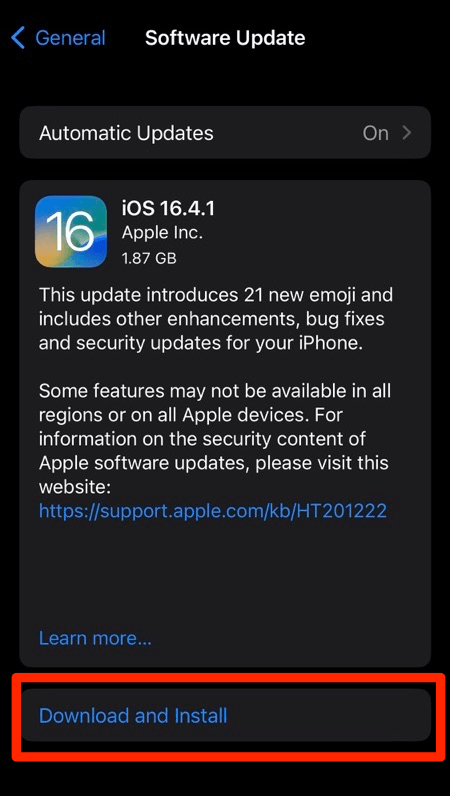 The update will download and install the latest Safari on your device, if available.
You’ll know it worked when Instagram loads after the update. If the failure remains, continue with cookies, extensions, and website data.
Allow cookies in Safari on iPhone
Does mobile Safari keep dropping your Instagram session? Cookies are the first thing to check. On recent iPhone and iPad releases, Safari is under Apps in Settings. On older layouts, Safari appears directly under Settings.
- Open Settings.
- Select Apps.
- Select Safari. If Safari appears directly under Settings, open that entry instead.
- Select Advanced.
- Turn off Block All Cookies if it is enabled.
- Switch back to Safari.
- Reload Instagram.
- Check whether the feed, images, and sign-in form work.
If you want to review every cookie option first, the steps in Block or Allow Browser Cookies in Safari on iPhone & iPad cover the full list.
If the page starts working, the global cookie block was interfering with Instagram. Leave the setting off only if you understand that it applies to every website.
Disable Safari extensions on iPhone
Do Instagram images or buttons fail after you enable a content blocker? Safari extensions and content blockers can interfere with Instagram’s scripts and images. Disable them temporarily to isolate the cause.
- Open Settings.
- Select Apps.
- Select Safari.
- Select Extensions.
- Turn off one extension or content blocker.
- Reload Instagram.
- Repeat the test after turning off each remaining extension.
If one change restores Instagram, keep that extension disabled and re-enable the others. If none changes the result, re-enable all of them.
Reset Safari history and website data on iPhone
Does the Instagram site still fail after cookie and extension checks on iPhone? For a targeted removal, use View Cache and Clear Site Storage in Safari on iPhone & iPad to clear only Instagram’s stored data. If Safari’s built-in option offers only a full reset, clear its history and website data for every site instead.
- Open the Settings app on your iPhone or iPad
- Scroll down and select Safari for settings.
- Within the Safari settings page, scroll down and tap on Clear History and Website Data option.
- Finally, hit on the command button.
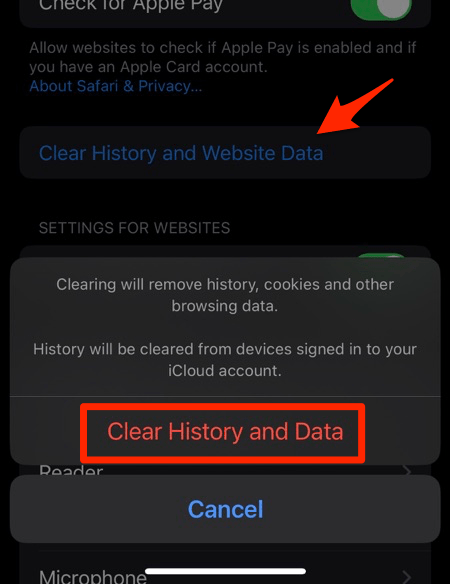 It will completely wipe out the Safari app's browsing history and website data.
Reopen Instagram and sign in if needed. You’ll know it worked when the feed loads normally. If it does, the reset removed the bad site state.
Test embedded Instagram posts on iPhone
Is the main Instagram site fine while an embedded post stays blank? Test cross-site tracking protection. The Disable Cross-Site Tracking in Safari on iPhone & iPad guide shows the current control.
- Open the Safari settings linked in the guide.
- Turn off cross-site tracking protection.
- Reopen the page with the embedded Instagram post.
- Turn cross-site tracking protection back on after the test.
If the embed appears, cross-site tracking protection was the conflict. If it remains blank, return to the extension and website-data checks.
Know when the problem is outside Safari
Not sure whether Safari is even the problem? Your earlier tests decide which check matters now.
- If Instagram fails in every browser and device, wait for service recovery and check for a service notice.
- If only one account fails everywhere, follow any verification or security prompt shown by Instagram.
- If only embedded posts fail, focus on cross-site tracking and third-party content.
- If only Safari fails, return to the extension, cookie, JavaScript, and website-data controls.
Then confirm the fix in a normal Safari window:
- Open Instagram in a normal Safari window.
- Confirm that the feed, images, sign-in, and publishing controls all work.

Frequently Asked Questions
Still stuck after the checks above? These are the questions readers ask most often about Instagram and Safari.
Why is Instagram not working in Safari?
Instagram can fail in Safari when Instagram’s cookies or cached files are stale, an extension blocks its scripts, JavaScript is disabled, or privacy protection interferes with embedded content. The quickest isolation test is to open Instagram in another browser or a Safari Private window.
Will clearing Safari data delete my Instagram account?
No. Clearing Safari data removes browser-side cookies, cache, and history, not your Instagram account. You may need to sign in again.
Why does Instagram work in Chrome but not Safari?
If it works in Chrome but not Safari, focus on Safari’s cookies, cross-site tracking, extensions, JavaScript, and Instagram-specific website data. A Private window helps confirm that the issue is inside Safari.
How do I fix Instagram embeds in Safari?
If the main site works but an embedded post is blank, temporarily test with cross-site tracking protection disabled, then restore it. If the entire site fails, clear Instagram’s website data and check extensions instead.
Do I need to reinstall Safari?
Usually not. Update Safari, test a Private window, remove Instagram’s site data, and reload from the origin. If Instagram still fails only in Safari after those checks, the remaining cause is usually a setting, extension, or stored website data, not a broken Safari install.