A large download in Safari can end with a “Decompression failed” message even when the source file is fine. Usually the transfer is incomplete, the file moved, or site data and an extension got in the way.
Confirm the download finished, check where Safari saved it, then retry from the original page. If it still fails, clear the site's stored data and test once more with extensions switched off.
In this guide, I have covered:
Contents
Why Safari says “Decompression failed” on a large download
You start a big download, wait for Safari to finish, and get a “Decompression failed” message instead of the file. Safari unpacks compressed formats such as ZIP archives right after the transfer ends. Apple documents that step, which explains why the error lands at the very end of a large download rather than at the start.
The source file is often perfectly fine. The message can mean the transfer never fully arrived, the archive is damaged, or Safari cannot find the file where it expects it to be.
A paused download, a folder that changed mid-way, stored website data, or an extension can all break the unpack step. Work through the checks below in order, and open the file after each change so you know which fix actually worked.
Check and resume the Safari download
Open the Downloads list first. The file may still be downloading in the background, or sitting there paused and waiting for you. Apple’s Safari guide to downloading items recommends checking the state of a download before you retry it.
- Click the button in Safari’s toolbar to open the Downloads list.
- Select the failed or paused download.
- Click if the download is paused.
- Wait until Safari finishes downloading the file before opening or decompressing it.
- Locate the downloaded item and confirm that it opens successfully in an app that supports its file type.
If the transfer ends with the same error, that partial file is damaged. Delete only the failed download from your Downloads folder, return to the source page, and start again.
Check the Safari download location
The download can finish cleanly and still fail to open. Safari looks for the file in the folder you set in Settings, so a moved file or a folder that no longer exists is enough to trigger the error.
- Open the Safari application menu.
- Choose Settings….
- Select General.
- Review the setting beside File download location.
- Open the selected folder in Finder and check whether the downloaded file is present.
If you moved the file after downloading it, put it back where the Downloads list says it lives. If the folder is gone, pick a valid destination before you download again.

Only remove a download that failed or remains incomplete. A completed file may be the only intact copy you have.
Review stored website data, then retry the download
When the page that offers the file behaves oddly, cached files or stored site data can be part of the problem. Safari keeps that data under Privacy, and you can usually clear the one site that matters instead of everything.
- Open the Safari application menu.
- Choose Settings….
- Select Privacy.
- Click Manage Website Data.
- Locate the website that provided the download.
- Select its stored data and choose Remove, if that option is available.
- Close the settings window, reload the download page, and try the download again.
If the site is missing from the list or the panel is empty, fix that first. The steps in Fix Safari Manage Website Data Not Showing or Blank on Mac get the list loading again, and you can clear the site’s data afterwards.
Removing stored website data may sign you out of the affected site. Confirm that you have the credentials needed to sign back in.
Test the download with Safari extensions disabled
An extension can rewrite requests and page content, including the page that serves the file. Turn extensions off for one download to see whether one of them is behind the failure.
- Launch the Apple Safari app on your Mac computer.
- Click on the Safari menu from the menu bar at the top, and select Settings... sub-menu.
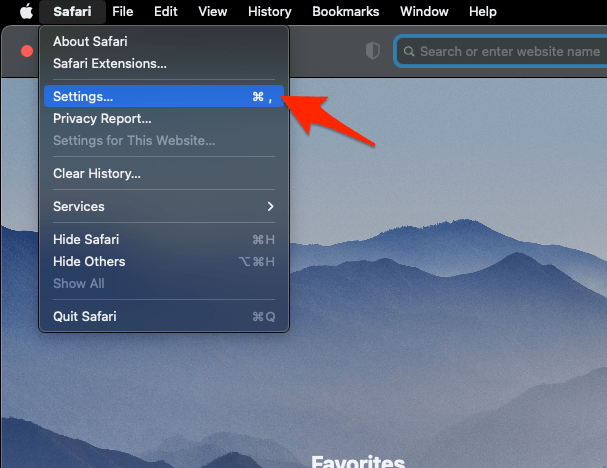 It will open the Safari Settings window.
- Switch to the Extensions tab in the Settings window.
It will display the list of all the Safari extensions installed. - Uncheck the checkbox in the left side pane to Disable the extension.
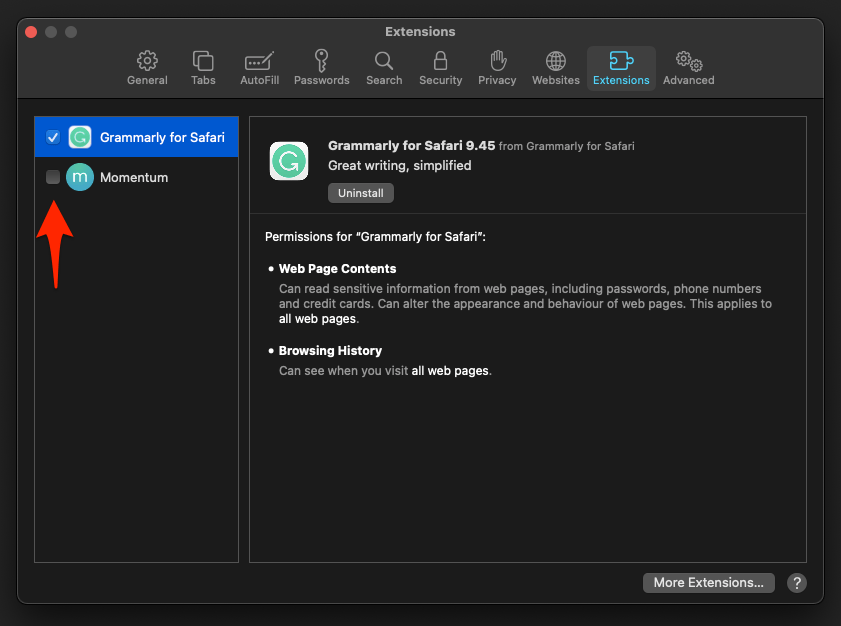
With extensions off, retry the download and open the finished file. You’ll know an extension is responsible when the transfer now completes: switch them back on one at a time, retrying the download after each, and the last one enabled before the error returns is the culprit.
Try the download in a Private window
A Private window runs the same site in a clean session, which is the quickest way to find out whether your normal browsing state is involved. It will not repair a half-finished archive, so start a new download instead of reopening the old file.
- Select the File menu in the menu bar.
- Choose New Private Window.
- Open the download page in the new window.
- Start the download again and wait for it to finish.
- Open the completed file to check whether it decompresses correctly.

TIP: If the download works in a Private window, return to the normal window and review that site’s stored data and extensions. If it fails in both, focus on the file, its source, and the download destination.
Update Safari and macOS
Download handling bugs get fixed in software updates, and Safari leans on macOS components to unpack and open files. Check both before you decide the source file is at fault.
- Click on the Apple
 menu from the menu bar and select the System Settings... sub-menu.
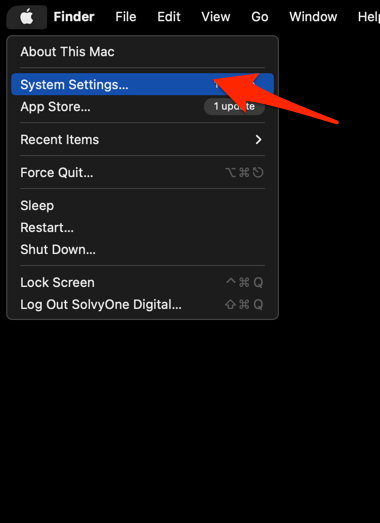 It will open the System Settings window.
- Select the General tab in the left sidebar, and choose the Software Update tab.
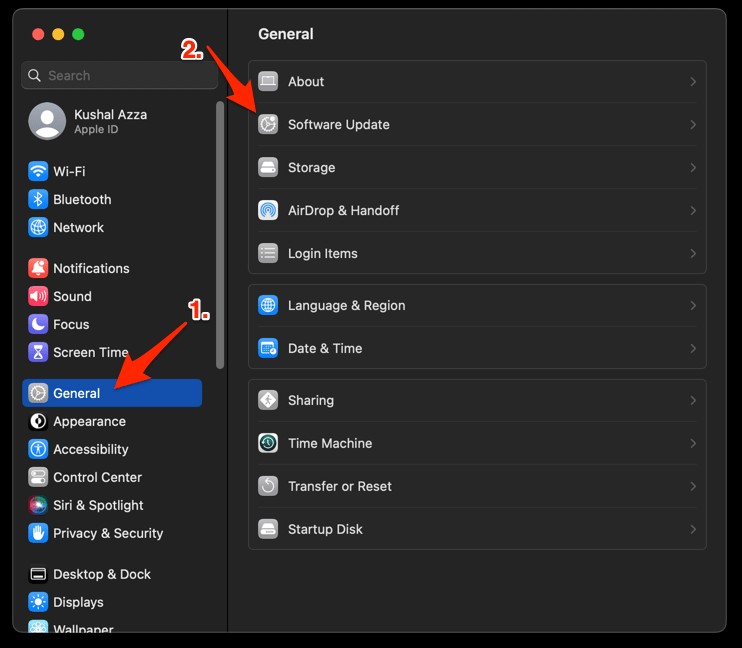 The macOS System will check for any available upgrades in the background.
- Click on the More Info... tab and enable the checkbox for Safari updates (if any are available).
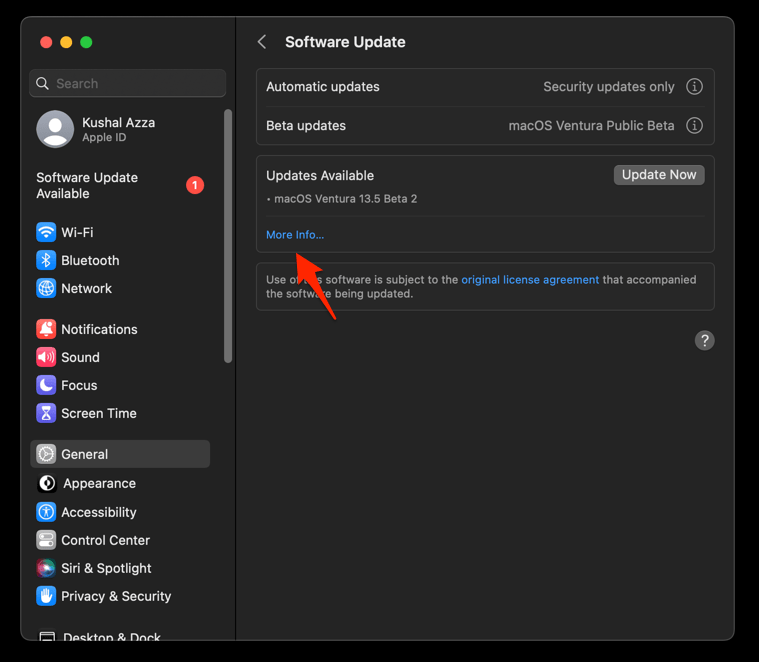
- Hit on the button.
It will update the Safari browser.
When the update finishes, reopen Safari and download the file again. A clean finish this time tells you a software bug caused the error, not the website.
What to do if the error continues
If every large file fails, stop changing Safari settings and test the transfer itself. Fetch a small file from the same site first. When the small file opens normally and the large one never does, the connection or the source is the likely cause.
- Delete the failed large download.
- Keep the Safari download location unchanged while you test another file.
- Try the same download from a Private window.
- Retry the large file after disabling Safari extensions.
- Contact the website owner if every large file fails but smaller downloads succeed.
Confirm you have an app that opens the file type, too. If you do and the download still fails, delete the damaged copy and fetch it again.

Frequently Asked Questions
Why does Safari say “Decompression failed” on a large file?
Safari decompresses files such as ZIP archives after downloading them. The error can appear when the transfer is incomplete, the file is damaged, it has been moved, or an extension or stored site data interferes with the download.
Should I delete the failed download and try again?
Yes, but only after checking that the transfer has stopped. Delete the incomplete or failed file, keep the download location unchanged, and download it again from the original source.
Does clearing Safari website data fix every decompression error?
No. Clearing the relevant website data helps most when the download page is behaving incorrectly or the file works in a Private window. A damaged download or a problem at the source website can still produce the same error.
Can I open a file while Safari is still downloading it?
No. Wait for the download to finish before opening or decompressing it. If the transfer is paused, use Resume in Safari’s Downloads list.
How do I know the large file itself is the problem?
Compare it with a smaller download from the same site. If smaller files complete and open normally while every large file fails, the source may be delivering an incomplete or damaged large file, so report the problem to the website owner.