LinkedIn can stop loading, spin forever, or bounce you back to the login screen in Safari while every other site works fine.
The fixes below cover the usual causes: blocked cookies and website data, cross-site tracking protection, Safari extensions, stale site data, DNS caching and outdated Safari builds on Mac, iPhone and iPad.
In this guide, I have covered:
Contents
Why LinkedIn Stops Loading in Safari
LinkedIn goes blank, the spinner never stops, and every other site in Safari loads fine. The browser is not the problem. That one page is.
LinkedIn pulls in a long list of scripts, trackers and embedded content. It breaks first when Safari’s privacy protections kick in or when an extension starts filtering requests.
The usual suspects: blocked cookies and website data, cross-site tracking protection, an ad blocker or Safari extension, stale cookies from a failed sign-in, an outdated Safari build, or a cached DNS record pointing at an old server address.
Symptoms repeat the same way:
- The feed stays blank or spins forever
- Signing in loops back to the login page
- Posts and the side panel never appear
- LinkedIn shows a "Something went wrong" message
Work through the checks in order. Each one rules out a different layer.
Check LinkedIn in a Private Tab
Before you change any setting, open a Private tab. It loads a page without your saved cookies, so you learn in ten seconds whether Safari’s stored data is the problem or something deeper is blocking the page.
- On Mac, choose File then New Private Tab from the menu bar. On iPhone and iPad, tap the tabs
 button and tap Private Browsing.
- Go to linkedin.com and sign in.
- Check whether the feed loads, the sign-in works and nothing spins forever.
If the feed behaves here, your saved cookies are the culprit and the clearing steps below will fix it. If it fails the same way, skip ahead to extensions and privacy settings. On iPhone and iPad, Open New Tabs and Private Tabs in Safari on iPhone & iPad shows the exact buttons to tap.
Clear Safari Cookies and Cache on Mac
Clearing Safari’s cookies and cache removes broken LinkedIn session tokens and the cached scripts that leave the feed blank or stuck on a spinner. This wipes data for every website, so you will sign in again elsewhere too.
- Launch the Safari app on your Mac computer.
- Click on the Safari menu from the menu bar, and select the Settings... sub-menu.
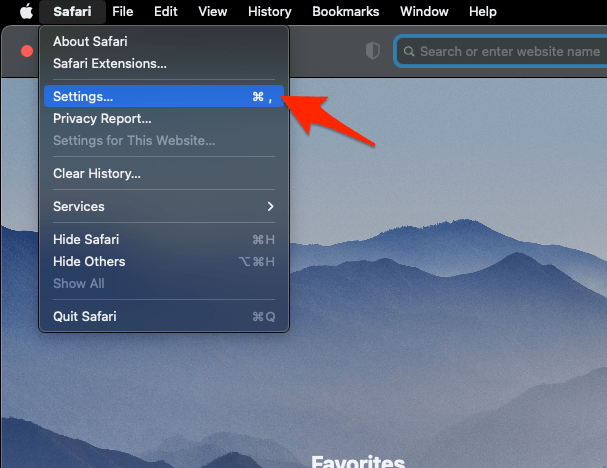 It will open the Safari Settings window.
- Switch to the Privacy tab, and click to open the button.
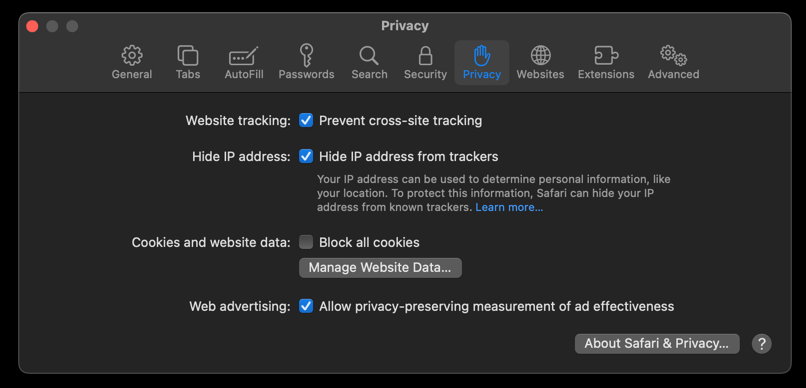 It will load the list of websites currently storing the cache and cookies in the browser.
- Hit on the command and then the button.
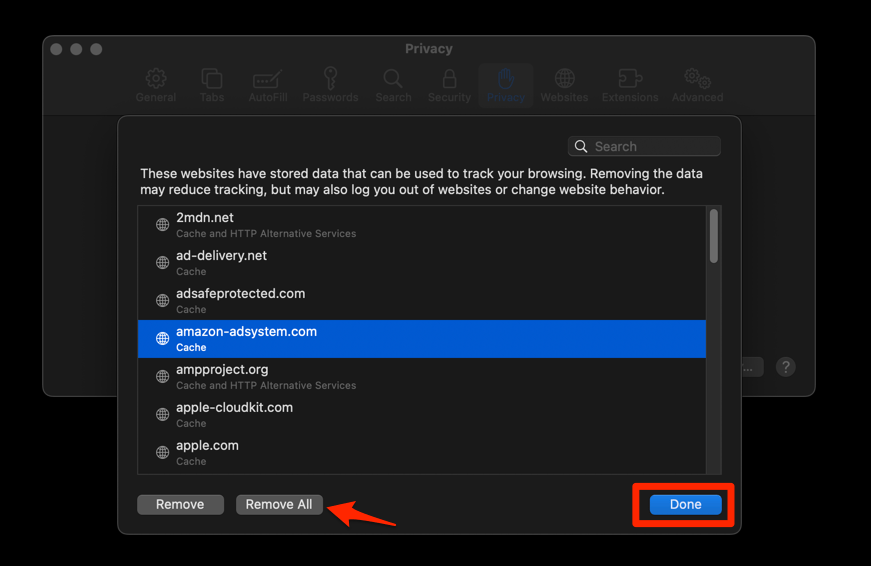 It will flush the cookies and cache for all sites in Safari.
Reopen linkedin.com and sign in again. You’ll know it worked when the feed renders and stays put. If it still spins, stale cookies were not the cause.
Remove LinkedIn Website Data Only
Prefer not to sign back in everywhere? Delete only LinkedIn’s stored data from Safari’s website data list on Mac. It is the smaller hammer, and it is usually enough.
- Open Safari then Settings… in the menu bar.
- Select the Privacy & Security tab.
- Click and search for linkedin.
- Select the linkedin.com entries and click .
- Click to close the list.
- Reload linkedin.com and sign in.
Only LinkedIn’s data is gone, so your other sites stay logged in. If the feed still does not load, move on to extensions.

On macOS versions before 15 the same menu reads Preferences instead of Settings…. The options and paths are otherwise identical.
Turn Off Safari Extensions
Ad blockers and privacy extensions filter out the scripts LinkedIn needs to draw the feed. If you installed one recently, it is the first thing to check.
- Launch the Apple Safari app on your Mac computer.
- Click on the Safari menu from the menu bar at the top, and select Settings... sub-menu.It will open the Safari Settings window.
- Switch to the Extensions tab in the Settings window.
It will display the list of all the Safari extensions installed. - Uncheck the checkbox in the left side pane to Disable the extension.
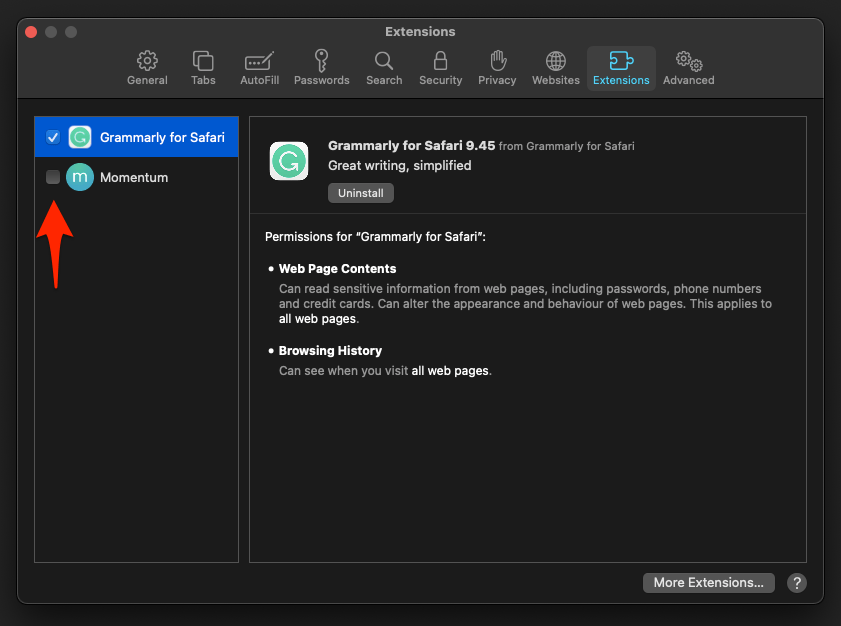
Reload linkedin.com with the extensions still switched off. A feed that comes back points at an extension, so turn them on one at a time until LinkedIn breaks again.

TIP: Some blockers and firewalls run as separate Mac apps rather than Safari extensions. Quit those temporarily, reload LinkedIn, then rule them out.
Allow Cookies and Relax Cross-Site Tracking
Two Safari switches cause most of these breakages: the option that blocks cookies and other website data, and the cross-site tracking protection that strips trackers out of embedded content.
- Open Safari then Settings… in the menu bar.
- Select the Advanced tab.
- Clear the Block cookies and other website data checkbox.
- Select the Privacy & Security tab and turn off Prevent cross-site tracking.
- Close the settings window and reload linkedin.com.
If LinkedIn loads now, switch both protections back on. Then keep only the narrow fix, such as removing LinkedIn’s website data or disabling the blocking extension. The iPhone and iPad version of the tracking switch is covered in Disable Cross-Site Tracking in Safari on iPhone & iPad.
Both switches apply to every website you visit in Safari. If LinkedIn is the only problem, use the targeted website data removal above and leave these protections on.
TIP: Safari’s pop-up blocker also lives in the Privacy & Security tab. If a sign-in window refuses to open, allow pop-ups there while you test.
Update Safari on macOS
Safari updates carry WebKit fixes that repair broken sites. Older builds fail on newer web apps, and LinkedIn’s feed is one of them.
- Click on the Apple
 menu from the menu bar and select the System Settings... sub-menu.
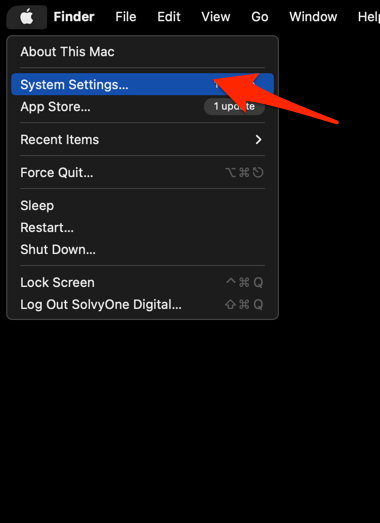 It will open the System Settings window.
- Select the General tab in the left sidebar, and choose the Software Update tab.
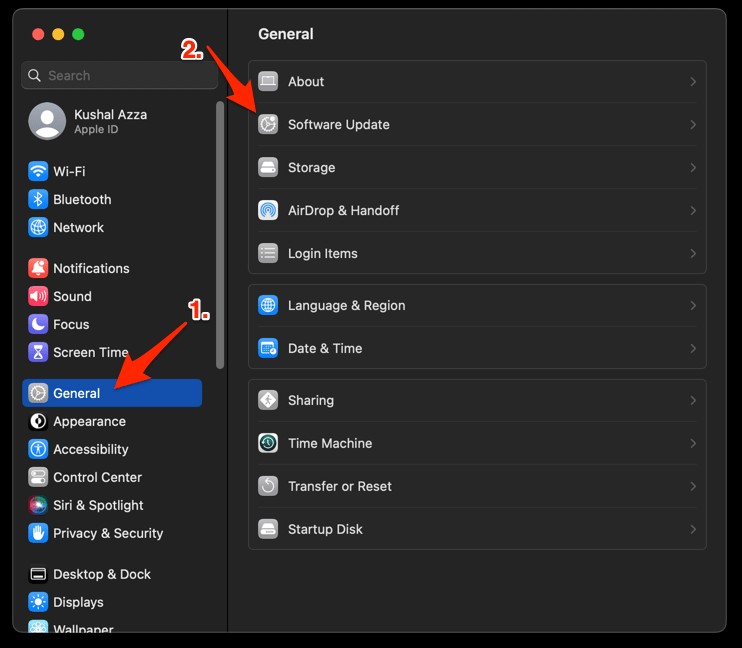 The macOS System will check for any available upgrades in the background.
- Click on the More Info... tab and enable the checkbox for Safari updates (if any are available).
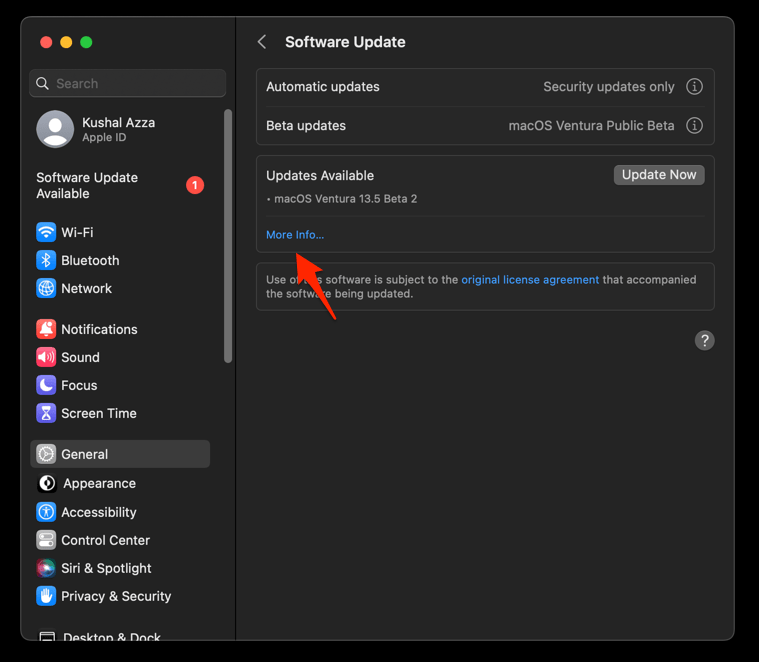
- Hit on the button.
It will update the Safari browser.
After updating, relaunch Safari and load LinkedIn again. You can confirm the build you are running with How to Check the Current Installed Version of the Safari App.
Apple ships Safari updates alongside macOS updates, and the Safari User Guide for macOS walks through the same path.
Fix LinkedIn in Safari on iPhone and iPad
Safari on iPhone and iPad keeps its privacy options in the system Settings app rather than in the browser. Since iOS 18 they sit one level deeper, and the same cookie and extension switches are there.
- Open the Settings app, tap Apps, then tap Safari.
- Tap Advanced and turn off Block cookies and other website data.
- Scroll to Extensions and switch off any ad blocker or content blocker installed for Safari.
- Tap Privacy & Security and turn off Prevent Cross-Site Tracking to test.
- Reopen Safari, go to linkedin.com and sign in.
If the feed loads, switch the protections back on and keep the narrower fix, such as clearing LinkedIn’s website data. If it still fails, update iOS next.
Clear History and Website Data in Safari on iPhone and iPad
Clearing Safari’s stored data on iPhone or iPad removes a broken LinkedIn sign-in session along with the cached files that stop the feed from rendering. This one clears website data for every site in Safari, so expect to sign in elsewhere too.
- Open the Settings app on your iPhone or iPad
- Scroll down and select Safari for settings.
- Within the Safari settings page, scroll down and tap on Clear History and Website Data option.
- Finally, hit on the command button.
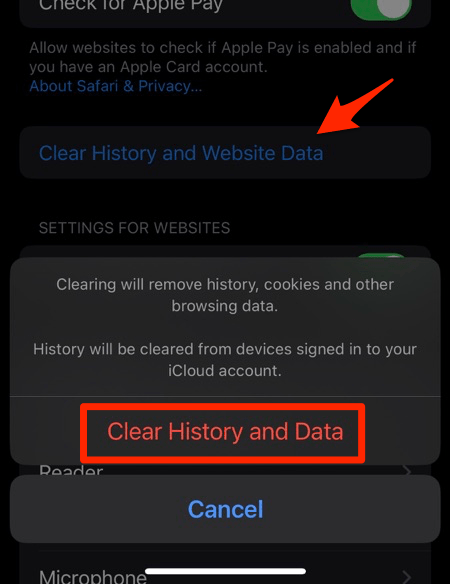 It will completely wipe out the Safari app's browsing history and website data.
Reopen Safari and sign in to LinkedIn again. You’ll know it worked when the feed paints and the sign-in sticks.
Update Safari on iPhone and iPad
LinkedIn updates its front end often, and an older Safari build on iPhone or iPad can fail to load it.
- Open Settings on your phone, and head on to the General section.
- Select Software Update to open the screen.
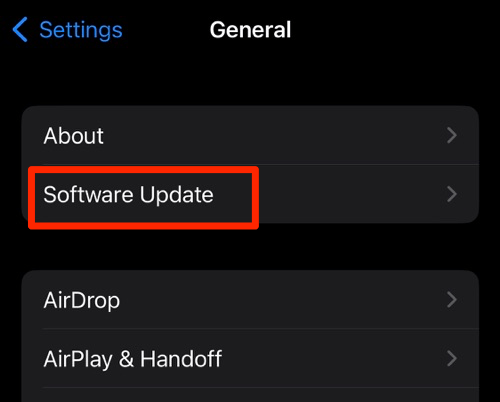 The device will automatically start looking for updates.
- Tap the button.
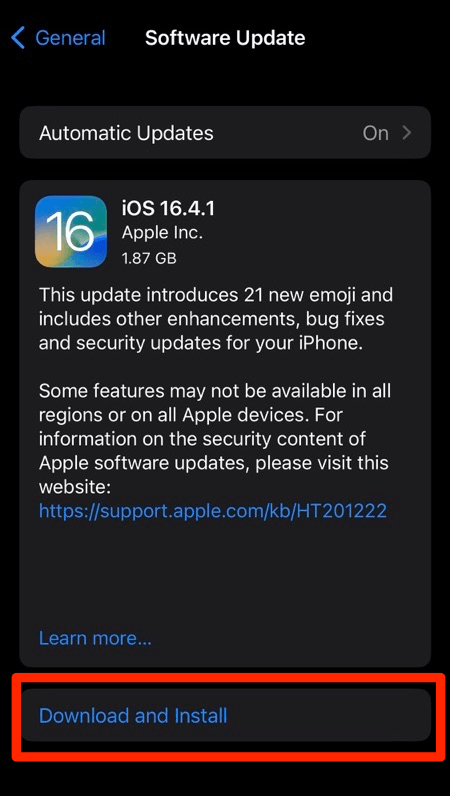 The update will download and install the latest Safari on your device, if available.
After the update, reopen Safari and load LinkedIn again. If the feed renders, you are done.
Clear the DNS Cache in Safari on Mac
LinkedIn loads without its images and layout, or throws a server error? A stale DNS record can point Safari at an address that no longer answers.
- Open the Apple Safari app on your Mac, and select Safari > Settings... from the menu bar.It will open the Safari Settings window.
- Switch to the Advanced tab, and enable the checkbox for the Show Develop menu in the menu bar option.
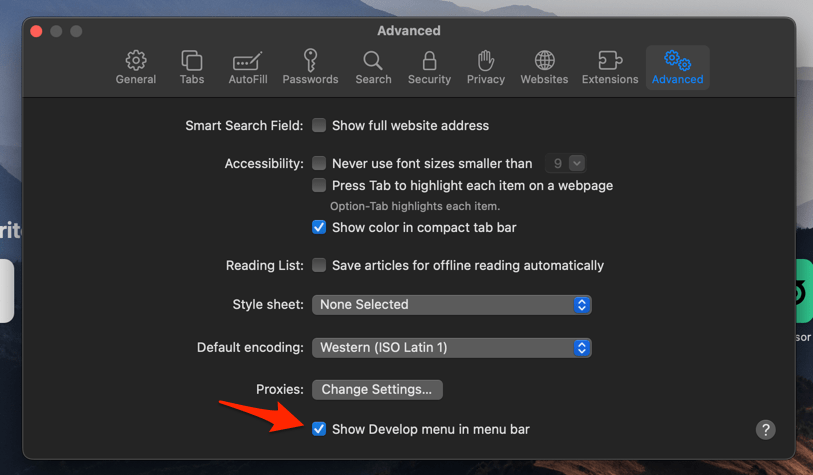 It will enable a new Develop menu in the Safari menu bar.
- Click on the Develop menu and select the Empty Caches command.
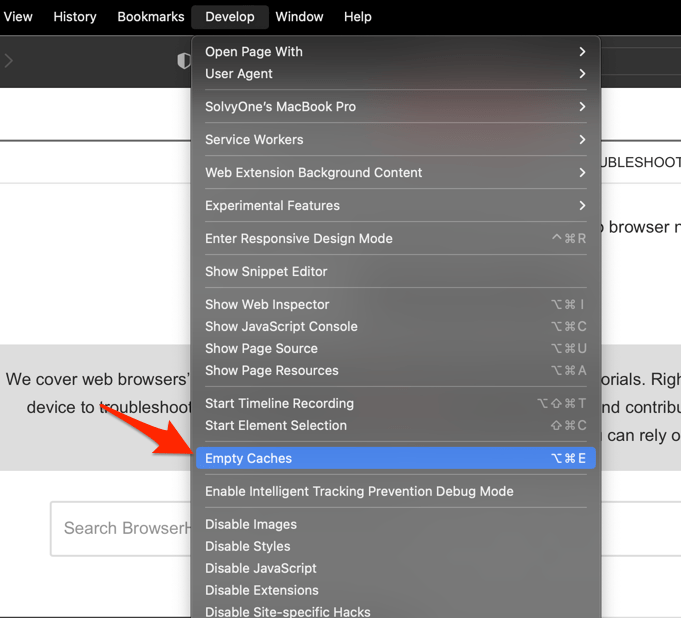 It will clear all cache, including the Safari DNS host cache.
Restart Safari and try again. If the same error appears in every browser on that network, the problem is the network or LinkedIn’s servers, not Safari.
Last Checks if LinkedIn Still Will Not Load
Safari’s settings are clean by now, so read what the page itself reports.
- Open Safari then Settings…, select the Advanced tab and tick Show features for web developers.
- Right-click the LinkedIn page and choose Inspect Element to open the Web Inspector.
- Check the Console for blocked or failed requests, especially third-party script errors.
- Load a different site in the same tab, then try LinkedIn on another network, such as mobile data instead of Wi-Fi.
LinkedIn works in another browser but not in Safari? The cause sits inside Safari’s privacy settings, extensions or stored data, and the steps above cover all three. If it fails everywhere, wait and retry instead of changing more settings.

Frequently Asked Questions
Why does LinkedIn work in Chrome but not in Safari?
Safari blocks cookies and website data by default and applies cross-site tracking protection. Chrome does not work the same way. Extensions that filter LinkedIn’s scripts are another common culprit, so allow cookies for the site and disable extensions one at a time.
Will clearing Safari cookies log me out of LinkedIn?
Yes. Clearing cookies and website data signs you out of every site in Safari, including LinkedIn, so you will sign in again. If you only want to fix LinkedIn, remove the linkedin.com entries in Manage Website Data under Privacy & Security instead.
Where do I find the cookie switch in Safari on iPhone?
Open the Settings app, tap Apps, then Safari, and the switch sits in the Advanced section. Turning off Block cookies and other website data lets the sign-in cookie through.
Should I leave Prevent Cross-Site Tracking turned off?
No. Use it as a quick test, then turn it back on and keep the narrower fix, such as removing LinkedIn’s website data or disabling the extension that filtered the feed.
Is LinkedIn down, or is it just my Safari?
Open LinkedIn in another browser or on another device. If it loads there, the problem is in Safari’s settings, extensions or stored data. If it fails everywhere, it is a network or server issue, and resetting Safari will not help.