X can show a blank feed, loop at sign-in, or stop loading in Safari, and the cause is not always obvious. Cookies, blocked pop-ups, tracking protection, content blockers, and extensions all can get in the way.
Start with a private-window test. Then check X's site permissions, clear only X's website data, and review Safari's privacy and extension settings on Mac, iPhone, or iPad.
In this guide, I have covered:
Contents
X won’t load in Safari? Start with a private-window test
X shows a blank feed, loops at sign-in, or stops loading, and you need to know whether Safari or X itself is at fault. A private-window test is the quickest way to separate normal Safari data or extension problems from a network, account, or X service problem.
On Mac
- Open https://x.com in a regular Safari tab.
- Open the File menu.
- Choose New Private Window.
- Load https://x.com in the private window.
On iPhone or iPad
- Open https://x.com in a regular Safari tab.
- Open the tab overview.
- Tap Private to start private browsing.
- Load https://x.com in the private tab.
If X loads in private browsing but not in your regular window, continue with the Safari settings and website-data checks below. If it fails in private browsing too, check the network and X service before changing more settings.

TIP: A private-window test leaves the cookies and extensions in your normal profile unchanged, so it narrows the cause without resetting anything.
If you need the full Mac menu path, see How to Open Private Browsing Mode and New Tabs in Safari on Mac.
Allow X pop-ups on Mac
You click Sign in on x.com and no window appears, or the page sits there after the click. X can open a separate window during some sign-in flows, and Safari may be blocking it.
Allow pop-ups for x.com only. You do not need to disable the blocker for every website.
- Open the Safari menu in the macOS menu bar.
- Choose Settings…. On older macOS, choose Preferences… instead.
- Open Websites.
- Select x.com in the website list.
- Set Pop-ups to Allow.
- Reload x.com and retry the sign-in flow.
You’ll know it worked when the X sign-in window opens over the page instead of failing silently. If X still fails, continue to the script and extension checks.
If x.com is not listed, register the site first.
- Load https://x.com in a normal tab.
- Open the Safari menu.
- Choose Settings….
- Open Websites.
Now repeat the Pop-ups permission steps for x.com.
Pop-ups and cookies are separate controls. If X also acts as if you are signed out, review Block or Allow Browser Cookies in Safari on Mac before removing site data.
Turn on JavaScript and turn off Reader mode on Mac
The X page loads with missing buttons or a stripped-down view, or Safari tries to show it in Reader mode. X is an interactive site, so JavaScript must be enabled and Reader mode can remove the controls the page needs.
- Open the Safari menu.
- Choose Settings….
- Open Advanced.
- Confirm that Enable JavaScript is selected.
- Turn off Load sites in Reader mode when available.
- Reload x.com.
If X now loads, leave Reader mode off while you finish testing and continue checking the extensions that are enabled. You’ll know it worked when the feed, buttons, and sign-in controls appear as expected.
Disable Safari extensions on Mac for one test
X breaks only in your normal Safari window, or the feed half-loads with missing content. Ad blockers, privacy tools, and script blockers can interfere with X’s feed or sign-in flow. Turn them off only for this test, then restore them one at a time.
- Launch the Apple Safari app on your Mac computer.
- Click on the Safari menu from the menu bar at the top, and select Settings... sub-menu.
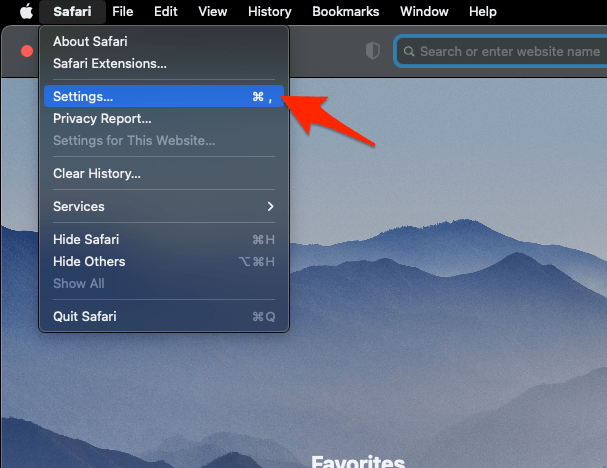 It will open the Safari Settings window.
- Switch to the Extensions tab in the Settings window.
It will display the list of all the Safari extensions installed. - Uncheck the checkbox in the left side pane to Disable the extension.
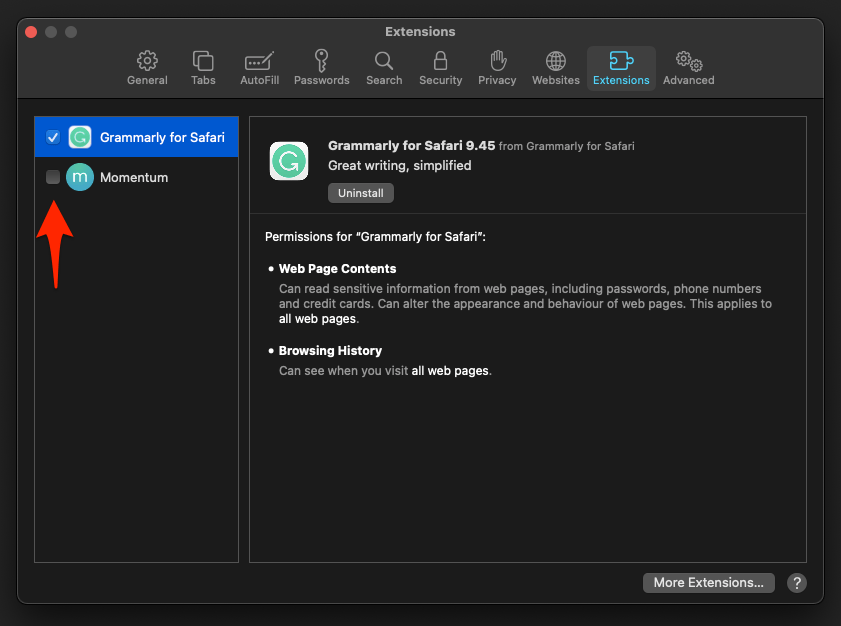
With the extensions off, reload x.com. If the page recovers, enable each extension separately to identify the one that conflicts with X. You’ll know you found it when the breakage returns as soon as that extension is back on.
Check Safari content blockers for X
The page still misbehaves after you turned off extensions, and Safari’s content blockers may be next in line. Safari has a separate content blocker area that can stop X’s scripts from running.
- Open the Safari menu.
- Choose Settings….
- Open Websites.
- Select Content Blockers.
- Turn off any content blocker that the panel shows as applying to x.com.
- Reload x.com.
You’ll know a blocker was the cause when X loads with that blocker off for x.com. If X still fails, continue with the tracking-protection test and targeted website-data removal.
Test cross-site tracking protection on Mac
X goes blank or stalls only in a normal window, which points to a privacy setting rather than your account. A temporary tracking-protection test can show whether Safari’s privacy feature is interfering.
Do not leave this setting off by default.
- Open the Safari menu.
- Choose Settings….
- Open Privacy & Security. If your Safari layout puts web tracking under Advanced, use that section instead.
- Find Prevent cross-site tracking. If the option is called Limit Cross-site tracking, use that setting instead.
- Turn the option off.
- Reload x.com.
- Try signing in.
- Turn cross-site tracking protection back on if X now works.

Turning off cross-site tracking protection reduces privacy while it is disabled. Re-enable it after the test unless you have a specific reason not to.
You’ll know tracking protection was the cause when X loads with it off and breaks again after you turn it back on.
Clear X website data in Safari on Mac
A private window loads X, but your normal Safari window does not. Remove stored X website data to reset the site without deleting data for unrelated websites.
- Open the History menu.
- Choose Manage Website Data….
- Search for x.com, or twitter.com if you use the older domain.
- Select the matching website entry.
- Click to delete the selected website data.
- Confirm the removal if Safari asks.
- Reload x.com.
- Sign in again.
You’ll know it worked when X shows its sign-in page or feed again. You may need to enter your account credentials once more.
Reset Safari cookies and cache on Mac
Removing X’s own data wasn’t enough, or several Safari sites are showing stale content. Use this broader reset when the targeted fix does not hold.
Reopen x.com after the reset. You’ll know it worked when x.com loads without the blank feed. If the feed appears, sign in again and review any recently enabled extensions or settings.
This reset affects Safari data for all sites, so expect to sign in to other websites again.
Update Safari on Mac
You have checked page permissions and data, and the same X problem remains. Install any available Safari update before you compare browsers.
- Click on the Apple
 menu from the menu bar and select the System Settings... sub-menu.
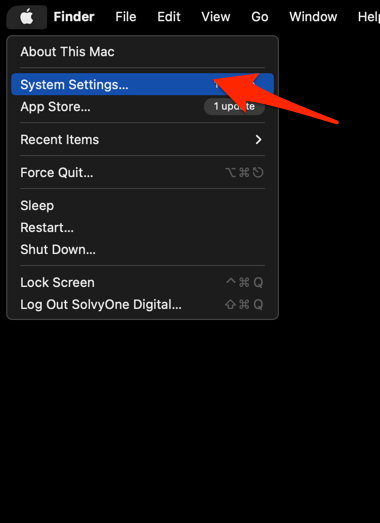 It will open the System Settings window.
- Select the General tab in the left sidebar, and choose the Software Update tab.
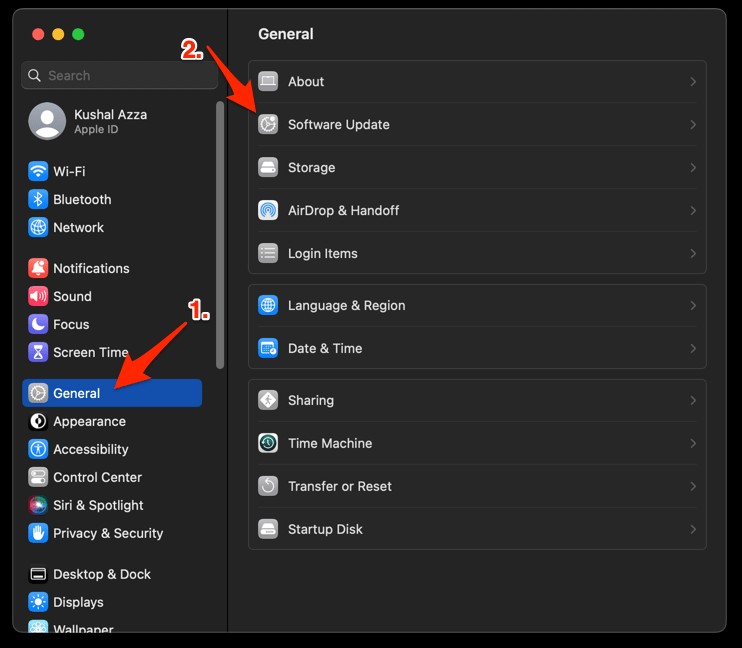 The macOS System will check for any available upgrades in the background.
- Click on the More Info... tab and enable the checkbox for Safari updates (if any are available).
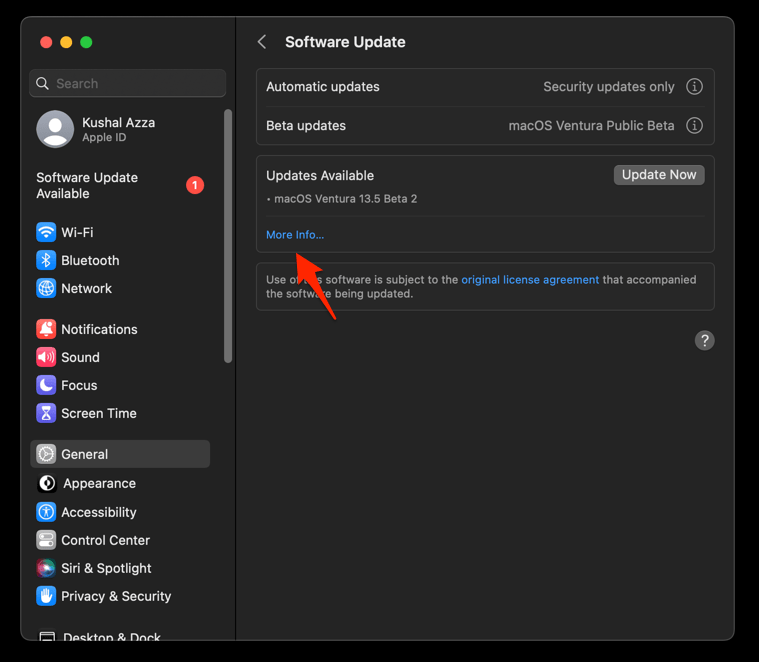
- Hit on the button.
It will update the Safari browser.
Reopen x.com after updating. You’ll know it worked when X loads normally after the update. If the same problem remains, continue with the browser and network comparison below.
Check Safari extensions on iPhone or iPad
X misbehaves in Safari on your iPhone or iPad, and an extension could be interfering. On iOS 18 and later, Safari settings are in the Settings app under Apps, then Safari. On earlier releases, Safari appears directly in the main Settings list.
- Open the Settings app.
- Tap Apps, then Safari. On earlier iOS versions, tap Safari directly instead.
- Tap Extensions.
- Turn off the extensions you use for testing.
- Open x.com in a new tab.
- Check whether the feed or sign-in page loads.
If X recovers, re-enable the extensions one at a time to find the conflicting tool. You’ll know the culprit when the problem returns with one extension back on.
Clear Safari history and website data on iPhone or iPad
The feed still will not load on iPhone or iPad after you turned off extensions, so a wider data reset is next. This removes Safari history and website data for all sites, not just X.
The full removal details are in Clear Browsing Data from Safari on iPhone & iPad.
- Open the Settings app on your iPhone or iPad
- Scroll down and select Safari for settings.
- Within the Safari settings page, scroll down and tap on Clear History and Website Data option.
- Finally, hit on the command button.
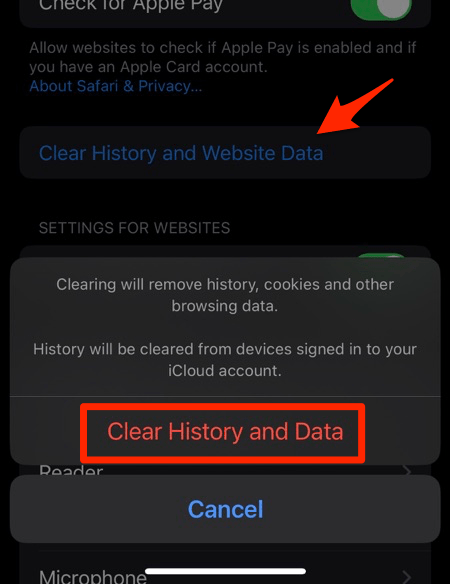 It will completely wipe out the Safari app's browsing history and website data.
Reopen x.com after the reset and sign in if needed. You’ll know it worked when the feed or sign-in page appears again. If it still fails, continue with the network and X service checks.
Clearing this data ends stored sessions on other websites as well, so expect to sign in to them again.
Update Safari on iPhone or iPad
The reset did not help, and your iPhone or iPad may be behind on system updates. Install the available update so Safari and its web compatibility are current.
- Open Settings on your phone, and head on to the General section.
- Select Software Update to open the screen.
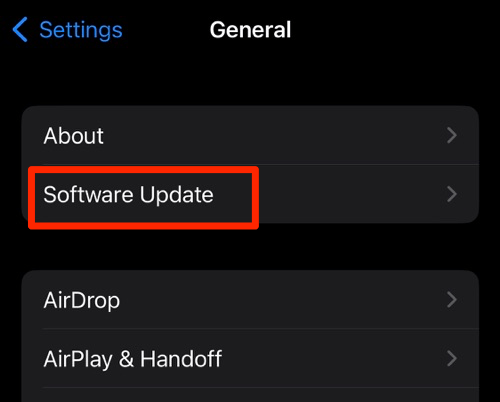 The device will automatically start looking for updates.
- Tap the button.
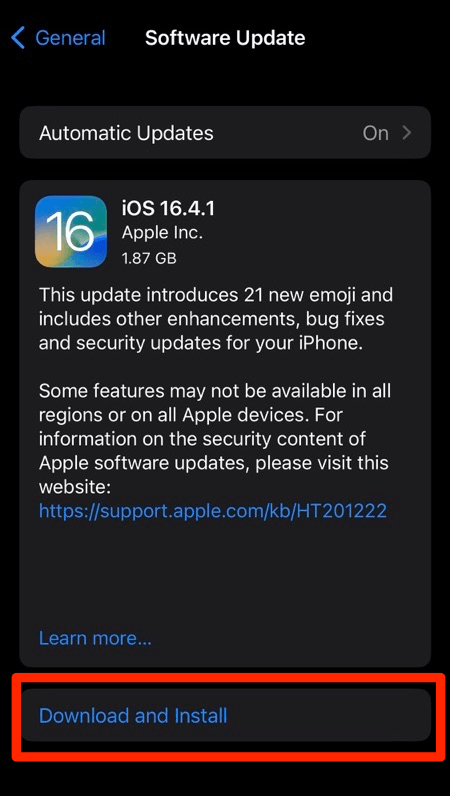 The update will download and install the latest Safari on your device, if available.
Reopen x.com after the update. If the problem is unchanged, continue with the browser and network comparison.
Is it X or Safari? Test another browser and network
Safari checks have not fixed X, so you need a clean way to tell whether the site itself is down. A second browser and a second network provide the clearest comparison.
- Open https://x.com in another browser.
- Try x.com on another network, such as a phone hotspot, if the first browser also fails.
- If X fails in every browser and network, follow X’s own troubleshooting for an account or service problem.
If X works elsewhere but still fails in Safari, return to the extension and privacy checks. If it works in both, the original Safari issue is resolved.

Frequently Asked Questions
You tried the steps above and still want a quick answer to the usual X-in-Safari questions.
Why is X (Twitter) not working in Safari?
X needs JavaScript for its interactive page. Stored website data, blocked sign-in pop-ups, content blockers, extensions, and tracking protection can also interrupt the page.
Will clearing Safari data remove my X login?
It can. You may need to sign in again, and an all-site reset can also end sessions on other websites.
Should I turn off Prevent cross-site tracking permanently?
No. Use it only as a temporary diagnostic and turn it back on after testing X.
Does the Safari fix work on iPhone and iPad?
The steps are similar, but the settings paths differ. On iOS 18 and later, Safari settings are under Apps, then Safari, while earlier versions place Safari directly in the main Settings list.
What should I do if X works in Private Browsing?
That result points to a cookie, extension, content blocker, or site setting in your normal Safari profile. Clear X website data and test your extensions one at a time.
If X works in a private window but not your normal one, go back to site data and extensions. If it fails everywhere, the problem is outside Safari.