Safari ships inside macOS, so a system update can quietly flip options back to their defaults or rearrange the Settings pane. If your preferred choices keep disappearing after a macOS update, iCloud syncing from another Apple device is usually the cause.
Re-apply the preferences you care about, turn off Safari in iCloud so other devices stop overwriting them, and restore from Time Machine if a setting is gone for good.
In this guide, I have covered:
Contents
Why Safari settings look reset after a macOS update
You installed a macOS update, opened Safari, and half your preferences are back at their defaults. Nothing is actually broken. Safari ships inside macOS instead of installing as a standalone app, so it gets updated along with the system.
Apple also pushes background security updates for Safari between major macOS releases. Either kind can change defaults, rearrange the Settings pane, or flip a feature on or off. That is what most people run into and describe as a Safari settings reset.
The second common cause is iCloud. When Safari is signed in to iCloud, some preferences sync across your Apple devices, including Reading List items, Tab Groups, and certain website permissions. If another signed-in device holds different values, those values can replace the ones you just picked on the Mac.

TIP: If your settings only seem to reset on one Mac but stay put on your other Apple devices, iCloud sync is the most likely cause.
Re-apply your Safari settings
There is no separate Safari installer you can pin to an older version, so the simplest defense is to re-apply the options you care about right after the update finishes. It takes a minute. It also saves you from finding a missing setting weeks later.
- Click Safari in the menu bar.
- Choose Settings… (or press +).
- Click each pane you normally adjust (General, Tabs, AutoFill, Search, Security, Privacy, Websites) and confirm your preferred options.
- Close the Settings window. Your changes are saved automatically.
For the full list of panes and what each one controls, see Apple’s guide to changing Safari settings.
Per-site zoom is a good example of a setting that quietly disappears. If pages suddenly render smaller than you like, set a default page zoom level in Safari again.

Apple moved the default-browser toggle out of Safari Settings. To set Safari as the default browser, open System Settings → Desktop & Dock → Default web browser.
Turn off iCloud Safari sync so other devices do not overwrite your choices
If a setting keeps reverting every time you reopen Safari, even right after you changed it, another device may be pushing its value back. Turning Safari off in iCloud makes the Mac use only its local preferences.
- Open the Apple menu → System Settings.
- Click your name at the top of the sidebar, then click iCloud.
- Find Safari in the list of apps using iCloud.
- Toggle Safari off.
- Quit and reopen Safari for the change to take effect.
Turning off Safari in iCloud stops preferences from syncing, but your bookmarks, Reading List, and Tab Groups will also stop appearing on your other Apple devices until you turn it back on.
Restore Safari settings from a Time Machine backup
If a macOS update changed or wiped settings you cannot rebuild by hand, a Time Machine snapshot from before the update is the cleanest way back. Time Machine stores Safari’s preference file inside your user Library, so a restore brings the whole Settings pane to its earlier state.
- Connect your Time Machine backup drive if it is not already connected.
- Open System Settings → General → Time Machine.
- Click Enter Time Machine.
- Use the timeline on the right to navigate to a snapshot from before the macOS update.
- In the Finder window, open the Safari folder inside your user’s Library folder.
- Select the files you want to bring back, such as Bookmarks.plist and the Preferences folder.
- Click .
- Quit Time Machine and relaunch Safari.

ALERT: Restoring the Safari Preferences folder replaces your current Safari settings. If you have made changes since the macOS update that you want to keep, note them down first.
For full details on using Time Machine to recover older files, see Apple’s guide to restoring items backed up with Time Machine.
Clear Safari history to refresh its state
Sometimes a setting that should be on shows as off because Safari is reading a stale history entry or a cached preference value. Clearing the history list forces Safari to rebuild its state from scratch, which can clear out a saved value left over from a previous macOS version.
- Open the Safari app on your Mac.
- Click on the History and select Clear History from the menubar.
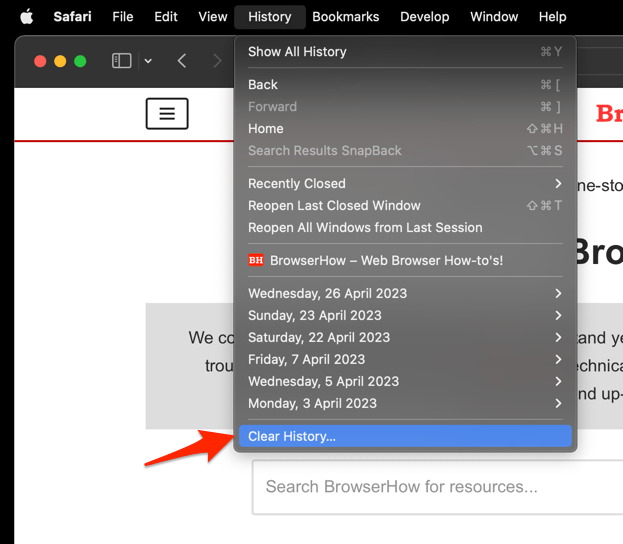 It will open the clear history pop-up window.
 - Select the Time Range from the drop-down and hit on the command button.
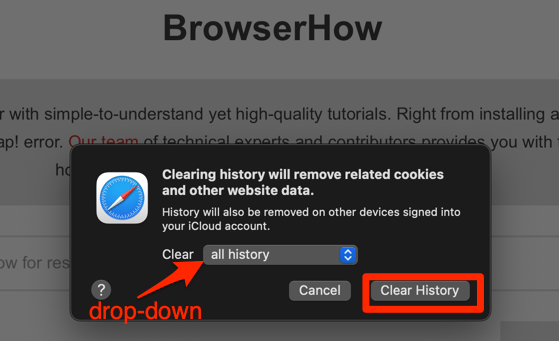 That's it, the browsing history will be removed from the selected range.
You’ll know it worked when Safari opens with an empty history list and the setting you changed survives a relaunch.
If a specific site keeps reverting to an old permission, remove that site’s data from Safari Settings → Privacy. If the search suggestions annoy you more than the history list does, clear search term history in Safari separately.
Clear Safari cookies and cache
Cookies and the website cache live separately from your Safari Settings, but they can produce the same “things changed back” symptom when a site remembers an older preference. Clearing them forces Safari to fetch fresh values from the sites you visit.
- Launch the Safari app on your Mac computer.
- Click on the Safari menu from the menu bar, and select the Settings... sub-menu.
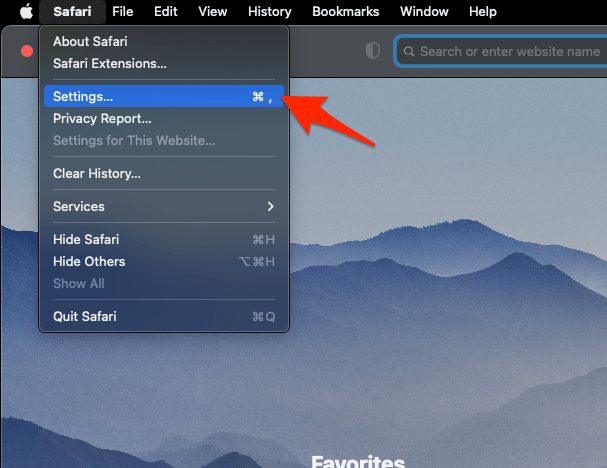 It will open the Safari Settings window.
 - Switch to the Privacy tab, and click to open the button.
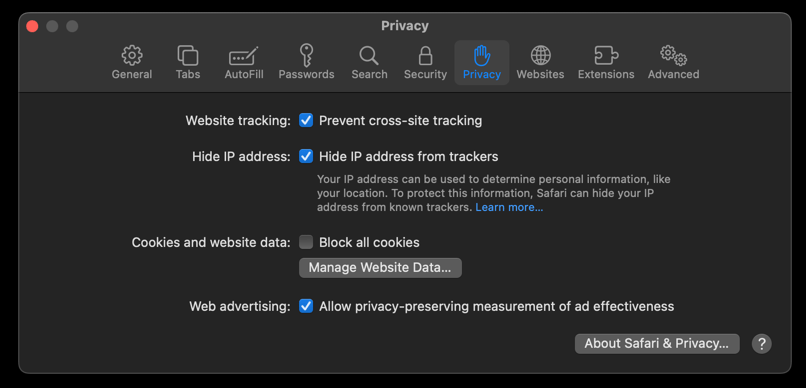 It will load the list of websites currently storing the cache and cookies in the browser.
 - Hit on the command and then the button.
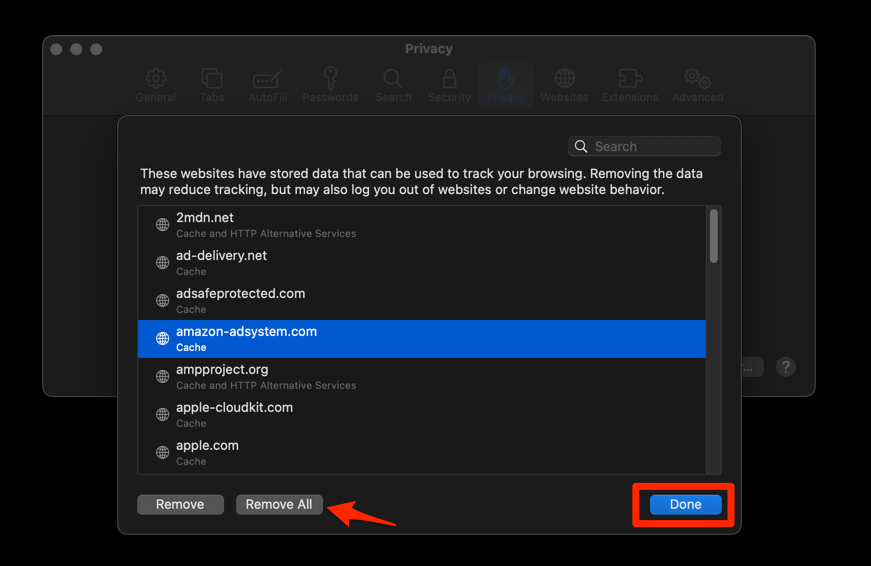 It will flush the cookies and cache for all sites in Safari.
You’ll know it worked when sites ask you to sign in again and the old preference no longer returns.
For a more detailed walkthrough of the same process, see the BrowserHow guide to clearing Safari site and browsing data on Mac.
Clearing cookies signs you out of most websites. Have your passwords handy, or make sure iCloud Keychain or another password manager is set up before you do this.
Disable Safari extensions to rule out a conflict
Third-party Safari extensions can intercept and even rewrite settings such as content blockers, pop-up rules, or privacy permissions. After a macOS update, an extension built for an older Safari version can reset or block a setting you just turned on. Turning your extensions off tells you whether one of them is the source.
- Launch the Apple Safari app on your Mac computer.
- Click on the Safari menu from the menu bar at the top, and select Settings... sub-menu.It will open the Safari Settings window.
- Switch to the Extensions tab in the Settings window.
It will display the list of all the Safari extensions installed. - Uncheck the checkbox in the left side pane to Disable the extension.
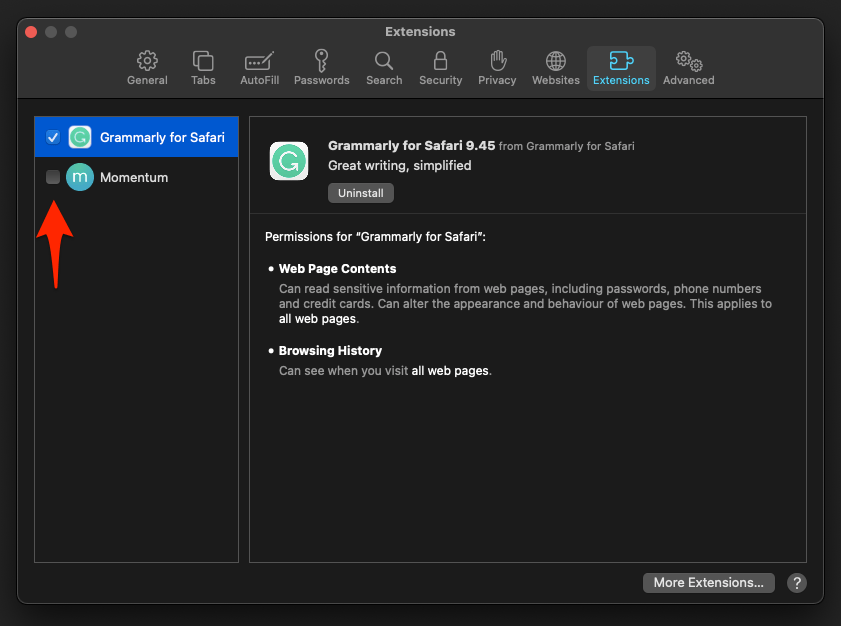
If a setting stops resetting after you turn extensions off, re-enable them one at a time to find the culprit, then check that extension’s developer page for a Safari-compatible update.

Frequently Asked Questions
Will I lose my Safari settings when I update macOS?
Not usually. Your customizations live in your user Library and should survive a standard macOS update. What does change is which options exist or are enabled by default, so it can look as if your settings were wiped.
Where did the Preferences menu go in Safari?
Apple renamed Preferences to Settings starting with macOS Ventura. To open Safari settings, choose Safari → Settings…, or press +. The same panes (General, Tabs, Privacy, Security, and so on) are still there underneath.
How do I stop iCloud from changing my Safari settings?
Open System Settings, click your name, then click iCloud, and turn Safari off. Safari will then use only the preferences stored on that Mac.
Can I back up Safari settings before a macOS update?
Yes. Time Machine captures your Safari preferences automatically if it is enabled. For a manual copy, open Finder, press ++ to reveal the hidden Library folder, then duplicate the Safari folder to a safe location.
Why does my Safari homepage keep changing after updates?
The homepage field can be reset if it points to a page that no longer loads, or if iCloud Safari is syncing a different value from another device. Set the homepage again under Settings → General → Homepage, and turn Safari off in iCloud if the change still does not stick.