Amazon may load a blank page in Safari, loop you back to sign-in, or leave buttons dead. Blocked cookies, stale website data, cross-site tracking protection, and extensions can each break the page.
Start with a quick Safari-only test, then check cookies, remove Amazon's stored data, and switch extensions off one at a time. You'll know it worked when Amazon loads and sign-in sticks after a reload.
In this guide, I have covered:
Contents
Why Amazon stops working in Safari
Amazon can look broken in Safari while the site itself is fine. A page stays blank. Sign-in keeps bouncing you back to the login screen. Buttons do nothing when you click them.
Those symptoms usually come from inside Safari: blocked cookies, stale website data, cross-site tracking protection, or an extension filtering part of the page. An Amazon outage or a flaky connection can produce the same picture.
The checks below separate the two, narrowest fix first.
Start with a quick isolation test on Mac
Two quick comparisons tell you where to look. Does Amazon fail in a normal window, and do unrelated sites fail as well?
- Open Amazon in a normal Safari tab and note the exact failure.
- Open an unrelated website in another tab to confirm whether other pages load.
- Open a Private window and try Amazon there.
If Amazon works in Private Browsing but not in a normal window, the problem sits in cookies, website data, or extensions, so keep working down this page. If unrelated sites fail too, skip to the connection reset further below.
Allow cookies for Amazon in Safari on Mac
Amazon needs cookies for parts of sign-in and the shopping cart. A global or site-specific cookie block is enough to break normal page behavior.
- Choose Settings… from the Safari menu.
- Select Privacy.
- Click .
- Turn off Block all cookies if it is enabled.
- Return to the Amazon tab.
- Choose View > Website Settings.
- Select the Amazon entry.
- Turn on Enable cookies for Amazon.
Reload Amazon and repeat the action that failed. You’ll know it worked when sign-in completes and stays completed after another reload. For the complete set of controls, see Block or Allow Browser Cookies in Safari on Mac.

Turning off Block all cookies affects every site. Re-enable it after the test if Amazon’s site-specific Enable cookies setting works on its own.
Test Prevent Cross-Site Tracking
If Amazon loops during sign-in or half the page stays blank, turn off Prevent Cross-Site Tracking for one test to see whether it is the cause.
- Choose Settings… from the Safari menu.
- Select Privacy.
- Turn off Prevent Cross-Site Tracking.
- Reload Amazon and repeat the failed action.
- Turn Prevent Cross-Site Tracking back on after the test.
Reload Amazon once more after switching protection back on. If the loop returns, you have found your culprit, and the extension test below is the next stop.
Treat this as a diagnostic. Turning off Prevent Cross-Site Tracking reduces your privacy protection, so restore it after the test unless you are comfortable leaving it disabled.
Turn off Safari extensions for a clean test on Mac
Content blockers, privacy tools, and shopping helpers all get a say in what a page is allowed to load. Disable the lot for one clean test rather than guessing which one is guilty.
- Launch the Apple Safari app on your Mac computer.
- Click on the Safari menu from the menu bar at the top, and select Settings... sub-menu.
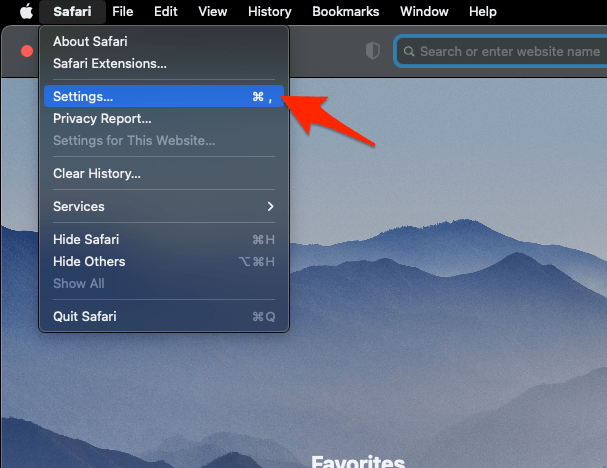 It will open the Safari Settings window.
- Switch to the Extensions tab in the Settings window.
It will display the list of all the Safari extensions installed. - Uncheck the checkbox in the left side pane to Disable the extension.
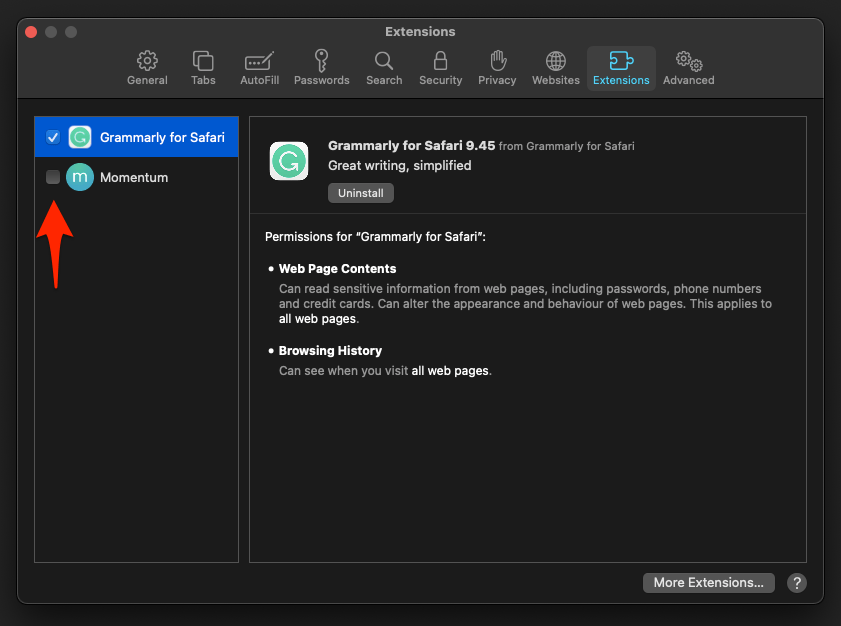
Reload Amazon. You’ll know it worked when the page loads normally with every extension off. Then turn them back on one at a time, reloading after each change, until the breakage returns and names the extension responsible.
Clear Safari’s DNS cache if Amazon cannot be found
Safari saying it cannot find Amazon’s server is a different failure from a blank page. Clear the DNS cache before you start changing more site permissions.
- Open the Apple Safari app on your Mac, and select Safari > Settings... from the menu bar.It will open the Safari Settings window.
- Switch to the Advanced tab, and enable the checkbox for the Show Develop menu in the menu bar option.
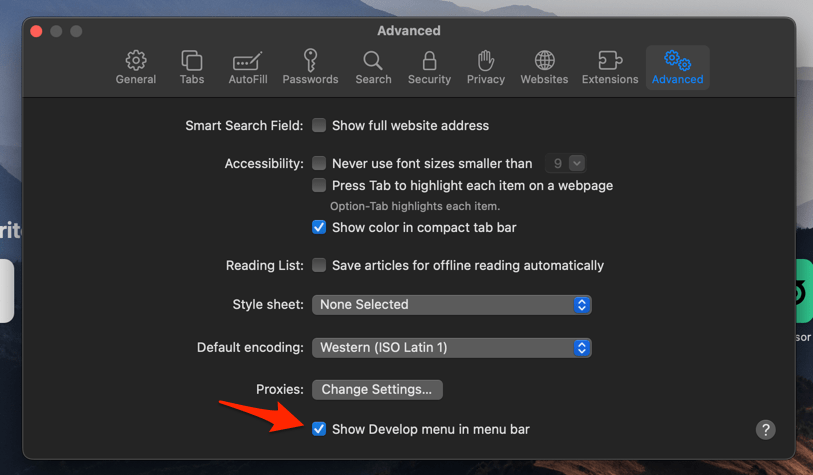 It will enable a new Develop menu in the Safari menu bar.
- Click on the Develop menu and select the Empty Caches command.
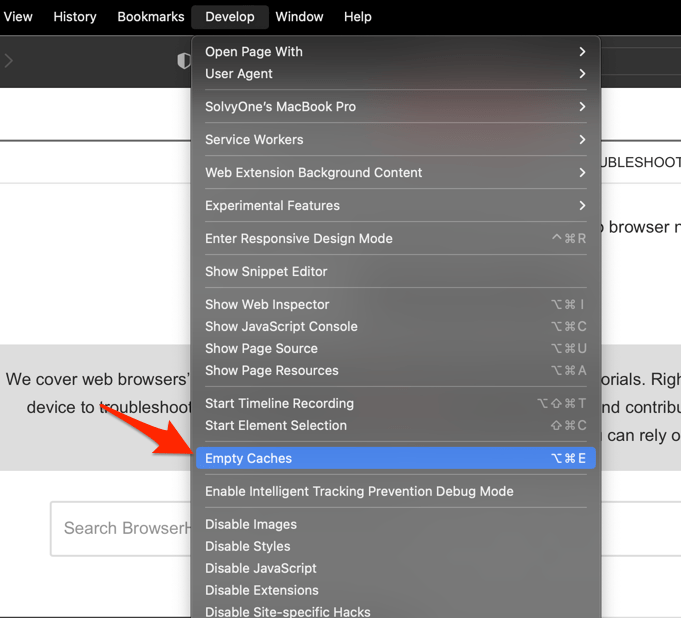 It will clear all cache, including the Safari DNS host cache.
Try Amazon again. You’ll know it worked when the address resolves and the page starts loading. If it resolves but the page still breaks, go back to the cookie, extension, and website-data checks.
Remove Amazon website data in Safari on Mac
Safari keeps a per-site data list, and Amazon’s entry survives ordinary reloads. Reset that one entry instead of wiping every site.
This is the fix for a sign-in loop or a page that only half loads.
- Choose Settings… from the Safari menu.
- Select Privacy.
- Click .
- Locate amazon.com in the website list.
- Select amazon.com and any related Amazon entries.
- Click .
- Confirm the removal if a confirmation appears.
Open Amazon in a new tab and sign in again. If Safari offers only a full removal control, use the complete reset in the next section instead.
For related storage options, see How to Clear Site and Browsing Data in Safari on Mac.
Clear all Safari cookies and cache on Mac
Still broken after the per-site removal? Clear Safari’s cookies and cache wholesale. It affects every site and signs you out of other web services, so keep it as the fallback.
- Launch the Safari app on your Mac computer.
- Click on the Safari menu from the menu bar, and select the Settings... sub-menu. It will open the Safari Settings window.
- Switch to the Privacy tab, and click to open the button.
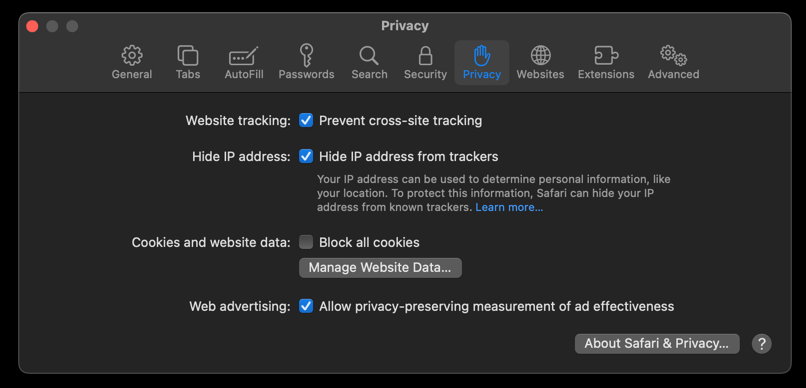 It will load the list of websites currently storing the cache and cookies in the browser.
- Hit on the command and then the button.
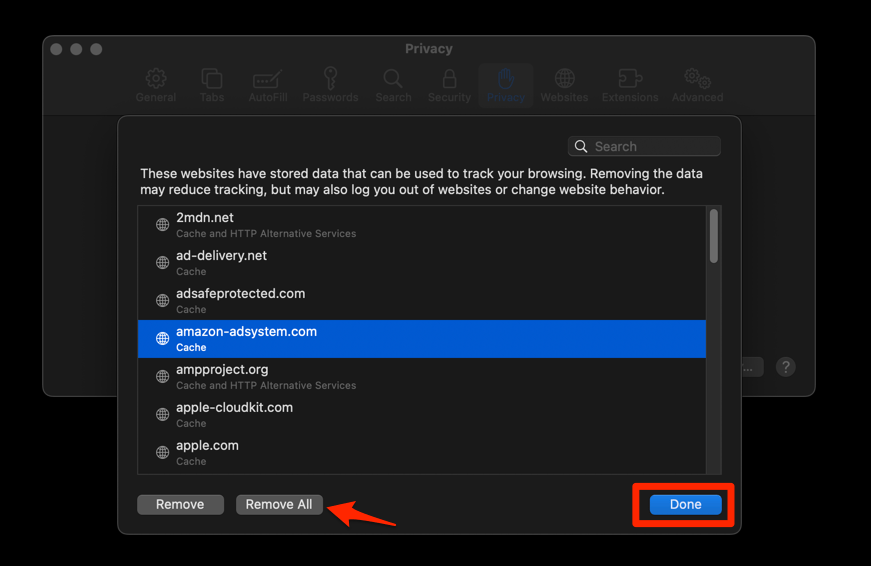 It will flush the cookies and cache for all sites in Safari.
Reopen Amazon and sign in again. You’ll know it worked when the page loads in a normal window and the sign-in survives a reload. If it still fails, continue with the connection and cross-browser checks.
Reset the connection if every site fails on Mac
When Amazon fails alongside unrelated sites, the evidence points at the connection or the Mac, not at an Amazon-specific Safari setting.
- Turn Wi-Fi off (or unplug the Ethernet cable) before you reopen Chrome.
- Restart your computer. This clears anything still trying to phone home from memory.
- Stay offline until you have finished the rest of the cleanup steps below.
Reconnect and try Amazon and an unrelated site side by side. Both should load normally. If only Amazon stays broken, test another browser or device next.
Clear Safari data on iPhone
Safari’s controls moved on iPhone. You’ll now find them under Settings > Apps > Safari, with Website Data tucked inside Advanced. If Amazon fails on that device, clear Safari’s cookies and site data and try again.
- Launch the iPhone or iPad's Settings app.
- Select Safari in settings and scroll to the bottom to choose the Advanced option.
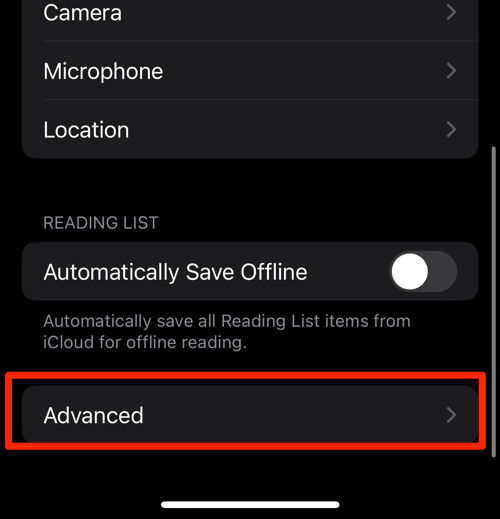
- Tap on the Website Data option.
It will display the list of all websites and corresponding data. - Tap on the command.
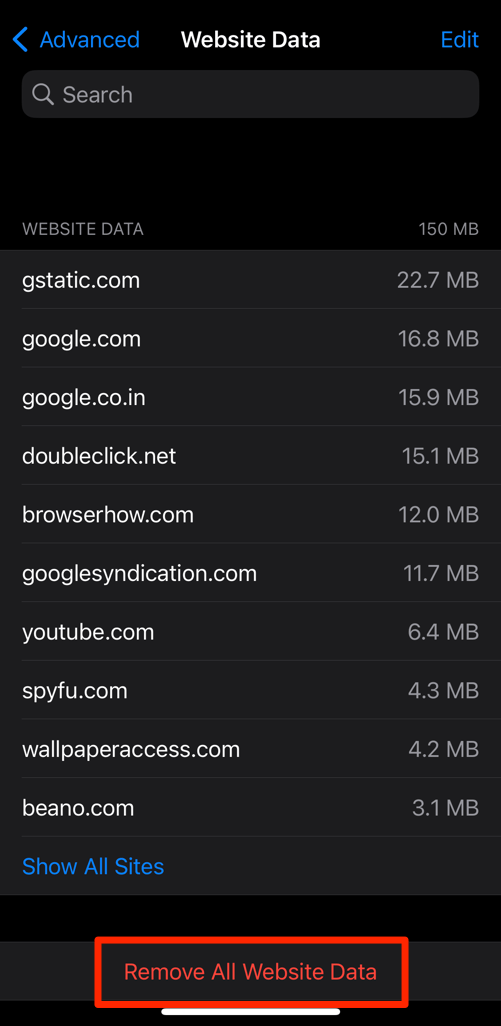 It will delete all the stored website data from the Safari browser.
Reopen Amazon and sign in again. You’ll know it worked when the page loads and stays signed in.
If cookies are still blocked, use Block or Allow Browser Cookies in Safari on iPhone & iPad. Apple’s Safari website data guide confirms the current Website Data path.
Confirm whether the issue is limited to Safari
One last test settles who owns the problem. Open Amazon somewhere else and repeat the action that failed.
- Open Amazon in another browser or on another device.
- Repeat the action that failed, such as signing in or opening the cart.
If the same failure follows you to every browser and device, Safari’s cookies, extensions, and website data are not the cause. If Amazon works elsewhere but fails in Safari, return to the extension, cookie, and Amazon data checks.

Frequently Asked Questions
Why does Amazon work in Safari Private Browsing but not in a normal window?
A normal Safari window can carry blocked cookies, stored website data, or an active extension, while a Private window starts with a cleaner site state. If the page works privately, complete the cookie, extension, and Amazon data checks in the order shown above.
How do I allow cookies for Amazon in Safari?
On Mac, Safari’s cookie controls live under Safari > Settings > Privacy > Advanced Settings…, with a separate Enable cookies control in View > Website Settings. The section above explains how to test the global setting and restore it safely.
Do I need to clear all Safari data to fix Amazon?
Removing Amazon’s entries from Manage Website Data is the narrower first option, while a full cookies and cache reset is the fallback. A full reset affects every site and can sign you out of other services.
Should I leave Prevent Cross-Site Tracking turned off?
No. It should be a temporary diagnostic, and turning it off reduces your privacy protection. Restore it after testing unless you have confirmed the effect and are comfortable with the tradeoff.
How do I fix Amazon in Safari on iPhone?
On iPhone, Safari’s current controls are under Settings > Apps > Safari, with Website Data under Advanced. The mobile reset and cookie guidance above cover the needed checks and retry.