Safari's Manage Website Data sheet opens blank, spins forever, or never lists the sites you want to clear. On a Mac that usually comes down to a temporary Safari state, an active Screen Time restriction, or a build that needs updating.
Start on the right screen, quit and reopen Safari, and check your web content restrictions. If the list still will not fill, update Safari or run a full cookie and cache cleanup from Privacy settings.
In this guide, I have covered:
Contents
Your Safari website data list is empty: start with the right screen
You opened Safari to clear cookies for one site, and the list is blank, spinning, or ignoring your clicks. Before you reset anything, confirm you are on the screen that actually lists stored site data.
Safari keeps cookies and other website information separate from the temporary files it caches to speed up pages. That is why Manage Website Data is where you inspect and remove stored information for individual sites, even when the page itself loads fine.
- Open Safari and click Safari in the menu bar.
- Choose Settings.
- Select Privacy in the sidebar.
- Click Manage Website Data.
If sites do appear, pick the one you want to clear and choose Remove. To delete everything listed, choose Remove All. Safari may ask you to confirm first.
Apple points out that removing this data can sign you out of websites, reduce personalized tracking, or change how pages behave. The full workflow is in Apple’s Safari guide to managing cookies and website data.

Removing website data is not the same as emptying Safari’s temporary disk cache. If your goal is a broad cleanup rather than tracking down one site, use the full procedure further down once you have confirmed the list stays empty.
Refresh a stuck or unresponsive Manage Website Data sheet
A sheet that opens with no website names, keeps loading, or ignores clicks usually points to a temporary Safari state. Apple does not document a single confirmed cause, so rule out the easy things first.
- Close the Manage Website Data sheet and return to Safari.
- Quit Safari with Safari → Quit Safari.
- Open Safari again.
- Go to Safari → Settings → Privacy.
- Select Manage Website Data again and give the list a moment to load.
If the list comes back, select the affected site and choose Remove. If it stays blank, stop reopening the same sheet and work through the checks below instead.
Check Screen Time restrictions when the Remove buttons are grayed out
A sheet that loads but leaves its buttons grayed out is often a restriction problem, not a bug. When web content restrictions are active in Screen Time, Safari’s data-clearing controls can look unavailable.
- Open System Settings.
- Select Screen Time.
- Select Content & Privacy Restrictions.
- Select Web Content.
- Review the restrictions set for Safari website access.
- Adjust them if needed, close System Settings, and reopen Safari.
Back in Safari, return to Settings → Privacy → Manage Website Data. Remove should respond once there is stored data to clear and no active restriction is blocking it.
Changing a Screen Time restriction can allow websites that were blocked before. Review the setting before you disable anything, and restore it if the restriction was intentional.
Update Safari, then try the data screen again
If nothing above changed anything, check which Safari version you are running. Keeping it current is the fastest way to rule out something macOS has already patched. You can check the installed Safari version in a few clicks.
- Click on the Apple
 menu from the menu bar and select the System Settings... sub-menu.
  It will open the System Settings window.
 - Select the General tab in the left sidebar, and choose the Software Update tab.
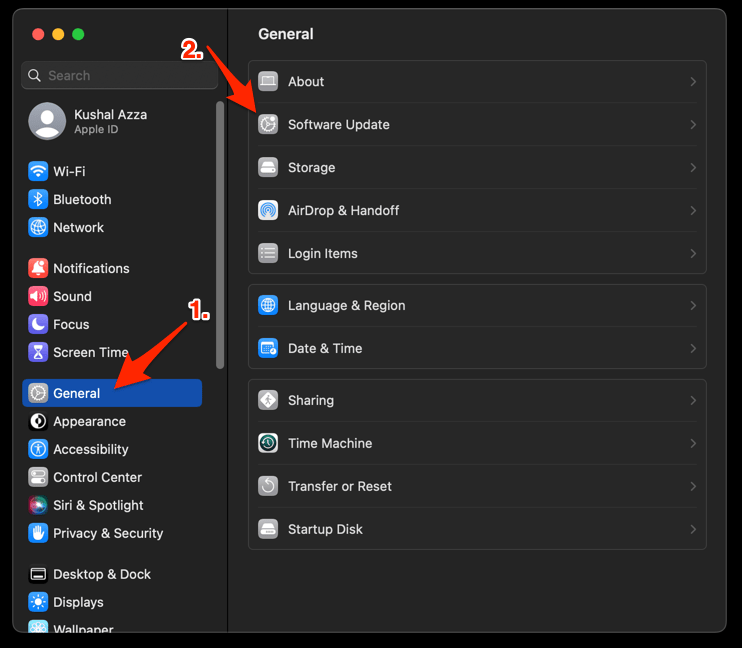 The macOS System will check for any available upgrades in the background.
 - Click on the More Info... tab and enable the checkbox for Safari updates (if any are available).
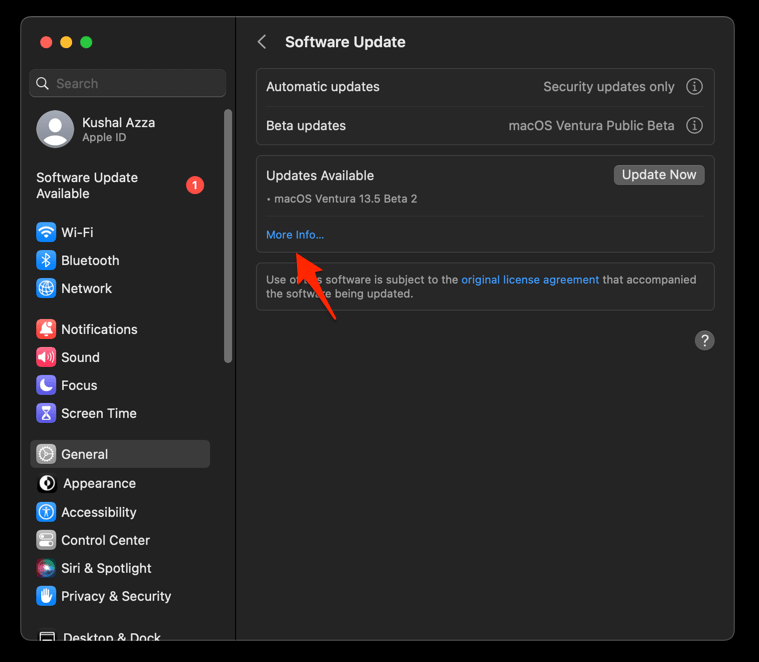
- Hit on the button.
It will update the Safari browser.
When the update finishes, restart the Mac and open Safari → Settings → Privacy → Manage Website Data. You’ll know it worked when the sheet lists websites and lets you select Remove or Remove All.
Clear Safari cache and cookies as a broader fallback
Sometimes the list itself is beside the point. You just need Safari to treat the problem sites as brand new, and clearing cached files and cookies in one pass does exactly that.
Expect side effects. Sites will see you as a first-time visitor, and most will ask you to sign in again.
Reopen Safari and test the site that was giving you trouble. If it still fails, the problem likely sits with the site itself: outdated permissions, cookie requirements, or missing script support. Our guide to clearing data for a specific domain in Safari covers the narrower fix.

Check that the fix actually worked
Verification takes a minute, and it tells you whether you solved the whole problem or only the visible part.
- Open Settings → Privacy → Manage Website Data and confirm the sheet opens without spinning.
- Reload the affected website and check that content loads as expected.
- Sign in again if Safari asks for your credentials.
- Check the site’s own cookie or site-data control to confirm it recognizes your current session.
If the screen still will not populate but the site now works, the listing issue is probably limited to the settings interface. You can also use Safari’s complete site and browsing data cleanup guide to clear the remaining categories by hand.
Frequently Asked Questions
Why is Safari’s Manage Website Data screen empty?
An empty screen may simply mean there is no data to display, but Apple does not document one confirmed cause for a sheet that stays blank or unresponsive. Restarting Safari, checking Screen Time restrictions, and updating Safari clear up most temporary cases.
Does Manage Website Data clear my Safari cache?
No. Manage Website Data removes stored website information such as cookies, while a cache cleanup removes temporary webpage files. A full cache and cookie cleanup is the broader operation.
Why are the Remove buttons grayed out in Safari?
There may be no data to remove, or Screen Time web content restrictions may be limiting the control. Check the Safari web content restrictions in Screen Time and open the sheet again.
Will removing website data sign me out of websites?
Yes, removing the relevant website data can sign you out. You may also have to repeat verification steps the site requires.