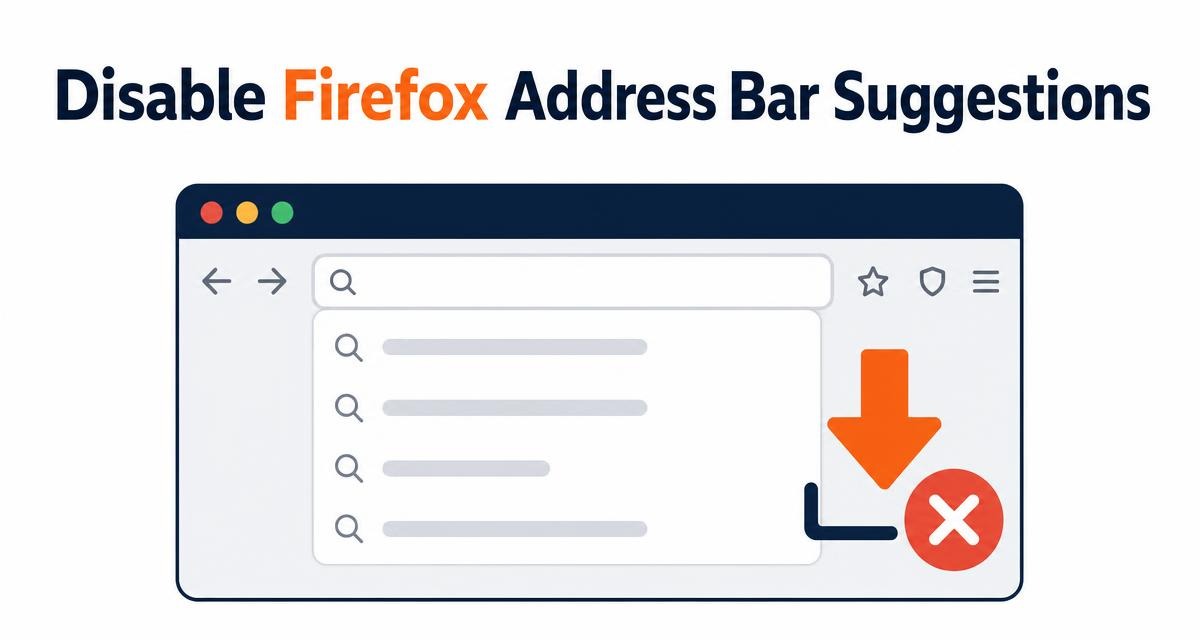
Firefox adds a row of one-click search engine icons to the address bar suggestions. Useful if you switch providers all day. Annoying if you don't, because the icons crowd the dropdown and push your real suggestions down.
You can hide the whole row from Settings. Open Search, find the Address Bar section, and clear the Shortcuts checkbox. The same box brings them back whenever you want them.
In this guide, I have covered:
Contents
Why Firefox Shows Search Engine Shortcuts in the Address Bar
You type a few letters into the address bar and Firefox answers with a row of search engine icons above your usual suggestions. Those are the one-click search shortcuts. Click one and your words go to that provider instead of your default engine.
They save a step if you hop between providers all day. They also crowd the dropdown, and when you never use them they are just noise. Hiding the row takes one checkbox.
The setting only touches the address bar. Your default search engine and normal searching stay exactly as they are. If other parts of Firefox feel cluttered, the same idea applies to removing unwanted content from the new tab page.
Turn Off the Address Bar Shortcuts
Here is the whole procedure. It lives on one settings page and takes about fifteen seconds.
- Open Firefox Settings from the Firefox
 menu.
- Select Search in the settings sidebar.
- Scroll to the Address Bar section.
- Clear the checkmark next to Shortcuts.
You’ll know it worked when you click the address bar, type a couple of characters, and the shortcut icons no longer appear in the suggestion dropdown. Regular search suggestions still show up.

Firefox labels this option differently in some releases. If you don’t see Shortcuts, look for a similarly worded checkbox inside the Search section, under Address Bar.
Restore the Search Shortcuts
Changed your mind, or setting up a profile that needs quick access to several providers? The same checkbox puts the row back, and nothing else in Firefox changes.
- Open Firefox Settings.
- Select Search.
- Find the Address Bar section.
- Select the Shortcuts checkbox to enable the shortcut row again.
Click the address bar and start typing to confirm the icons have returned.
What If the Shortcuts Option Is Missing?
You opened Search settings and there is no Shortcuts checkbox to clear. Before you assume it vanished, check where you are looking. The control sits under Address Bar, not in the search engine list.
Menu labels do shift between Firefox releases. Mozilla’s guide to managing Firefox search settings explains how the address bar options are grouped in the current version, so you can match it against what you see on screen.
Still stuck? Restart Firefox and open the Search page again, since some changes only settle after the interface refreshes. The Mozilla Support discussion about address bar shortcuts covers the remaining cases.

Frequently Asked Questions
How do I remove the search shortcuts in Firefox?
Open Firefox Settings, select Search, and find the Address Bar section. Clear the checkmark next to Shortcuts, then click the address bar and type a few characters to confirm the shortcut row is gone.
Does turning off Shortcuts change my default search engine?
No. It hides the one-click search engine shortcuts in the address bar suggestions. Your default engine and normal web search keep working as before.
Can I hide only some Firefox search engines?
The Shortcuts checkbox works on the whole row as a group, so there is no per-provider switch there. If you want a different provider handling ordinary searches, change the default search engine in the search settings instead.
Will removing search shortcuts affect browsing history?
No. Turning off Shortcuts changes what appears in address bar suggestions. Your browsing history and saved data stay where they are.
Why do Firefox search shortcuts keep appearing?
Check that Shortcuts is cleared under Search, then Address Bar. If it already is, reopen Firefox and verify the setting again, because the icons can stay visible until the interface refreshes. Clear the box, restart if needed, and the address bar goes back to plain suggestions.