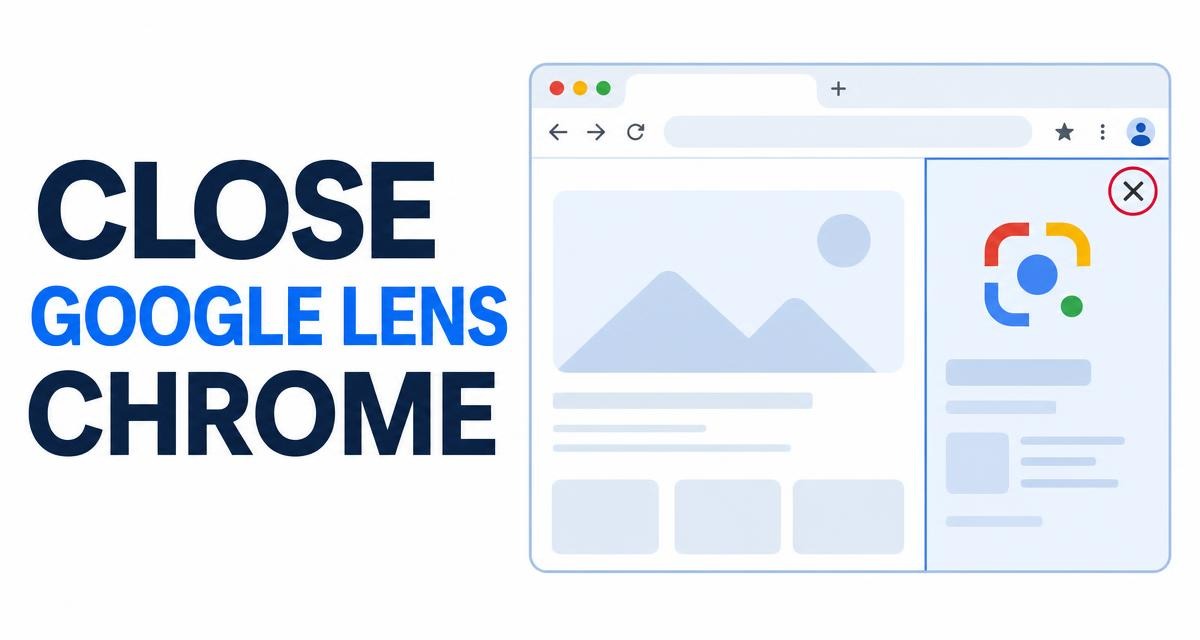
The Google Lens panel in Chrome can stay open after you close it, or open with its top controls cut off, so the page underneath looks frozen. Usually part of the panel is hidden behind another layer, or something in your profile is interfering.
Press Esc, then use the side panel's close button. If the overlay holds on, restart Chrome and load the same page in an Incognito window to see where the problem lives.
In this guide, I have covered:
Contents
Why your Google Lens panel gets stuck in Chrome
You click Lens, the panel opens, and then it refuses to close. Or it opens with the top half cut off and the page under it stops responding to clicks.
Google Lens runs in a Chrome side panel or an overlay attached to the current page. When that panel sits behind another layer, its close control and menu never render, and the page looks frozen even though Chrome itself is still working.
Start by closing the Lens panel and reopening it from the page. If the menu locks again, restart Chrome or open an Incognito window to check whether the problem follows your profile.
Close the stuck Google Lens panel
Chrome already gives you a few ways out of a side panel, and they work even when the overlay is partly off-screen. Try the keyboard first. It takes a second and costs nothing.
- Press to close the Lens side panel or dismiss the active overlay.
- If the panel stays open, click the close
 control at the top-right of the Chrome side panel.
- Click an empty area of the page to clear any selection overlay that is still active.
When the panel closes and the page responds again, reopen Lens and check whether the whole menu is visible. The Chrome Google Lens side panel guide covers the other close methods in more detail.
Reopen Lens using the AI Mode workaround
Some readers get the top of the Lens interface back after a short detour through AI Mode. It is a workaround, not a repair, and it changes nothing permanent in Chrome.
- Open the
 menu.
- Select AI Mode from the search options.
- Wait for the AI Mode interface to finish loading.
- Switch back to All tabs or your normal search mode.
- Open Google Lens again from the menu by selecting Search this tab with Google Lens.
Check that the panel now shows its full set of controls. If the menu is still clipped or unresponsive, move on to the reset steps below.
Reset Chrome when the Lens overlay stays locked
A stuck side panel can outlive the page that opened it. Restarting Chrome clears that interface state, and it leaves your bookmarks, history, and saved passwords exactly as they were.
- Save any unsent text or work in the current tab.
- Close the Chrome window.
- If Chrome keeps running in the background, open the browser again and choose Exit when prompted.
- Reopen Chrome and return to the page that triggered the problem.
- Open the menu and select Search this tab with Google Lens.
You’ll know it worked when the page responds normally and the Lens controls sit where you expect them. Still stuck? Test the same page in an Incognito window.

TIP: A restart is not a reset. Your history, cookies, and sign-ins stay put, so there is no need to clear browsing data to free a frozen panel.
Test whether the issue is tied to your Chrome profile
Incognito is the fastest way to separate a temporary panel glitch from a profile or extension problem. It removes nothing and touches none of your regular browsing data.
- Open the menu.
- Select New incognito window.
- Open the same page in the Incognito window.
- Use the page menu to select Search this tab with Google Lens.
If Lens works in Incognito, close the window and start disabling extensions in your regular profile. If it fails there too, the problem is more likely the page, this Chrome installation, or a Google-side service.
Disable the Lens overlay if it keeps reopening
Some Chrome installations expose an experimental switch for the Lens overlay. Flags change and vanish between versions, so treat this as an optional step, not the first thing you try.
- Open a new tab and enter chrome://flags in the address bar.
- Search for Lens overlay in the search box.
- Open the Lens overlay entry if it is available.
- Select Disabled in the flag menu.
- Click and reopen Chrome.
After the relaunch, load the page again without opening Lens. If the menu no longer locks, leave the overlay disabled, or check whether Lens is actually needed for the task at hand.

Flag names and choices differ between Chrome versions and managed profiles. If the Lens overlay entry is not there, do not change unrelated flags. A managed installation may block the setting from changing at all.
Update Chrome and check the extension list
If the overlay still shows up after a reset, two suspects remain: an outdated Chrome build and an extension that interferes with the side panel. Check the update first, then test without extensions.
- Open the menu.
- Select Help.
- Select About Google Chrome.
- Choose if an update is available.
- Wait for Chrome to restart, then test Google Lens again.
Does the problem survive that? Open the menu and go to More tools → Extensions. Disable extensions in small groups and retest Lens after each change.
What to do if Google Lens still does not open
Neither Lens entry responds? Chrome’s standard menu offers Search this tab with Google Lens, and right-clicking an image gives you Search with Google Lens. When both fail, check that Google is set as Chrome’s default search provider, then try a new tab or a different website.
- Open chrome://settings/searchEngines in the address bar.
- Confirm that Google is the default search engine.
- Close the settings tab and open a new tab.
- Open a simple website and test Search this tab with Google Lens again.
If Lens stays unavailable across websites and profiles, wait for Chrome or Google to restore it. Google Images search still works as a stand-in while you track down an image source.

Frequently Asked Questions
Why is the Google Lens menu stuck open in Chrome?
Lens runs in a Chrome side panel or overlay. When its close control is hidden or the panel stops responding, the page behind it can look locked even though Chrome is still running normally.
How do I close Google Lens in Chrome?
Press , then click the close control at the top-right of the side panel if it stays open. If neither works, restart Chrome and reopen the page.
Can I use Google Lens without the menu showing?
Try switching to AI Mode and back, then reopen Lens. If the controls are still hidden, use regular Google Images search as a temporary alternative.
Will disabling the Lens overlay remove Google Lens completely?
Disabling the experimental overlay stops that overlay from appearing. The flag is not available in every Chrome installation, and Google may still offer Lens through other menus.
Does the Chrome update fix a stuck Google Lens menu?
An update can fix a Chrome interface bug if the current release addresses it. If the menu still locks afterwards, test in Incognito and disable extensions in small groups to narrow it down.