When a page shrinks into one side of the Chrome window, the cause is usually a saved zoom level, an extension that edits page styles, stale cached files, or graphics acceleration. Each one takes a minute to rule out.
Start with the site's own zoom setting, then check Chrome's default page zoom, extensions, cached data, and graphics acceleration. Resetting Chrome comes last.
In this guide, I have covered:
Contents
Start by resetting the site’s saved zoom level
One tab looks squeezed into the left or right edge of the window while the rest of your tabs render fine? Chrome saves a zoom level for each site you change, and that saved value can override the layout the page was built for.
- Open the affected website in Chrome.
- Click the
 menu, then select Settings.
- Select Privacy and security, then Site Settings.
- Select Additional content settings, then Zoom levels.
- Find the affected website in the list and click the X beside its custom zoom value.
- Reload the website and check whether it fills the browser window normally.
Chrome’s zoom help page puts the default page zoom at 100 percent, which is what most sites expect. From the keyboard, + and + change zoom on Windows, Linux, and ChromeOS, while a Mac uses instead of .
If you drive the browser from the keyboard a lot, these Chrome keyboard shortcuts cover zoom, tab switching, and window controls. Get back to 100 percent before you judge the layout.
Check Chrome’s default page zoom
If the squeeze shows up on several sites, one bad site setting is not the explanation. Chrome’s global page zoom is the better suspect, and it takes about ten seconds to check.
- Click the menu, then select Settings.
- Select Appearance.
- Find the Page zoom control and set it to 100 percent if it reads anything else.
- Reload each affected website and check whether the layout is back to normal.
Still collapsed after both zoom checks? The cause sits deeper in Chrome, so work through extensions, cached data, and rendering next.
Disable extensions temporarily
A page that loads with a half-width layout often has an extension rewriting its CSS or resizing the viewport behind the scenes. Turning them all off for a minute is the fastest way to rule that out.
- Launch the Google Chrome on your computer.
- Click on the More for the list menu.
- Hover on the More Tools menu and choose the Extensions sub-menu.
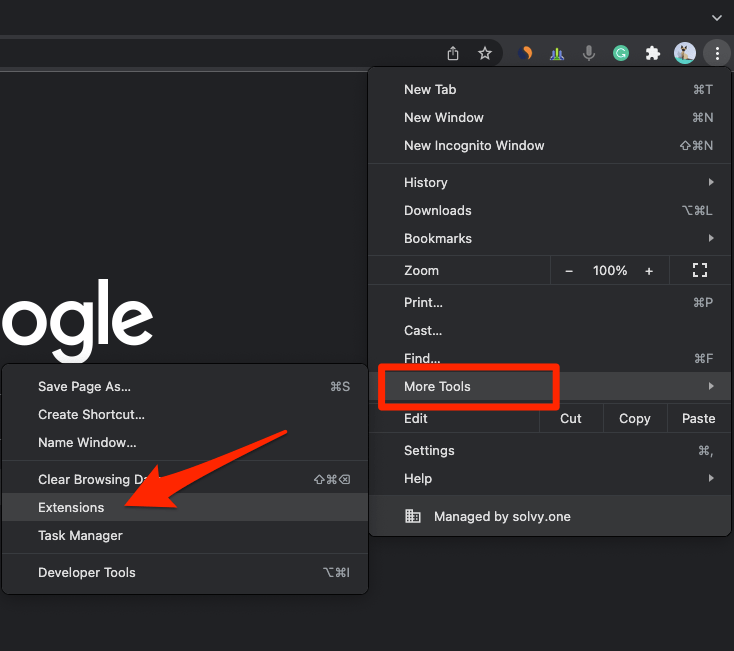 It will open the Chrome Extensions Manager page with the list of installed extensions.
- Toggle the switch to Disable the extension.
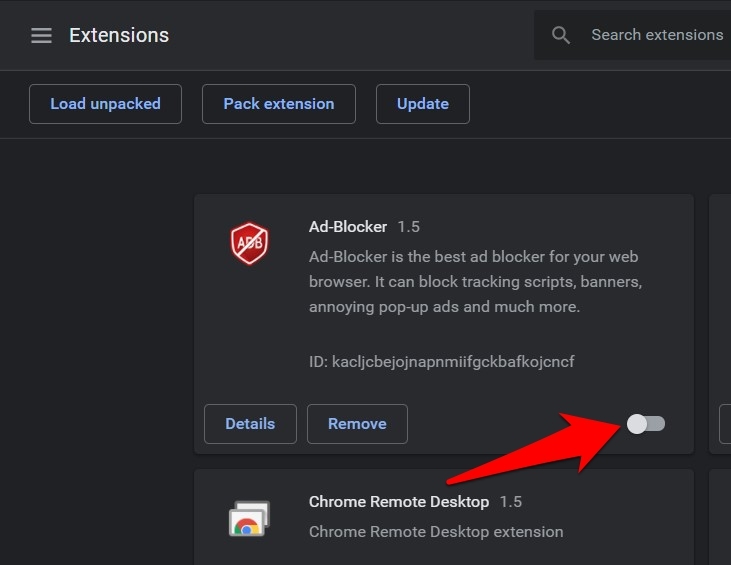
Reload the affected site with extensions off. You’ll know it worked when the layout snaps back to normal in the same tab. Then switch extensions on one at a time, starting with ad blockers, reading modes, and anything else that changes how pages look, and reload after each one until the collapse returns.
Clear Chrome’s cached browsing data
A layout that breaks on the sites you visit every day can come down to old cached files. Chrome keeps copies of a page’s CSS, fonts, and images, and a stale copy can leave the page rendering with half its styling.
- Go to chrome://history/clearBrowserData in the address bar.
- Select the Time range from the drop-down.
- Enable the checkboxes for Browsing history, Cookies and other site data, and Cached images and files.
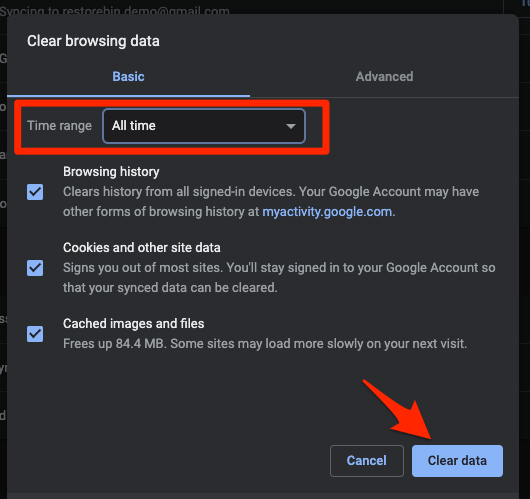
- Hit the Clear data button.
Choose only cached images and files if you would rather stay signed in everywhere. You’ll know it worked when the site loads from scratch and fills the window.
If it does not, restart Chrome and load the page once more. A fresh process clears up the odd case where an old render sticks around.
Toggle graphics acceleration
Rendering trouble can look exactly like a layout problem. When zoom and cache are clean and a page still sits off to one side, switching Chrome’s graphics acceleration off and back on is worth the restart.
- Open Chrome Settings.
- Click System in the left sidebar. (If your Chrome still groups it under an expandable Advanced section, the path is Settings > Advanced > System.)
- Toggle Use graphics acceleration when available on or off, then relaunch Chrome.
Chrome needs that restart before the change takes effect. You’ll know it worked when the page renders correctly with acceleration switched off. Leave it off for now, and try turning it on again after Chrome’s next update.
Reset Chrome settings
Zoom, extensions, cache, and graphics are all clear and the page still collapses. That is when restoring Chrome’s default settings makes sense, even though it costs you your custom configuration.
- Launch the Chrome browser on the computer.
- Click on the More for menu list, and select the Settings menu.
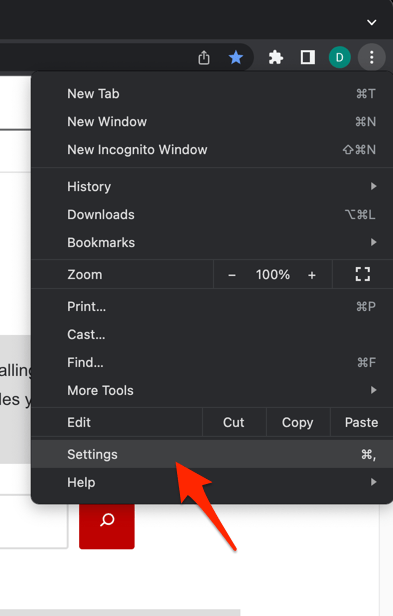 It will open the Chrome browser's Settings page.
- Switch to the Reset settings tab in the left sidebar, and select Restore settings to their original defaults option.
- Finally, hit the command button.
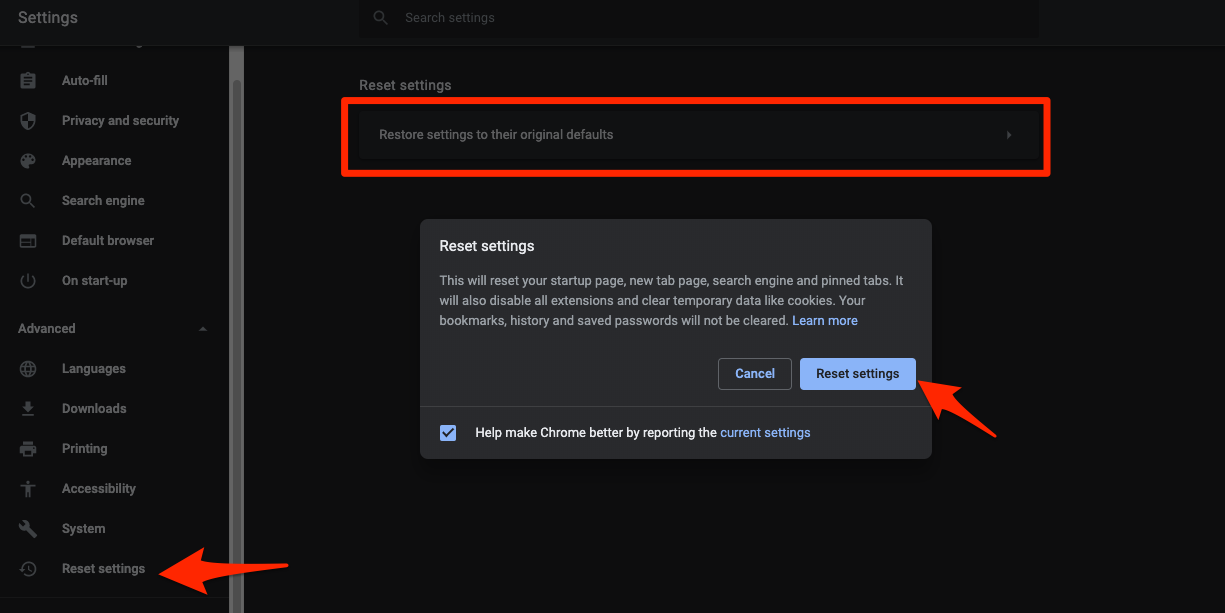 It will reset the Chrome browser settings, clear temporary data, and disable all extensions.
Chrome restarts on its own when the reset finishes. You’ll know it worked when the affected site fills the window without any zoom or extension changes from you.
Sign in to your Google account again if you want your synced settings back.

Resetting Chrome changes the browser configuration, not your bookmarks or saved passwords. Read the confirmation screen before you click through.
Check whether the issue is limited to one site
One site collapsing in Chrome while it looks fine elsewhere tells you where to look. The problem is local to Chrome, not the page’s own code.
- Click the Profile icon in the top-right corner of the Chrome window.
- Click Guest profile.
Load the site in the guest window. You’ll know it worked when the page renders normally there, which points to an extension or a profile setting rather than the site itself.
If it still collapses as a guest, open the same page in another browser. A correct layout elsewhere means Chrome is the culprit, so update Chrome and repeat the zoom and graphics checks. Collapsed in every browser means the site’s own layout code is at fault, and the site owner is the person to tell.

Frequently Asked Questions
These come up most often once the steps above are done.
Why are Chrome websites collapsing to one side?
A saved zoom level, an extension that changes page styling, stale cached data, or a graphics rendering problem can push a site into one side of the window. Resetting the site zoom is the quickest first check.
How do I reset the zoom for one website in Chrome?
Open Settings, then Privacy and security, Site Settings, Additional content settings, and Zoom levels. Click the X next to the affected site.
Should I clear all browsing data to fix a collapsed website?
Clear browsing data after you have checked zoom and extensions. It removes cached files that interfere with a page’s layout, but you may have to sign in to websites again.
Does resetting Chrome delete my bookmarks and passwords?
No. Restoring default settings resets browser configuration rather than removing bookmarks or saved passwords. Your sign-in status and other site data may still change.
What if the website still collapses after these fixes?
Test the site in a Chrome guest window and in another browser. If it only fails in Chrome, update Chrome and repeat the zoom and graphics checks. If it fails in every browser, the website itself likely has a layout problem.