Chrome tabs can look dark even when the browser is set to light mode, and the tab strip is usually the last place the color change shows up. The cause is normally the appearance mode, a custom theme, an extension, or an experimental flag.
Start with Chrome's Appearance settings, then test the same window with extensions off or in Incognito. That tells you whether Chrome itself is applying the dark color or something else is.
In this guide, I have covered:
Contents
Chrome tabs look dark even though light mode is on
Your tab strip is dark, the toolbar is light, and nothing you click seems to line them up. That mismatch usually traces back to one of four places: the appearance mode, an installed theme, an extension, or an experimental flag.
Start with the mode. It is the fastest check and the easiest to undo. Open chrome://settings/appearance in the address bar, find Mode, and select Light.
- Open chrome://settings/appearance in the address bar.
- Find the Mode setting.
- Select Light.
- Close and reopen a Chrome window, then check the tab strip.

TIP: You can also reach the same page the long way: open the  menu, select Settings, then Appearance. Same page, more clicks.
Still dark? Confirm you are looking at a normal Chrome window. Incognito uses its own appearance, so a regular window is the only fair comparison.
Remove a theme that overrides the light appearance
You may have installed a theme months ago and forgotten about it. Chrome themes recolor the tab strip, the toolbar, and the new tab page, and they keep doing it after you switch the mode back to Light.
Themes travel, too. With Chrome Sync on, a theme picked on your laptop can land on your desktop without you touching a single setting.
Return to chrome://settings/appearance and look at the theme controls. If a custom theme is selected, choose Light instead. If you see Reset to default next to the theme name, use it to strip the custom theme and bring back Chrome’s own colors.
- Open chrome://settings/appearance.
- Locate the theme or color controls.
- Select Light for the browser appearance.
- If a custom theme is active, select Reset to default.
- Reopen Chrome and confirm that the tabs match the light theme.
If the setting flips back on its own, Sync is the likely culprit. Signing out temporarily tests that without deleting any local browser data.
Check whether an extension is darkening the browser
Both checks came back clean and the tabs are still dark? Now look at extensions. Dark Reader is the usual suspect, but any extension that rewrites page colors or injects a theme can leave marks on the tab strip.
The only reliable test is to switch them off and look again. Disable your extensions, reopen Chrome, and compare the tab strip with what you saw before.
- Launch the Google Chrome on your computer.
- Click on the More for the list menu.
- Hover on the More Tools menu and choose the Extensions sub-menu.
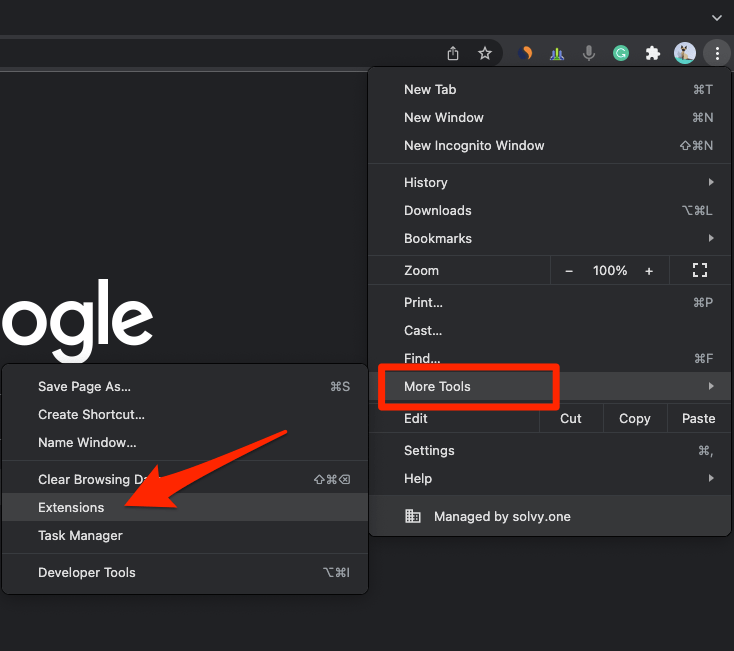 It will open the Chrome Extensions Manager page with the list of installed extensions.
- Toggle the switch to Disable the extension.
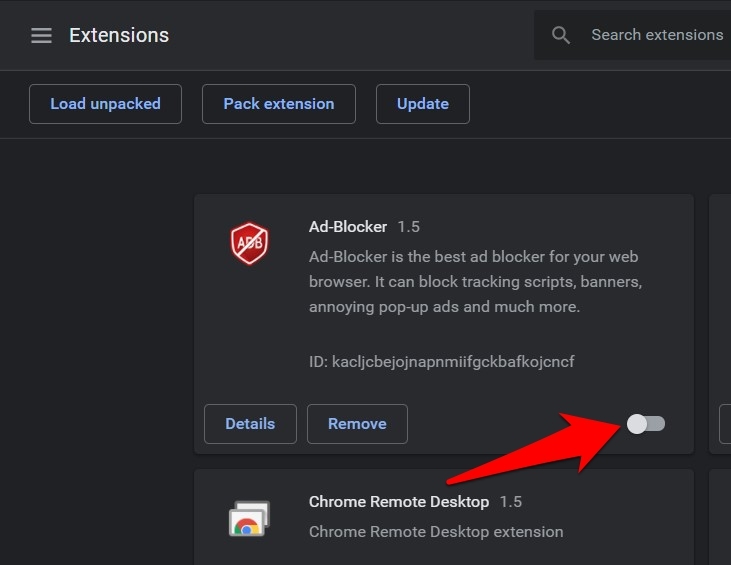
You’ll know it worked when the tab strip turns light while the extensions are off. That means an extension is the cause, not Chrome.
From there, re-enable them one at a time, reloading Chrome between each one, until the dark tabs return. The last extension you switched on is your answer: remove it, or open its appearance settings and turn dark mode off there. The official Chrome guide to dark mode and dark themes explains how Chrome handles the two appearances.
Test the tabs in an Incognito window
You want one answer fast: is the problem in your profile or in Chrome itself? An Incognito window settles it in seconds, because it runs without your extensions and without your saved theme.
- Open the menu in Chrome.
- Select New Incognito window.
- Look at the tab strip in the Incognito window.
- Compare it with a normal Chrome window.
Light tabs in Incognito but dark tabs in your normal window? Your profile is carrying the problem, so go back to the theme and extension checks. Dark in both windows? The cause sits outside the profile, which points to the operating system or a Chrome flag.
Check whether the operating system is forcing dark mode
When Chrome’s Mode is set to System, the browser copies whatever your computer does. Let the system theme switch to dark at sunset and Chrome’s tabs follow along, even if the rest of the window still looks pale.
If you want Chrome light no matter what the system does, set Chrome’s Mode to Light rather than System. That one setting overrides the operating system.
On a Mac, you can confirm what the system is doing in System Settings → Appearance. Apple’s official appearance guide covers the Light, Dark, and Auto options.
Review Chrome flags that darken page content
Two flags can make Chrome look dark, and people often blame the tab strip for what is really a page-level change. The Darken websites checkbox in themes setting flag adds a checkbox to the theme settings, while Auto Dark Mode for Web Contents force-darkens pages.
Neither one is supposed to recolor the tab strip. If you turned either on while experimenting, though, switch it off and see what changes.
- Open chrome://flags in the address bar.
- Search for Darken websites checkbox in themes setting.
- Set the flag to Disabled.
- Search for Auto Dark Mode for Web Contents.
- Set that flag to Disabled.
- Select when Chrome prompts you to restart.
- Reopen Chrome and check the tab colors.

Chrome flags are experimental. If you cannot remember which ones you touched, reset all of them instead of guessing one at a time.
You can reset everything from the top of chrome://flags with , or follow the Chrome flags guide for the step-by-step version.
Reset Chrome’s appearance settings
Light mode selected, no custom theme, extensions off, and the tab strip still wrong? At that point the settings themselves are suspect, and a reset is the next sensible step.
Know what you are giving up. Restoring defaults undoes your Chrome configuration changes. It does not clear browsing data, so bookmarks and history stay where they are.
- Open chrome://settings/reset in the address bar.
- Select Restore settings to their default settings.
- Select .
- Relaunch Chrome and check the tab strip.
That is the whole ladder: appearance mode, theme, extensions, Incognito, system theme, flags, reset. Work down it in order and stop as soon as the tab strip matches the rest of the window.
If the tabs are still dark after all of that, restart the computer and look for a high-contrast or forced dark setting at the system level. Open a second browser next to Chrome: if that one looks dark too, the operating system is doing it, not Chrome.

Frequently Asked Questions
Why are my Chrome tabs dark when the theme is set to light?
A custom theme, an extension, or a Chrome flag may be overriding it. Check the theme first, test with extensions off second, and look at the flags last.
Does Darken websites change the color of the Chrome tab strip?
No.
The Darken websites option affects web content only. The browser controls, including the tab strip, stay light.
Can I keep Chrome in light mode while my computer uses dark mode?
Yes. Set Chrome’s Mode to Light instead of System. Chrome then ignores the system dark mode and stays light.
Why do my Chrome tabs look different in Incognito?
Incognito runs as a temporary session without your normal extensions, and it can display a separate appearance. Treat it as a comparison test, not the main fix.
Will resetting Chrome delete my tabs and bookmarks?
No. Restoring default settings resets Chrome configuration, which is not the same as clearing browsing data. Check the result before signing back into anything.