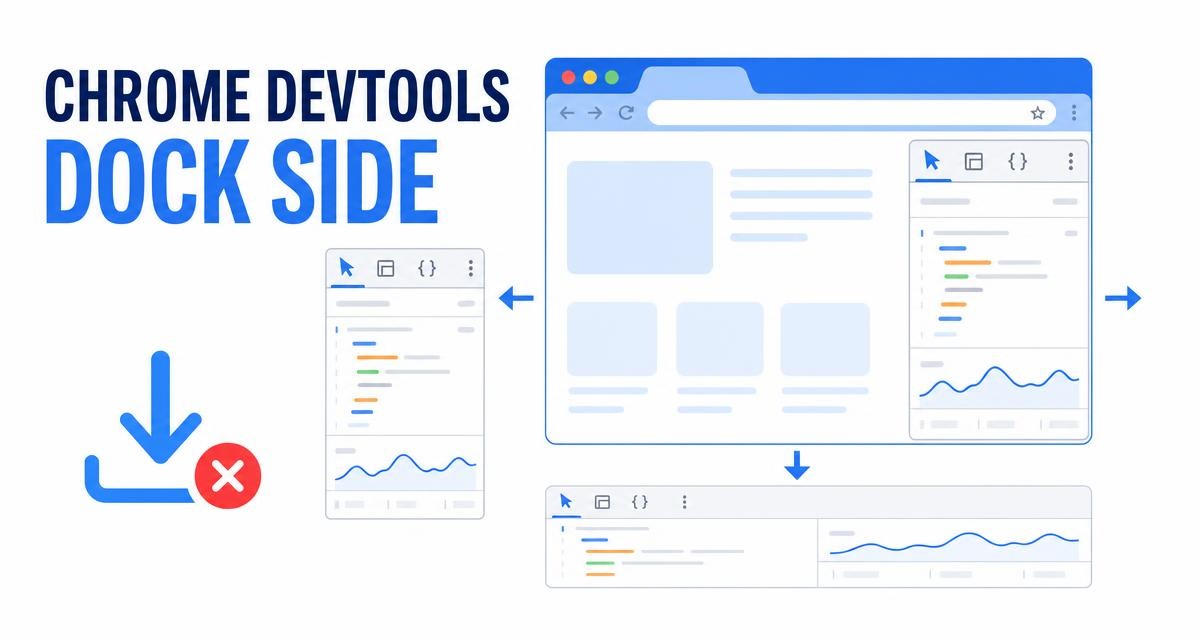
Chrome DevTools can be docked on the left, right, or bottom of the browser, or opened in its own window. That's the dock side, and it's a separate control from the panel layout inside DevTools.
Open the DevTools three-dot menu to change the dock side, or press Ctrl+Shift+P for the Command Menu. Panel layout sits under Settings > Appearance when you want the tools stacked vertically.
In this guide, I have covered:
Contents
Dock Side or Panel Layout: Which Setting Do You Need?
You opened DevTools and it’s either covering the page you’re debugging or wedged into a strip too narrow to read. Chrome controls that with two settings that sound alike and do different jobs.
Dock side decides where DevTools sits: left of the page, right of it, underneath it, or in its own window. Panel layout decides how DevTools arranges the tools inside that space, with Elements and Console either side by side or stacked.
The two work independently, so you can dock DevTools on the left and still stack its panels vertically.
Move the DevTools Panel to the Left, Right, or Bottom
DevTools is hiding the part of the page you need to see, or eating space you’d rather use elsewhere. Change the dock side and it moves right away.
- Open Chrome and press or ++ to open DevTools.
- Click the
 menu in the upper-right corner of DevTools.
- Select Dock side.
- Choose Dock to left, Dock to right, Dock to bottom, or Undock into separate window.
You’ll know it worked when DevTools jumps to the new edge the moment you pick the option. If it stays put, reopen Dock side and check which option is marked as active.ha
Google’s official guide to changing DevTools placement covers the same steps, including how to switch the dock position from the Command Menu.

Stack DevTools Panels Vertically or Horizontally
You want Elements and Console stacked instead of squeezed side by side. That’s the panel layout setting, and it lives in DevTools Settings rather than the dock menu.
- Open DevTools and click the menu in its upper-right corner.
- Select Settings.
- Open the Appearance section.
- Find Panel layout.
- Choose Horizontal, Vertical, or Auto.
The panels rearrange as soon as you pick an option. Auto hands the decision to DevTools, which chooses a layout based on the space it has.

TIP: If the panels still feel cramped, drag the divider between the page and DevTools to widen the pane. Extra width often fixes readability faster than switching layouts.
Change Placement Faster With the Command Menu
You know where you want DevTools and don’t want to walk the menu every time. The Command Menu docks it in a few keystrokes.
- Open DevTools.
- Press ++ on Windows or Linux, or ++ on Mac.
- Type dock.
- Choose Dock to bottom, Dock to left, Dock to right, Undock, or Restore last dock position.
Your choice applies the moment you select it. On Windows or Linux, ++ restores the last dock position. On a Mac, the same combination uses instead of .
Keyboard-first workflows get quicker once you know a few more combinations, starting with these useful Chrome keyboard shortcuts for Windows, Linux, and Mac.
Why the Layout Does Not Follow You to Another Computer
You set DevTools up on one machine, open it on another, and everything is back to the default position. Nothing is broken.
Chrome doesn’t sync the dock setting between devices, even when DevTools settings synchronization is turned on. Google notes that developers may prefer a different dock position for different devices, sites, or working conditions.
Set the placement again on each computer where you need it. The internal Panel layout choice is stored separately from the dock position, so check both if you want the setup to match.

If the dock menu is missing or a placement option does not appear, update Chrome and open DevTools again. The available options can differ between older installations and customized builds.
Frequently Asked Questions
How do I make Chrome DevTools vertical?
Open DevTools, click the menu, choose Settings, open Appearance, and set Panel layout to Vertical. This changes how the panels inside DevTools are arranged, not where DevTools sits on the page.
How do I move DevTools to the left side?
Open the DevTools menu, select Dock side, then choose Dock to left. The whole DevTools pane moves to the left edge of the browser window.
What is the difference between vertical layout and docking to the left?
Docking to the left puts DevTools beside the web page. Vertical panel layout stacks the tools inside DevTools. You can use both at the same time.
Does the Chrome DevTools layout sync across devices?
No. The dock setting stays on the machine where you set it, even with DevTools settings synchronization turned on. Set the placement separately on each computer.
Can I open Chrome DevTools in a separate window?
Yes. Open the DevTools menu, select Dock side, and choose Undock into separate window. Searching for dock in the Command Menu finds the same option.