Firefox opens a page but leaves out the text, skips the images, or shows a PDF as a blank sheet. The file itself downloads fine, so the document is not the problem.
Work through an update, Troubleshoot Mode, cached site data, and hardware acceleration in that order. One of them usually brings the missing content back.
In this guide, I have covered:
Contents
When a Firefox Page Loads With Text or Images Missing
You open a page in Firefox and half of it is gone. Headings appear, the body text does not. Buttons sit blank, images leave empty boxes, or the PDF viewer shows a white page even though the file downloads fine.
Three things cause this: a bug in your Firefox build, an extension or script rewriting the page, or a graphics-rendering fault. Test them in that order. An update fixes some known rendering failures without touching a single setting.
Update Firefox First
Sometimes the page is broken because of a bug Mozilla has already fixed. Firefox updates carry patches for PDF viewing, web graphics, and WebGL content that can render blank on certain graphics cards.
- Open the Firefox browser app on your computer.
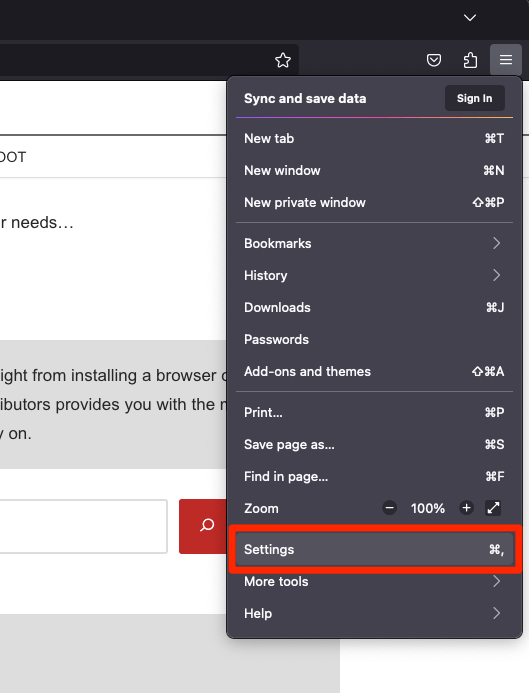
- Click on the More
 menu and select the Settings menu.
- Scroll down to the Firefox Updates section within the General tab, and click the button.
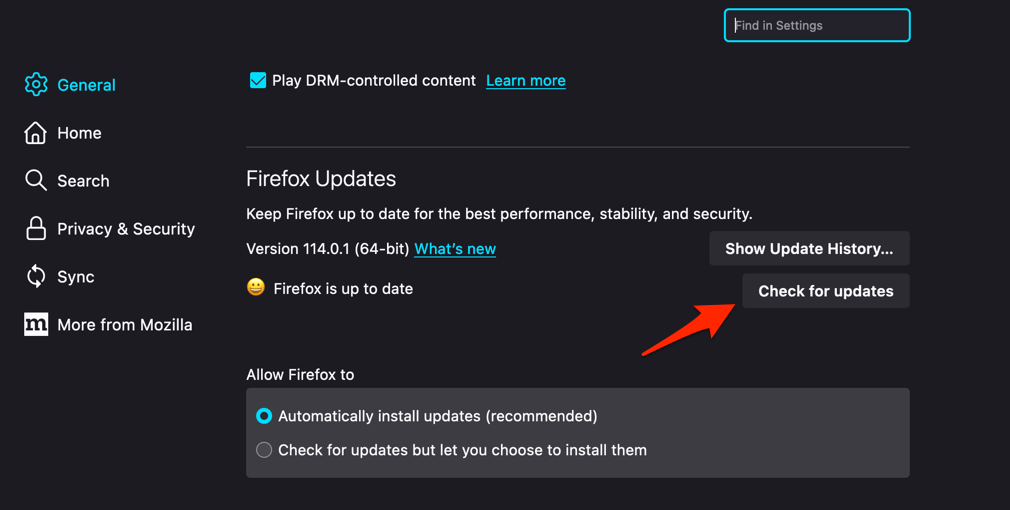
- Firefox will check for updates and download them. It may ask to restart to complete the installation of the update.
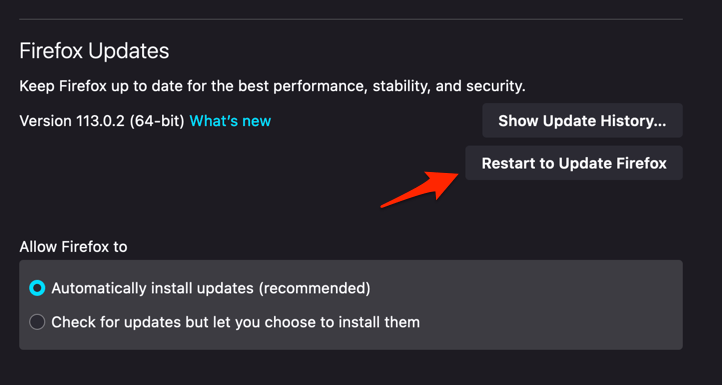 The browser will be updated to the latest version.
After Firefox restarts, reload the affected page. You’ll know it worked when the text and images return without any other change on your side.
The Firefox release notes list the rendering fixes in recent maintenance releases, so you can check whether your problem was one of them.
Test the Page Without Extensions
If the update changed nothing, look at extensions. Ad blockers, page themes, translators, and developer tools all rewrite what a site renders, and one of them can hide text or break images on a single site.
Troubleshoot Mode disables most extensions and runs a temporary profile, so you can isolate the problem without uninstalling anything.
- Click the hamburger menu at the top right of Firefox.
- Click Help.
- Select Troubleshoot Mode….
- Click Restart in the confirmation dialog.
Open the affected page while Troubleshoot Mode is active. You’ll know an extension is responsible when the page looks complete there and breaks again the moment you return to normal mode.
From that point, update, disable, or remove the page-modifying extensions one at a time, reloading the page after each. Mozilla’s support thread about pages missing text and elements shows the kind of fault this test can expose.

A temporary profile also blocks some scripts and site styles, so a page can look different there for reasons unrelated to extensions. Only treat the test as conclusive if the missing elements return in Troubleshoot Mode and vanish again in normal mode.
Clear Firefox Cache and Site Data
Stale or corrupted cached files can serve a broken copy of a page long after the site has fixed it. Clearing the cache forces Firefox to download everything fresh.
The catch: this also signs you out of websites and drops stored site preferences. Confirm your passwords are saved before you continue.
- Open the Firefox browser on your computer.
- Click on the More menu and select the Settings menu.
- Switch to the Privacy & Security tab and scroll to the Cookies and Site data section.
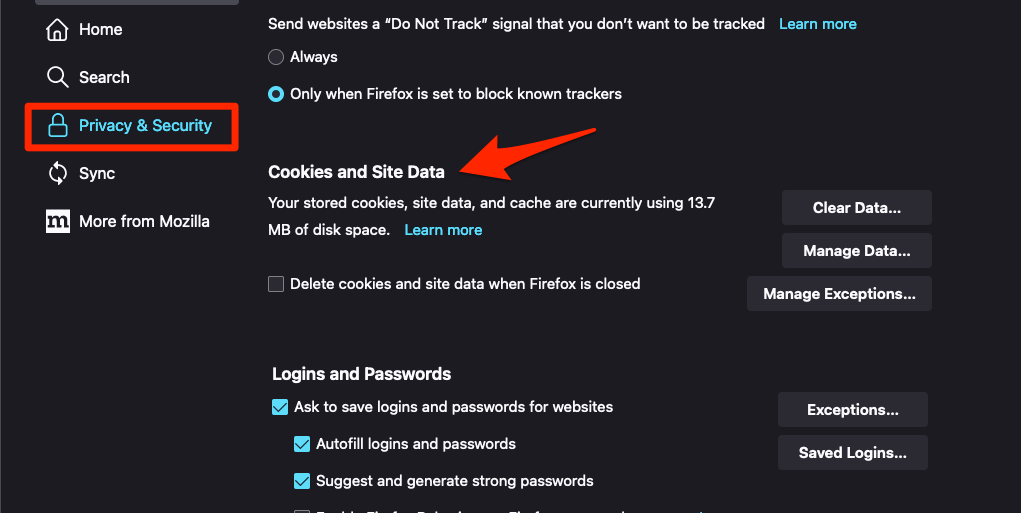
- Click on the button.
- Enable the checkbox for the 'Cookies and Site Data' and 'Cached Web Content' options.
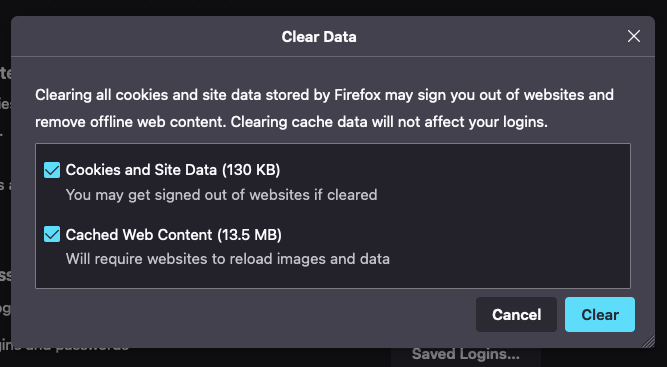
- Hit on the option.
It will immediately delete the cache, cookies, and site data on the browser.
Restart Firefox and test the page again. You’ll know it worked when the page rebuilds itself and the missing parts appear.
Need finer control over what gets removed? You can clear Firefox cookies and cache selectively and keep the rest of your data.
Turn Off Firefox Hardware Acceleration
Blank text, black rectangles, and empty PDF pages on an otherwise working page often trace back to the graphics processor. Hardware acceleration hands part of the drawing work to the GPU, and a driver bug can leave that work unfinished.
Turning it off sends the drawing back to the CPU, which uses a different rendering path.
- Click the hamburger menu and choose , then select from the left sidebar.
- Scroll to the Performance section.
- If "Use recommended performance settings" is checked, uncheck it to expose the manual options.
- Uncheck "Use hardware acceleration when available".
- Restart Firefox from the hamburger menu so the change takes effect.
Restart Firefox and reload the affected page. You’ll know it worked when text, images, and PDFs draw normally with acceleration off.
If they do, you have two choices: leave the setting off, or update your graphics driver and switch acceleration back on to see whether the newer driver fixes it.
Animated and graphically heavy pages can feel less smooth with acceleration off. Keep the change only if it genuinely restores the missing content.
Reload and Compare the Result in Another Browser
Still broken? Now you need to know whether Firefox is at fault or the page itself is. A hard refresh throws away the cached copy, and a second browser gives you a baseline.
- Press ++ on Windows or Linux, or ++ on macOS.
- Wait for the page to finish loading and check the text, images, controls, and PDF viewer.
- Open the same page or document in another browser and compare what appears.
If the page renders correctly elsewhere, the fault sits in your Firefox install: rendering, settings, or profile. If it is also incomplete in the other browser, the website or the file is at fault. Save the document and open it in a dedicated PDF or image app, or tell the site owner.
A page that never opens is a different fault from a page that opens half-blank. If the site refuses to load at all, these fixes for Firefox not loading banking sites on PC cover most login-heavy pages too.
One of these four checks usually brings the content back. When none of them do, the missing elements are probably never being sent to your browser in the first place, and the site owner needs to hear about it.

Frequently Asked Questions
Why is text missing from a Firefox web page?
A script, extension, stale site data, or a graphics-rendering fault can stop text and other elements from appearing. Update Firefox first, then test in Troubleshoot Mode and clear cached data.
Why does a PDF open as a blank page in Firefox?
Firefox’s built-in PDF viewer can be hit by the same graphics problem. Update Firefox, test without extensions, then turn off hardware acceleration if the same file opens fine in another PDF app.
Does clearing Firefox cookies and cache delete my bookmarks or passwords?
No. Clearing browsing data leaves bookmarks and saved passwords alone, but it can sign you out of websites. Check your saved passwords before you remove cookies and cached site data.
Should I leave hardware acceleration off after it fixes the page?
You can leave it off if it fixes the page, though animated pages may feel less smooth. Check for a later Firefox update before you make the change permanent.
How do I know whether an extension caused the missing elements?
Open the affected page in Troubleshoot Mode. If the elements come back only while extensions are disabled, update or remove the extension that alters page content or styles. If nothing changes, go back to the update and cache steps.