Firefox can show a "This browser version is no longer supported" message on sites that need a modern browser. It usually means Firefox is too old, automatic updates are off, or a preference is blocking the update check.
The fix is straightforward: check your version, run the built-in updater, and confirm the update preferences are set to install updates. The steps below cover the Settings page, about:config flags, and what to try when the update itself fails.
In this guide, I have covered:
Contents
Why Firefox shows the “Browser version is no longer supported” message
Firefox releases a new main version on the Release channel roughly every four weeks. Each Release receives security and stability fixes for a short support window before Mozilla retires it, and websites that depend on modern web standards start to reject older builds.
The “This browser version is no longer supported. Please update.” prompt usually means one of three things: your copy of Firefox is several versions behind, automatic updates are turned off, or an about:config preference is blocking the update check from running.
Check your current Firefox version first
Before you update anything, it helps to know what version you are actually running. The fastest way is the built-in support page.
- Click the hamburger menu
 at the top right of the Firefox window.
 - Choose Help, then select About Firefox from the submenu.
- Look at the line under the Firefox logo that says "Version". The number next to it is your current version.
- Alternatively, type about:support in the address bar and press . The Version field appears under Application Basics.
Compare that number with the latest Release shown on the official Firefox download page. If yours is more than one major version behind, that is almost certainly why you are seeing the warning.
Update Firefox through the About panel
The About panel is the normal way to force an immediate update check and install any pending Firefox update.
- Open the Firefox browser app on your computer.
- Click on the More menu and select the Settings menu.

- Scroll down to the Firefox Updates section within the General tab, and click the button.

- Firefox will check for updates and download them. It may ask to restart to complete the installation of the update.
 The browser will be updated to the latest version.
After Firefox restarts, open a new tab and reload the page that was showing the warning. The “browser version no longer supported” prompt should be gone. If the About panel does not pick up the latest build, our complete Firefox download and update guide covers the manual installer method.
Make sure automatic updates are turned on in Settings
If Firefox keeps falling behind, the update dropdown in Settings may be set to “Never check for updates” or to “Check for updates but let you choose to install them”. Switch it back to the recommended value.
- Click the hamburger menu at the top right of Firefox and choose .
- In the left sidebar, select .
- Scroll down to the "Firefox Updates" section near the bottom of the General panel.
- Select the radio button "Check for updates but let you choose to install them."
- Uncheck the box "Use a background service to install updates" so the Mozilla Maintenance Service does not install updates while Firefox is closed.
- Close the Settings tab. Firefox will now notify you of updates but will not apply or restart on its own.
On the same Settings page, make sure the dropdown under “Firefox Updates” is set to “Automatically install updates (recommended)”. This is what stops the message from coming back after each new Firefox release.
Check the update preferences in about:config
Two hidden preferences control the update process. They default to true, but an extension, a corporate policy, or a manual edit can flip them off without showing any obvious sign. The path below opens the same preferences page you would use to disable updates, so you can confirm each one is at the correct value.
- Open a new tab and type about:config in the address bar, then press .
- Click on the warning page.
- In the search box, type app.update.auto and open the result.
- Use the toggle to set the value to false, then click the checkmark or to apply it.
- For extra silence, search for app.update.checkInstallTime and set it to false as well.
- Restart Firefox so the change takes effect.
Search for app.update.auto and app.update.enabled. Both should be set to true. If either is false, double-click the row to flip it back to true, then close the tab. Restart Firefox once for the change to take effect.

If your computer is managed by an organization (school, employer, or family-safety software), app.update.enabled can be locked by a policy and the toggle will not stick. Contact your IT admin to allow the update.
What to do if Firefox won’t update at all
Sometimes the About panel reports “Firefox is up to date” even though the build is clearly old, or the update sits at 0% forever. Walk through these checks in order.
- Confirm you have a working internet connection by opening a different site in another browser or app.
- Close Firefox completely (not just the window) and reopen it. In Windows, right-click the taskbar Firefox icon and choose Exit, or use the shortcut + .
- Open Firefox in Troubleshoot Mode by clicking the hamburger menu , selecting Help, then Troubleshoot Mode. Restart when prompted and try the update again. Troubleshoot Mode temporarily disables extensions and custom themes that can stall the updater.
- Temporarily turn off any third-party antivirus or firewall that filters HTTPS traffic, then retry the update. Common security suites are a frequent cause of stuck Firefox updates.
- Clear the update cache by deleting the contents of the updates folder inside your Firefox profile directory, then restart Firefox. The profile folder is shown on the about:support page under Application Basics, next to Profile Folder.
If the About panel still refuses to fetch an update, skip ahead to the reinstall section below. A clean install of the current Firefox build clears whatever is blocking the updater.
Refresh Firefox as a less destructive last resort
Refresh creates a new profile, keeps your bookmarks, history, and saved passwords, and resets every setting to its default. Use it when the steps above have not cleared the warning and you suspect a corrupted preference.
- Click the hamburger menu , choose , then select .
- On the Troubleshooting Information page, find the Give Firefox a Tune Up section on the right.
- Click Refresh Firefox and confirm by clicking in the dialog.
- Wait for Firefox to restart. Your bookmarks and logins are preserved, but extensions and most site settings are reset.
Once Firefox restarts, run the About panel update check again. The fresh profile also forces the update service to recreate its own state files.
Reinstall Firefox from scratch
A clean install replaces every Firefox file on disk, including the update service. This is the fix when nothing else has worked, for example when the “browser version is no longer supported” message shows on the new tab page itself or Firefox refuses to reach the update server.
- Open your existing browser and go to the Firefox download page.
- Click on the button.
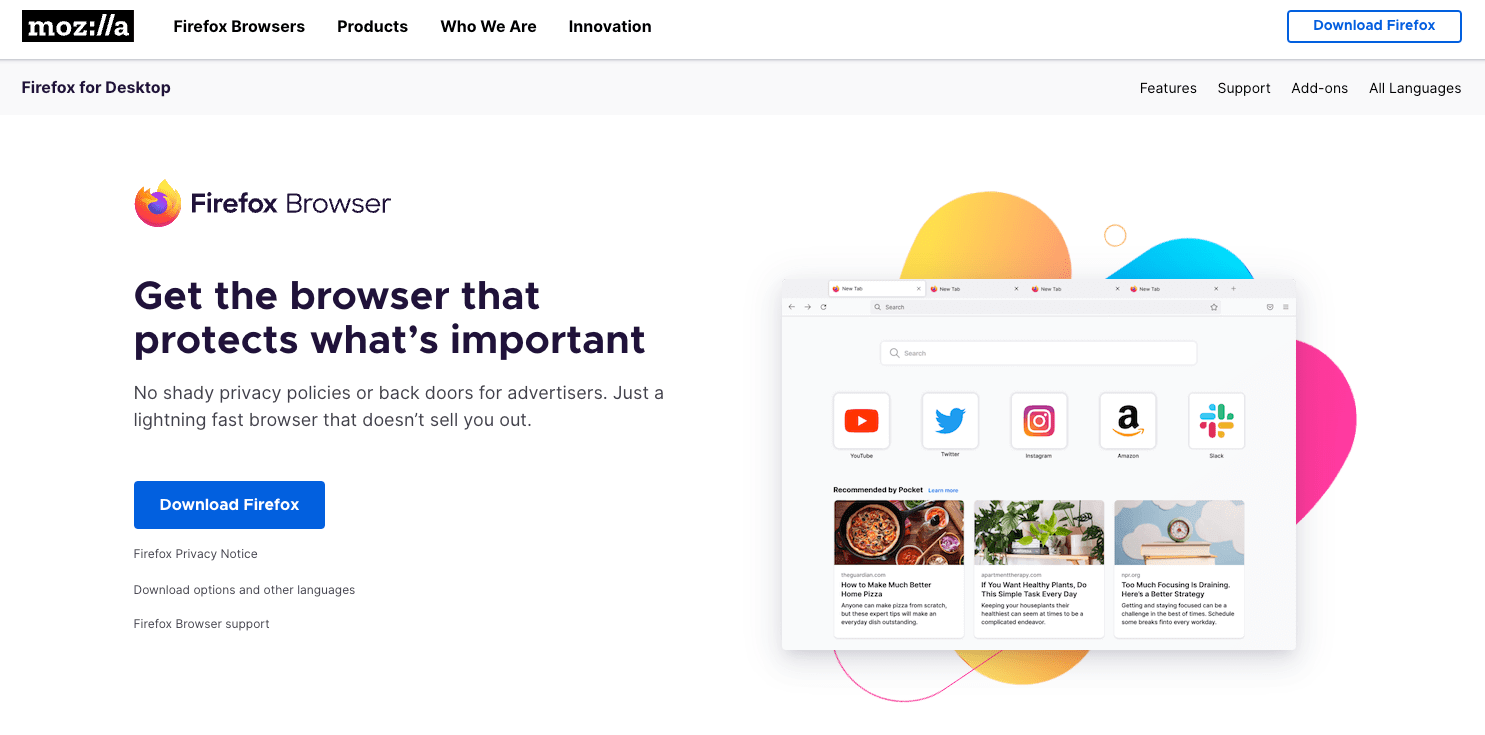 Firefox will automatically provide the appropriate version for your operating system.
 - Once the download finishes, locate the installation file in your downloads folder and open it.
- Follow the prompts in the installer to complete the process.
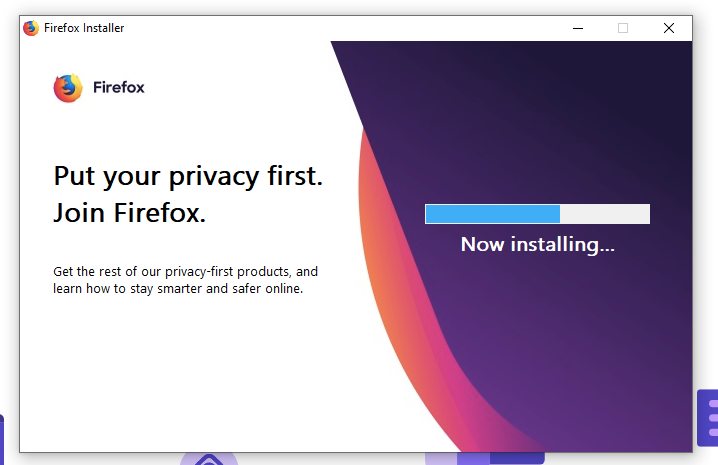 It will complete the installation, and a browser shortcut will be added to the applications library.
After the installer finishes, sign back in to your Firefox account to bring your bookmarks, history, and saved logins back through Sync. Reopen the site that was showing the warning and the message should be gone.

Frequently Asked Questions
Why does Firefox say “browser version is no longer supported” right after I update?
This usually happens when an old tab is still open from before the restart. Close every Firefox window, reopen the site, and the warning should clear. If it persists, your installed build may not have actually been replaced; check the version again on the about:support page.
How often does Firefox release a new version?
Mozilla ships a new main Release about every four weeks. Each Release receives security and stability fixes for a short support window before the next one ships, which is why Firefox pushes updates so aggressively.
What is the difference between Firefox Release and Firefox ESR?
Firefox ESR (Extended Support Release) is a slower-moving branch that receives security fixes for about a year. It is intended for businesses, schools, and anyone who prefers fewer updates. The same “browser version no longer supported” message can appear on ESR if the branch is more than one cycle behind.
Will I lose my bookmarks and passwords if I refresh or reinstall Firefox?
A Refresh keeps your bookmarks, browsing history, and saved passwords. A clean reinstall wipes the local profile, but signing back in to your Firefox account through Sync restores the same data on a fresh profile.
Can I keep using an older Firefox version forever?
It is technically possible by editing the update preferences and avoiding the about:config check, but it is a bad idea. Old Firefox builds no longer get security patches, and most major sites will eventually refuse to load.