Firefox View can lose its menu text when a dark browser theme is active, so headings and controls blend into the background.
Switch Firefox to a light or system theme, reload Firefox View, and test Troubleshoot Mode if the labels are still missing after a restart.
In this guide, I have covered:
Contents
Why Firefox View menu text disappears in a dark theme
You open Firefox View and the menu labels are gone. Or the headings are there, but barely readable against a dark background. That usually points to a contrast problem in the color scheme Firefox uses for its own pages.
Firefox View is the internal page that lists open tabs, recent browsing, and tabs sent from other devices. When a dark theme is active, a rendering or contrast problem can make menu labels and other text disappear against the dark background.
Mozilla’s Firefox View guide explains how to open the page. Start by changing the color scheme Firefox uses for its menus and system pages, then check whether Firefox View redraws correctly.

Mozilla’s support community has reports of this problem, but the original discussion is no longer available to check. The steps below stick to Firefox’s theme and troubleshooting controls.
Switch Firefox to a light theme
If you need to know whether the dark theme is the culprit, a light theme gives you the fastest answer. It gives Firefox View a light background and dark text, so you can confirm the contrast problem at a glance.
- Open the
 menu in the top-right corner of Firefox.
- Select Settings.
- Scroll to General, then open the Language and Appearance section.
- Under Website Appearance, select Theme.
- Select Light.
Open Firefox View again. Check the menu text, headings, and controls. If the labels come back, the dark theme was the cause.
Test the system theme and refresh Firefox View
You may want to keep a dark appearance on your computer. Firefox can follow your system’s light or dark setting, and testing that option shows whether the problem only appears with a manually selected theme.
- Open the menu and select Settings.
- Open General → Language and Appearance.
- Under Website Appearance, select Theme.
- Select System.
- Open a new tab and enter about:firefoxview in the address bar.
- Press to load Firefox View.
Switch your computer between light and dark mode, then reopen Firefox View. If the text stays readable in both modes, the system theme has resolved the mismatch.

TIP: You can also open Firefox View directly with ++ on Windows or Linux, or ++ on macOS.
Update Firefox before testing extensions
If the theme change did not restore the text right away, check your Firefox version before you start disabling add-ons. An outdated install gives you a poor baseline for troubleshooting.
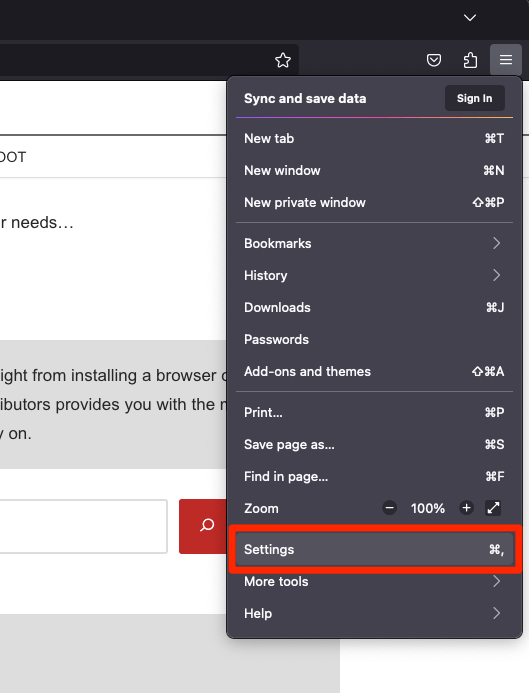
- Open the Firefox browser app on your computer.
- Click on the More menu and select the Settings menu.
- Scroll down to the Firefox Updates section within the General tab, and click the button.
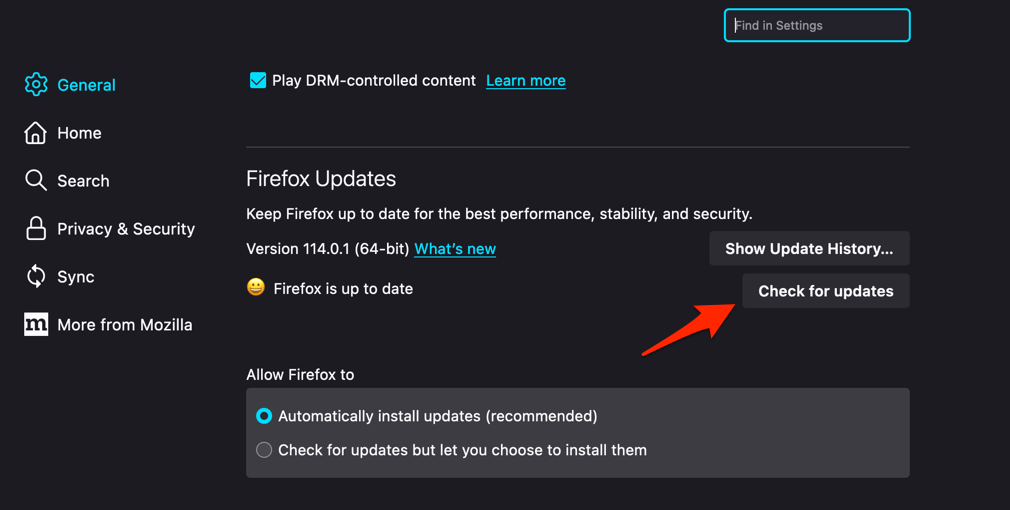
- Firefox will check for updates and download them. It may ask to restart to complete the installation of the update.
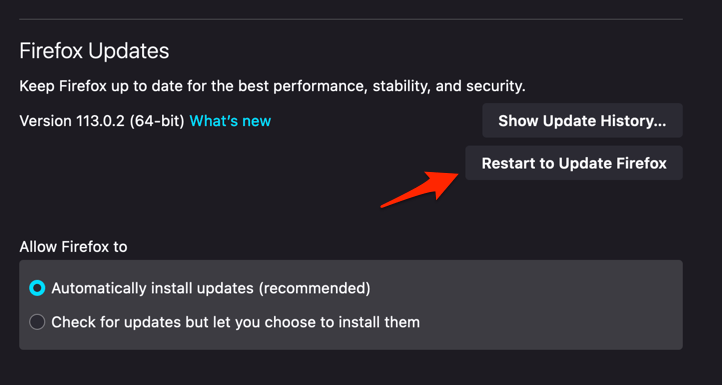 The browser will be updated to the latest version.
You’ll know it worked when Firefox View reloads with visible menu labels. If they are still missing, continue to extension testing.
Try Troubleshoot Mode to isolate the problem
The labels are still invisible, and you have already tried a theme change. Now you need to know whether an extension or profile customization is involved.
- Click the hamburger menu at the top right of Firefox.
- Click Help.
- Select Troubleshoot Mode….
- Click Restart in the confirmation dialog.
While Troubleshoot Mode is active, open Firefox View and inspect the menus. If the text becomes visible, an extension or customization is the likely cause. Exit Troubleshoot Mode, then disable extensions one at a time until you find the one that breaks the page.
What to do when the theme fix does not work
A theme switch did not bring the labels back. Before you assume Firefox View is broken, restart Firefox and force the internal page to load with the current theme.
- Close every open Firefox window.
- Start Firefox again from your computer.
- Open Firefox View with ++ on Windows or Linux, or ++ on macOS.
- Check whether the menu text is visible.
If the text is still missing, test Firefox in Troubleshoot Mode. That separates a theme or extension problem from a temporary rendering issue in the current session.
If other pages also fail to load, our guide to fixing pages that fail to render correctly in Firefox covers the next checks.

Frequently Asked Questions
You have tried the theme switch and the page still looks wrong. These answers cover the remaining cases, including how Firefox View behaves with ordinary websites.
How do I open Firefox View on a computer?
Press ++ on Windows or Linux, or ++ on macOS. You can also type about:firefoxview in the address bar.
Will changing the Firefox theme affect ordinary websites?
Firefox’s theme controls the colors used for its menus and internal pages. Websites can still apply their own light or dark appearance, based on their own settings.
Can extensions cause invisible text in Firefox View?
Yes, if an extension modifies the page or interferes with how it renders. Troubleshoot Mode confirms this by disabling extensions while you inspect Firefox View.
Why is the text still invisible after switching to the Light theme?
Reopen Firefox View or restart Firefox so the page reloads with the new theme. If the labels are still missing, use Troubleshoot Mode to check an extension or profile customization.
Does Firefox View have a separate text color setting?
Firefox View does not have its own text color control. The theme setting under Language and Appearance changes the color scheme for Firefox menus and system pages, so Light or System is the first fix to try. If the labels are still missing after that, the problem is likely outside the theme.