
When you're about to lose signal, you can save a webpage in Brave app to read later. The browser downloads the page with its content, so you can open it offline from the Downloads menu.
The process is quick: open the page, tap the download icon, and the page is saved. You don't need an internet connection to view it. The saved page is a clean snapshot, free of ads, and you can access it anytime.
In this guide, I have shared instructions about:
Contents
Download Pages for Offline Access
When you’re about to lose internet access, you can save the page you’re reading to your device. Brave’s download feature stores the entire page so you can open it later, even without a connection.
- Launch the Brave browser on your device.
- Open any website on the browser.
- Tap the Download icon (down arrow) at the top of the page to save it for offline access.
- To access the saved page later, tap the menu icon and go to Downloads > Pages.
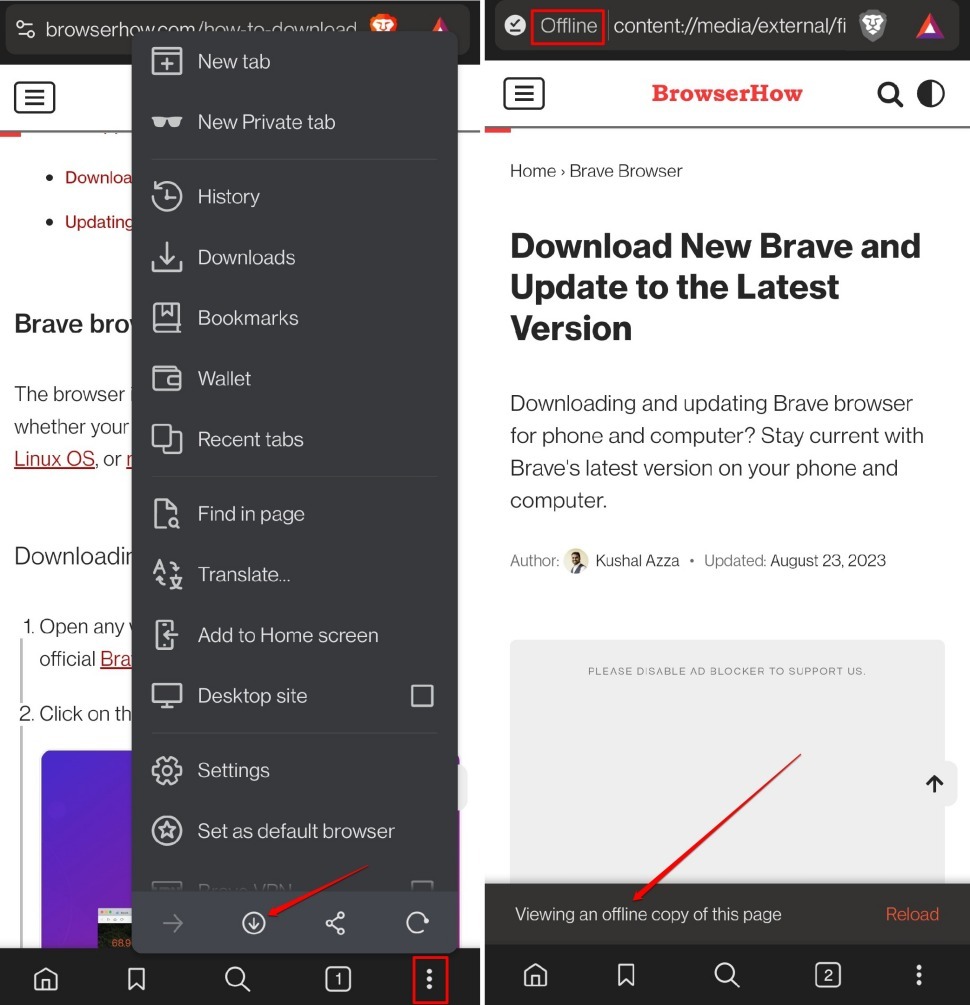

TIP: If you prefer, you can take a screenshot instead. The image will be saved to your phone’s gallery, and you can view it there.
Bottom Line
You’ll know the save worked when the page appears under Downloads > Pages. You can open it anytime, even without internet. This is also a handy way to read without ads, since the saved page strips out the clutter.




