A cluttered new tab page can slow you down. Brave on Android lets you strip it back to just a search bar, or load it with news and stats.
You decide which widgets appear: news feed, background images, top sites, privacy stats, even the home button itself.
In this guide, I have covered:
Contents
Turn On/Off News on Brave Homepage
Want a news feed right on your new tab page? Brave News pulls headlines into your homepage. Here’s how to turn it on, or off if it’s too distracting.
- Launch the Brave app.
- Tap the
 icon and select Settings.
 - Access Brave News.
- Press on the button Turn On Brave News.
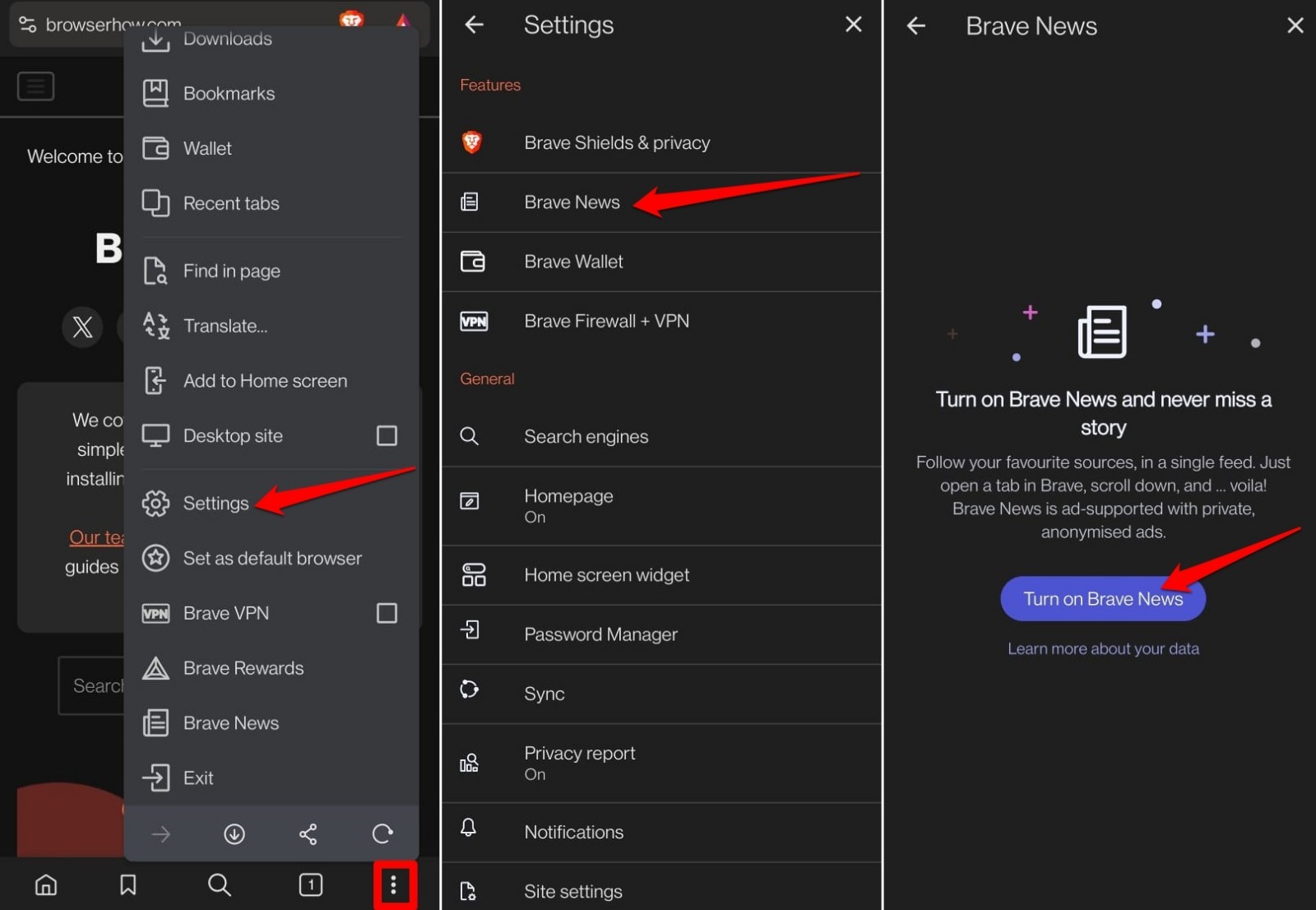
If the endless scroll of headlines feels like noise, toggle it off the same way.
Enable/Disable Homepage Button on Brave Toolbar
A toolbar cluttered with icons can be annoying. If you never use the home button, hide it to reclaim space.
- Open the Brave browser.
- Tap the icon and select Settings.
- Scroll to Homepage.
- Press the toggle switch beside On to show/hide the homepage on Brave.
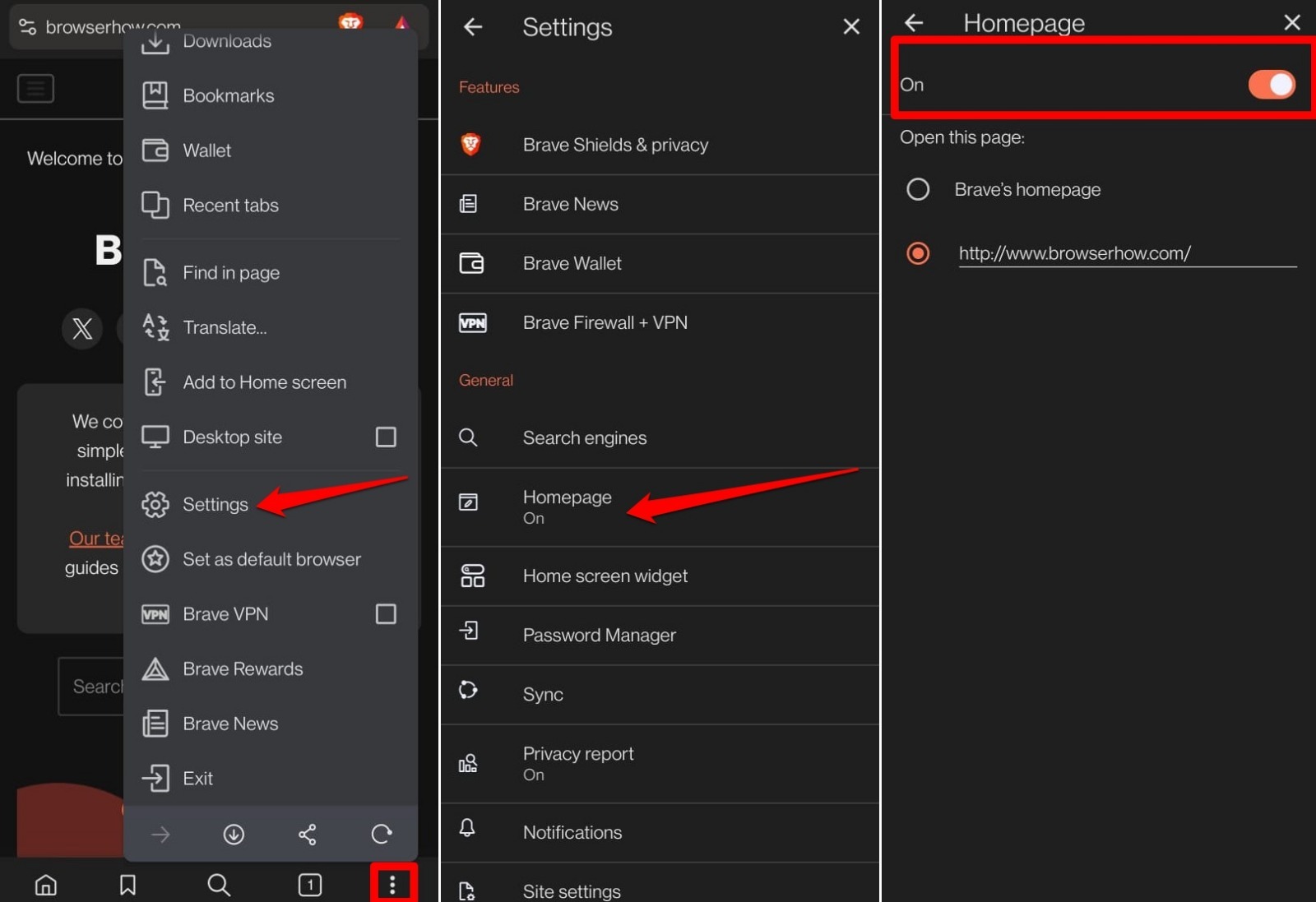

With the homepage button on Brave turned off, the customized homepage will deactivate as well.
Turn On/Off Background Images on Brave Homepage
Brave rotates through stock photos every time you open a new tab. If the images feel repetitive or distracting, you can turn them off completely.
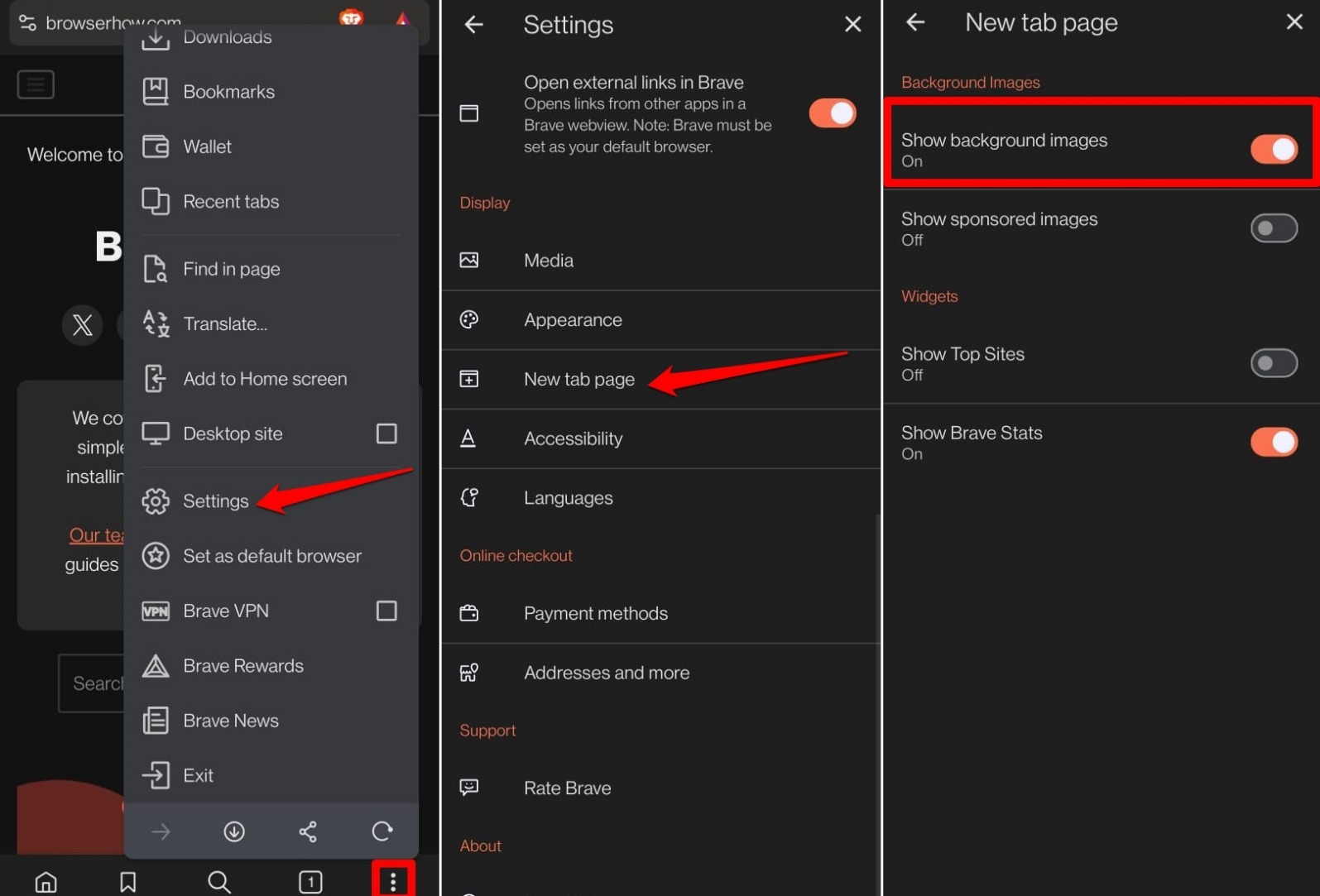
- Open Brave browser.
- Tap on the icon and select Settings.
- Scroll to the New Tab Page.
- Turn on/off the toggle switch next to Show Background Images.
Enable/Disable Top Sites Recommendation
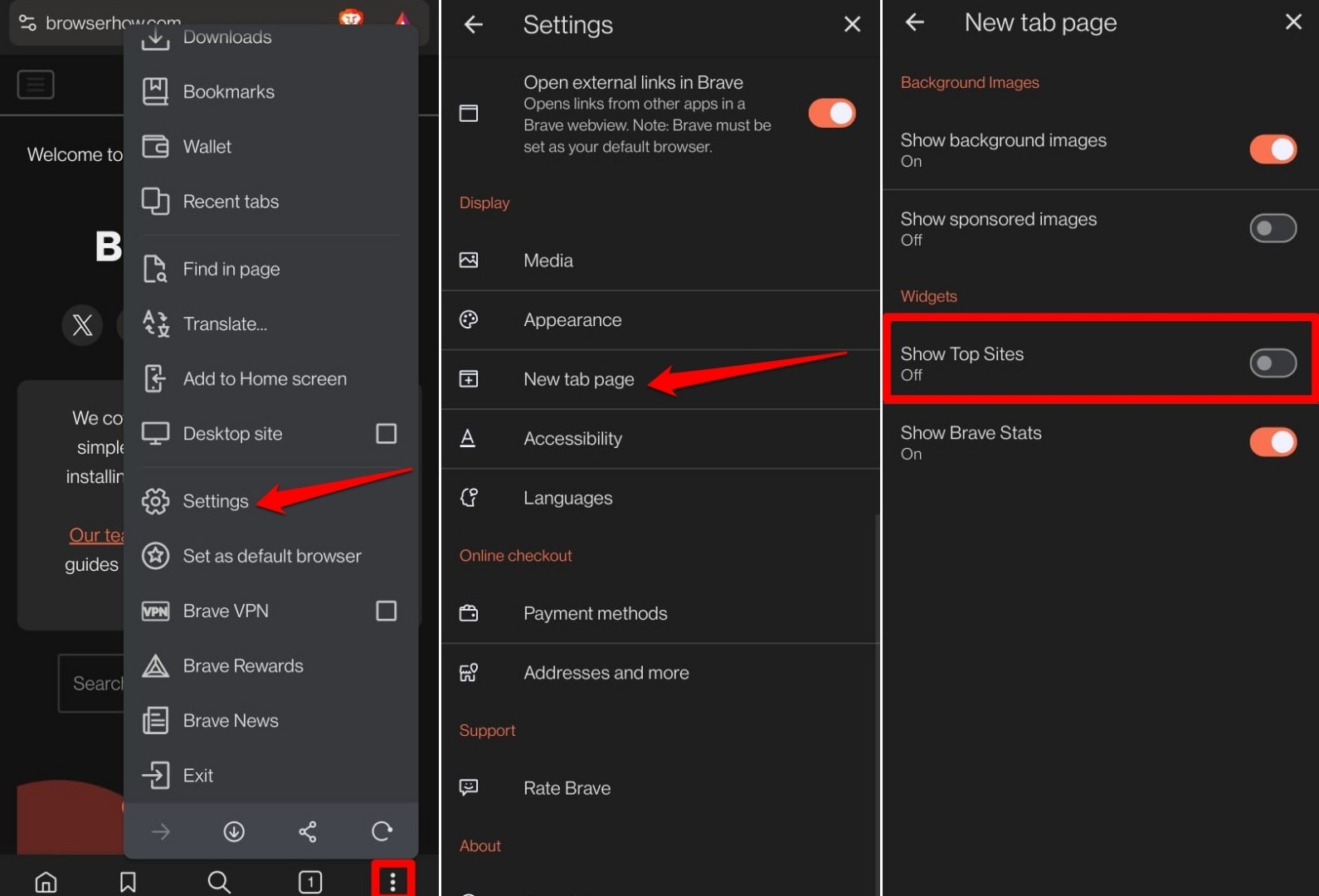
Brave suggests top sites based on your browsing. If you’d rather not see those tiles, you can disable them.
- Launch the Brave browser on your device.
- Tap on the icon and select Settings.
- Access the New Tab Page.
- Tap the toggle switch to turn on/off the Show Top Sites feature.
Show/Hide Brave Privacy Stats on the Home Screen
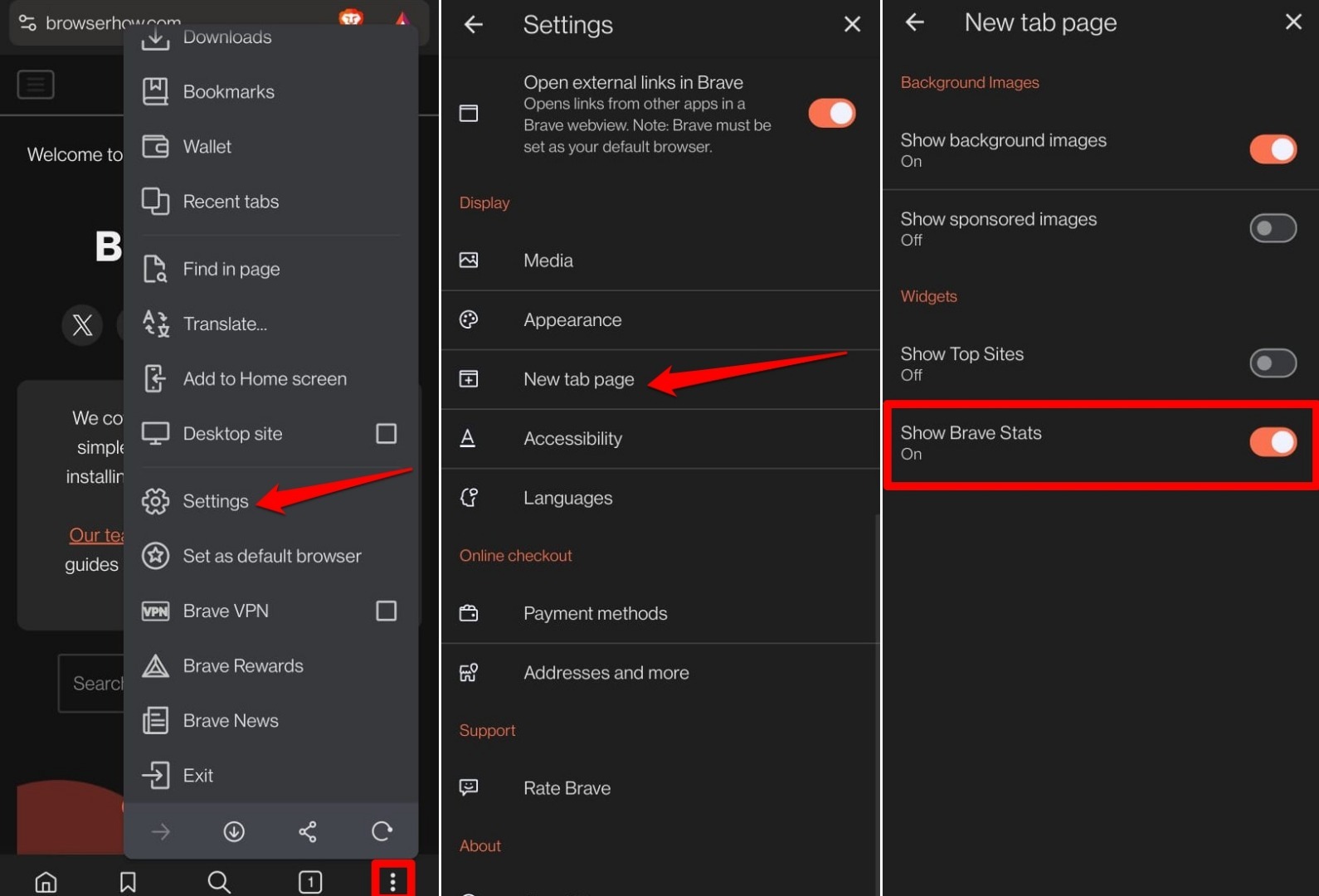
Brave’s privacy stats widget shows how many trackers and ads it’s blocked, plus data and time saved. If that card feels like clutter, you can remove it.
- Launch the Brave browser on your device.
- Tap on the icon and select Settings.
- Access the New Tab Page.
- Tap the toggle switch to show/hide Show Brave Stats.
Bottom Line
You’ll know your changes worked when you open a new tab and see only the elements you want. A clean homepage loads faster and keeps you focused. If you ever want the news or stats back, just revisit these settings.