Brave doesn't expose its cache folder inside the app. If you're troubleshooting a site or just curious how much space cached files are using, you'll need a file manager like Google Files to get there.
The cache lives at Android > Data > com.brave.browser > Cache on your device's internal storage. Once you're inside, a long press on any file and a tap on Get Info reveals exactly how much storage that file is taking.
In this guide, I have covered:
Contents
View Cached Files in Google Files app
- If you don’t already have one, install a file manager. Google Files is a solid choice.
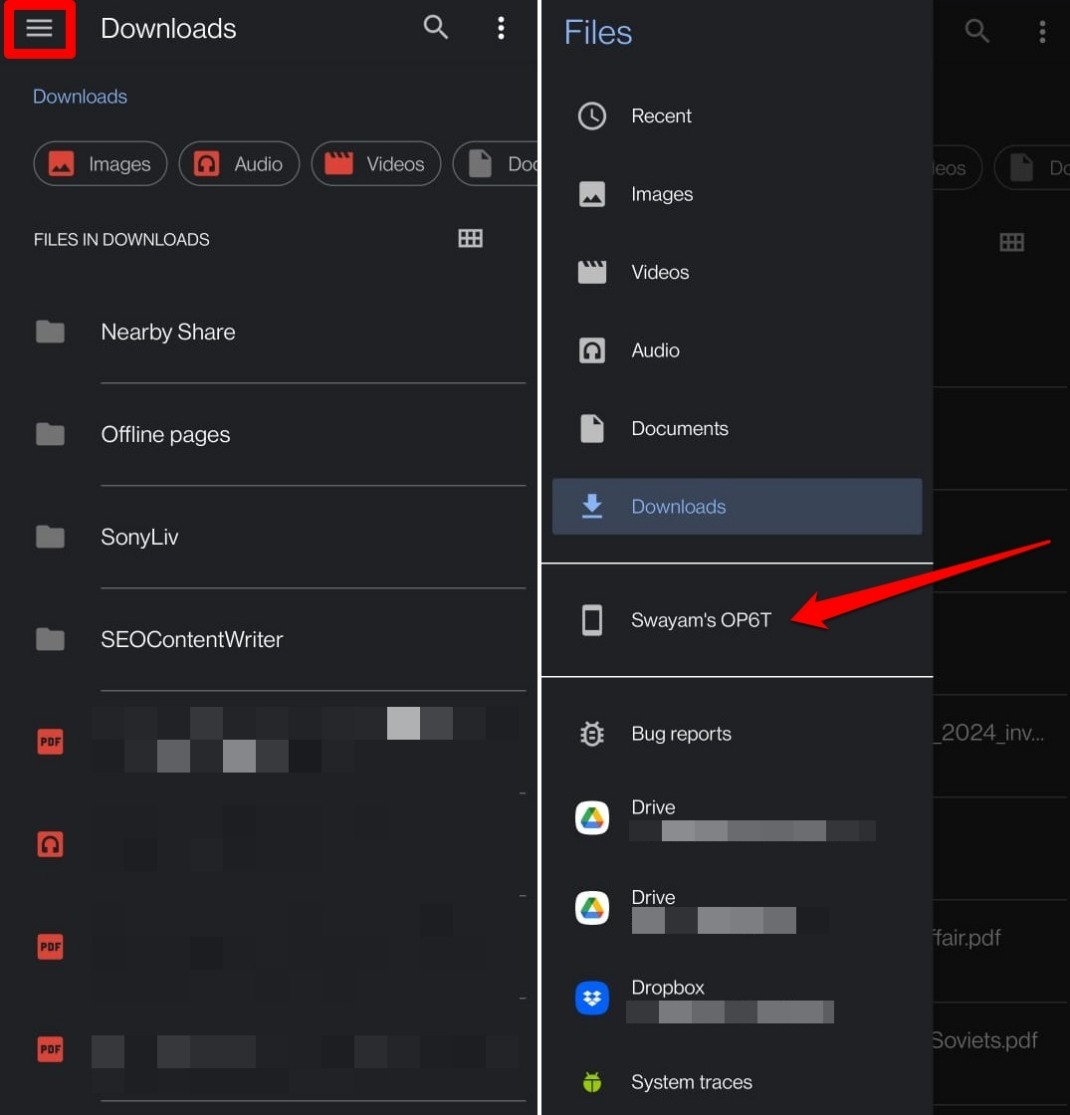
- Open Google Files.
- Tap the
 bar and select your device name to access its internal storage.
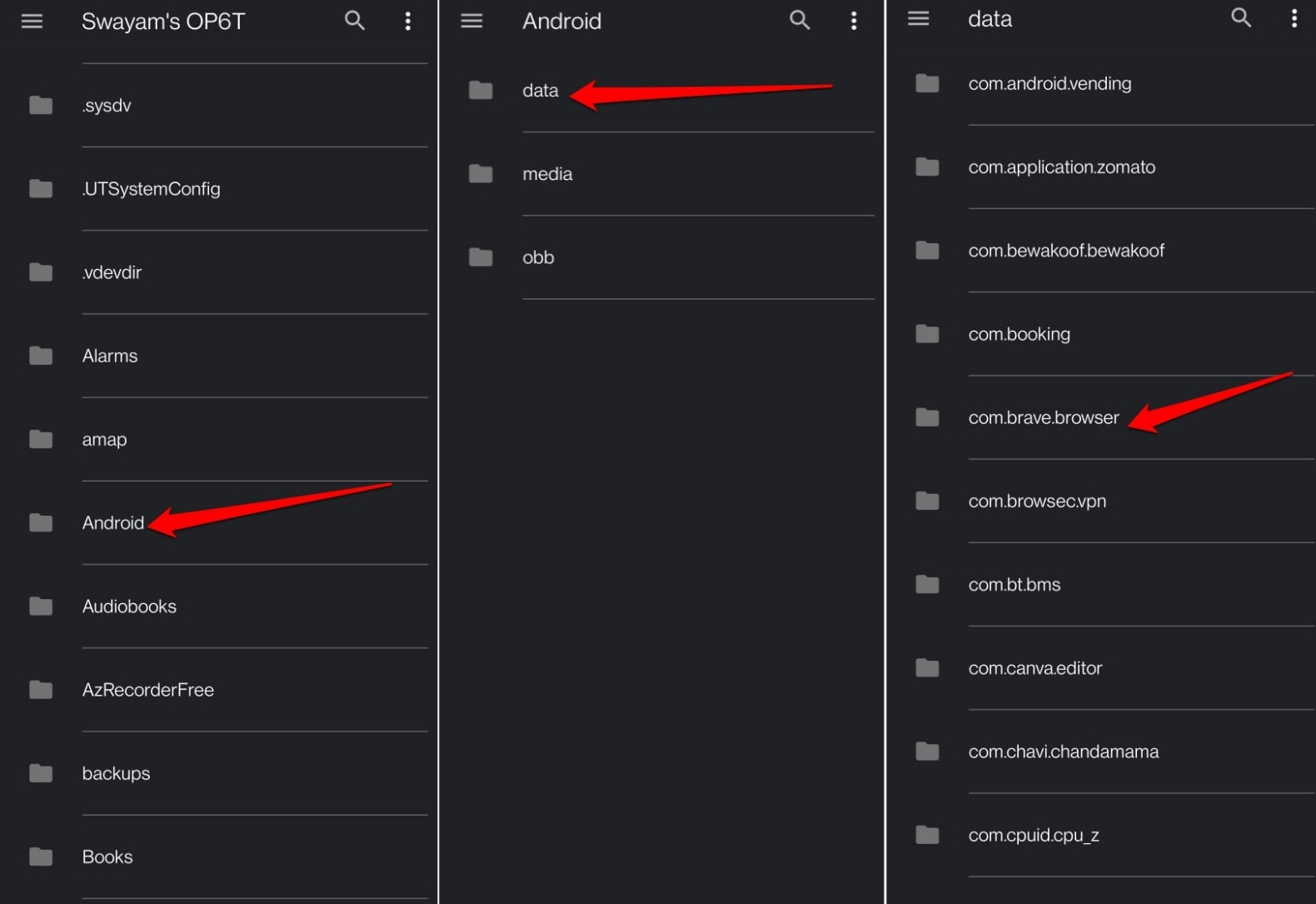
- Navigate to the Android folder and tap it.
- Open the Data folder.
- Tap the folder com.brave.browser.
- Open the Cache folder. You’ll see all the cached files here.
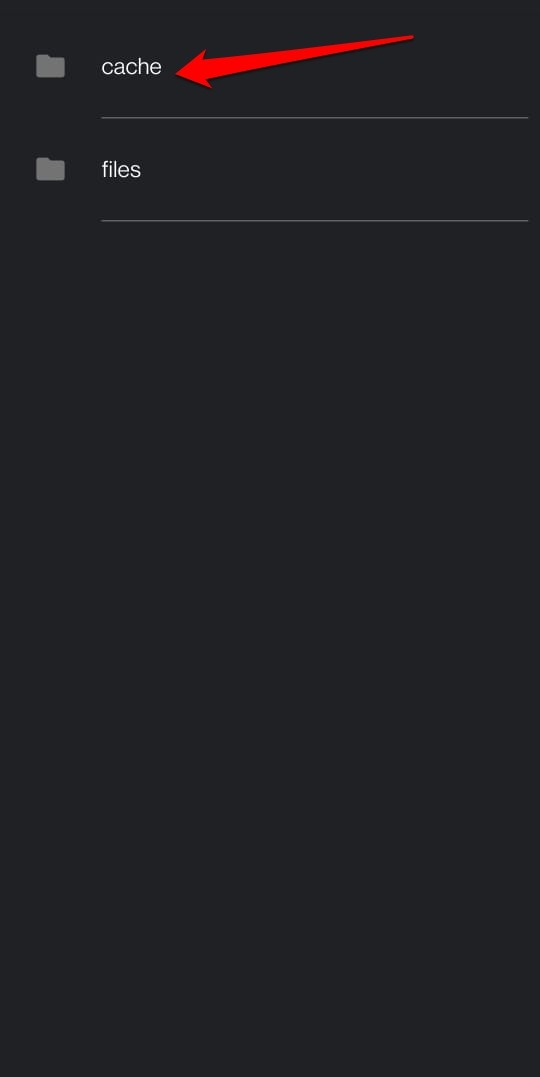

Inside the cache folder, you’ll typically find .js, .html, .css, and image files, depending on which sites you’ve visited.
See the Storage Space of a Cache File of Brave app
- Open the File Manager app.
- Go to the internal storage of the device.
- Navigate to Android > Data.
- Tap the folder com.brave.browser.
- Open the Cache folder to see the cached data.
- Long press on the cached file to select it.
- Tap the overflow icon and select Get Info from the menu. The file’s size will appear.
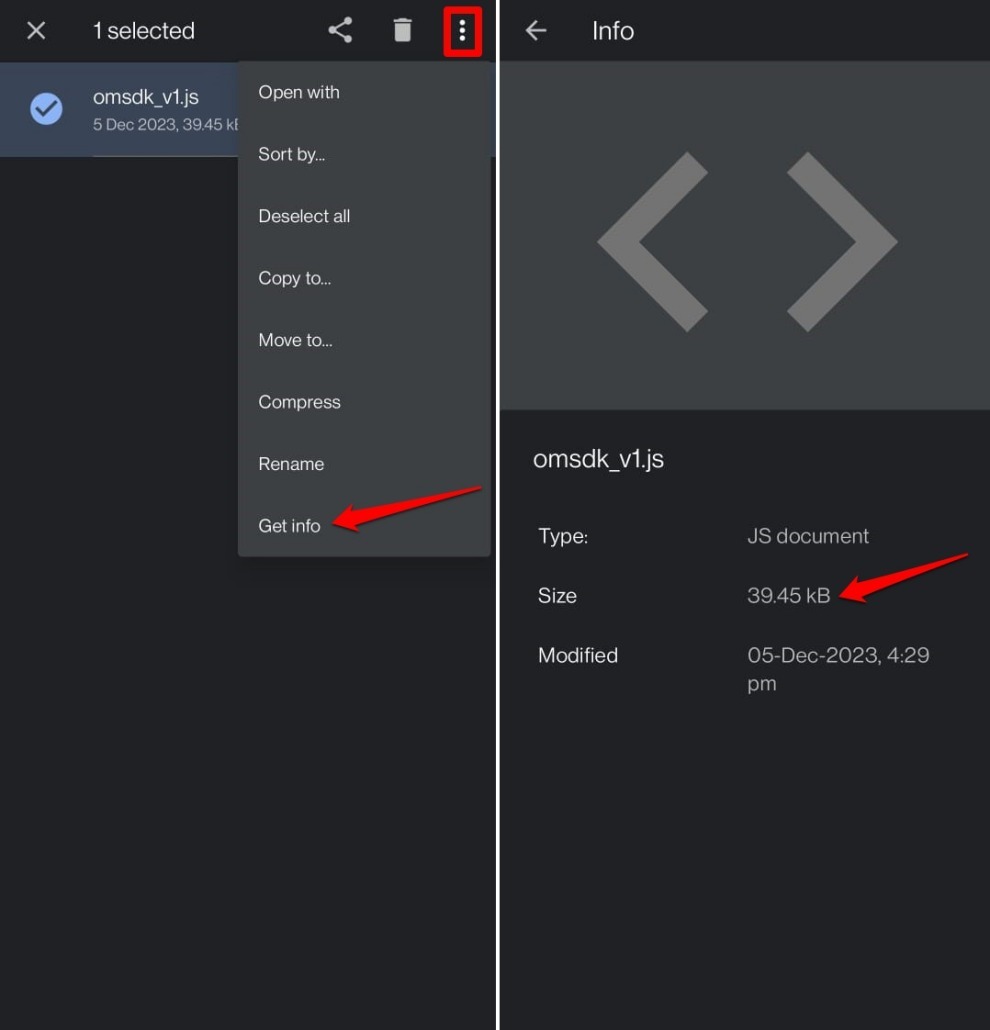
- Repeat these steps for any other cached file you want to check.

TIP: If your phone’s built-in file manager blocks access to the Android or Data folder, switch to Google Files. It should let you browse without restrictions.
Bottom Line
You’ll know you’ve found the cache when you see a mix of .js, .html, .css, and image files. Long-press any file and tap Get Info to see its size. If you’re clearing space, you can delete files right from this folder.