
When a page loads slowly or shows stale content, a simple reload might not be enough. A hard refresh clears the cache and forces Brave to fetch the latest version from the server.
This guide shows you how to do both on Android, plus a quick trick to bypass the cache without clearing all browsing data.
In this guide, I have shared instructions about:
Contents
Reload a Page on Brave Browser on Android
- Launch Brave browser and access any site on it.
- To reload a page, tap the
 icon and press the page reload button.
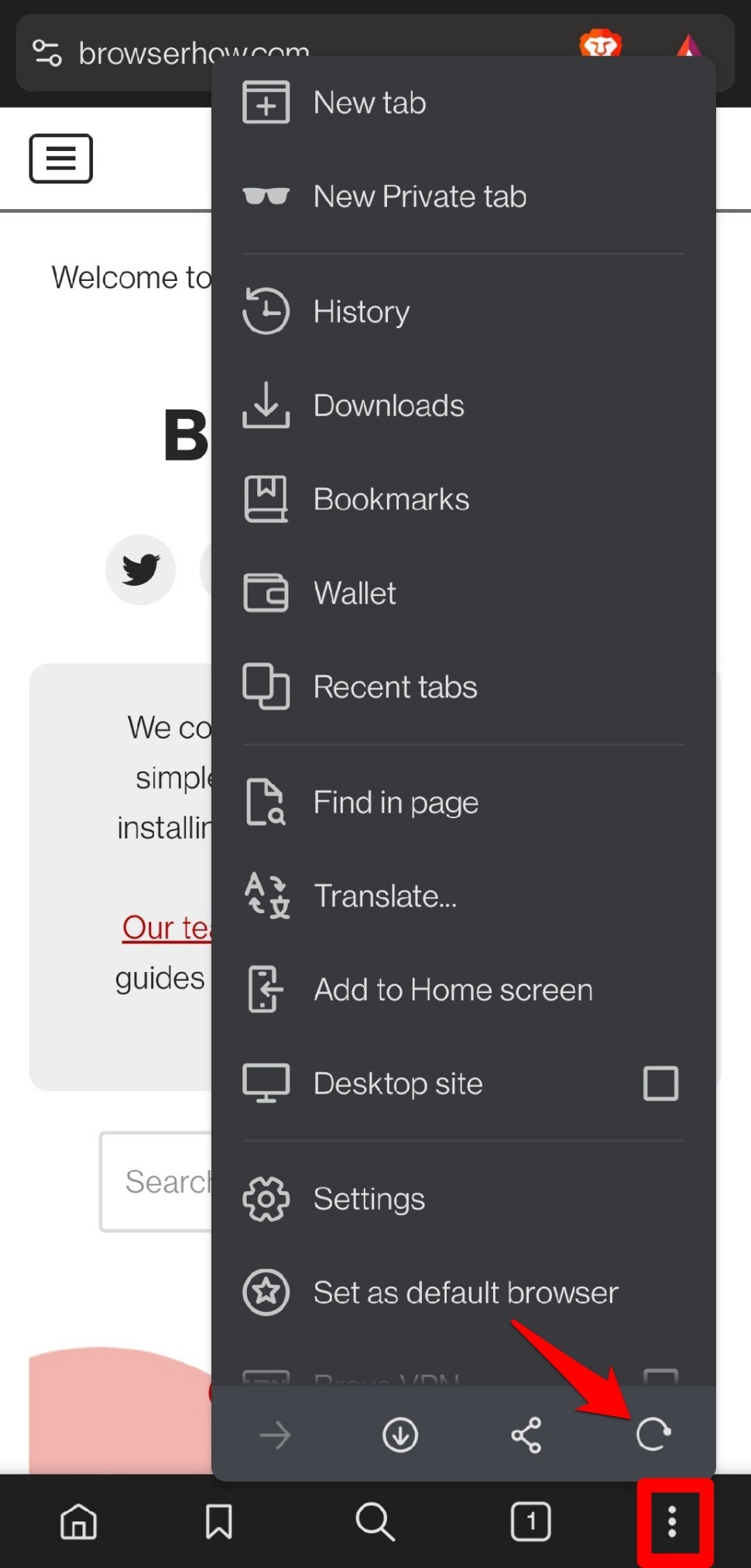

This is a simple page refresh which won’t clear the cache.
Perform Hard Refresh on Brave Browser Android
- Launch a webpage on Brave.
- Tap the icon and go to History.
- Select Clear Browsing Data.
- Mark the checkboxes next to Cookies & site data and Cached images & files.
- Press the button Clear Data.
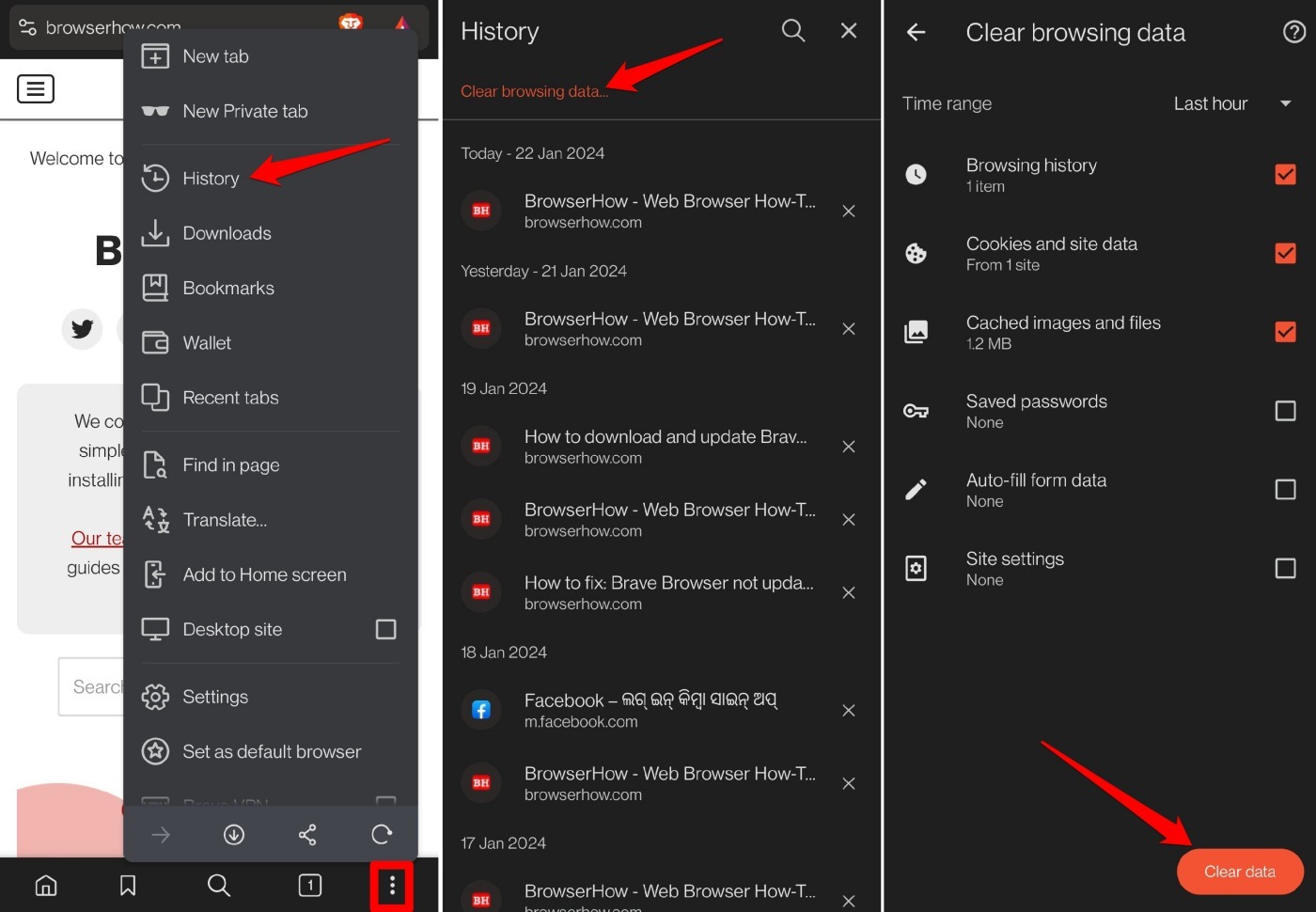
- Relaunch the Brave browser and access the site or page that was loading slowly.

TIP: You can enable desktop site view for the page on Brave. Then revert to mobile view. This will clear the cache before reloading the page, implementing a hard refresh.
Bottom Line
If a page is loading slowly, start with a simple reload. If that doesn’t help, a hard refresh clears the cache and often fixes the problem. You’ll know it worked when the page loads faster and shows the latest content.




