
Scrolling a long page for one specific word? Brave's Find in Page tool highlights every match, so you can jump there instantly.
Matches show in yellow, with your current spot in orange. Tap the up and down arrows beside the search bar to move between them. Yellow markers on the scroll bar let you tap directly to any occurrence.
In this guide, I have shared instructions about:
Contents
Using Search and Find on Page
- Launch any site on the Brave browser.
- Tap the
 icon and select Find in Page.
 - Type the word/term/phrase in the search field at the top.
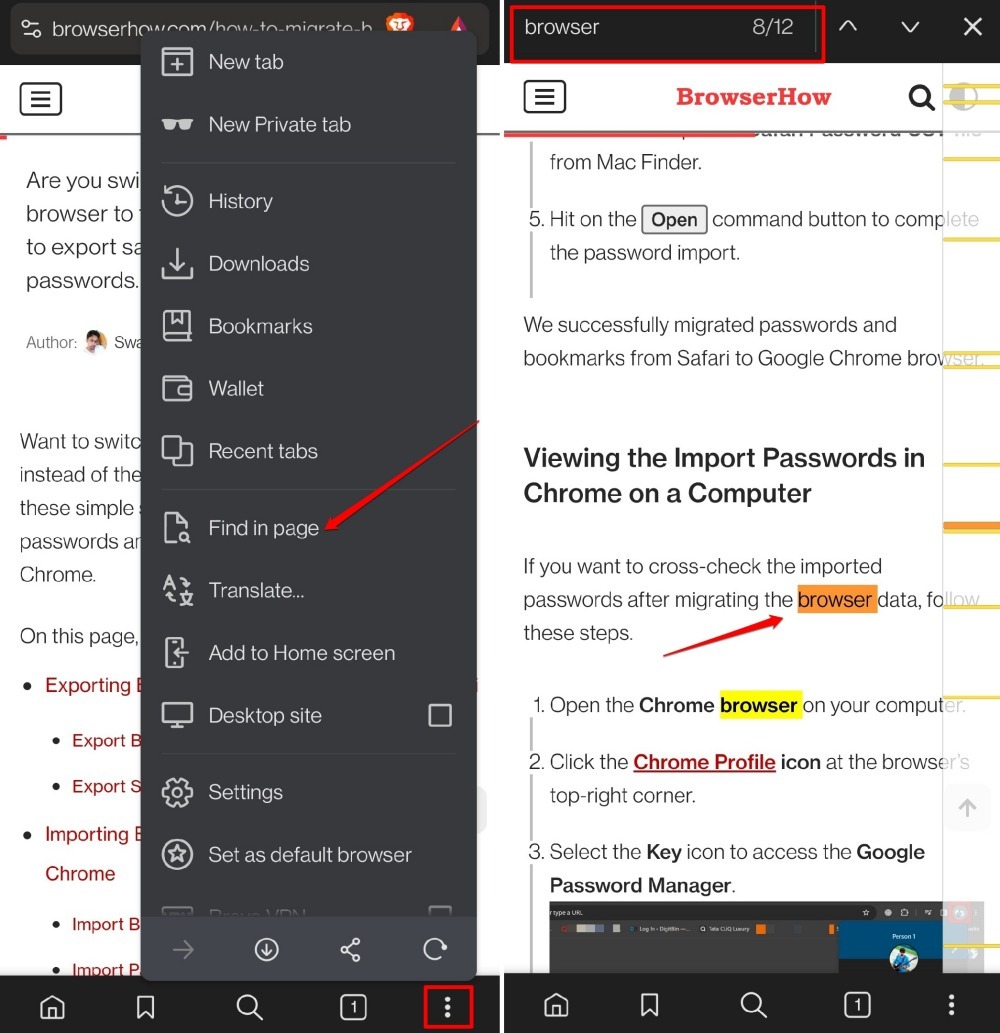
Every match highlights in yellow. Look at the scroll bar on the right: each match gets a yellow marker. Tap a marker to jump straight there. The match you’re viewing turns orange.

TIP: You may tap the or buttons next to the search field at the top to scroll through the various instances of the word you are searching for.
Bottom Line
Find in Page ends the hunt. Search for a word, and every instance lights up. No more endless scrolling.




