
Some websites only show all their features when you load them in desktop mode. If a mobile site feels stripped down or you can't access a certain menu, switching to the desktop view in Brave for Android often fixes it.
The toggle is right in the browser menu. You enable it with a single tap, and you can revert to the mobile view just as quickly when you're done.
In this guide, I have shared instructions about:
Contents
Enable Desktop Site View
- Launch the Brave browser on your phone.
- Open any site on it.
- Tap the
 menu icon.
 - Select the option Desktop Site on the menu.
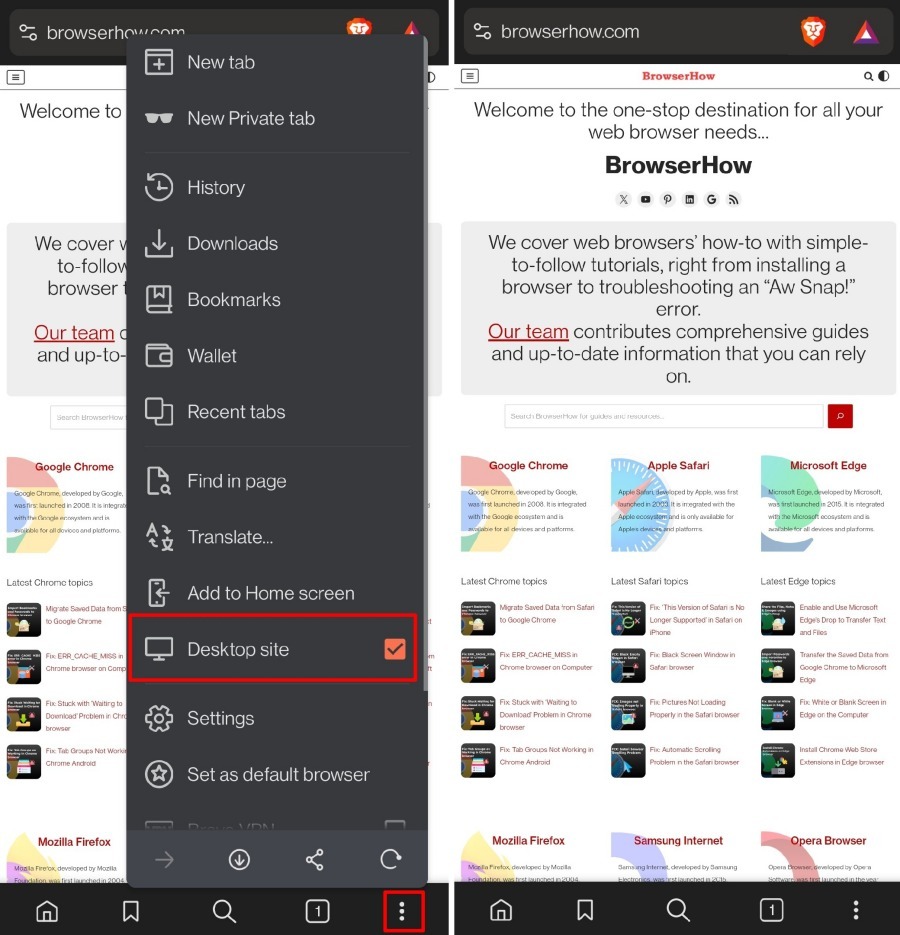

The font and media items will appear smaller in the desktop view. The view will be the same as browsing the site on a PC. You can always zoom into the content by pinch-out gesture with your fingers on the display.
Revert to Mobile View on Brave Browser
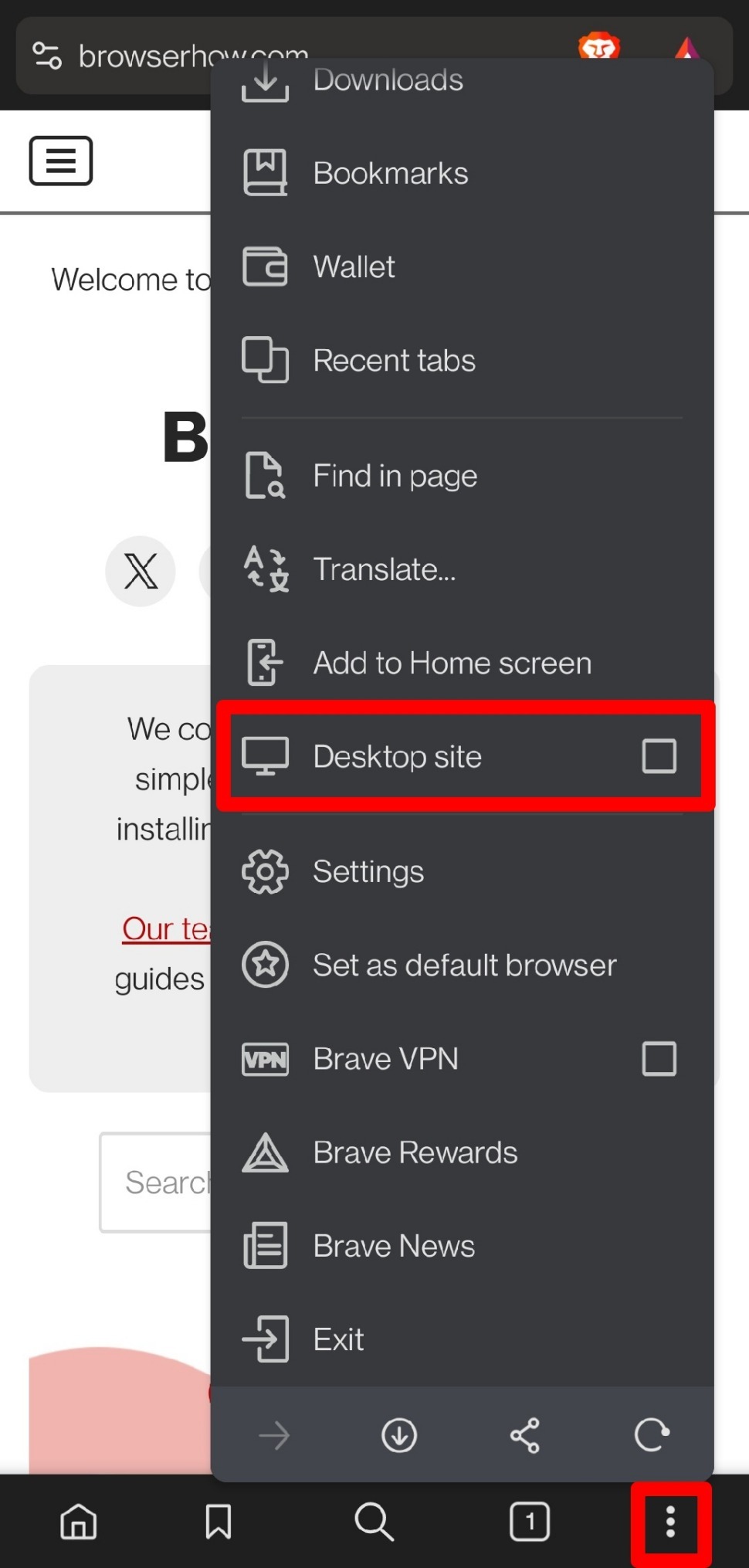
- Tap the menu icon on the Brave browser.
- Uncheck the box next to the Desktop Site.
Bottom Line
You’ll know it worked when the page reloads and the layout shifts to a wider desktop view, with smaller text and all desktop-only elements visible. If you need to return to the mobile view, just tap the menu icon and uncheck the Desktop Site toggle. That’s all there is to it.





This doesn’t apply to eBay. Even if you go into desktop mode, the minute you advance one page, it switches back to mobile and there’s no way to select desktop mode anymore.