By default, Brave on Android opens a new tab when you launch the app. If you'd rather see a specific website each time, you can change the homepage URL to load that site automatically.
The setting is tucked under Settings > General > Homepage. Once you enable the homepage toggle and enter a custom web address, Brave will open that page every time you start the browser.
In this guide, I have covered:
Contents
Change the Homepage Address
When you open Brave browser on your Android phone, it shows a new tab page by default. If you’d rather land on a specific site every time, you can set a custom homepage URL. This is handy for news sites, your email, or any page you check first thing.
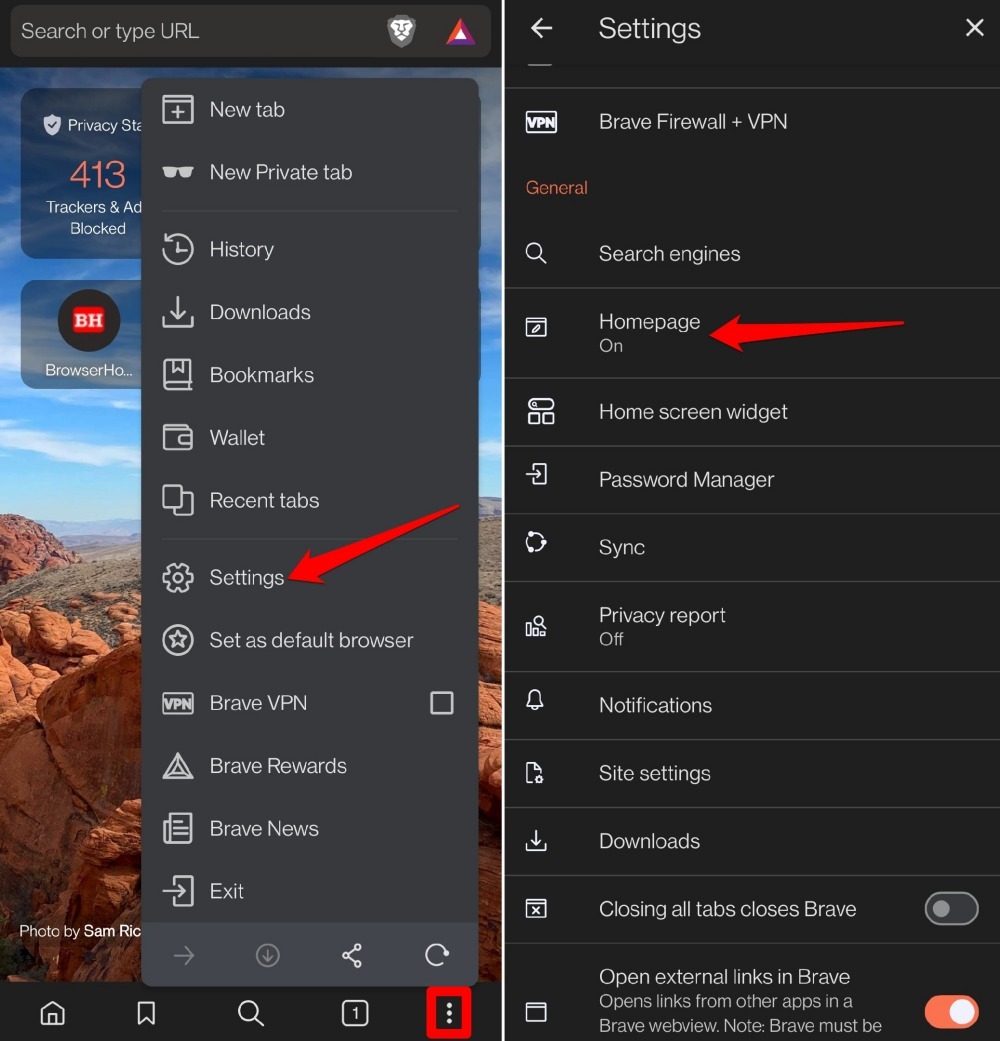
- Launch the Brave browser on your device.
- Tap the
 menu icon and select Settings.
 - Access Homepage settings under the General tab.
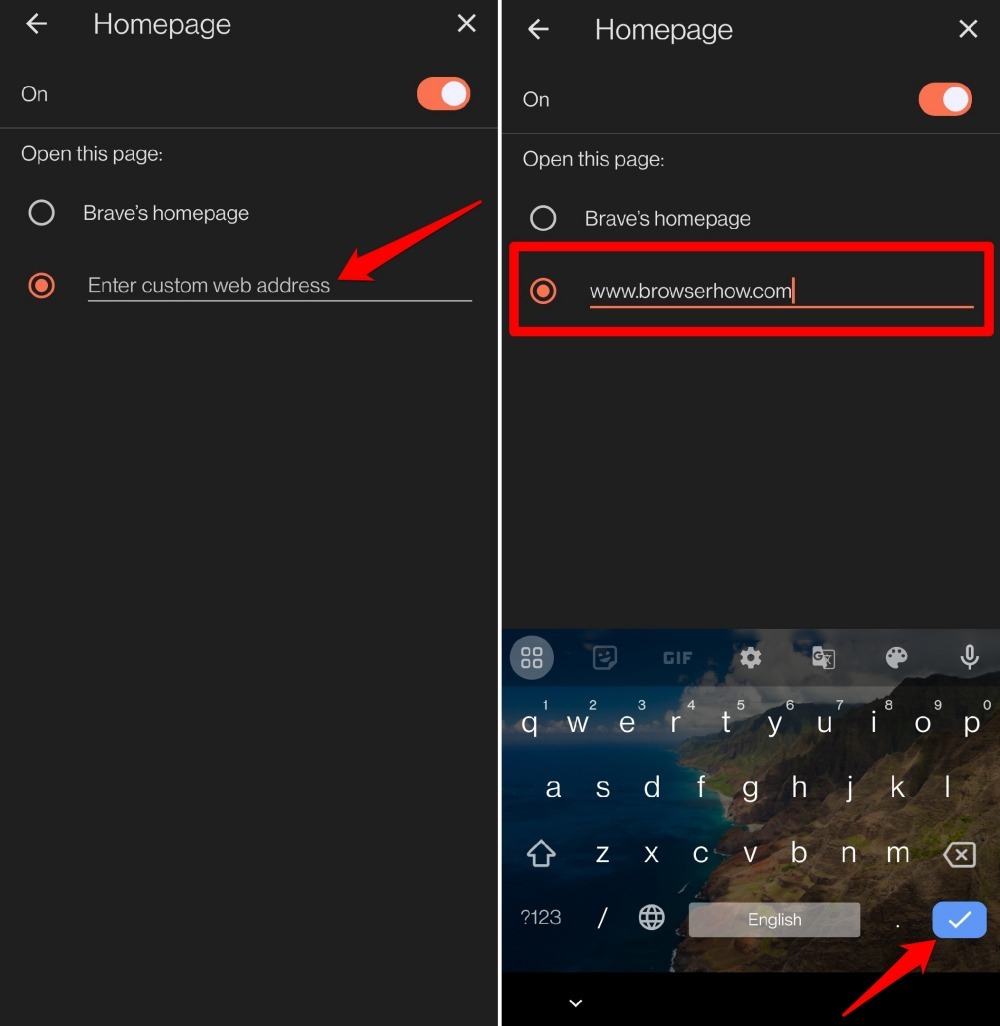
- Go to Open this page.
- Tap on the field “Enter custom web address“.
- Enter the website URL you want to set as the homepage on Brave.
- Press the Done button on the on-screen keyboard.

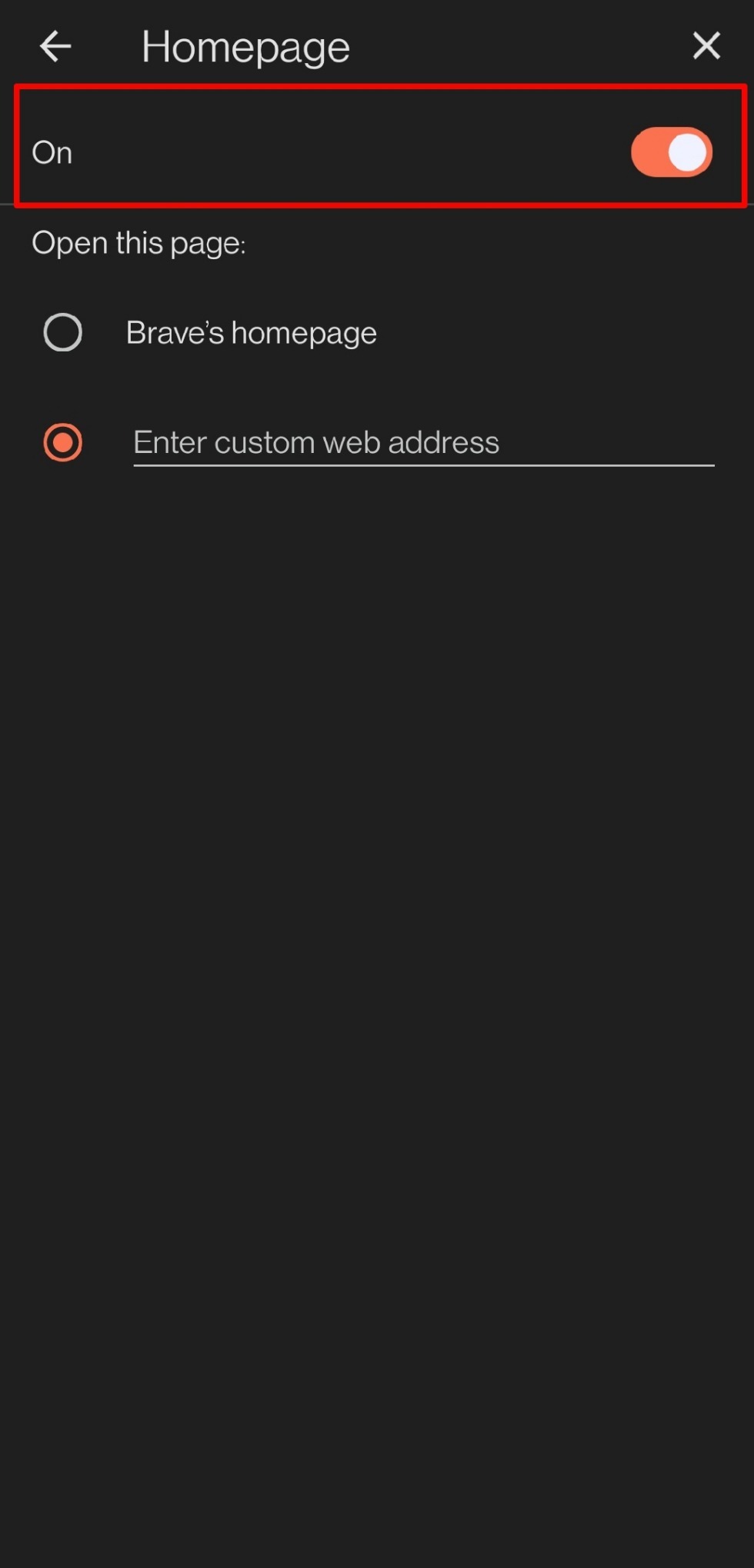
Make sure that the Homepage toggle is enabled on Brave.
Bottom Line
You close Brave completely and reopen it. The site you set loads right away, without you needing to type anything or tap a bookmark. If you ever want to switch back, just return to the same Homepage settings and toggle it off or enter a new URL.