

Constant notification pings can derail your browsing. Brave on Android gives you detailed control over every alert, from site push notifications to Brave Ads and media playback.
You can silence all notifications with one toggle, block sites from interrupting you, and fine-tune category options like notification dots and Do Not Disturb overrides.
In this guide, I have covered:
Contents
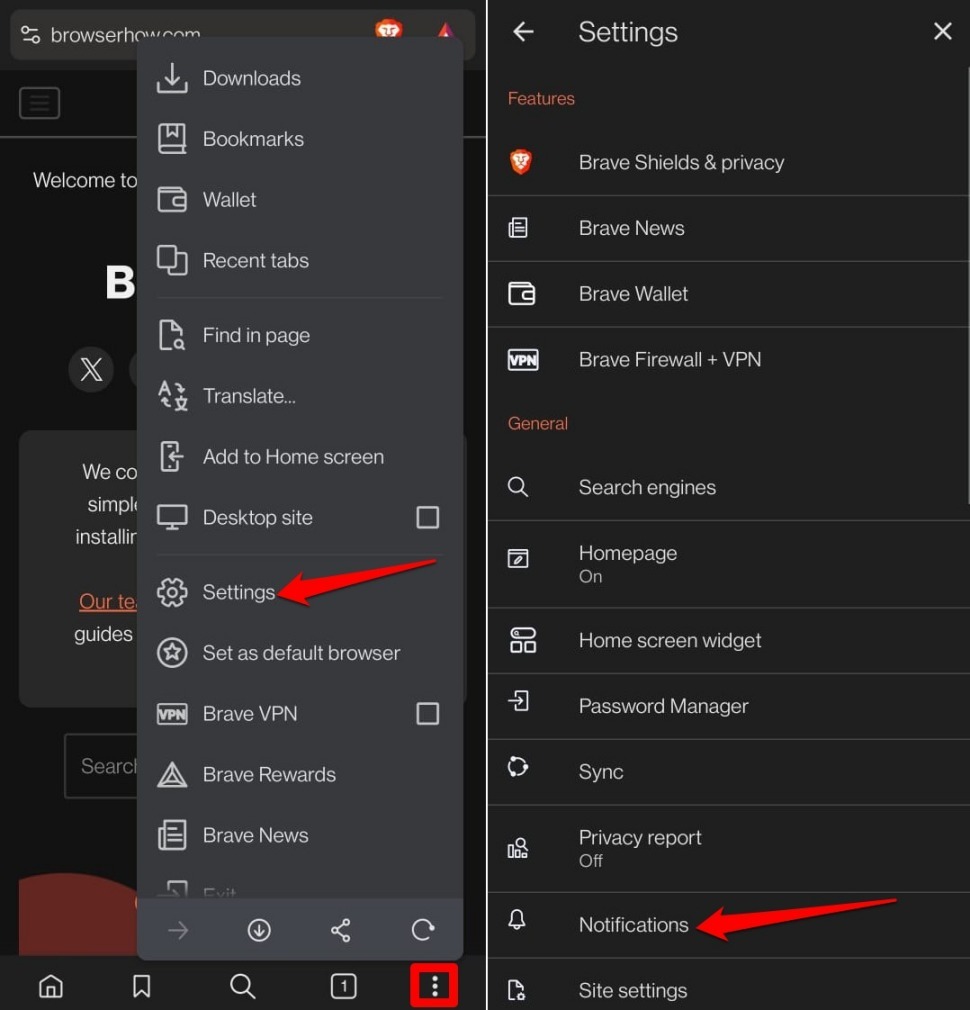
Access Notification Settings
- Launch the Brave browser app on your device.
- Tap the
 icon and select Settings.
 - Go to Notifications. You will be redirected to the device’s app and notification settings.
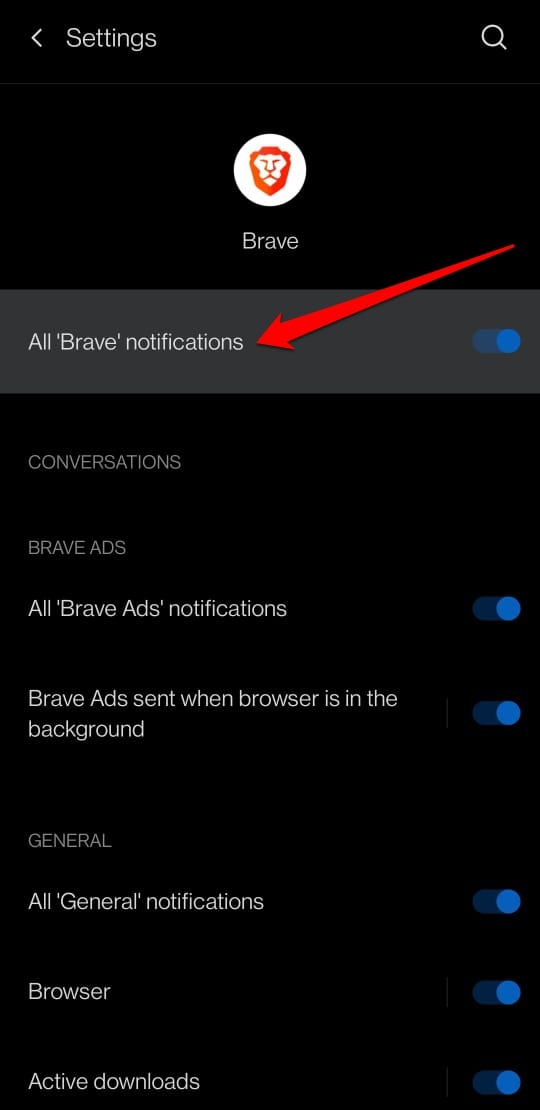
Turn on/off All Notifications Alert
- Tap the toggle next to All ‘Brave’ notifications.
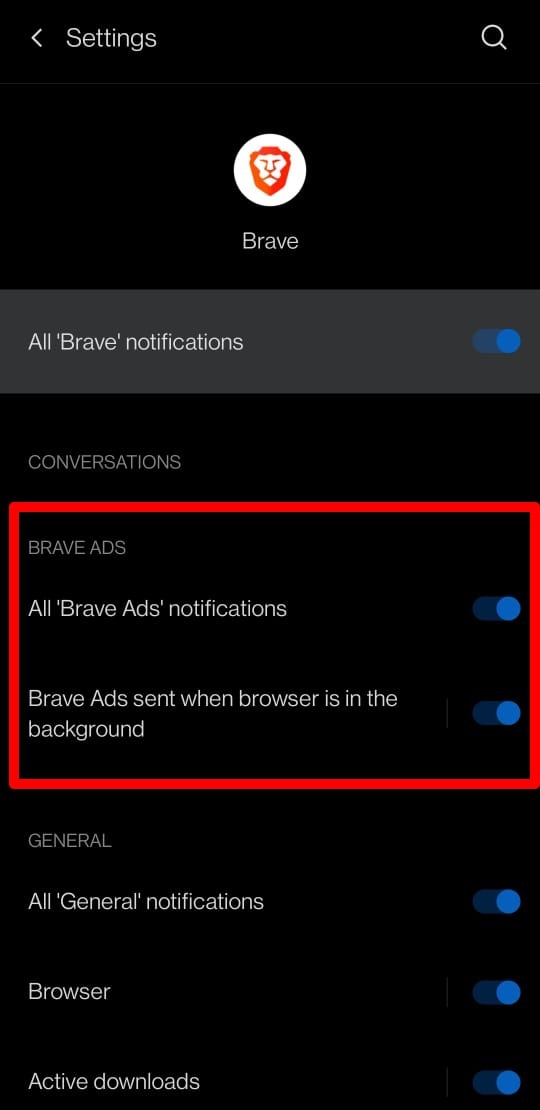
Enable or Turn Off Ad Notifications
- Under Notification Settings, activate or disable the toggle switch beside All ‘Brave Ads’ notifications.
- You can also turn on or off the option Brave Ads are sent when the browser is in the background.
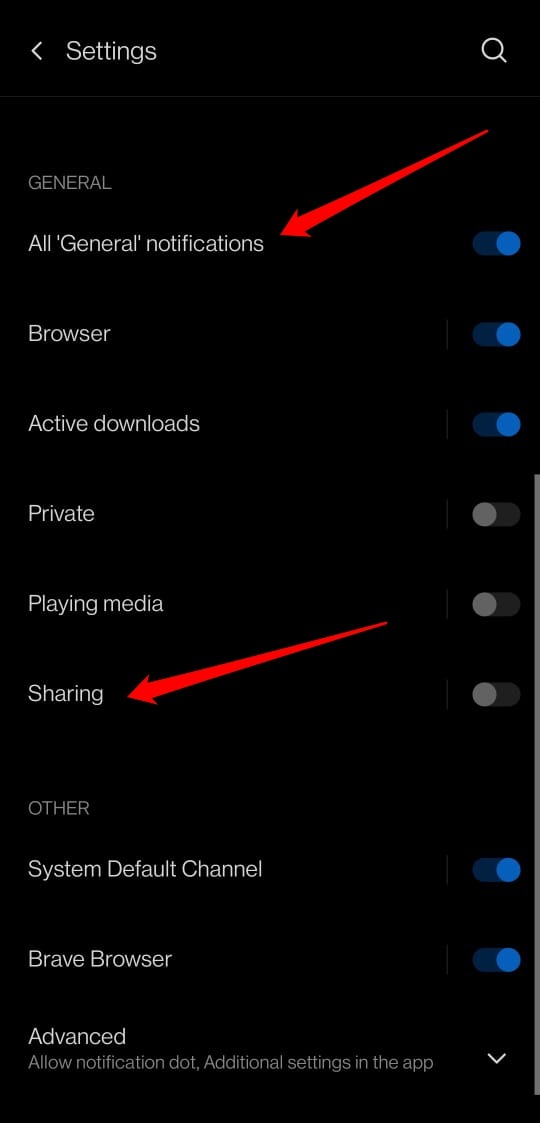
Managing General Notifications
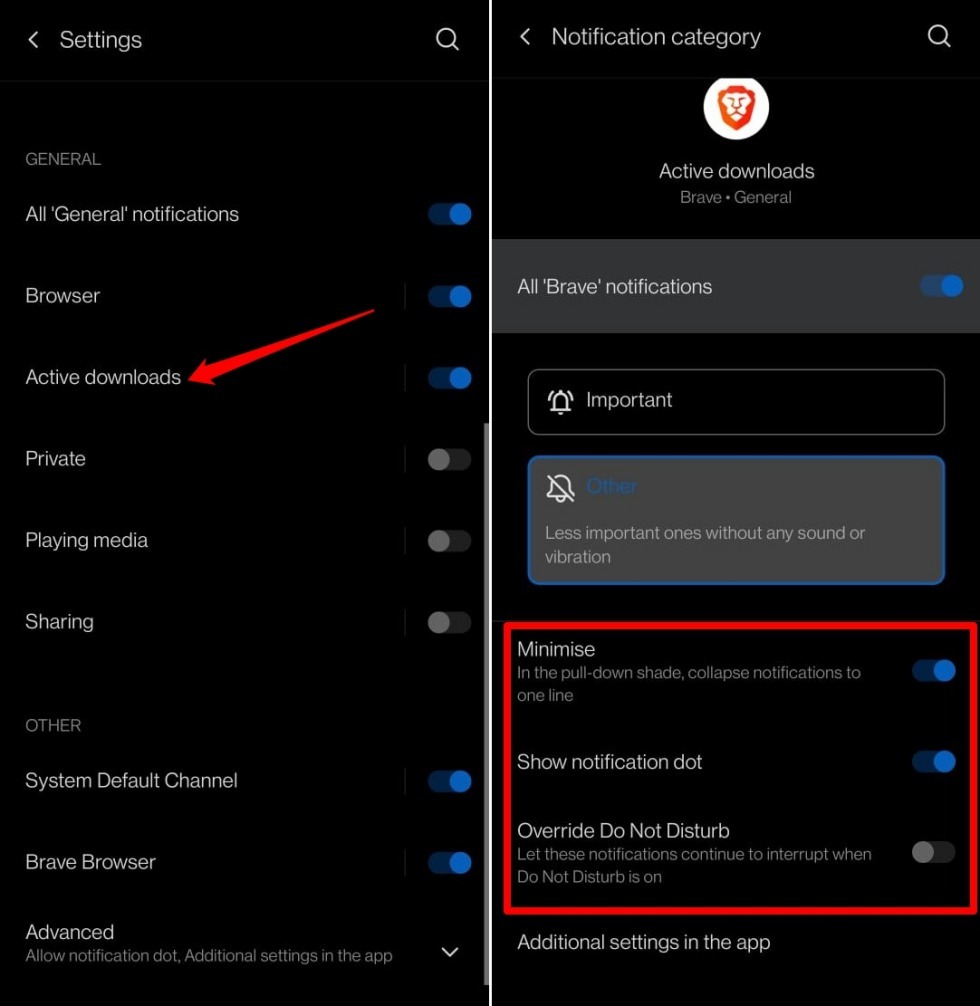
- Press the toggle next to All ‘General’ Notifications to enable or disable it.
- Tap the switch beside Enable/disable Browser notifications.
- Disable notifications during private browsing by tapping the toggle next to Private.
- To turn off media playback alerts, tap the toggle next to Playing Media.
- Enable or disable notifications when Sharing any item from Brave.

TIP: You can further personalize these alerts by managing category options: show notification dots, override Do Not Disturb, or collapse notifications into a single line.
Personalize Other Notifications Settings
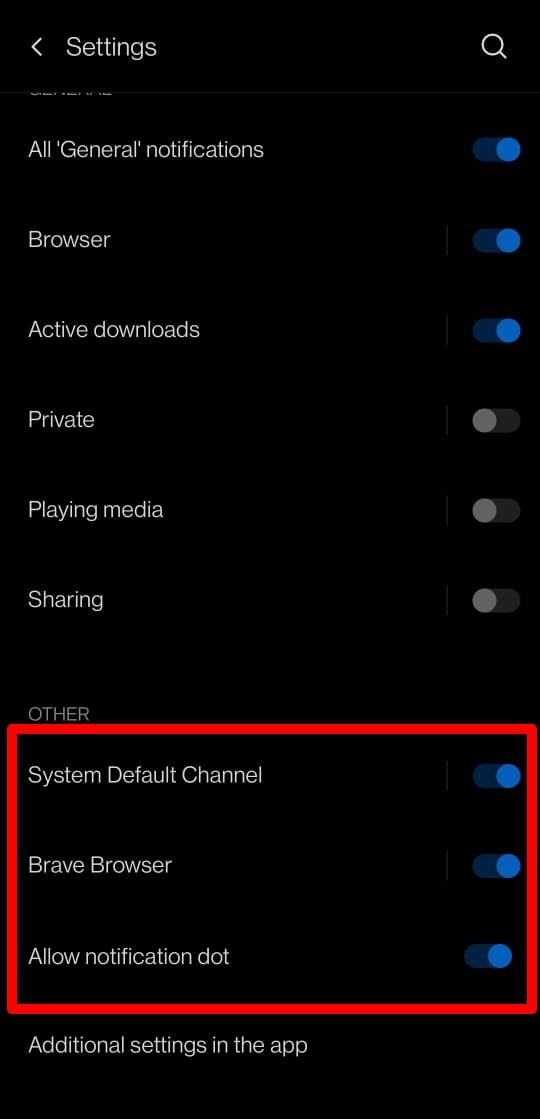
- Tap the toggle next to System Default Channel to enable or disable it.
- Tap the toggle next to Allow Notification Dot to show or hide notification dots on app icons.
Disable Sites from Sending you Push Notifications
- Open the Brave app on your device.
- Tap the icon and select Settings.
- Go to Notifications.
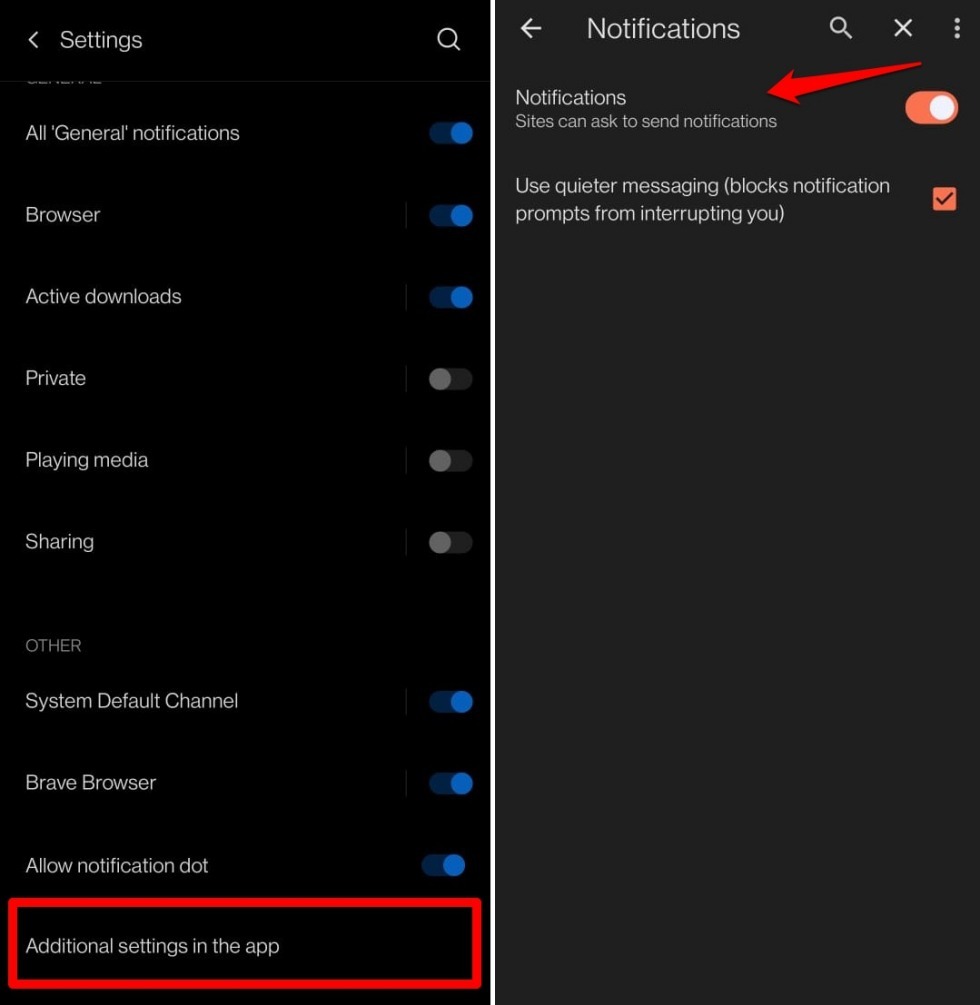
- Scroll to the Other tab and tap Additional Settings on App.
- Press the toggle next to Notifications to allow or stop sites from sending you notifications.
- Tap the checkbox Use quieter Messaging to stop notifications from interrupting you.
Bottom Line
You’ll know it worked when only the notifications you actually want come through. Brave stays quiet during private browsing, media playback alerts are under your control, and pushy sites can’t interrupt you.




