

Tighten your privacy in Brave on Android. Configure shields to block trackers and ads, force HTTPS, and stop social media embeds from loading.
Brave puts granular control over website behavior right in your hands. Adjust these settings to reduce tracking, prevent fingerprinting, and manage cookies so your browsing stays fast and private.
In this guide, I have covered:
Contents
Manage Various Privacy Settings
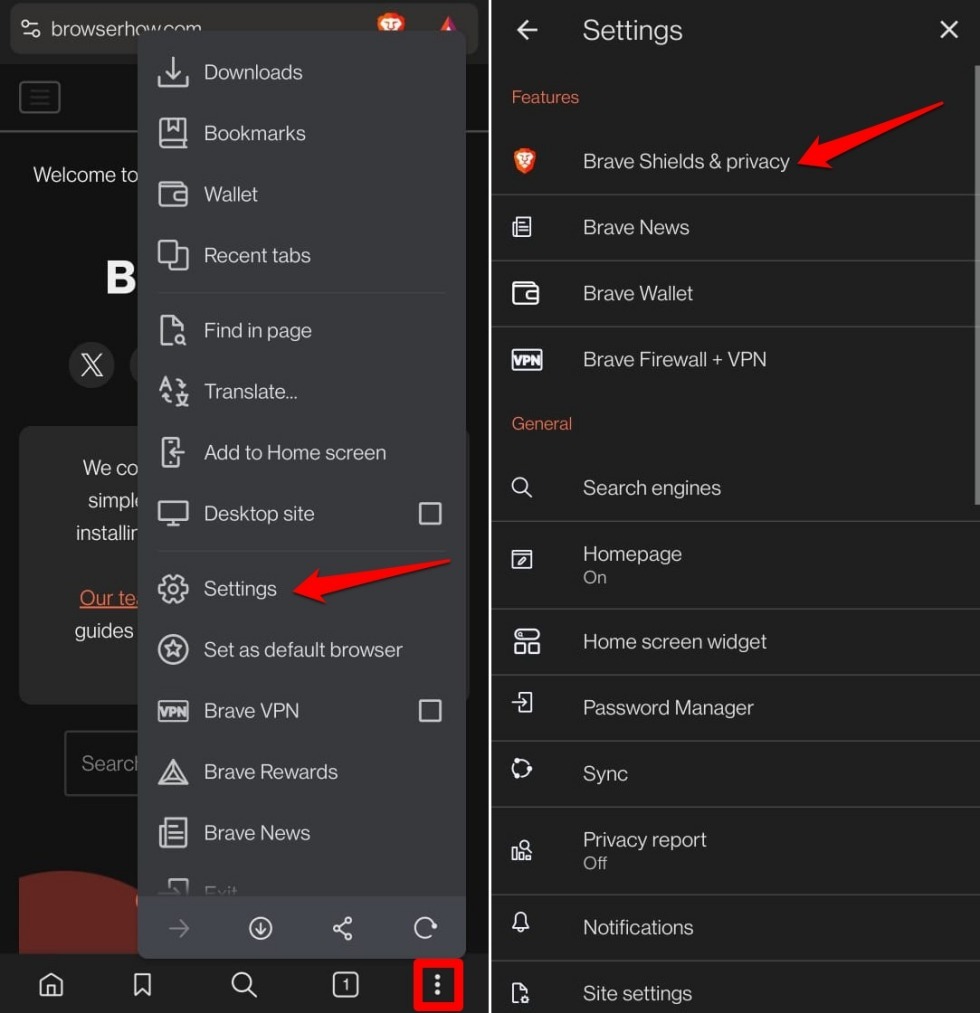
- Launch the Brave browser.
- Tap the
 icon and select Settings.
 - Access Brave Shields & Privacy.
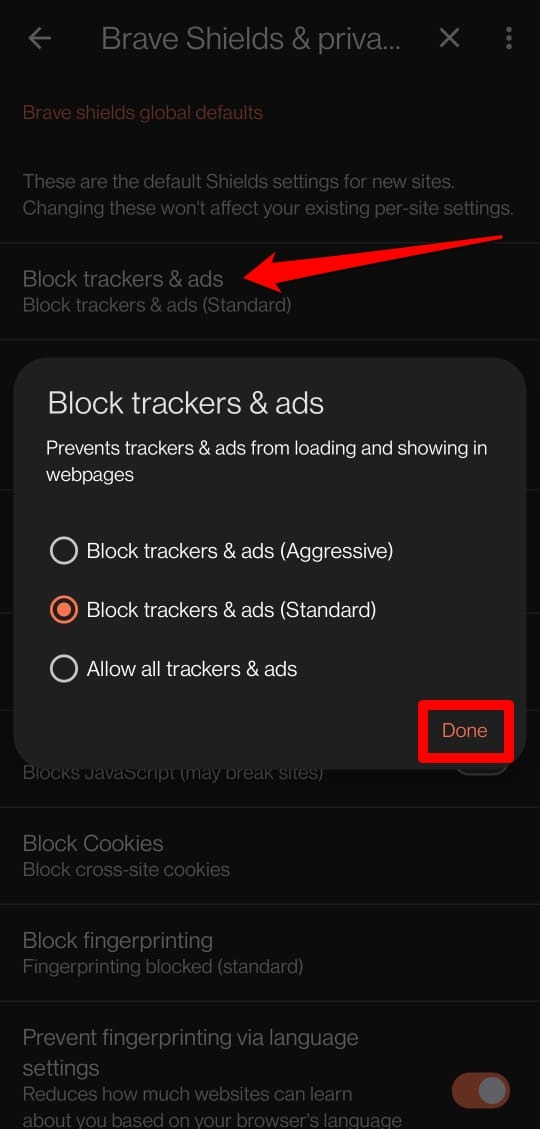
Brave Shields Global Defaults
- Open Block Trackers & ads and choose Aggressive, Standard, or Allow all trackers.
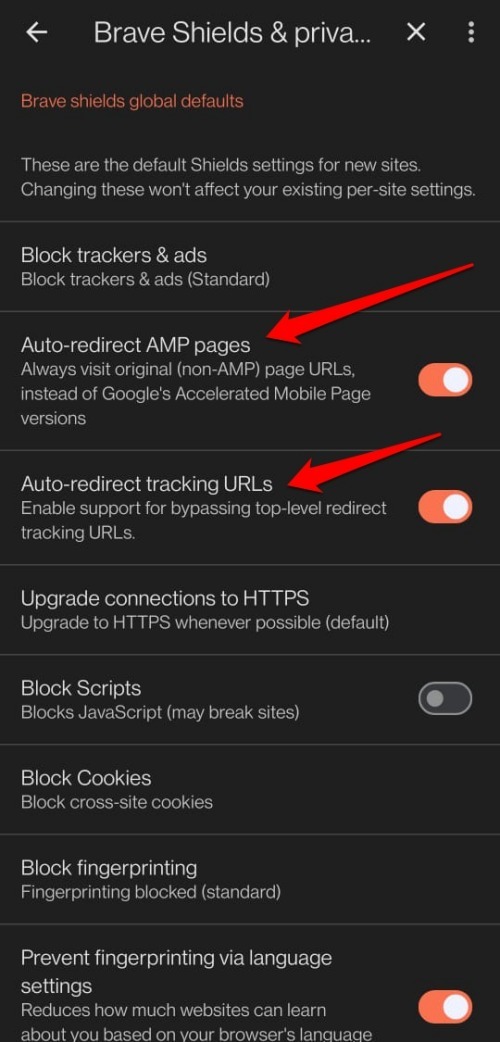
- Toggle Auto-redirect AMP pages on or off.
- Turn on Unlink bounce tracking in URLs to strip tracking parameters.
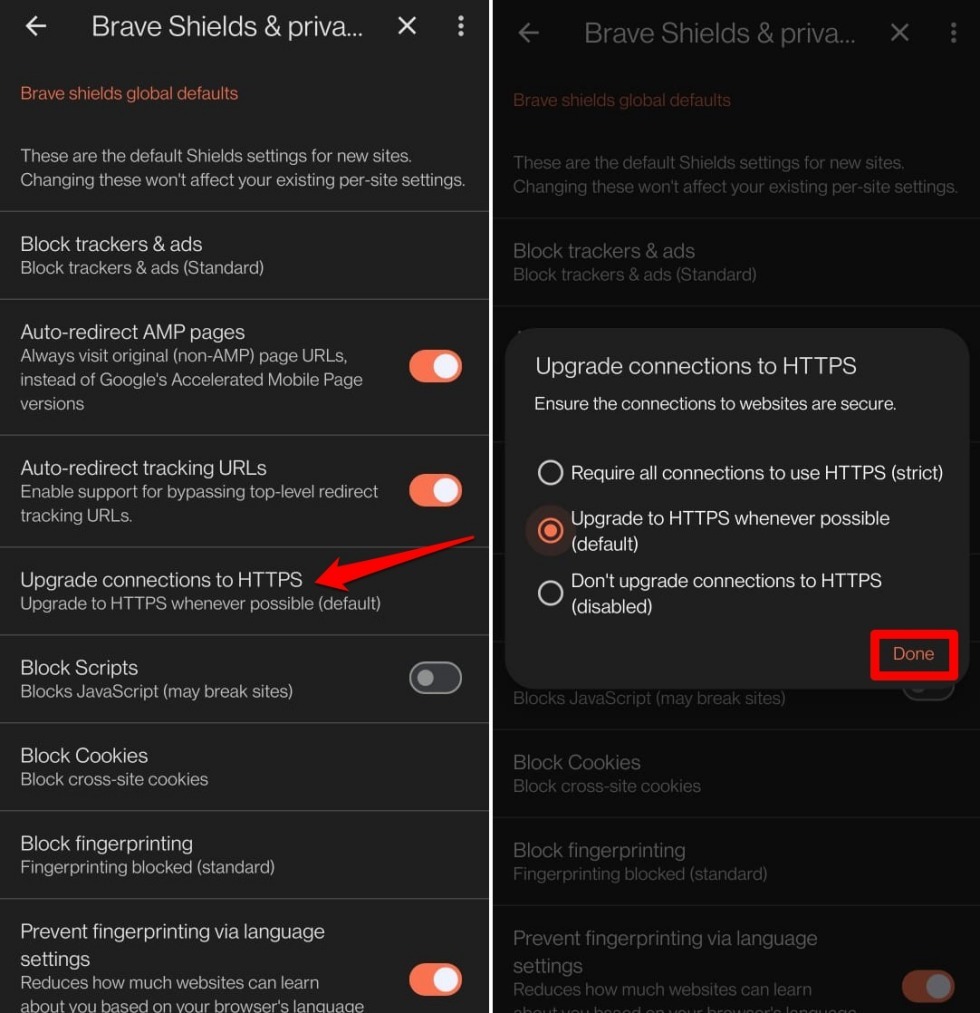
- Tap Upgrade Connection to HTTPS and select Standard or Strict HTTPS upgrading.
- Turn on Block Scripts (JavaScript) if you want to disable scripts. Some sites may break, so you can always whitelist them later.
- Make sure Prevent fingerprinting based on language settings is enabled.
- Enable Forget me when I close this site. It clears cookies and site data automatically when you leave.
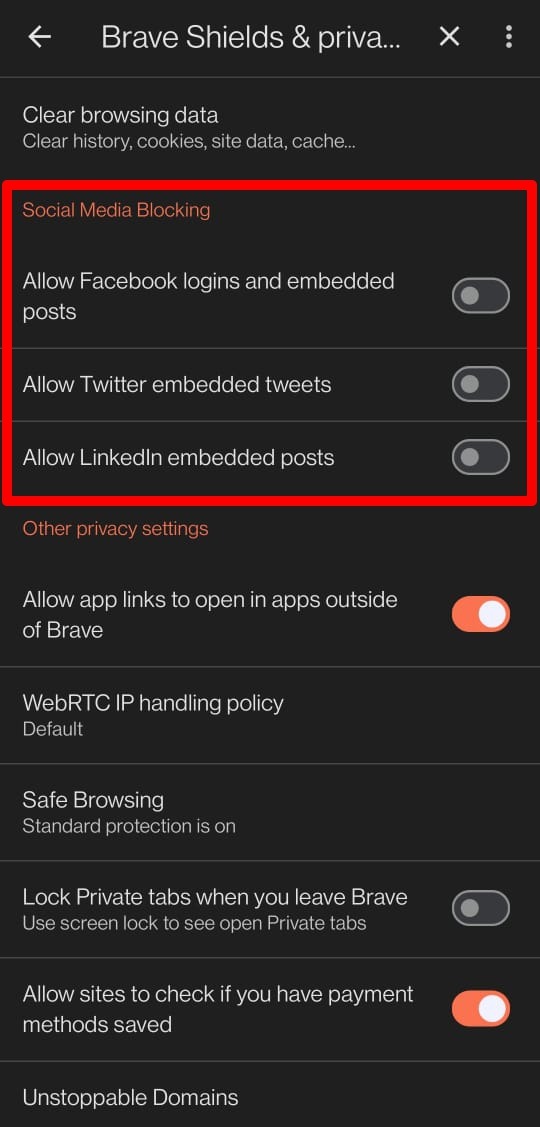
Personalize Social Media Blocking
- Toggle Facebook logins and embedded posts on or off.
- Turn on or off Twitter embedded tweets.
- Do the same for LinkedIn embedded posts.
Other Privacy Settings in Brave
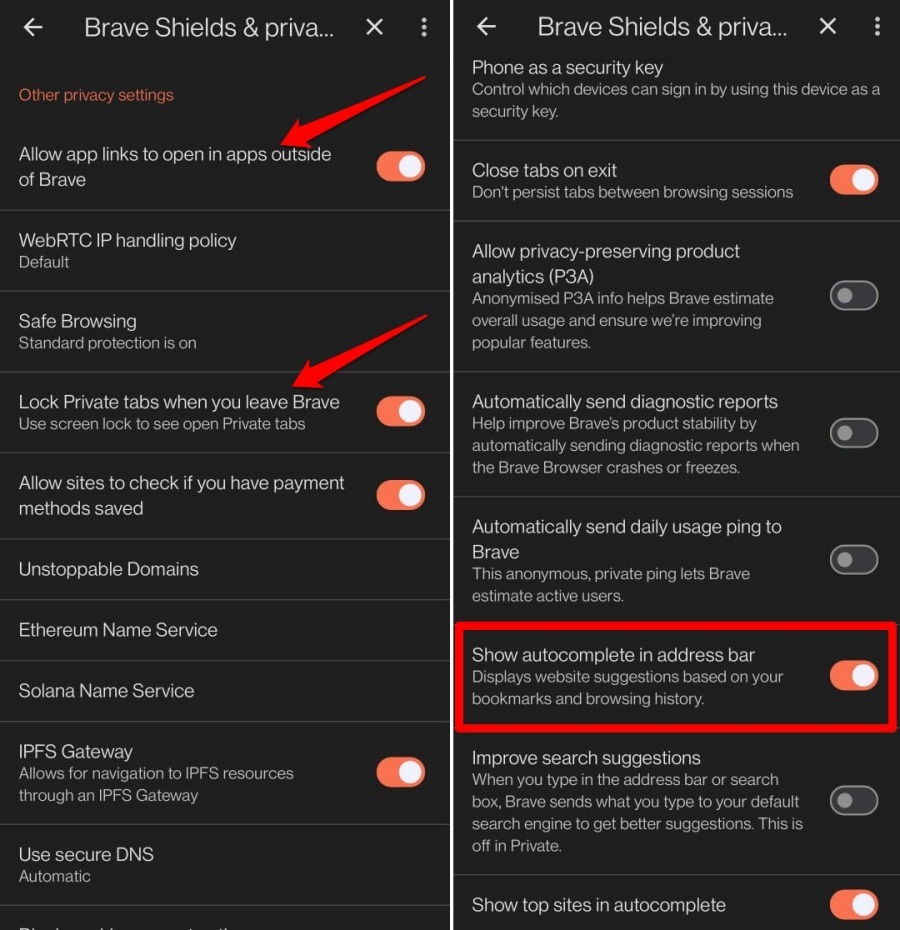
- Use the toggle to allow or block opening app links in other apps from Brave.
- Set Safe Browsing to Standard Protection (or change to Strict / Disabled).
- Choose to Lock Private Tabs when you leave Brave.
- Enable Block Cookie Consent Notices to hide those pop-ups.
- Disable sending diagnostic reports and daily usage pings to Brave by turning off the relevant toggles.
- Control autocomplete: toggle Show Autocomplete in the address bar, Improve search suggestions, and Show top sites in autocomplete.
Bottom Line
After you’ve tweaked these settings, browse around a bit. If ads and trackers are blocked and cookie consent pop-ups vanish, you’re all set. If a site breaks, tap the Brave shield icon in the address bar and adjust shields for that site. Brave gives you deep privacy tools, so take a few minutes to get them dialed in.




