

Ads following you around? Sites refusing to log you in? The cookie settings in Brave app give you control. Here's how to block third-party cookies globally, add exceptions for sites you trust, and block cookies for individual websites right from the address bar.
You'll also learn how to manage per-site cookie controls using the lock icon on the URL bar.
In this guide, I have covered:
Contents
Block or Allow Browser Cookies
- Launch the Brave app on your phone.
- Tap the
 icon and select Settings.
 - Select Site Settings.
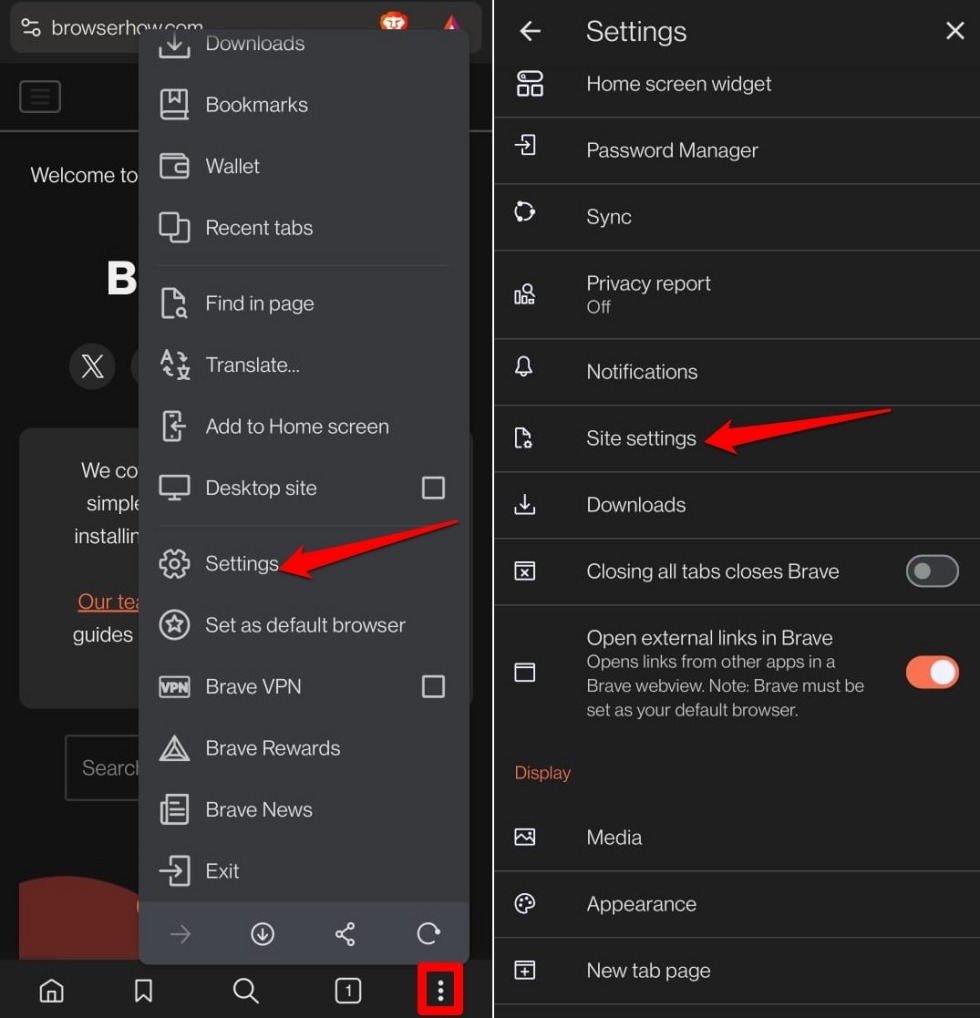
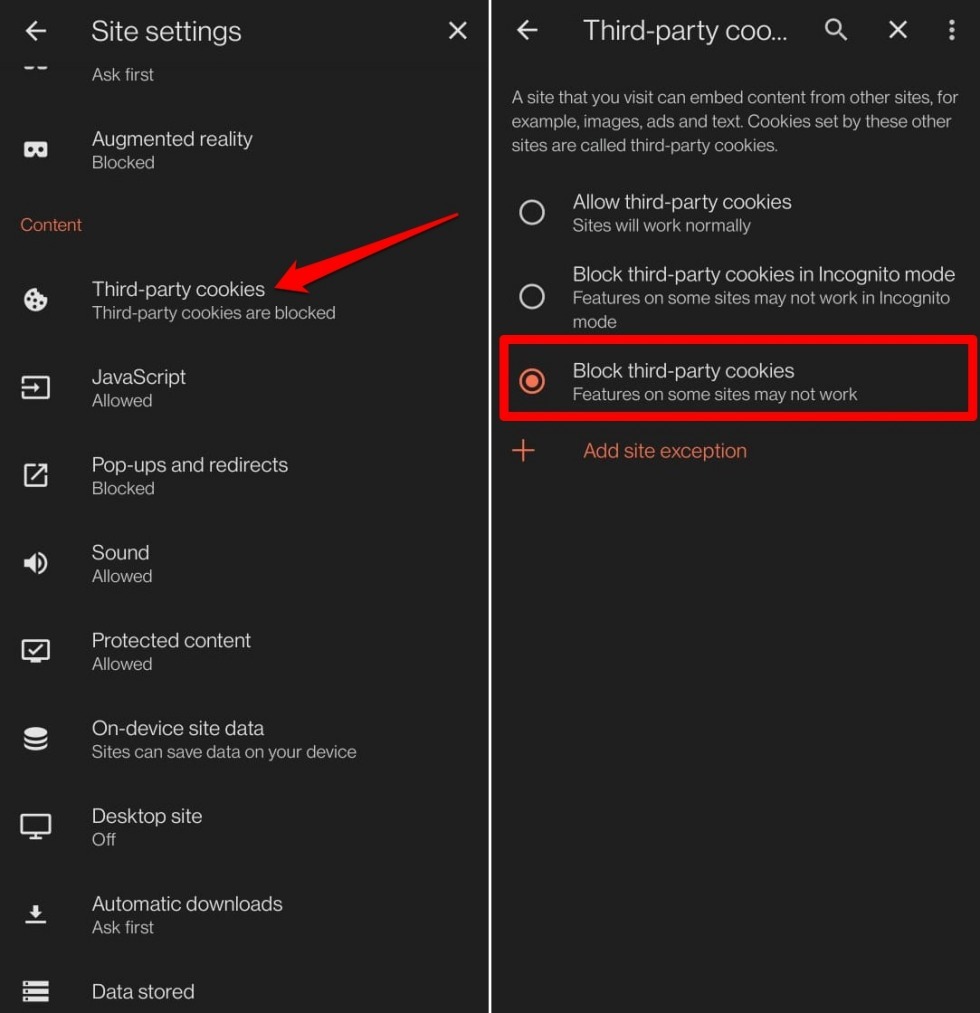
- Scroll to Third-party Cookies and access it.
- Select your preferred option from Allow third-party cookies, Block third-party cookies, or Block third-party cookies in Incognito mode.
Add an Exception for a Site to Allow Cookies
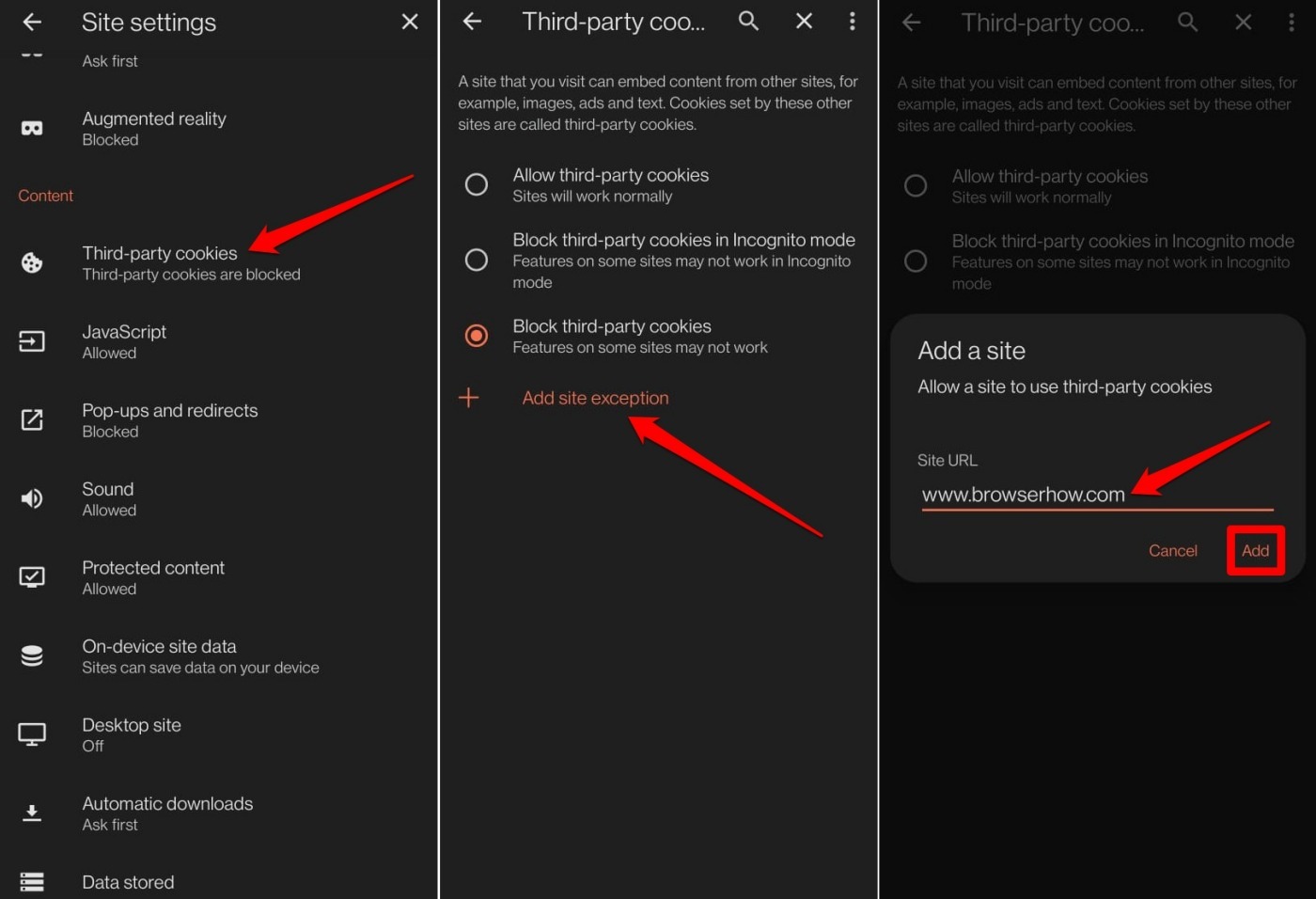
- Launch the Brave app on your phone.
- Tap the icon and select Settings.
- Select Site Settings.
- Go to Third-party Cookies.
- Tap on Add Site Exception.
- Enter the website address and press Add.
Block Third-Party Cookies for a Specific Site
- Visit any website on the Brave app.
- Tap the Customize icon (site controls) on the URL bar.
- Select Cookies and site data.
- Toggle Block third-party cookies on for the site.
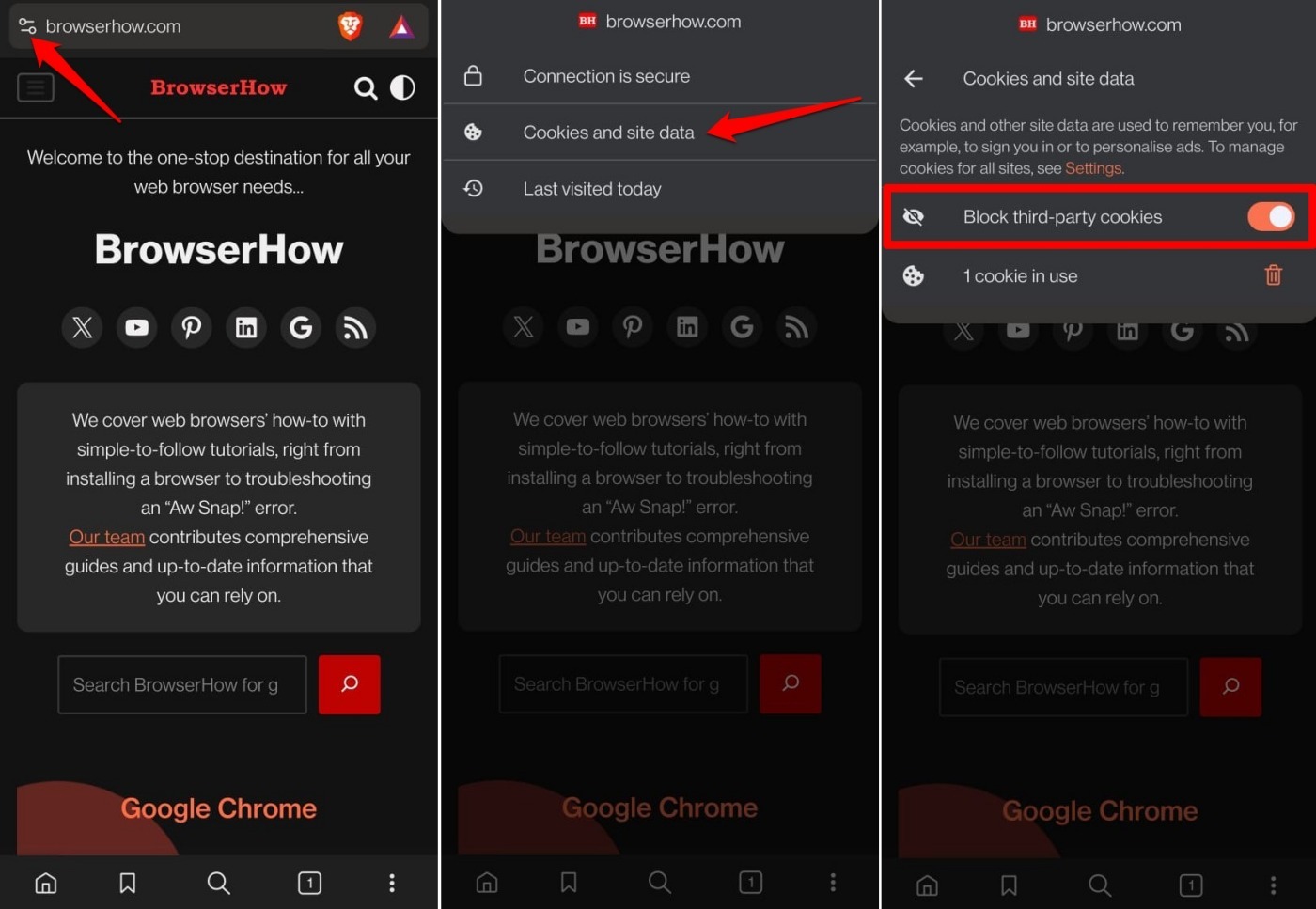
- Tap the Trash icon to delete the cookies in use.
Bottom Line
You’ll know it worked when sites stop showing you eerily relevant ads after you’ve blocked third-party cookies. If a site breaks, add it as an exception. For per-site control, use the lock icon to block third-party cookies on just that domain.




