

Learn how to allow or block JavaScript in the Brave browser. JavaScript powers interactive elements on modern websites, from design features to display ads, so disabling it can change how pages look and function.
This guide walks through the JavaScript toggle in Brave's Site settings on Android. You'll also see how to add site-specific exceptions when you need to keep scripts off for particular pages.
In this guide, I have covered:
Contents
Allow or Block JavaScript in Brave app
When a page looks broken, behaves janky, or drowns you in pop-ups, JavaScript is often the culprit. Brave lets you disable it globally or carve out exceptions for sites you trust (or don’t).
- Launch the Brave app on your Android device.
- Tap the
 icon and select Settings.
 - Go to Site Settings.
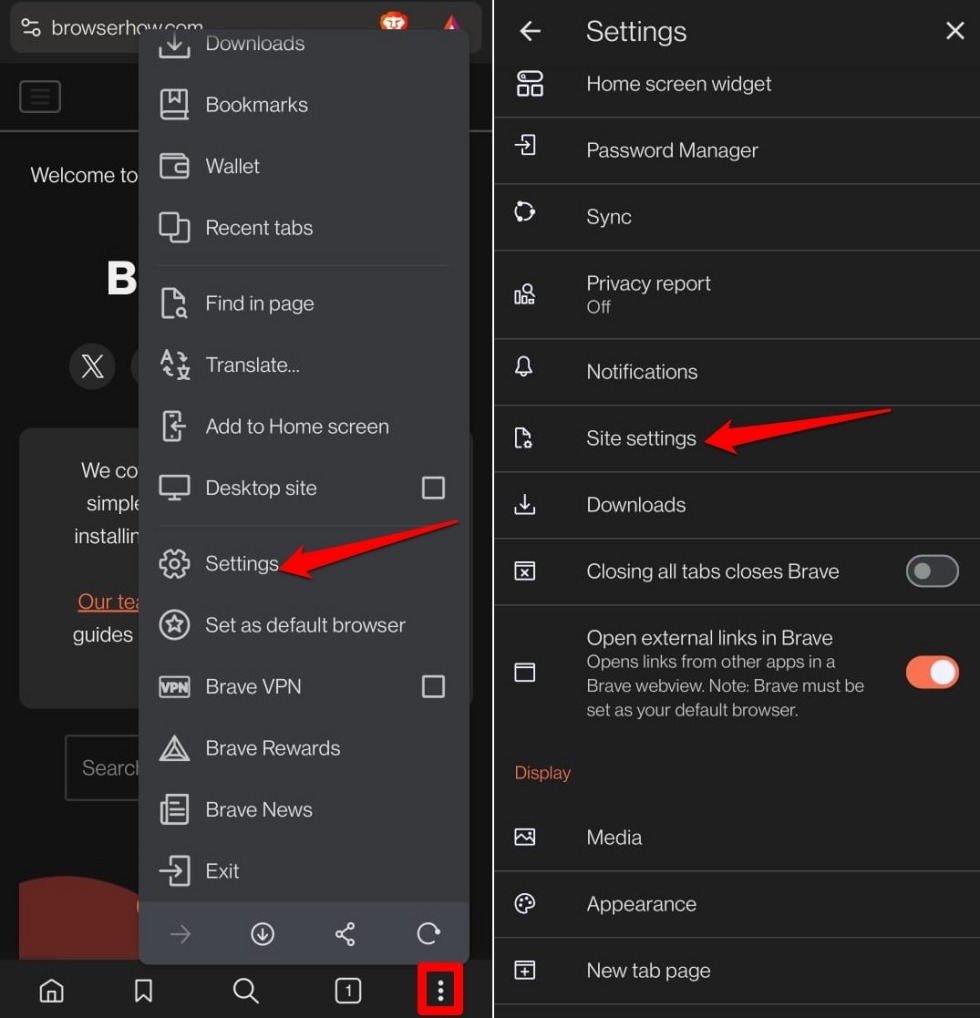
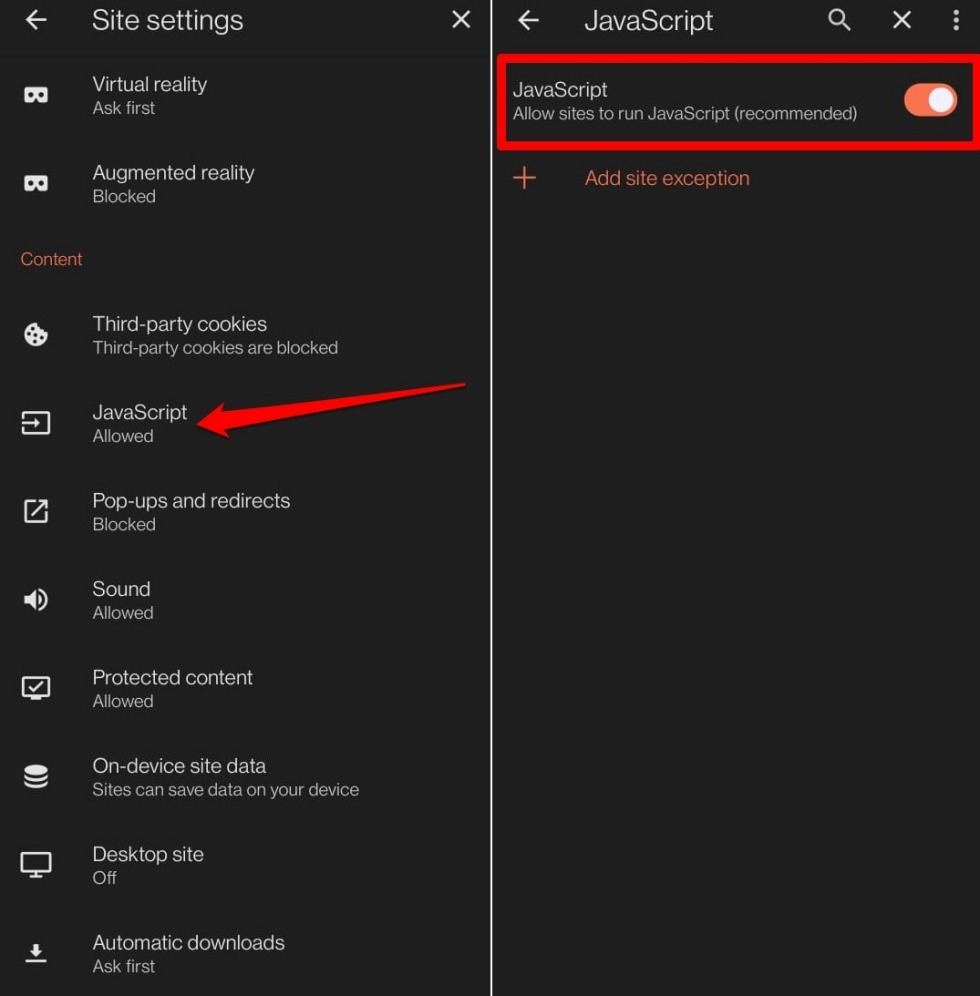
- Select JavaScript.
- Toggle the switch to turn JavaScript on or off in Brave.
Add Exceptions for Sites to Block JavaScript
Maybe you want JavaScript off by default and only enable it for your bank’s site. Or you’d rather keep it on everywhere except that one news site whose video pop-ups never quit. Either way, exceptions are your friend.
- Open the Brave app on your device.
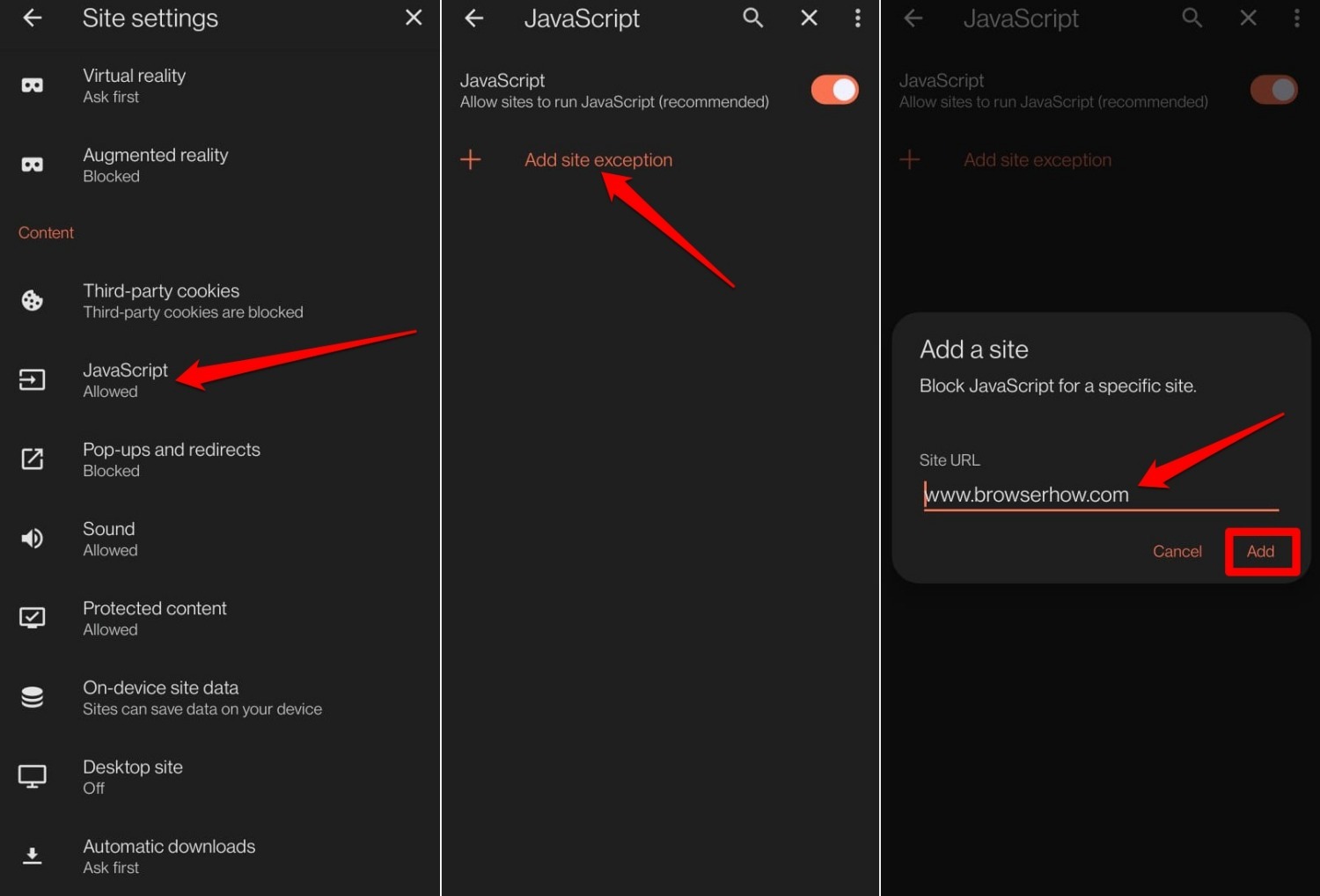
- Tap the menu icon and select Settings.
- Go to Site Settings.
- Select JavaScript.
- Tap on Add Site Exception.
- Enter the website address and press Add.
You’ll know it worked when you revisit the site. If you added it to a blocklist, menus may collapse and video autoplay stops. If you allowed it on an otherwise locked-down setup, interactive widgets start working again.
Bottom Line
Turning off JavaScript site-wide often breaks more than it fixes. Most pages depend on it. Reserve the global toggle for extreme data-saving or testing, and lean on site exceptions to neuter the pages that serve scam pop-ups or adware without ruining everything else.




