
Sites that blast audio the moment they load can ruin a browsing session. Brave on Android gives you a quick way to stop that.
You can block sound access for all sites, or mute only the ones that keep interrupting you. The controls live in Site Settings, and you can add site exceptions so a handful of noisy pages stay silent while everything else plays normally.
In this guide, I have covered:
Contents
Allow or Block Sound Access
- Launch Brave on your phone.
- Tap the
 icon and select Settings.
 - Go to Site Settings.
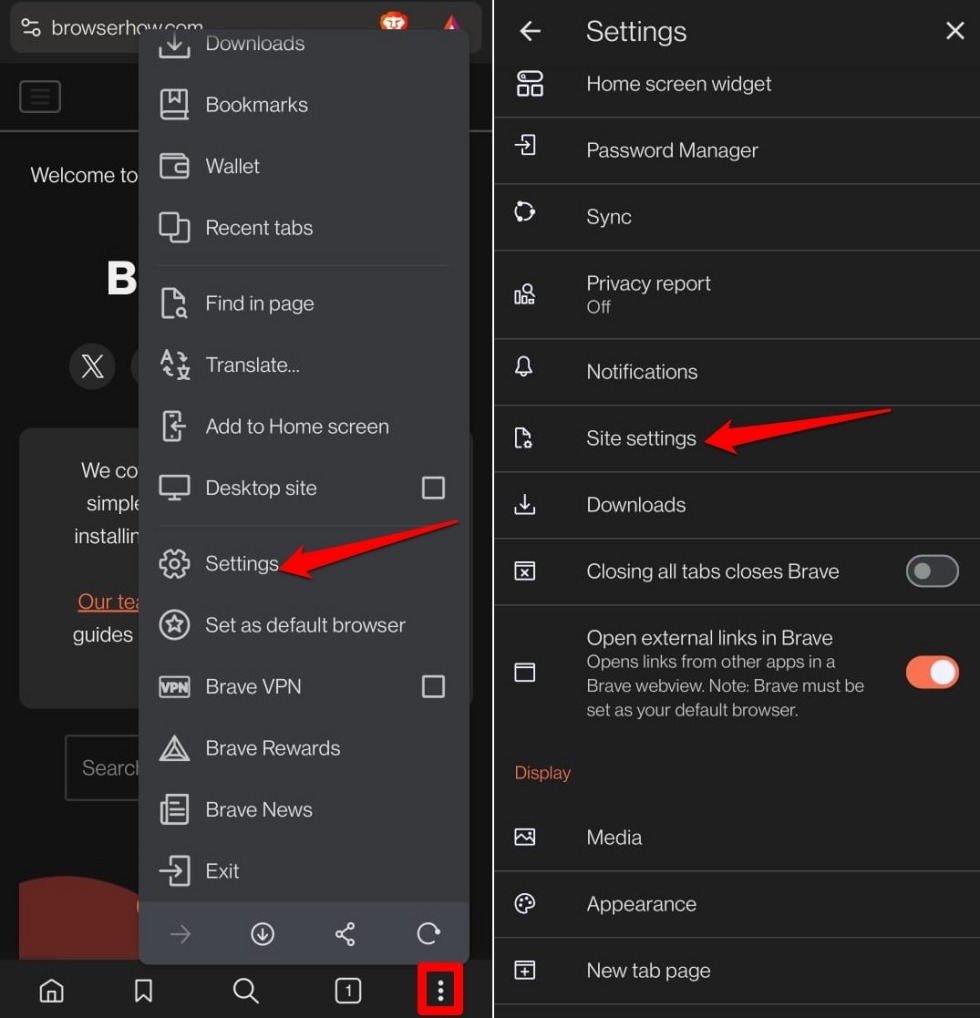
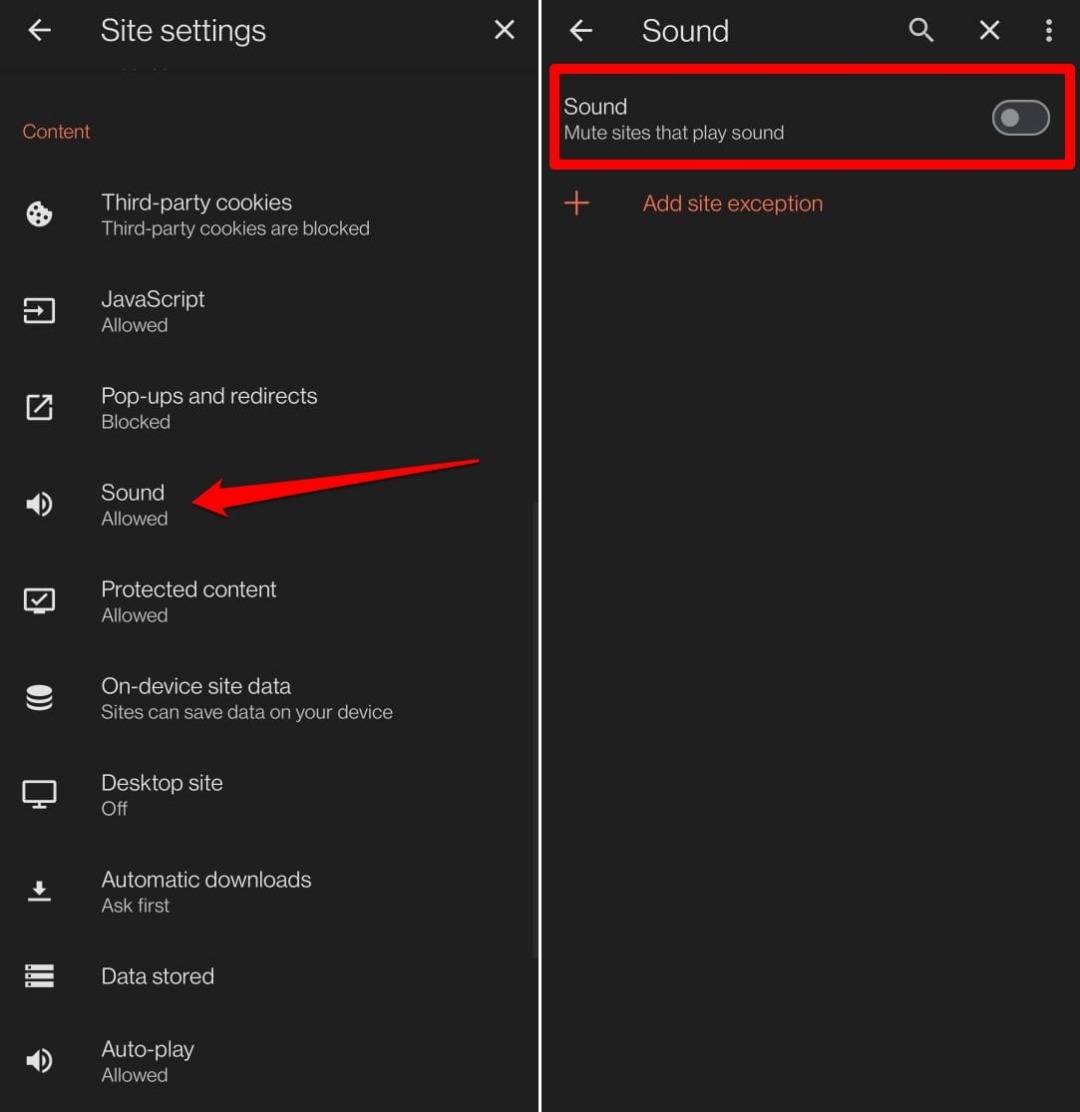
- Scroll to the tab Content and tap on Sound.
- Press the toggle beside Sound to turn the media autoplay off or allow sites to play sound.
Mute Sound for a Specific Site on Brave app
Add exceptions for one or more sites to mute sounds when you visit them on Brave.
- Open Brave on your Android phone.
- Tap the menu icon and select Settings.
- Go to Site Settings.
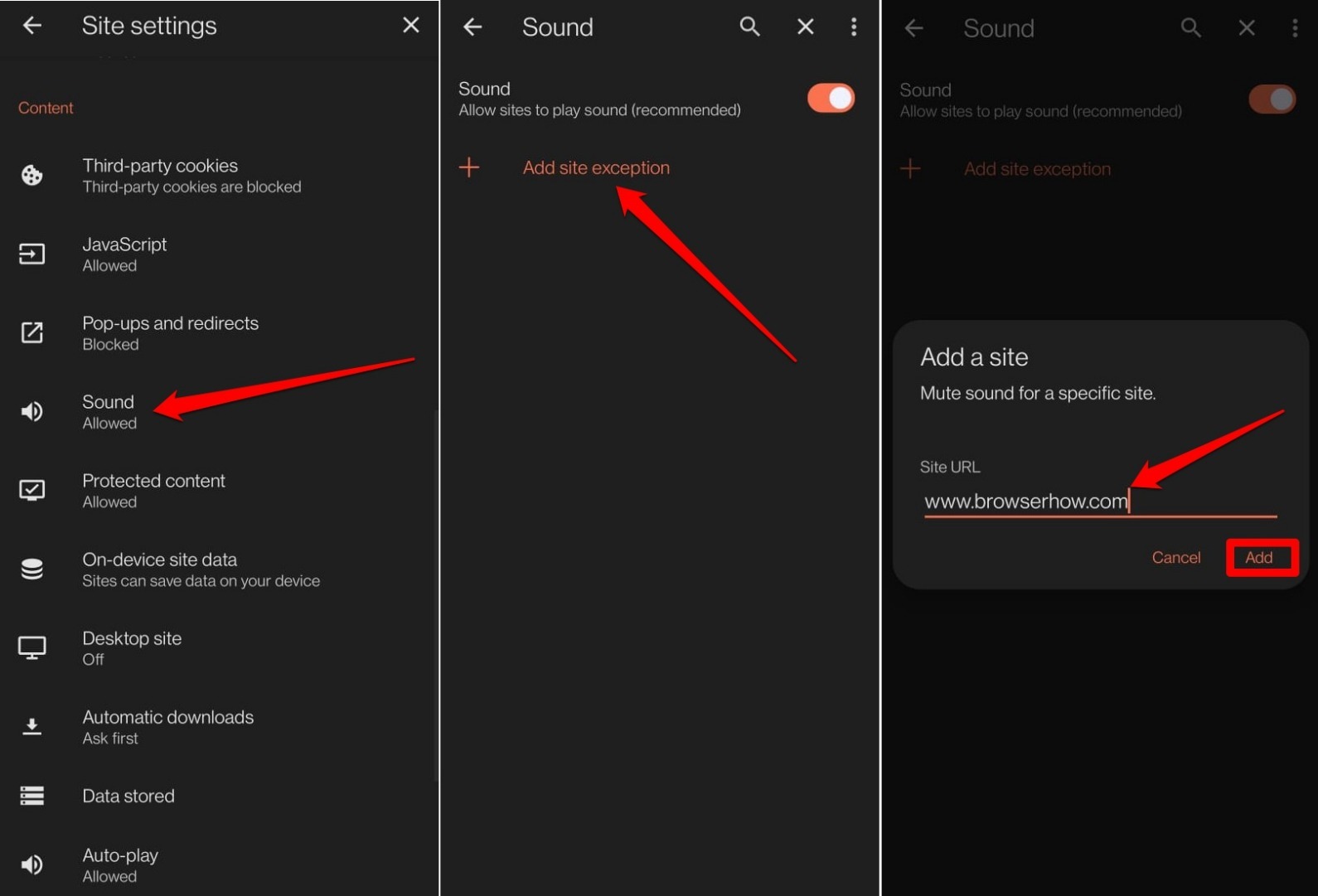
- Under the tab Content, tap on Sound.
- Tap on Add Site Exception.
- Enter the site name in the field “Enter web address”
- Press Add.
Bottom Line
You’ll know the setting took effect when you visit a site and no unexpected audio plays. If you muted a specific site, its tabs will stay silent while others follow your global sound preference. To reverse the change, head back to Site Settings > Sound and flip the toggle or remove the site exception.




