Sites asking for your location when you're not expecting it? You can stop that. Brave lets you block geolocation access outright or force every site to ask first.
Location data feeds localized ads and search results, but it's your call. Brave keeps the default to ask first. This guide shows you the in-browser switch for granular control, plus the Android system-level kill switch if you want to shut location off for Brave completely.
In this guide, I have covered:
Contents
Enable or Disable Geo Location
When a site requests your location and you want it to stop, or you’re troubleshooting a map that won’t load, the fix lives inside Brave’s site settings. Here’s where to find the master toggle.
- Launch the Brave browser.
- Tap the
 icon and select Settings.
 - Go to Site Settings.
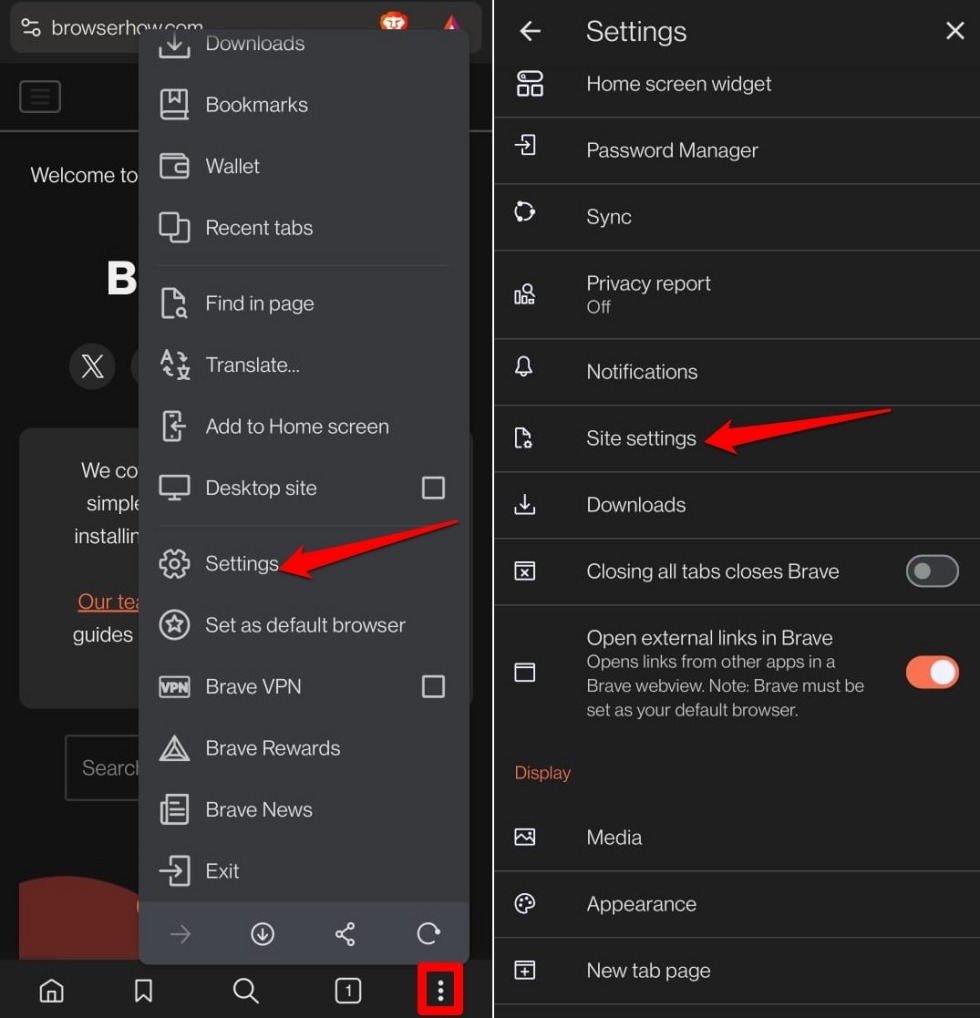
- Select Location.
- Press the toggle switch to turn off the location or keep it enabled.
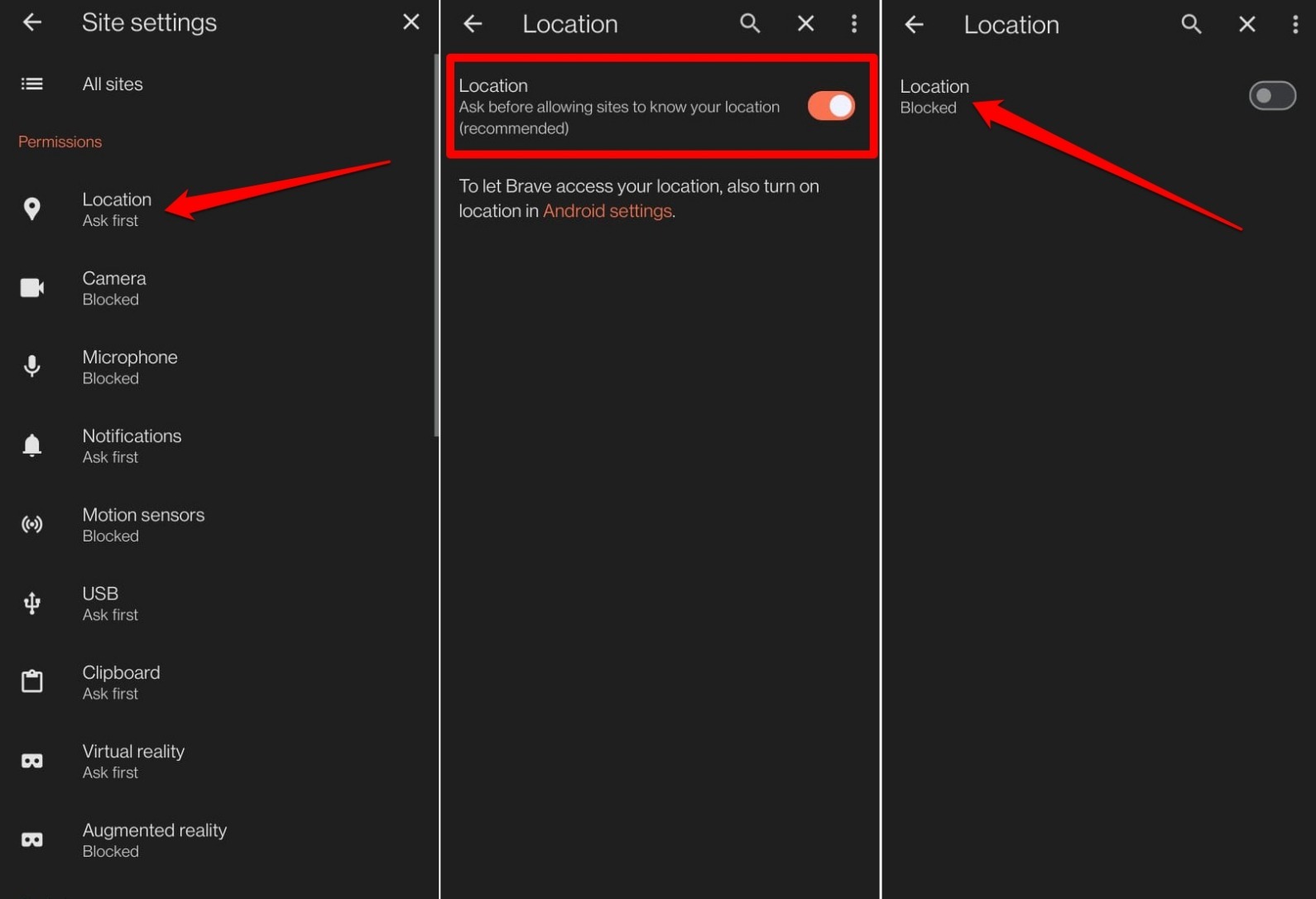

By default, geolocation is enabled on Brave, but sites will ask your permission before accessing the location data.
You’ll know it worked when a site either stops asking (if you blocked) or prompts you again on the next visit (if you left it on). If a site was already granted permission before you flipped the toggle, head into the Exceptions list on that same Location screen and clear it manually.
Disable Location Access from Phone Settings
The in-browser toggle controls how Brave handles location requests from sites. If you want Brave to have no access to your device’s location at all, regardless of site permissions, use Android’s system settings. This is the broader kill switch.
- Open the phone Settings app.
- Tap on Location.
- Next, go to the tab Location Permissions.
- Tap on App Access to Location.
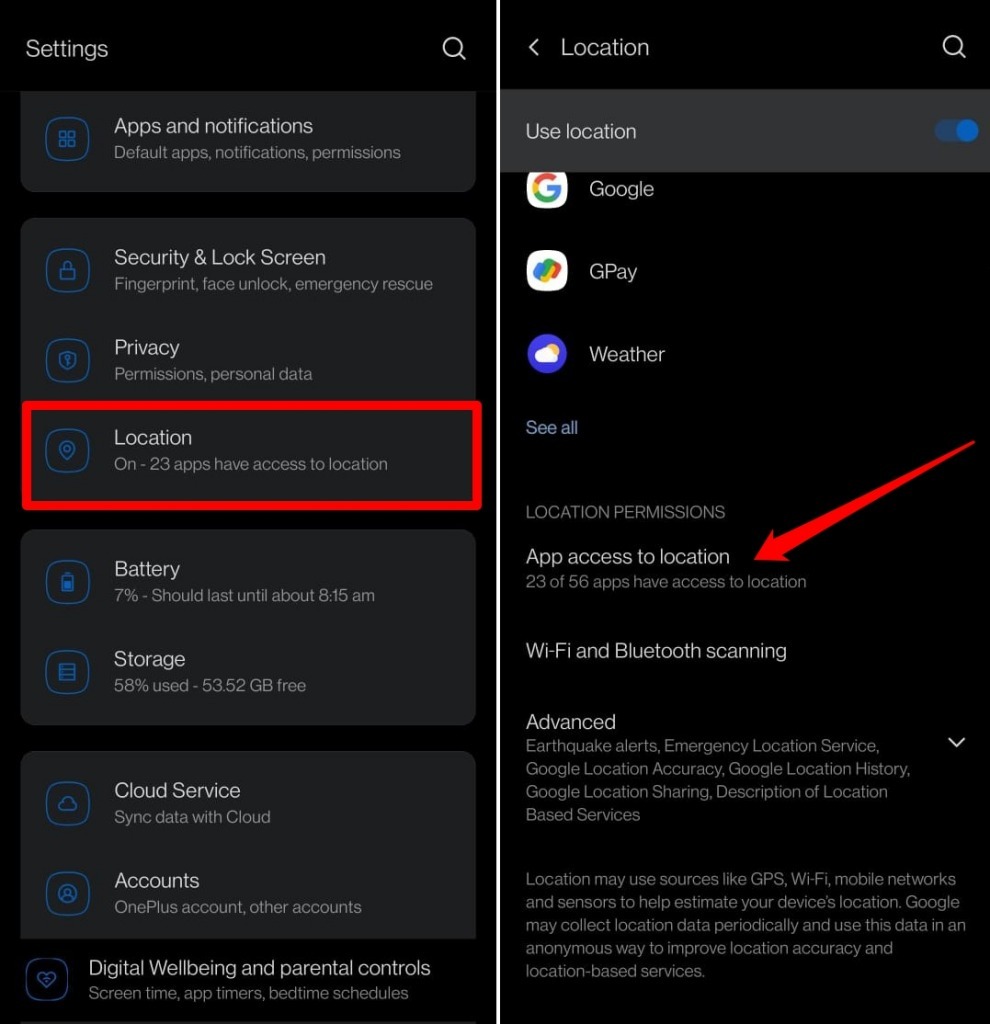
- Select Brave app from the list of apps.
- Choose among “Allow only while using the app“, “Ask Every Time” and “Don’t Allow”
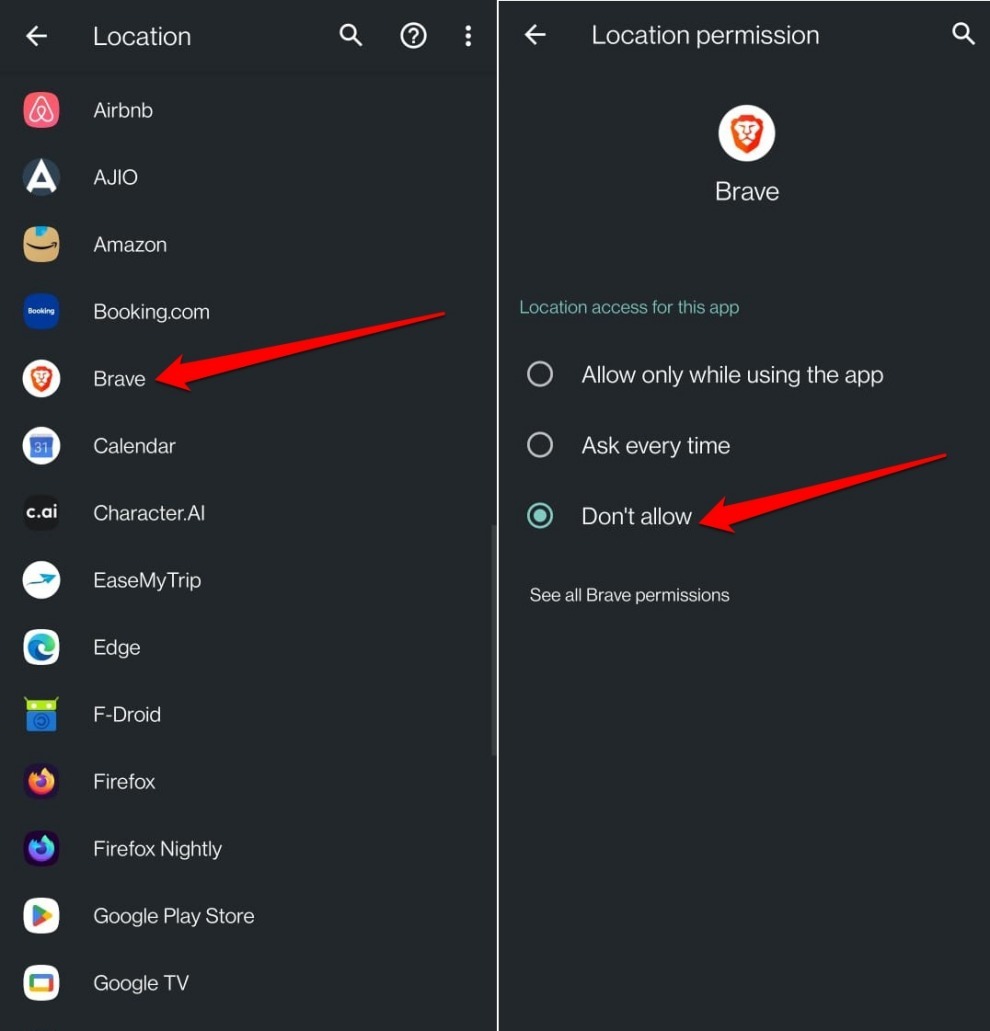
You’ll know this took effect when every site in Brave sees location as blocked, and the in-browser Location setting greys out or stops overriding the system choice. If you pick Ask Every Time, Android will prompt you before Brave can hand off location data to any site, giving you a second layer of approval.
Bottom Line
If you are concerned about your online privacy and don’t want to share your location data with sites on Brave browser for Android, turn off the geolocation from the site settings, or your device’s location settings.