Brave app gives you two ways to shut off camera and microphone access for websites. Inside Site Settings, you can block the camera or mic entirely, or force sites to ask every time they want to use them.
If you want even tighter control, revoke the camera and mic permissions at the Android level. Head to your phone's Settings app, find Brave's app permissions, and deny access there. That way, no site can use your camera or mic unless you flip the permission back on.
In this guide, I have covered:
Contents
Configure Camera Access in Site Settings
When a site tries to use your camera without asking, or you want to shut off camera access entirely, Brave’s Site Settings let you block it per site. Here’s how to find the toggle.
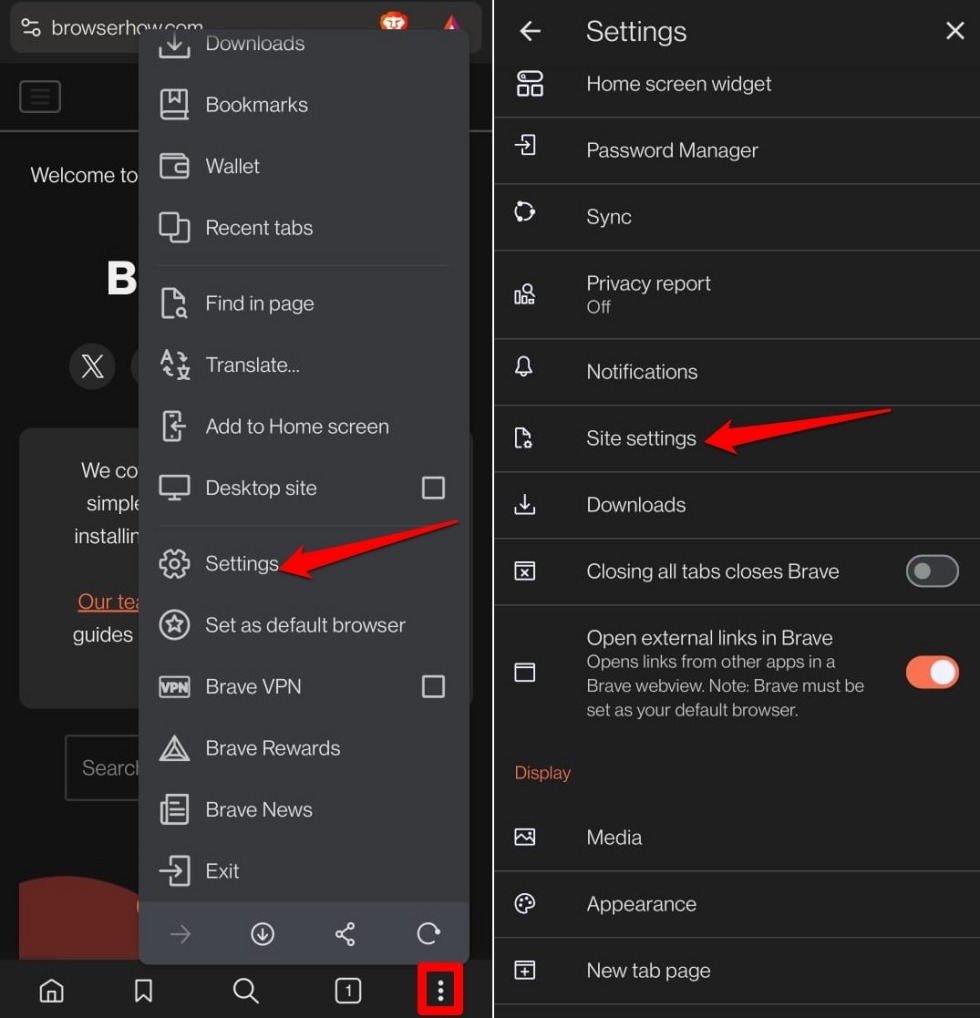
- Open Brave on your phone.
- Tap the
 menu icon and tap Settings.
 - Go to Site Settings.
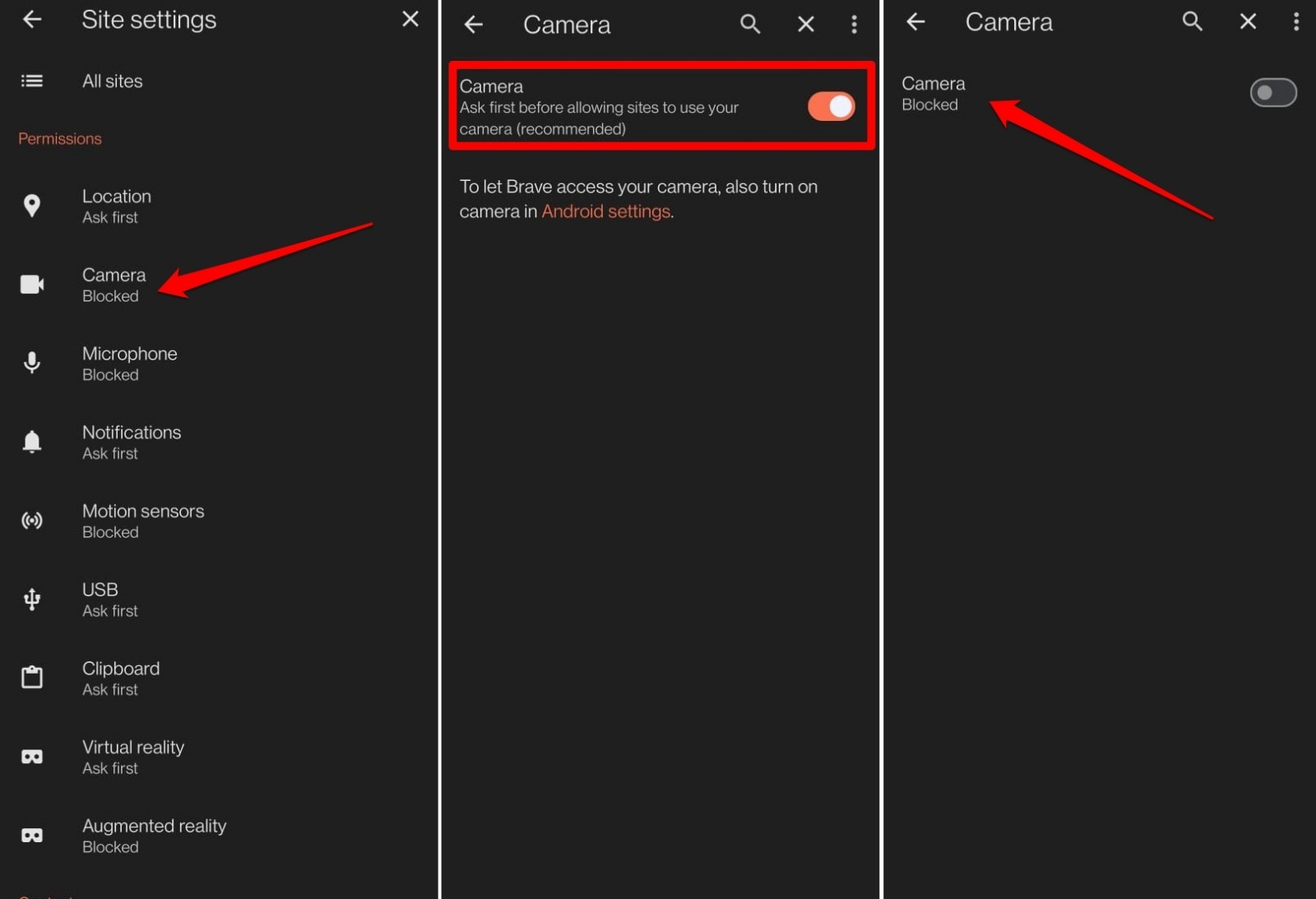
- Tap Camera.
- Turn off the toggle next to Camera to block camera access for all sites.
Manage Camera Permissions from Device Settings
If you want to revoke camera access at the Android level, so Brave can’t even ask, you can deny the permission in your phone’s Settings app. This works for every site you visit in Brave.
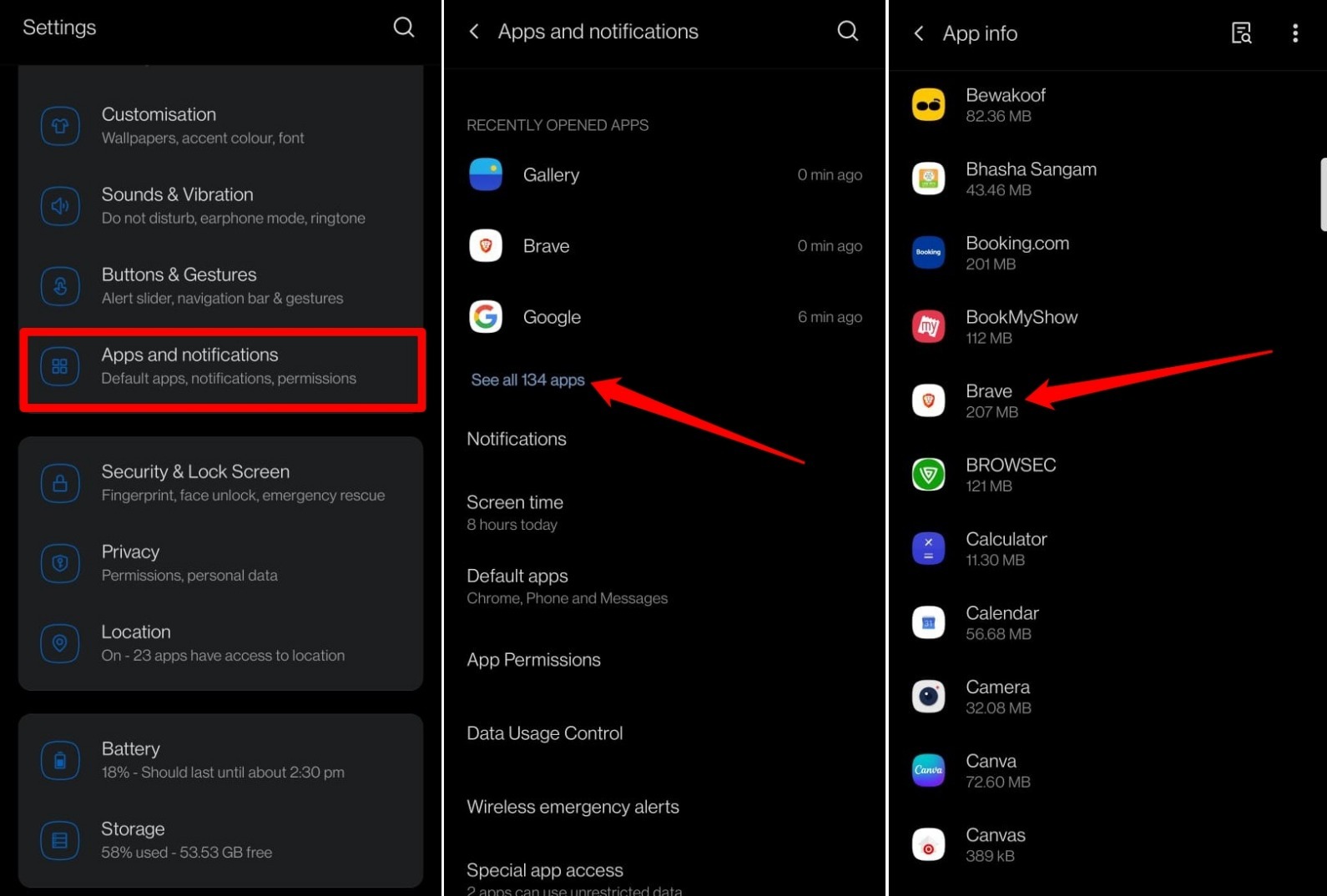
- Open the Settings app on your Android phone.
- Tap Apps & notifications > See all apps.
- Find and tap Brave.
- Tap Permissions.
- Tap Camera and select Don’t Allow to block camera access for all sites.
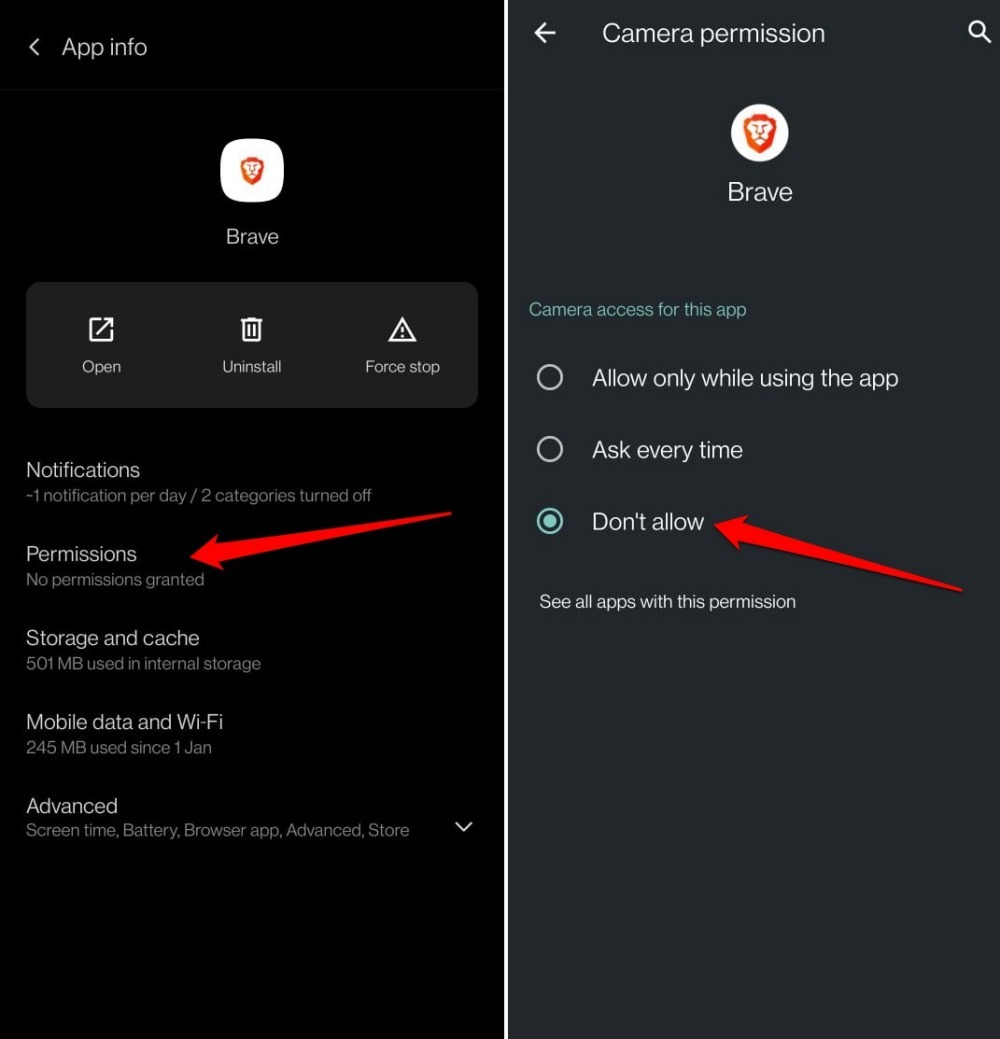
- You can also choose Allow Only While Using the App or Ask Every Time.

Opting for “Ask Every Time” will cause the site you visit on Brave to seek your permission to access the camera. “Allow Only While Using the App” allows sites to access the phone camera only when Brave is in use.
Configure Microphone Access in Brave Settings
When a site’s microphone permission is too loose, or you want to block it before it even asks, the Site Settings toggle is the quickest fix.
- Open Brave.
- Tap the menu icon and tap Settings.
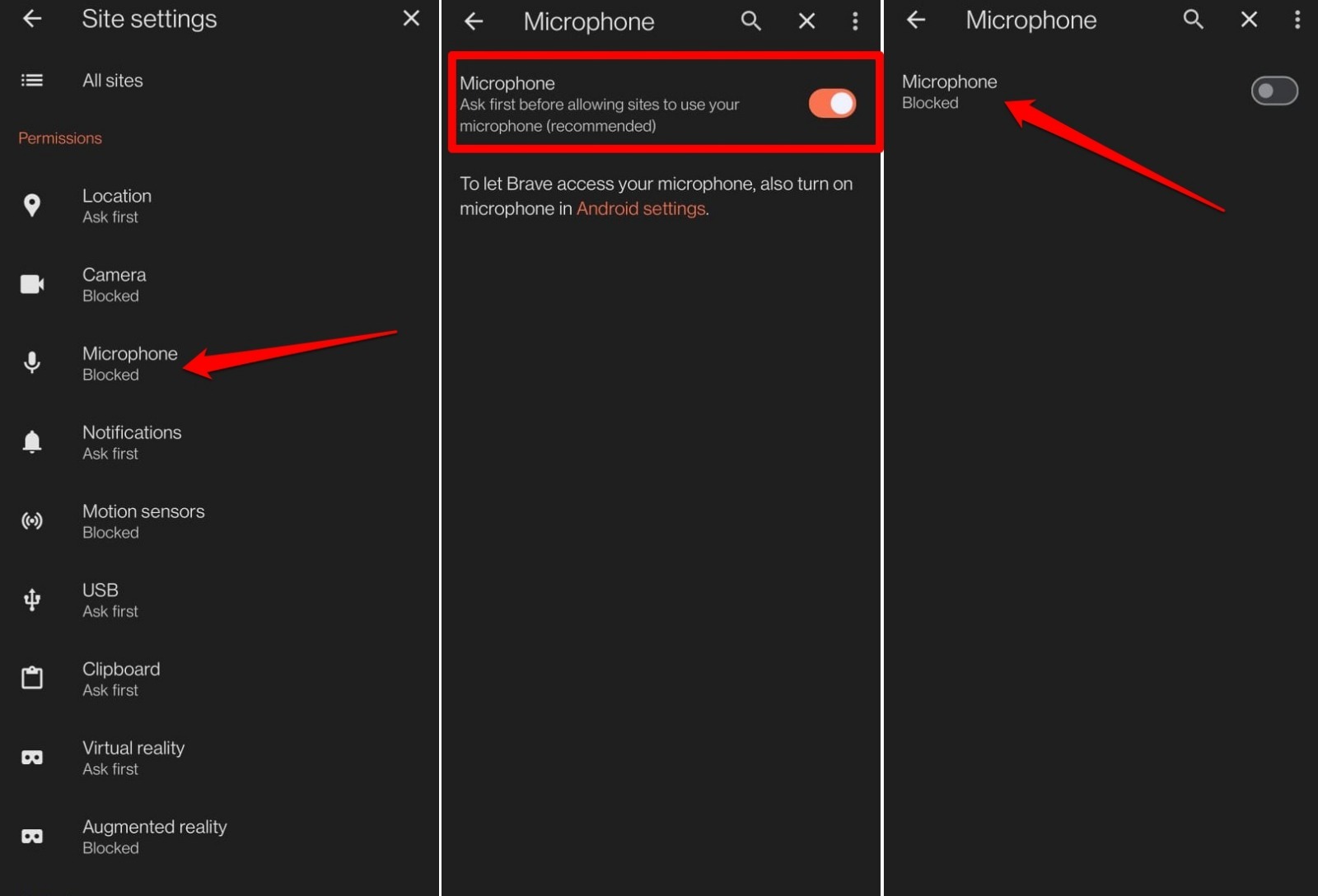
- Go to Site Settings.
- Tap Microphone.
- Turn off the toggle next to Microphone to block mic access for all sites.
Block Mic Permissions from Phone Settings
If you’d rather revoke microphone access at the system level, so Brave can’t even request it, head to your Android permissions.
- Open the Settings app on your Android device.
- Tap Apps & notifications > See all apps.
- Select Brave from the list.
- Tap Permissions.
- Tap Microphone.
- Select Don’t Allow to block the mic for every site you visit on Brave.
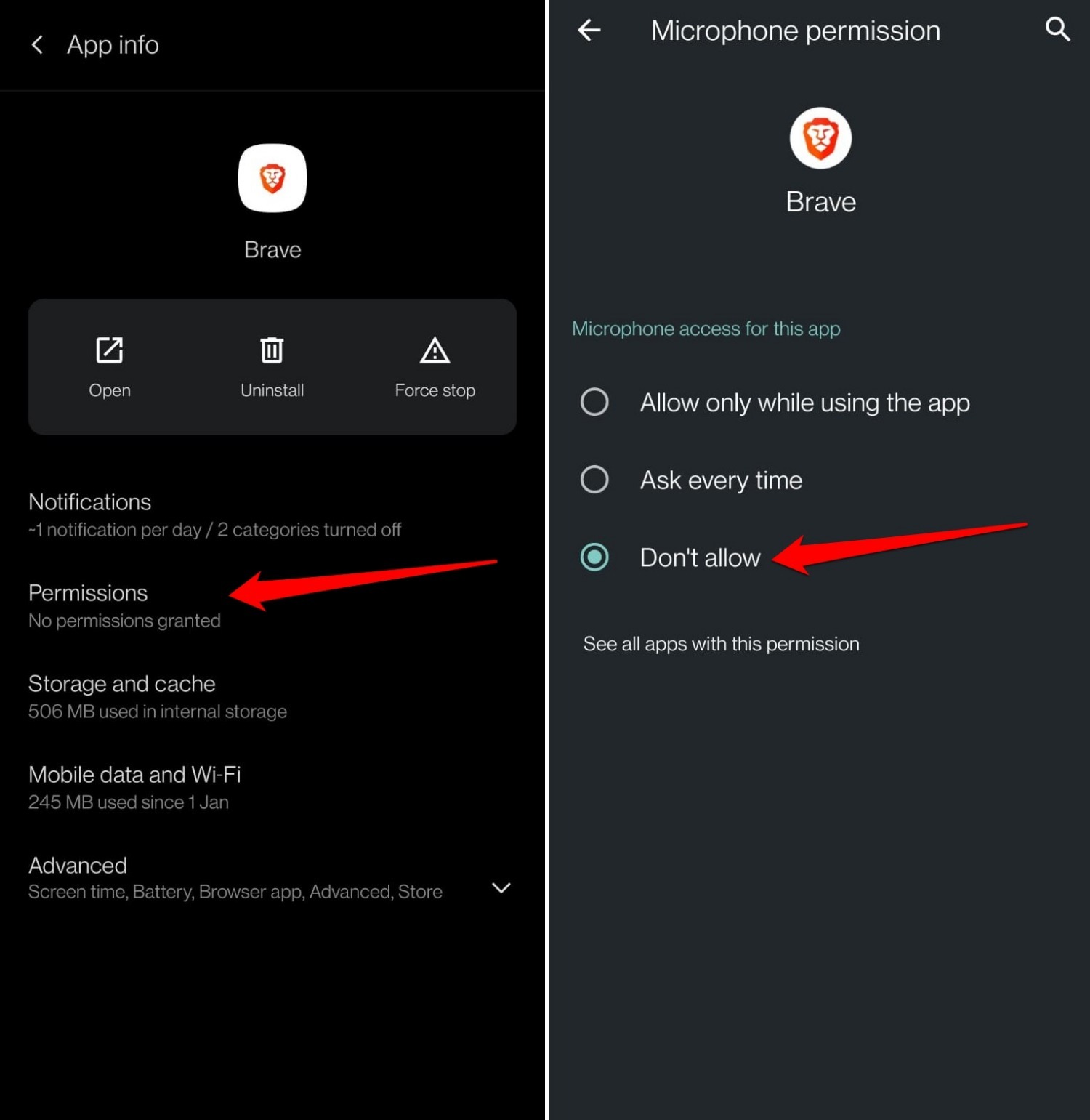
- You may also choose Allow Only While Using the App or Ask Every Time if you want sites to have limited access or require your permission each time.
Choosing “Ask Every Time” prompts the site to request permission each time. “Allow Only While Using the App” lets the site use the mic only when Brave is open.
Bottom Line
When you block the camera and mic toggles in Site Settings and revoke the app permissions, sites can no longer access your camera or microphone. If a site you trust needs them, you can flip the toggles back or choose “Ask Every Time” to get a prompt each visit.