Websites you visit can quietly collect your browsing data and serve ads that follow you around. Edge on iPhone gives you a handful of privacy controls to stop that.
You can clear your browsing history, block trackers, manage cookies, and shut down pop-ups. This guide walks you through each setting so you can decide what to lock down.
In this guide, I have covered:
Contents
Clear Browsing Data
If sites are showing you ads based on recent searches, clearing your browsing data is a quick fix. It wipes the cookies and history from a chosen time range.
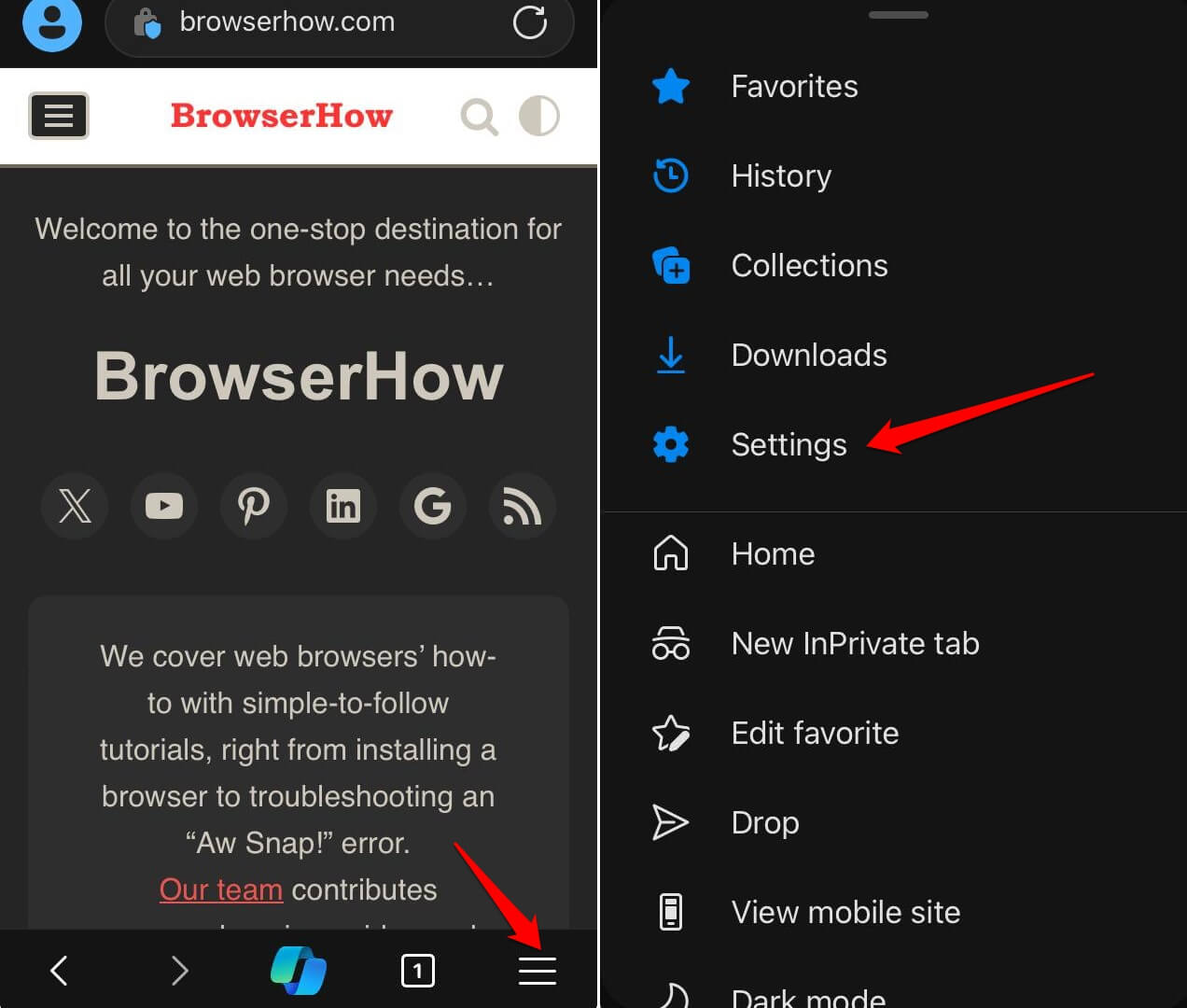
- Launch the Edge app.
- Tap on
 > Settings.
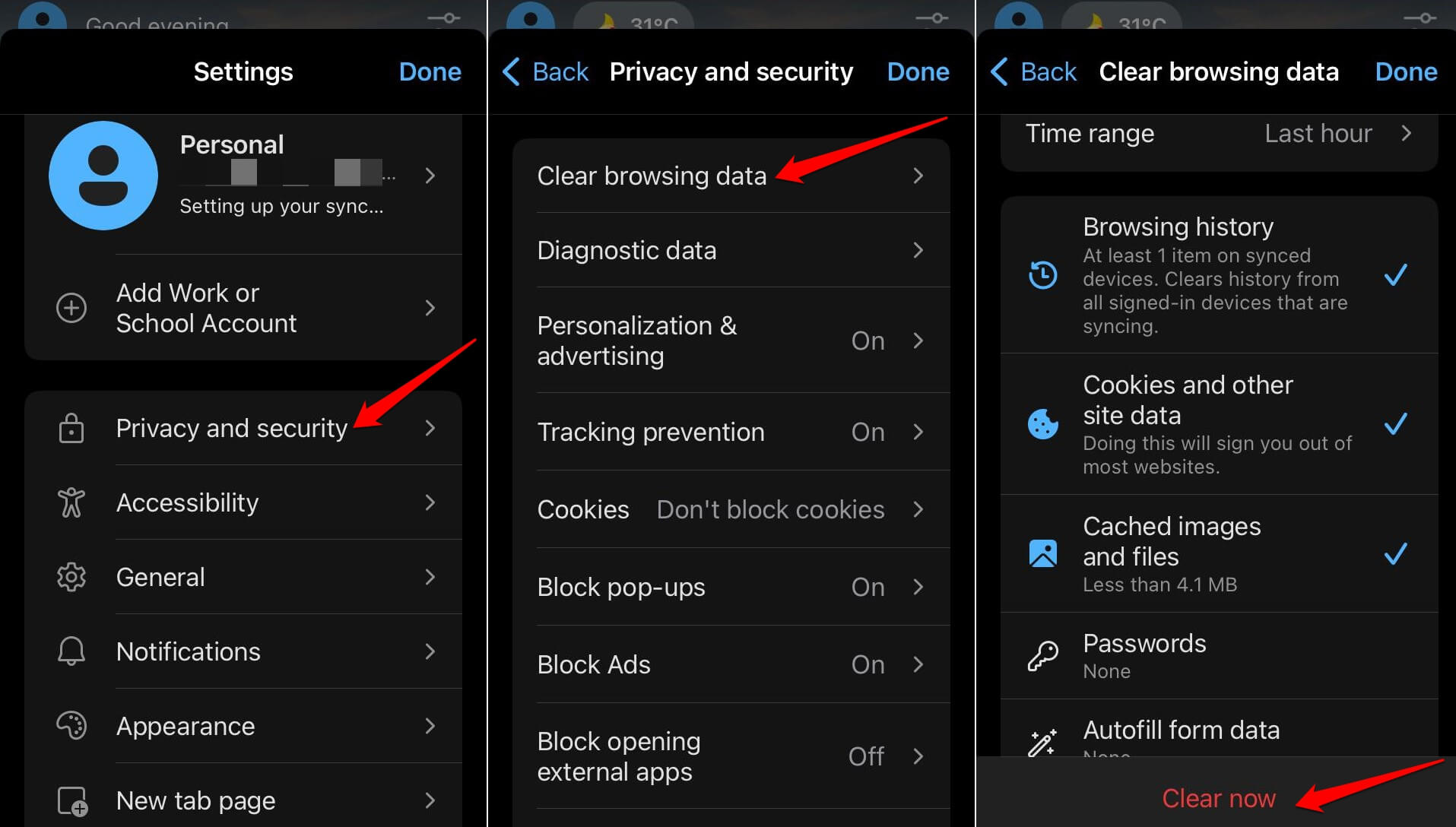
- Go to Privacy and Security > Clear Browsing Data.
- Select the Time range.
- Press Clear Now.
Allow Collection of Optional Diagnostic Data
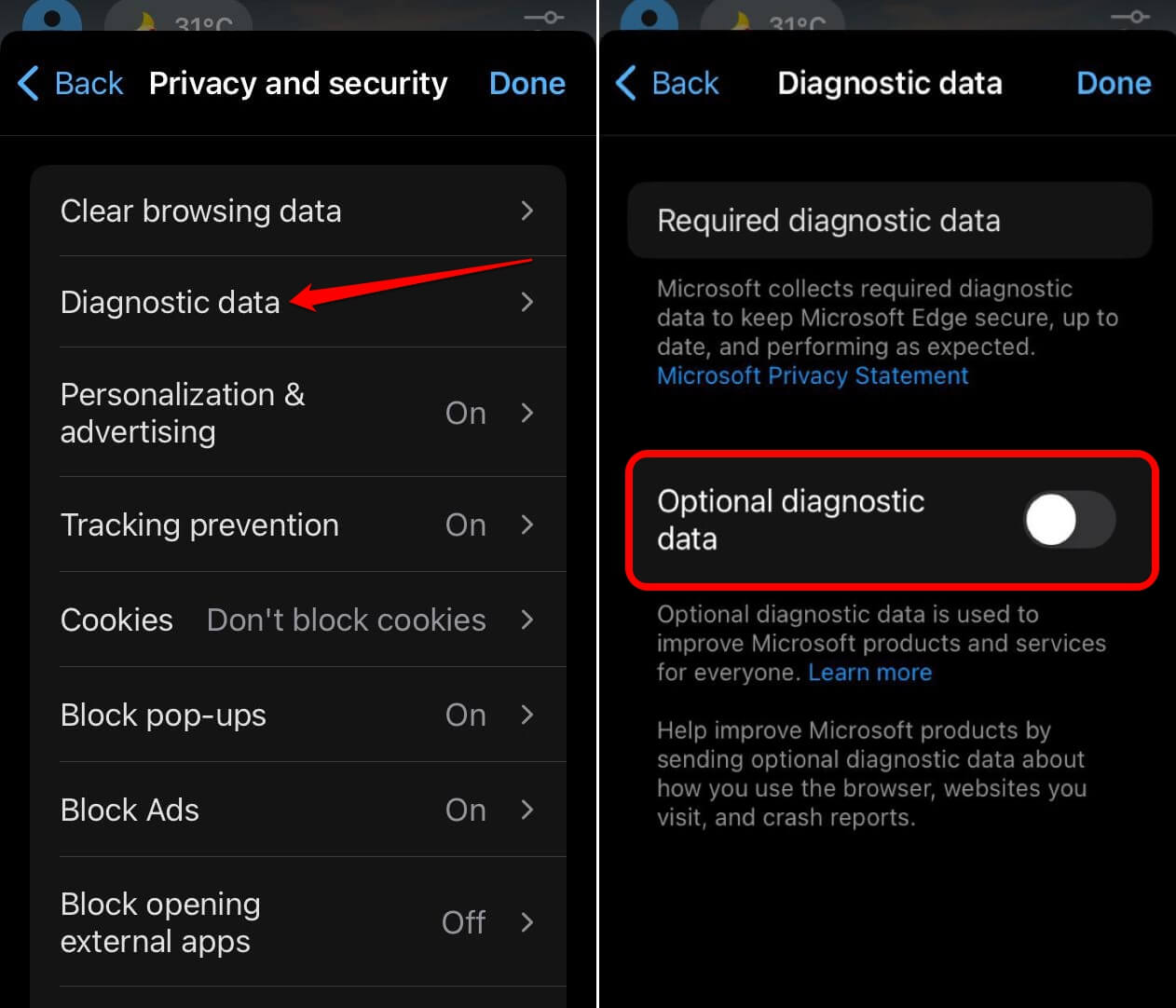
Edge sends some diagnostic data to Microsoft by default. That helps keep the browser stable. If you’d rather not share extra optional data, you can turn it off.
- Launch the Edge app.
- Tap on > Settings.
- Go to Privacy and Security > Diagnostic Data.
- Press the toggle next to Optional Diagnostic Data.
Block Microsoft from Saving your Browsing Activity
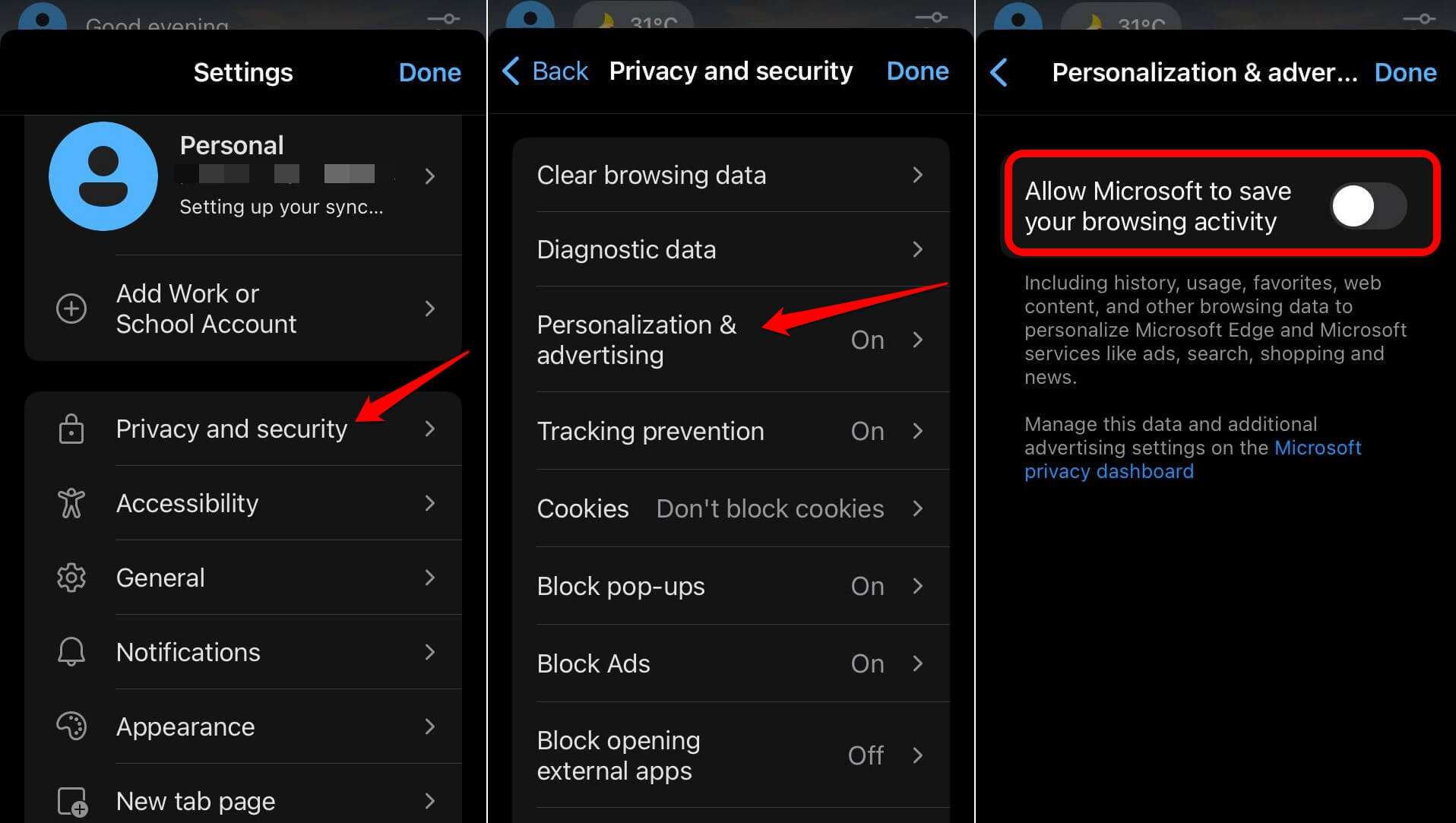
Microsoft may save your browsing activity to personalize ads across the web. If you prefer not to have that data collected, you can block it right from the privacy settings.
- Launch the Edge app.
- Tap on > Settings.
- Go to Privacy and Security > Personalization and advertising.
- Press the toggle beside “Allow Microsoft to Save your Browsing Activity”
Prevent Tracking of Browsing Data
Sites drop trackers on your browser to watch what you do and serve targeted ads. That’s mostly harmless, but if your data gets sold without your consent, it’s a privacy breach. Turning on tracking prevention stops that.
- Launch the Edge app.
- Tap on > Settings.
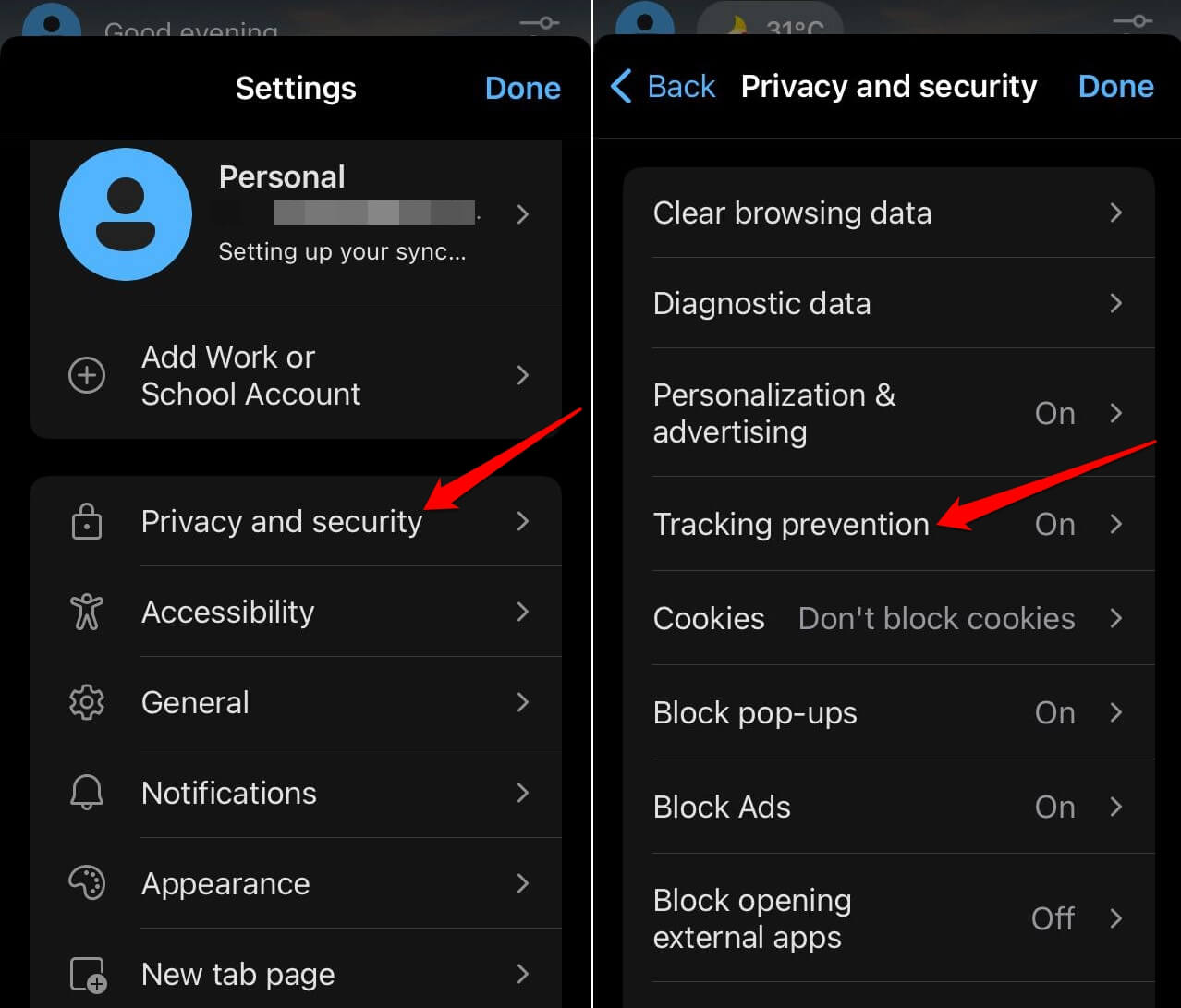
- Go to Privacy and Security > Tracking Prevention.
- Press the toggle next to Tracking Prevention.
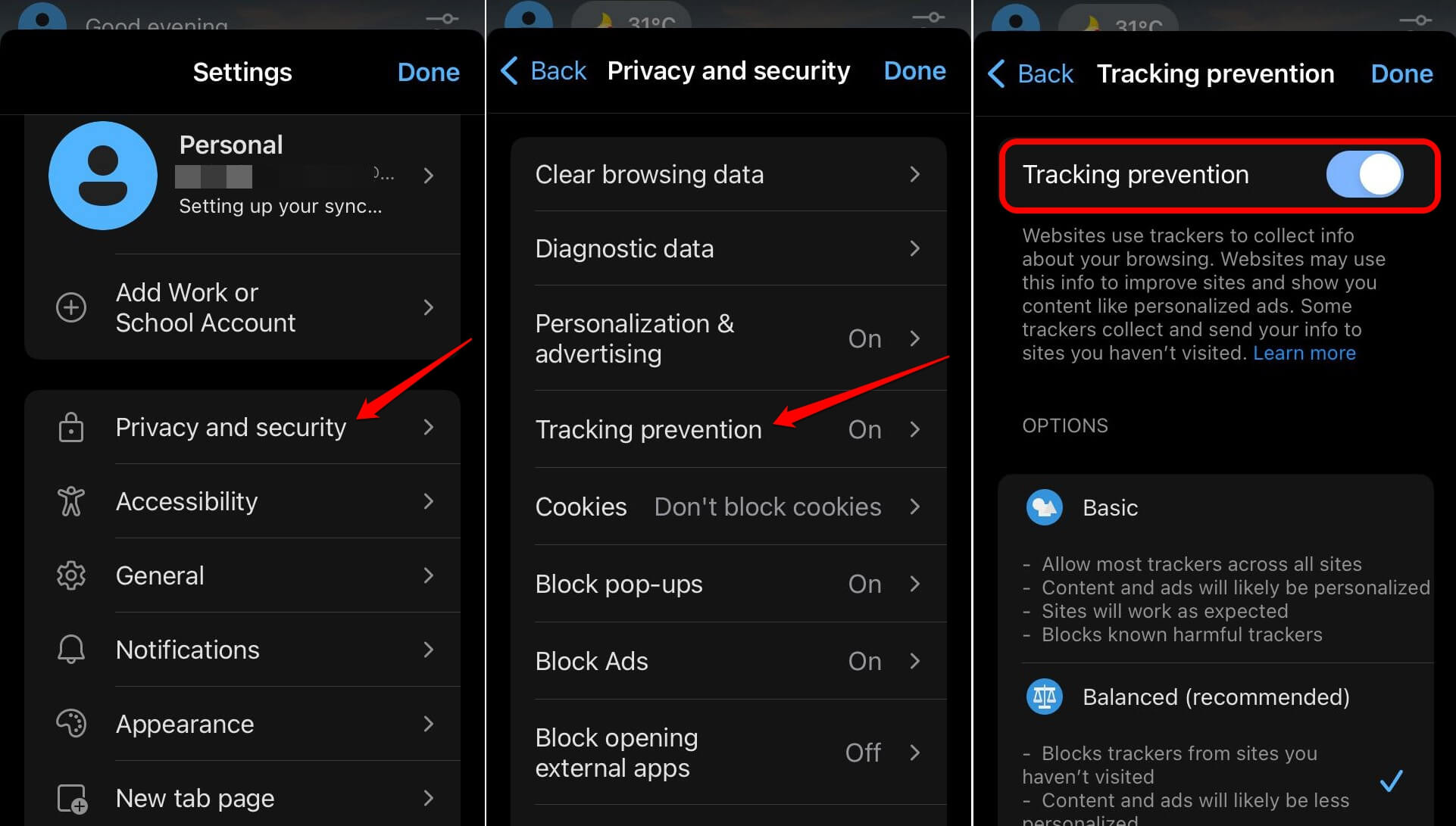
You can also choose how strict the tracking prevention is. There are three levels: Basic, Balanced, and Strict.

NOTE: There are three types of tracking prevention. They are Basic, Balanced, and Strict.
For a smooth browsing experience, Balanced is the recommended setting. It blocks most trackers without breaking sites.
Add Exceptions for Tracking Prevention
Sometimes a site you trust needs trackers to work properly. You can add exceptions so tracking prevention doesn’t block them.
- Launch the Edge app.
- Tap on > Settings.
- Go to Privacy and Security > Tracking Prevention.
- Scroll to Exceptions.
- Press on +
- Enter the site name.
- Press Save.
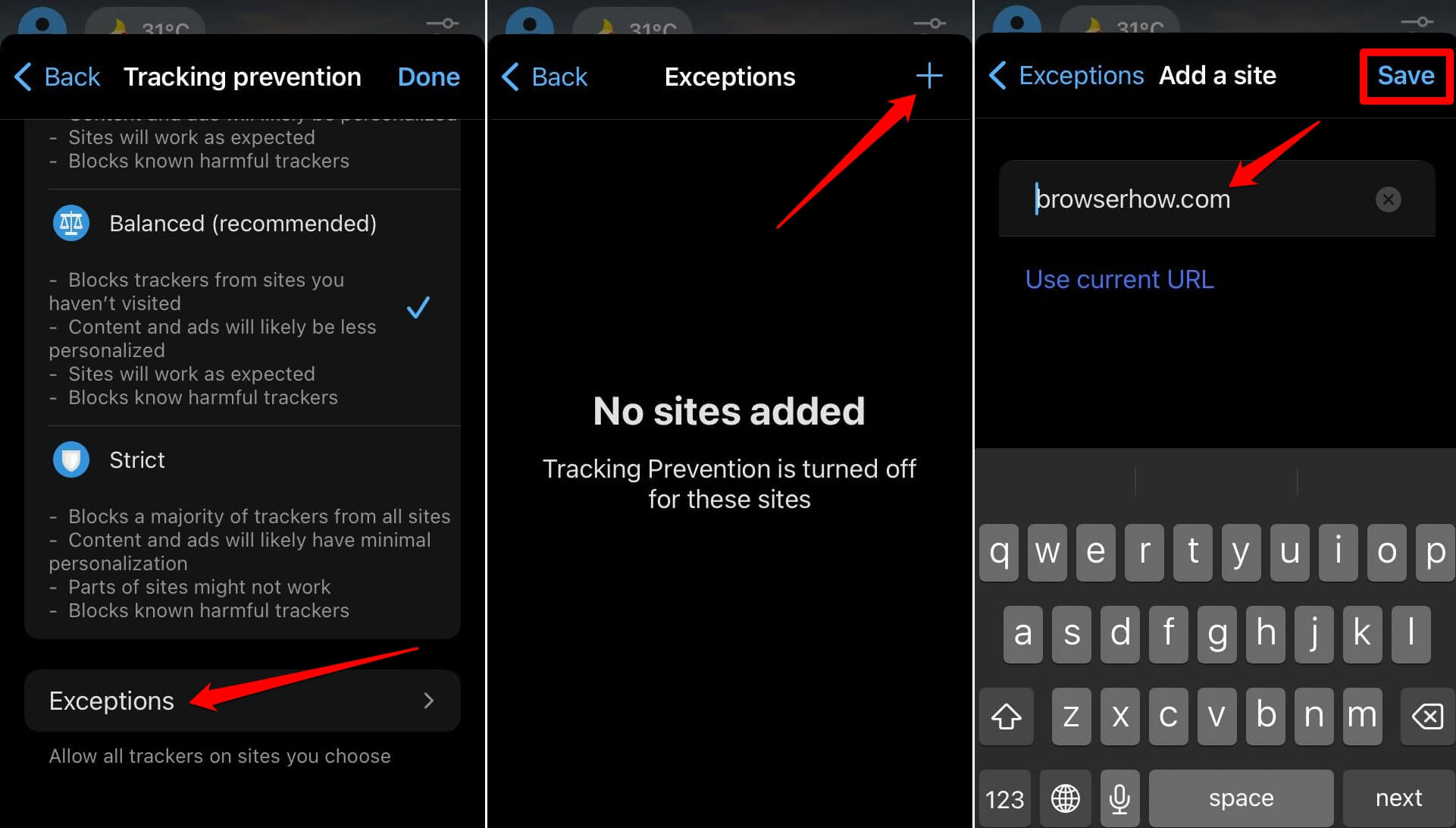
You can repeat the above steps and add as many websites as you want in the exception list.
Manage Cookies on Edge iOS
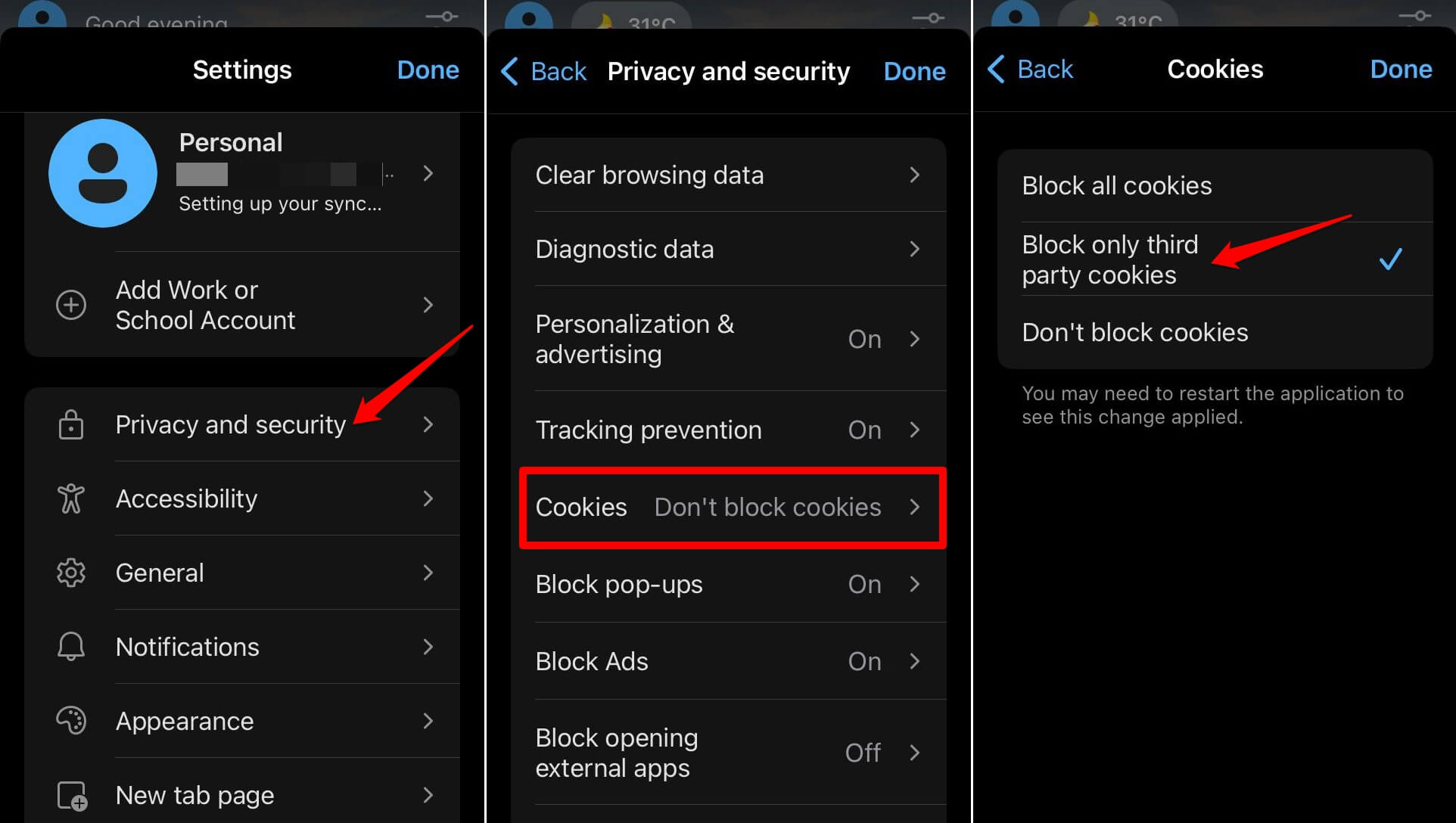
Cookies can be helpful (keeping you logged in) or invasive (tracking you across sites). Edge lets you block all cookies, block only third-party ones, or allow them all.
- Launch the Edge app.
- Tap on > Settings.
- Go to Privacy and Security > Cookies.
- Select from Block All Cookies, Block Only Third-party Cookies, or Don’t Block Cookies.
- Press Done.
Block Pop Ups
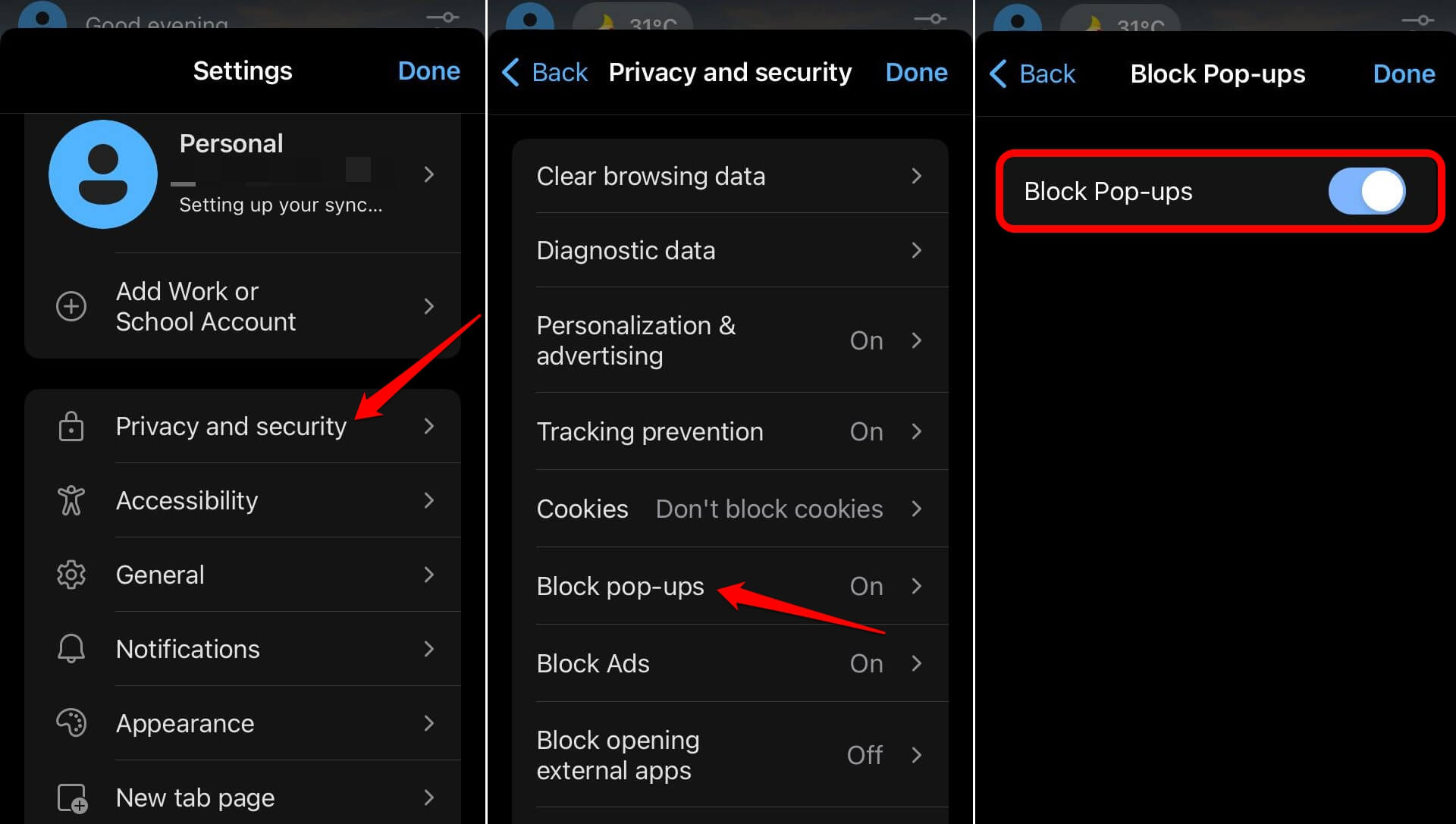
Pop-ups aren’t just annoying. Some can redirect you to phishing pages. Turn on pop-up blocking to stop them.
- Launch the Edge app.
- Tap on > Settings.
- Go to Privacy and Security > Block Pop-Ups
- Press the toggle next to Block Pop-Ups.
Block Advertisements
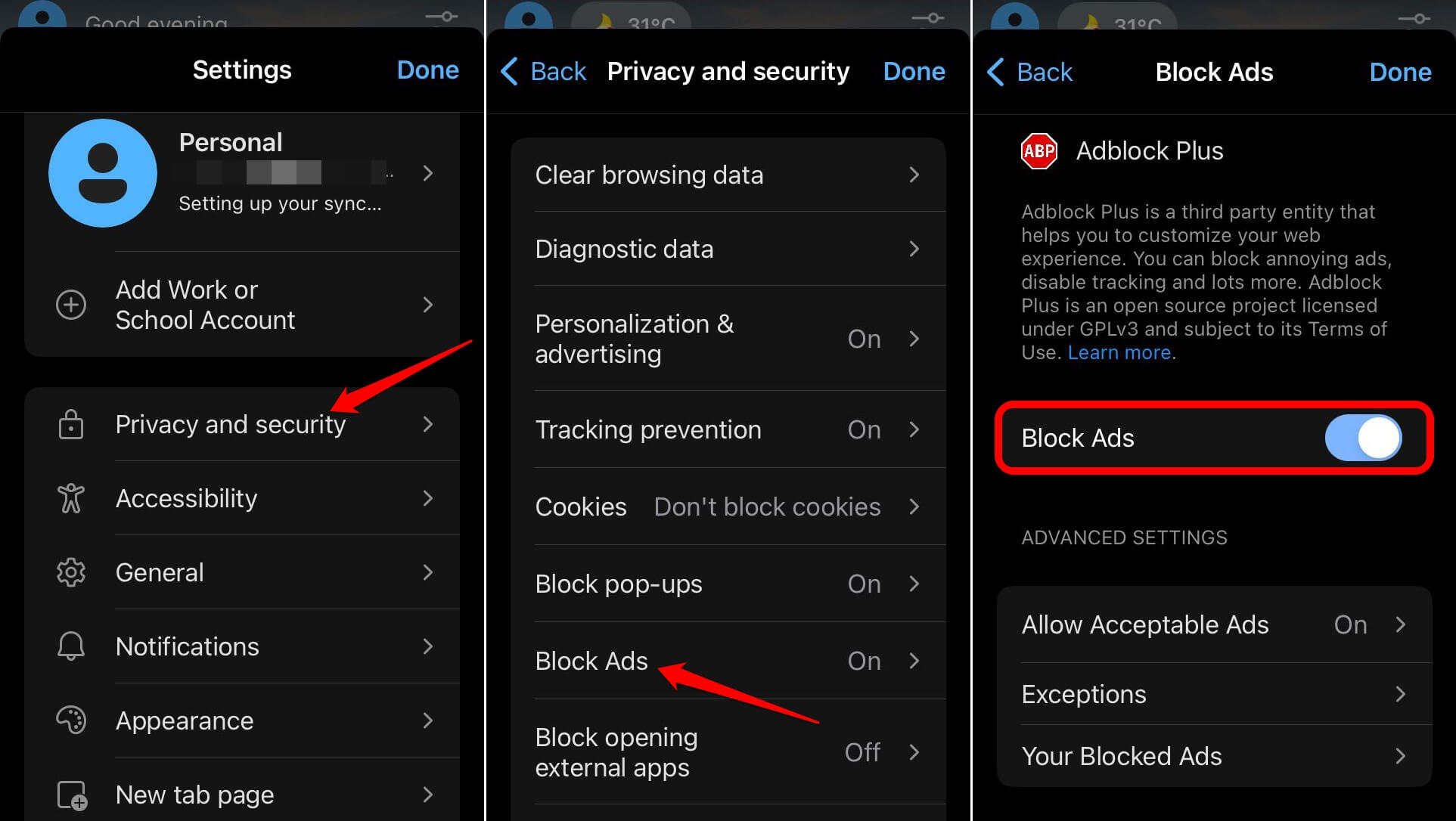
Ads can clutter pages and slow down browsing. Edge has a built-in ad blocker you can switch on.
- Launch the Edge app.
- Tap on > Settings.
- Go to Privacy and Security > Block Ads.
- Press the toggle next to Block Ads.
Some sites rely on ad revenue and may block you if you use an ad blocker. You can add exceptions for those sites so ads still show.
To add an exception for showing ads,
- Launch the Edge app.
- Tap on > Settings.
- Go to Privacy and Security > Block Ads.
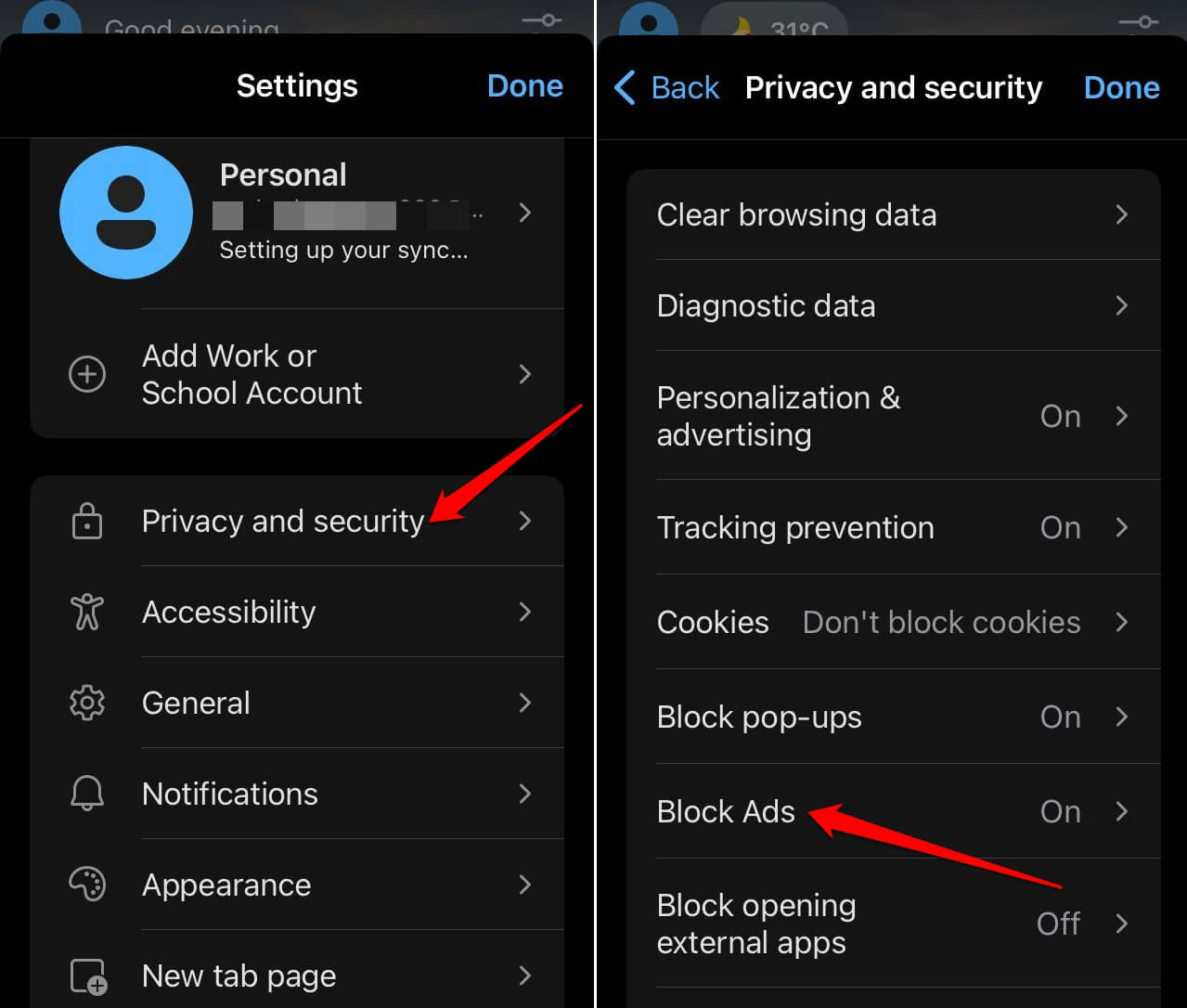
- Access Exceptions.
- Press on +
- Enter the site name.
- Press Save.
Bottom Line
Privacy should be top most priority in todays world of internet. Thankfully Edge app does provide a granular options to safeguard our browsing data.