You open a page and a video starts shouting at you. Autoplaying audio is a common distraction on the web. Edge app on iPhone or iPad doesn't offer a built-in mute button for individual sites. But you can still stop the noise.
Silence it fast with the media player's mute control, or go further by enabling Silent Mode on your iPhone hardware switch for complete peace.
In this guide, I have covered:
Contents
Block Sound Access
A video starts blaring the moment a page loads. Or an audio ad kicks in while you’re halfway through a sentence. Edge on iOS doesn’t include a dedicated switch to control sound for a single site. That means no quick toggle to silence just one tab.
What you do have are two reliable workarounds.
Use the Mute Option on the Pop-Up Audio/Video
When a clip plays, tap it once. The media player controls will appear. Look for the speaker icon and tap it.
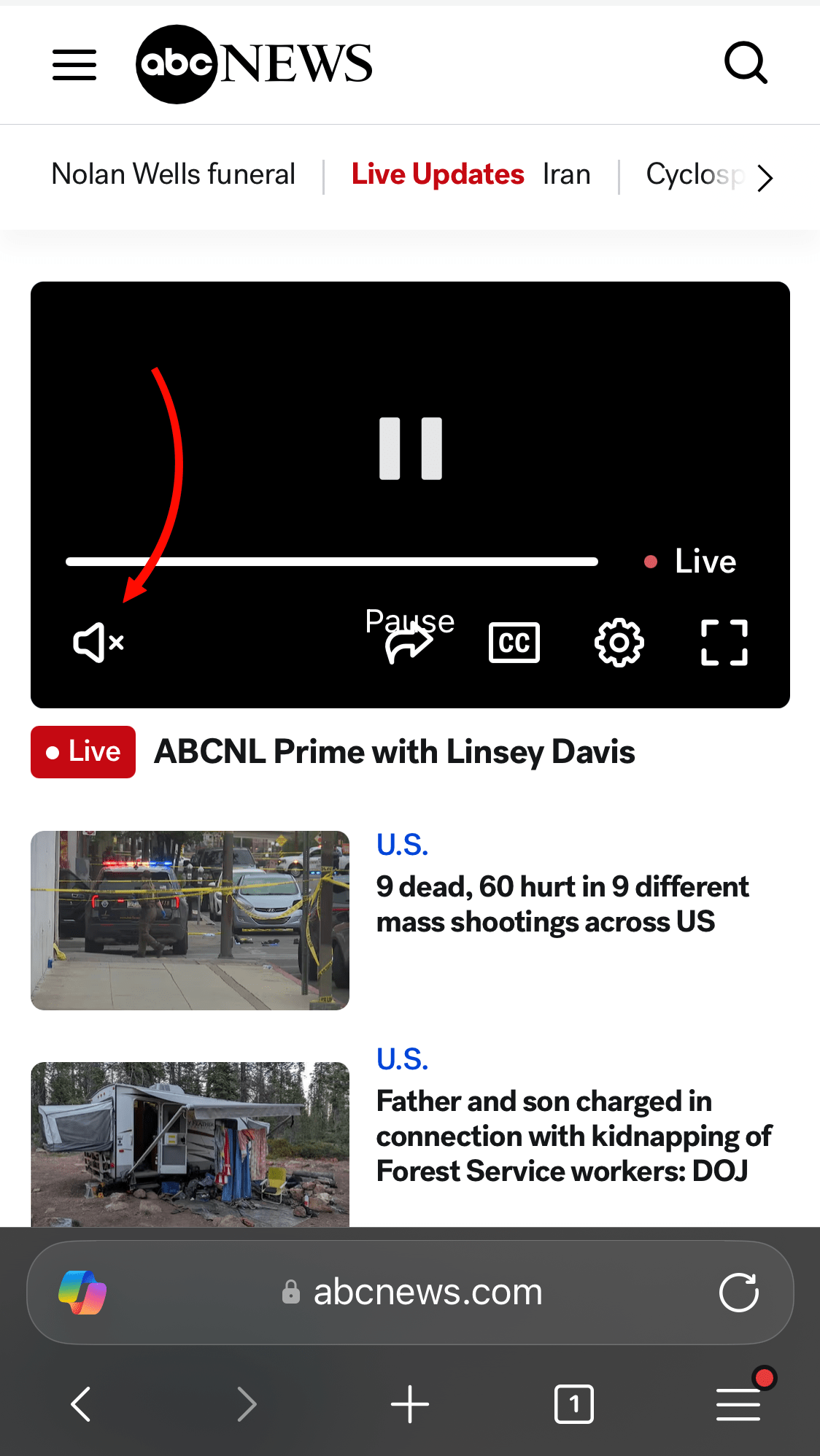
That mutes the audio right away. If the player shows a volume slider instead, drag it down to lower the sound without cutting it completely. This keeps the video visible, just quiet.
Turn On Silent Mode on iPhone
If tapping mute on every player feels like a chore, go physical. On the left side of your iPhone, above the volume buttons, sits the ringer switch. Flip it down so you can see the orange indicator. Your screen will flash “Silent Mode on” to confirm.
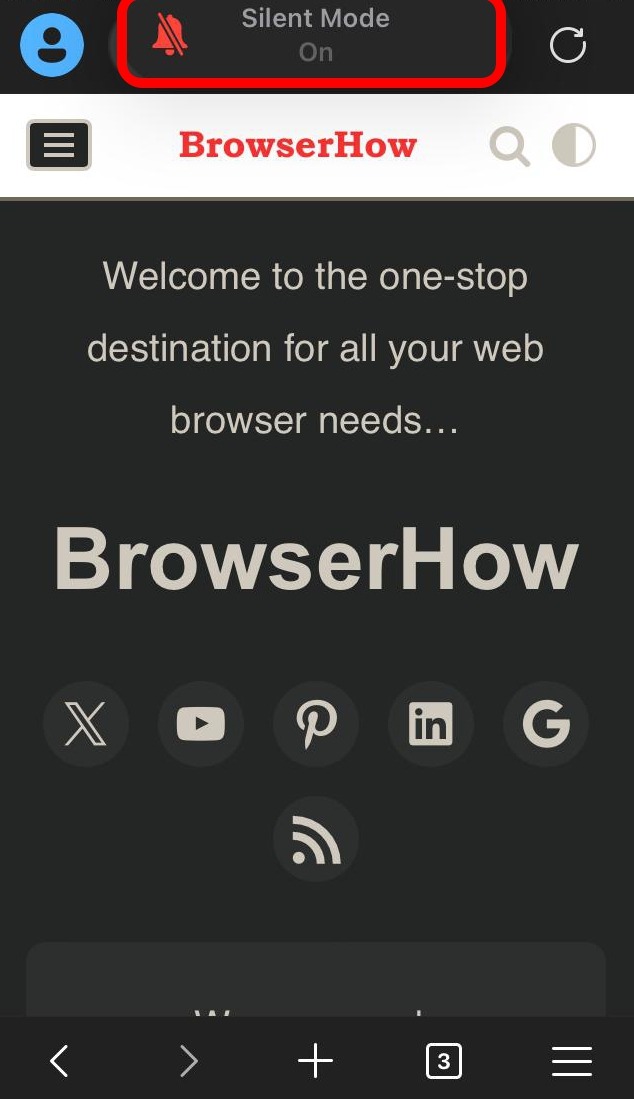
All audio stops, including calls and media playback. That stays in effect until you flip the switch back up.
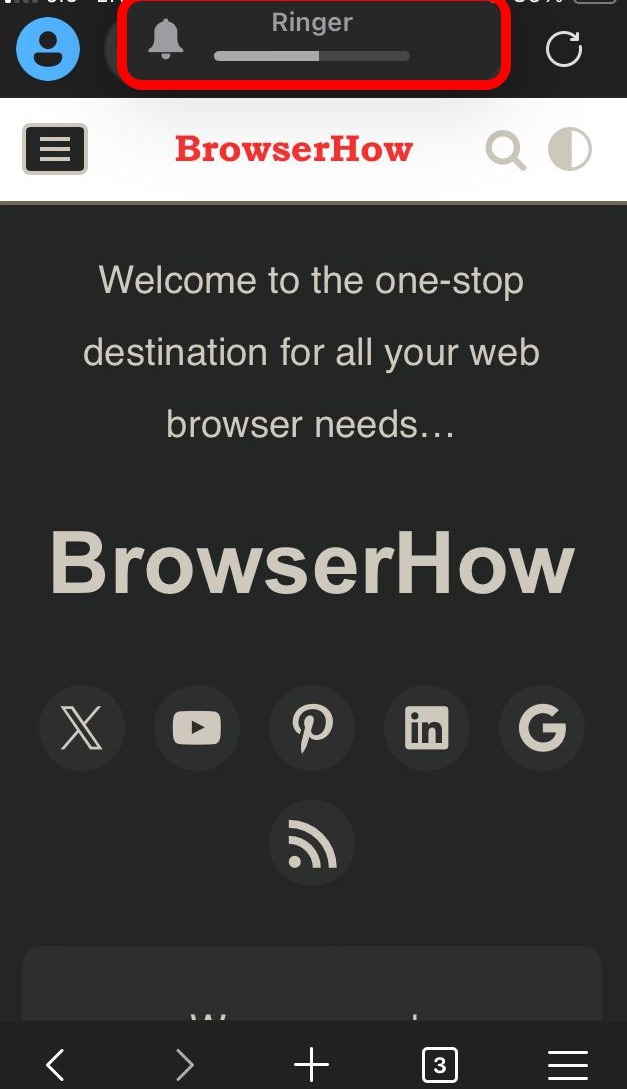
To restore sound, slide the button upward. You’ll see the prompt disappear, and everything will resume at its previous volume.
Bottom Line
You’ll know it worked when the noise stops. For a completely distraction-free browse, Silent Mode is your simplest bet. Just remember it silences your ringtone too. If you need to keep your phone’s audio alerts on, use the in-player mute for occasional pop-ups and leave the ringer switch untouched.