You're reading an article, and suddenly a new tab opens to a sketchy site. That's a pop-up redirect, a common phishing tactic. Edge app blocks these by default, but sometimes you need to allow them for banking or exam portals.
Here's how to check your pop-up blocker settings, turn them off for a trusted site, and turn them back on when you're done.
In this guide, I have covered:
Contents
Blocking All the Pop-Ups and Redirects
If you’re seeing unexpected tabs open while browsing, your pop-up blocker might be off. Here’s how to make sure it’s on:
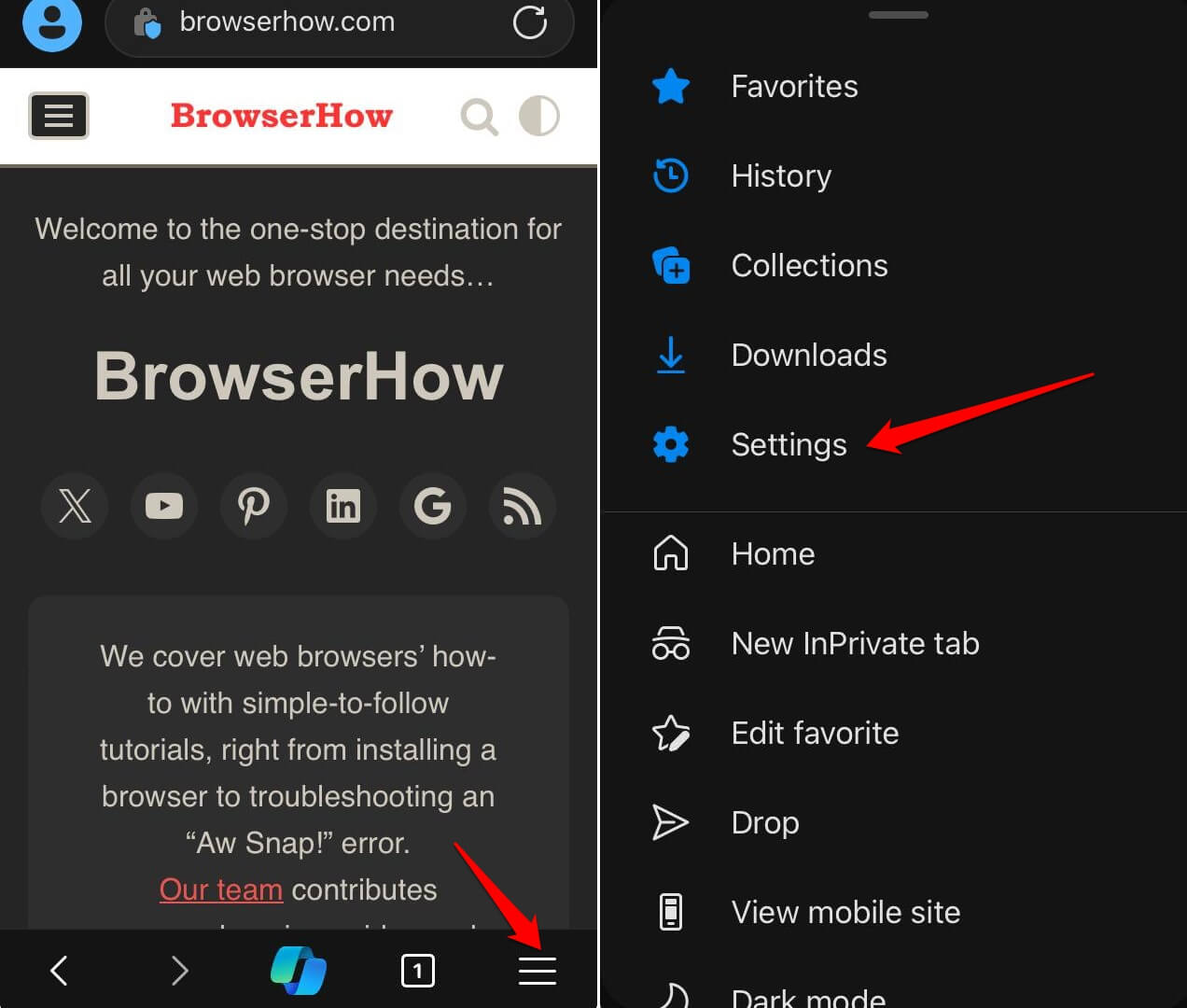
- Launch Edge on your iPhone.
- Tap the
 menu and choose Settings.
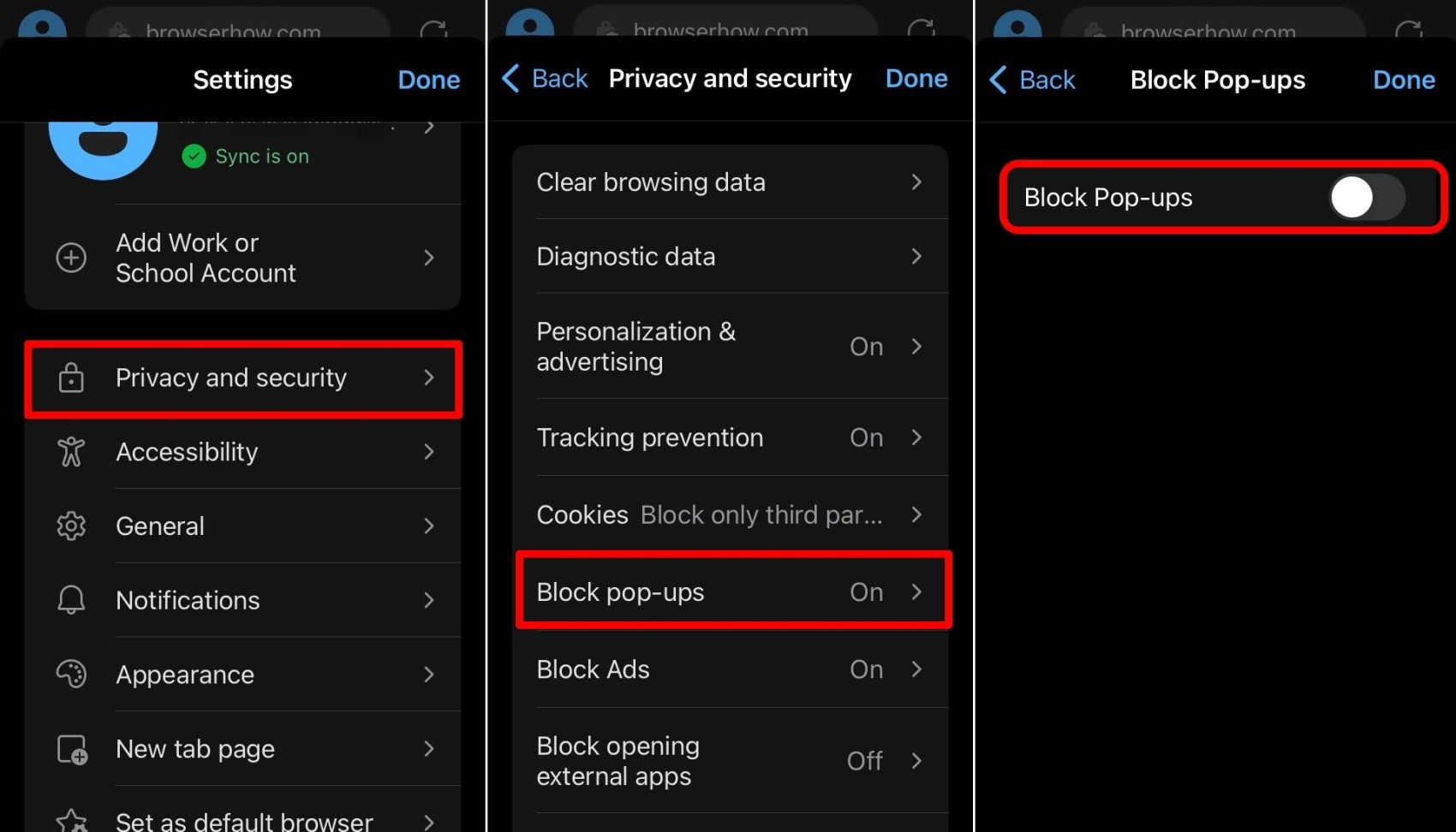
- Go to Privacy and Security.
- Tap Block Pop-Ups.
- Turn on the toggle next to Block Pop-Ups.
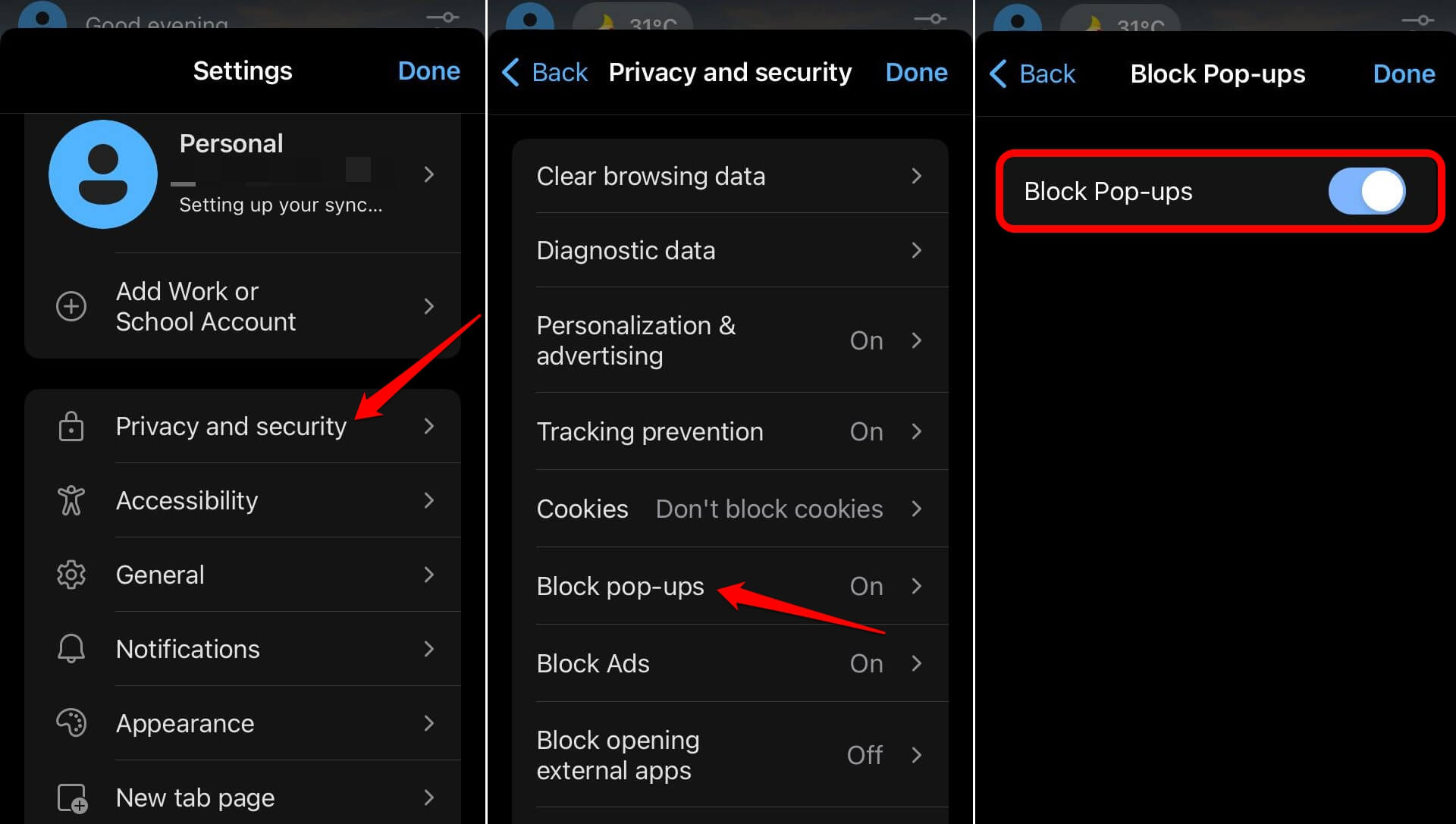

By default, the pop-up blocker is enabled on the Edge browser.
Allow Pop-Ups on Edge app
Some sites, like online banking portals or exam platforms, need to open pop-ups to work. If a page isn’t loading correctly, you might need to temporarily allow pop-ups.
- Open Edge on your iPhone.
- Tap > Settings.
- Go to Privacy and Security.
- Tap Block Pop-Ups.
- Turn off the toggle next to Block Pop-Ups.

TIP: After you finish using the site that needed pop-ups, turn the blocker back on to stay protected against phishing.
Bottom Line
You’ll know the setting is right when you see the toggle in the position you want. With the blocker on, Edge stops pop-ups and redirects before they open. If a site breaks, you can temporarily allow them, then re-enable the blocker. Keeping the blocker on by default is the safest way to browse.