When Edge app starts feeling sluggish and pages load slower than usual, a bloated browsing history might be to blame.
Clearing it can free up storage and improve performance.
In this guide, I have covered:
Contents
Clear the Entire Search History
- Open Edge on your iPhone.
- Tap
 for menu and select History.
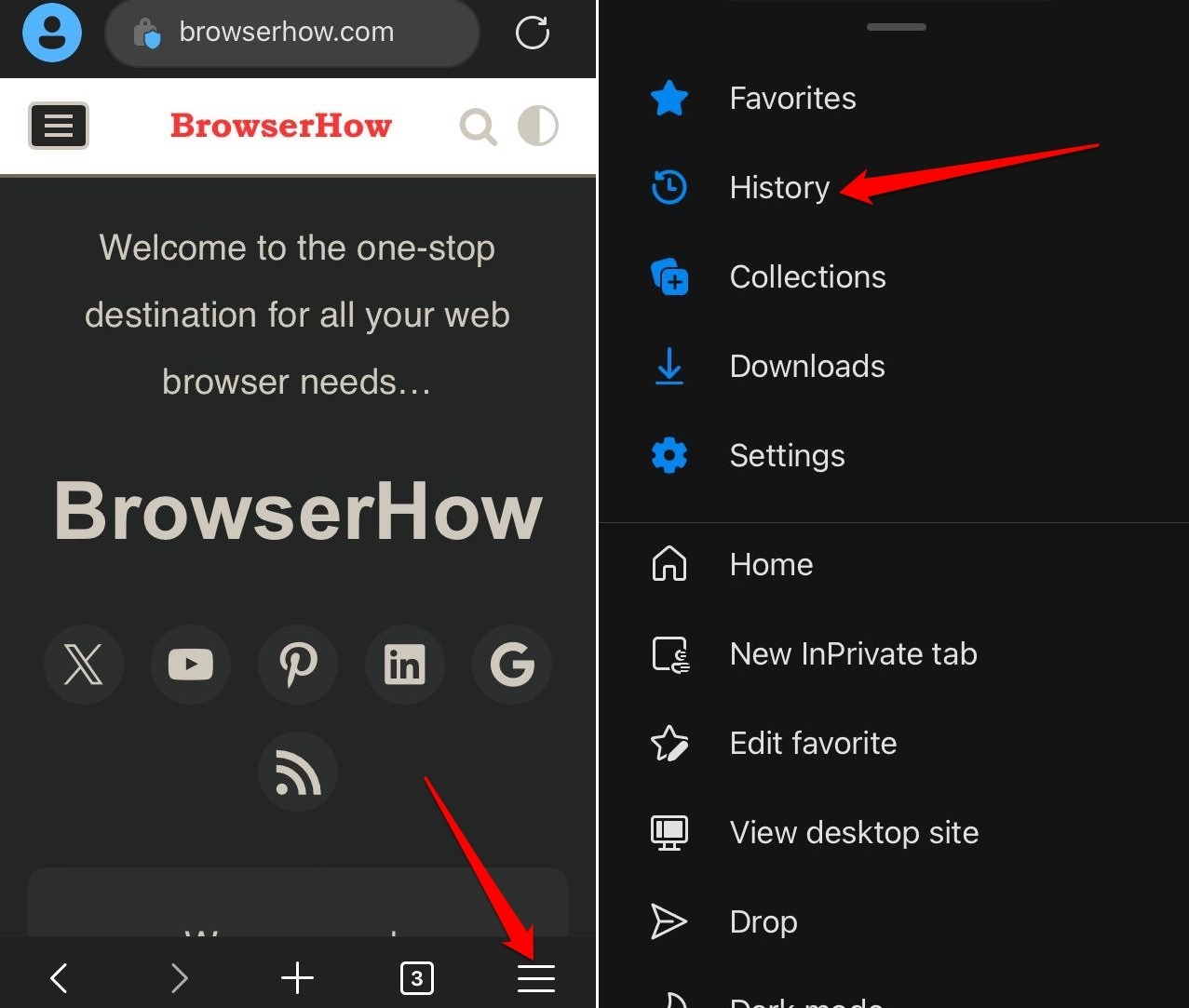
- Tap the Trash icon.
- Choose a Time Range (e.g., last hour, all time).
- Make sure Browsing History is selected.
- Tap .
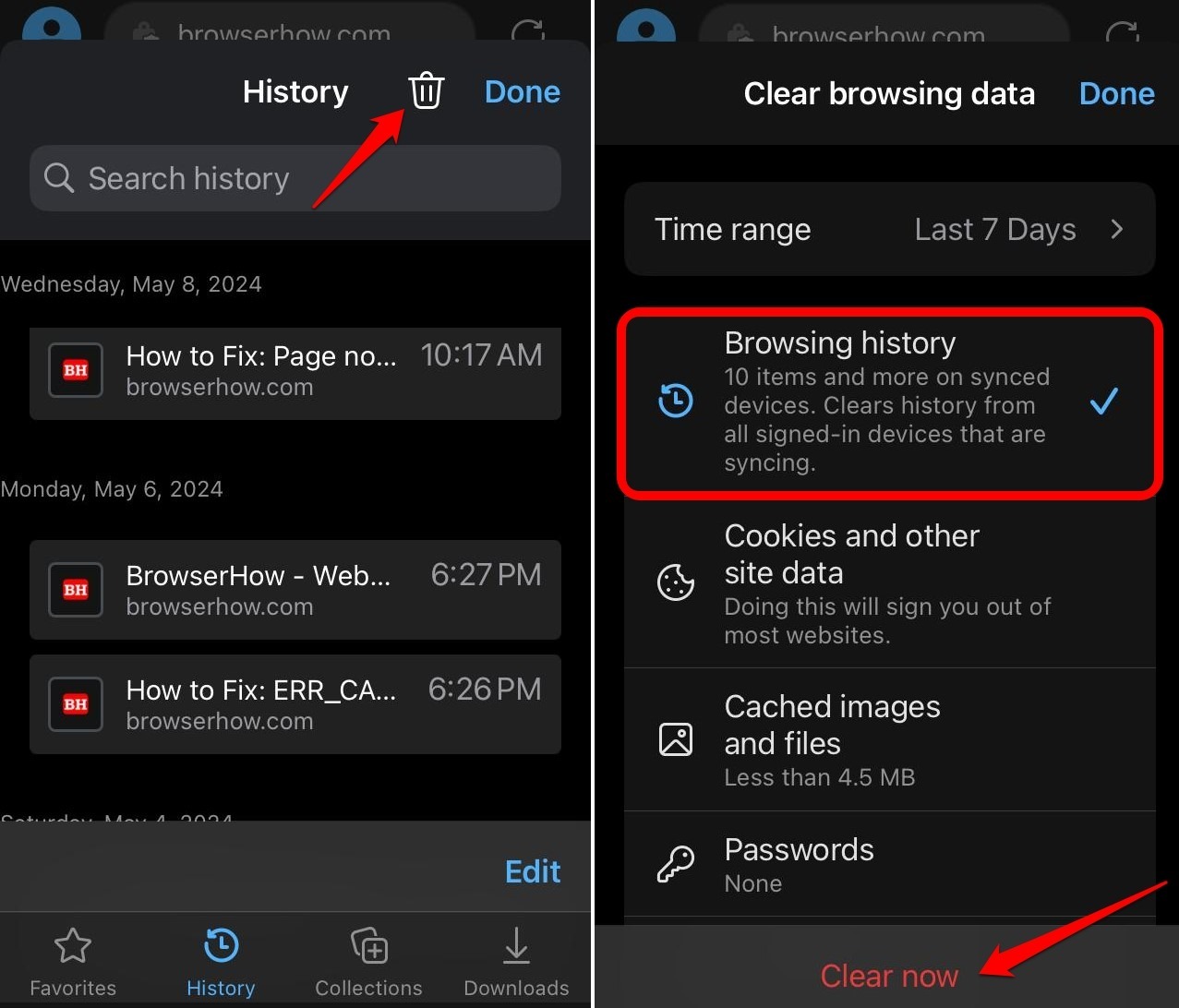

You can also clear additional data types at the same time. The steps stay the same, just check the boxes for cookies, cache, or other items you want to wipe.
Delete a Web Page from the Browsing History
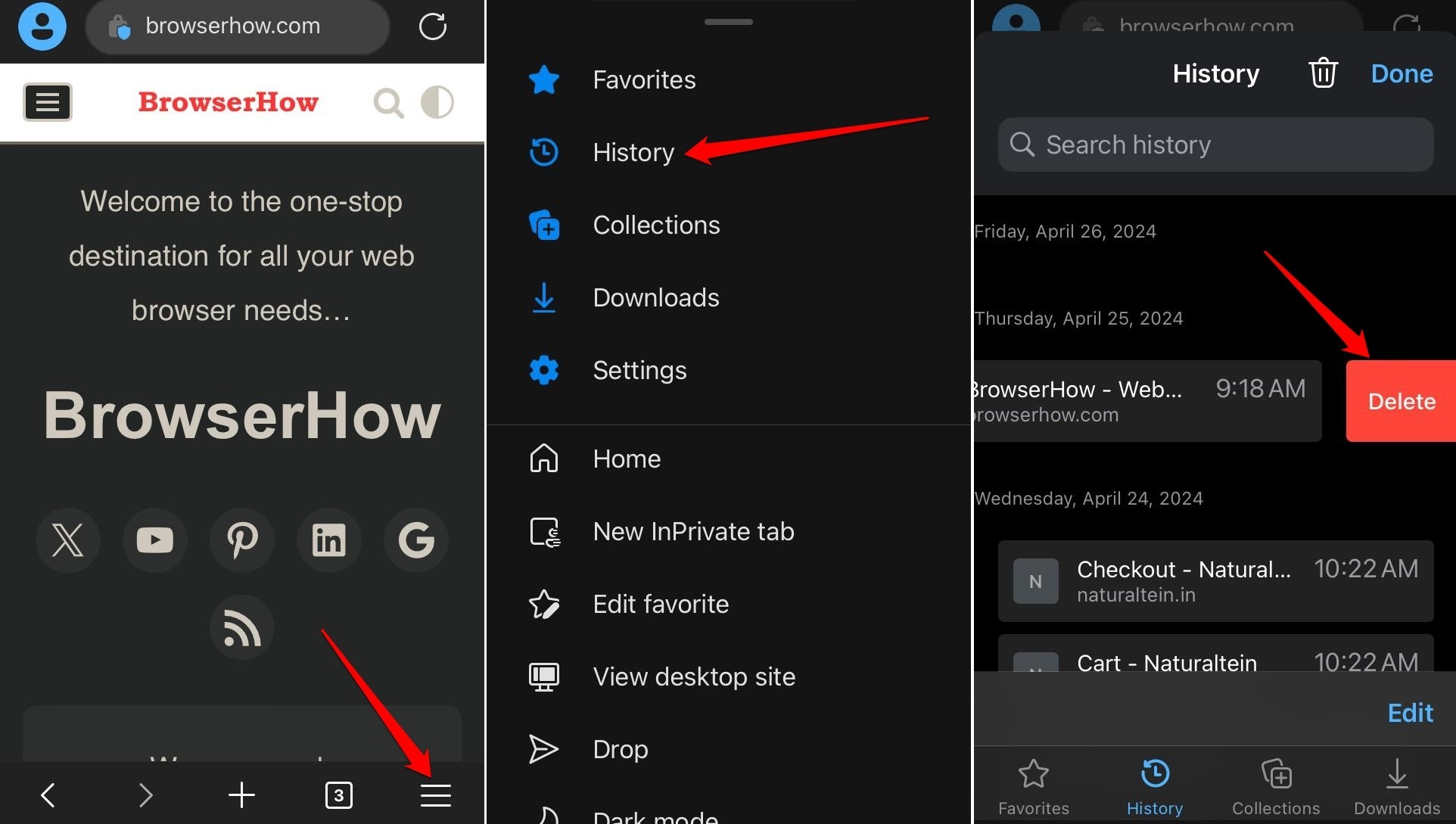
- Open Edge.
- Tap > History menu.
- Scroll or use the search bar to find the page you want to remove.
- Swipe left on the entry to reveal a button, or swipe all the way left to delete it instantly.
After clearing your browsing history, close Edge completely and relaunch it. That forces the app to apply the changes and ensures the old entries don’t linger.
Bottom Line
Clearing your Edge browsing history every few weeks keeps the app snappy and reclaims storage that cached pages use. It can also fix small page-loading hiccups and keep your local data from getting messy.
You’ll know it worked when Edge feels faster, and previously visited sites no longer autofill in the address bar.