Websites often ask for your location to deliver localized search results, maps, or targeted ads. If you want to stop that, you can control location access for Microsoft Edge right from your iPhone’s Settings.
Edge follows the global location permission. You can allow access only while using the app, deny it completely, or turn off Location Services for every app at once.
In this guide, I have covered:
Contents
Allow Access to your Geo Location
You manage Edge’s location permission in the Settings app, not in the browser itself.
- Open the Settings app.
- Go to Privacy & Security > Location Services.
- Press the toggle next to Location Services.
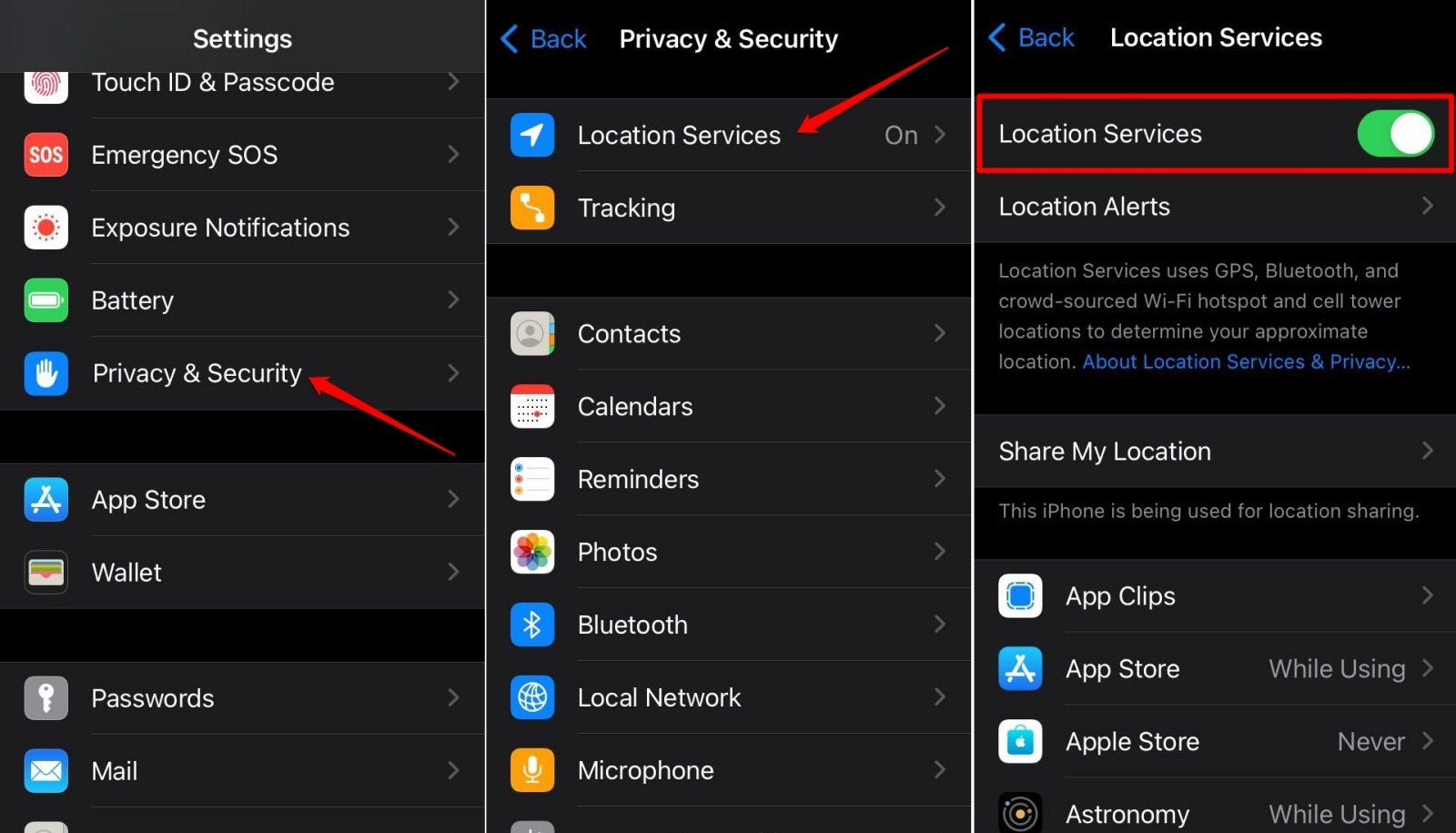
- Scroll to the list of apps that currently have access to your location.
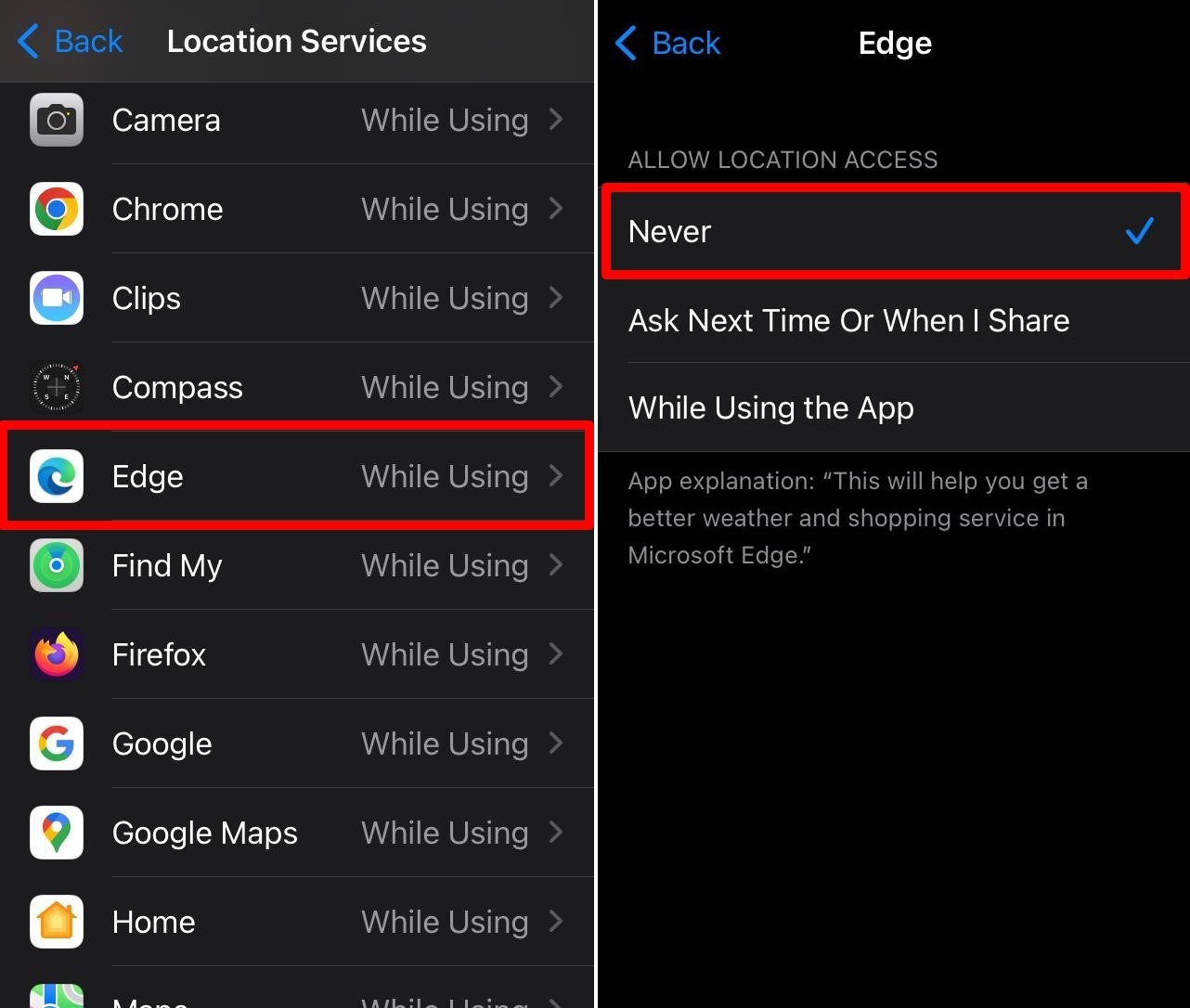
- Tap on Edge.
- Select While Using the App.
- Turn on Precise Location to share your real-time location data with Edge.
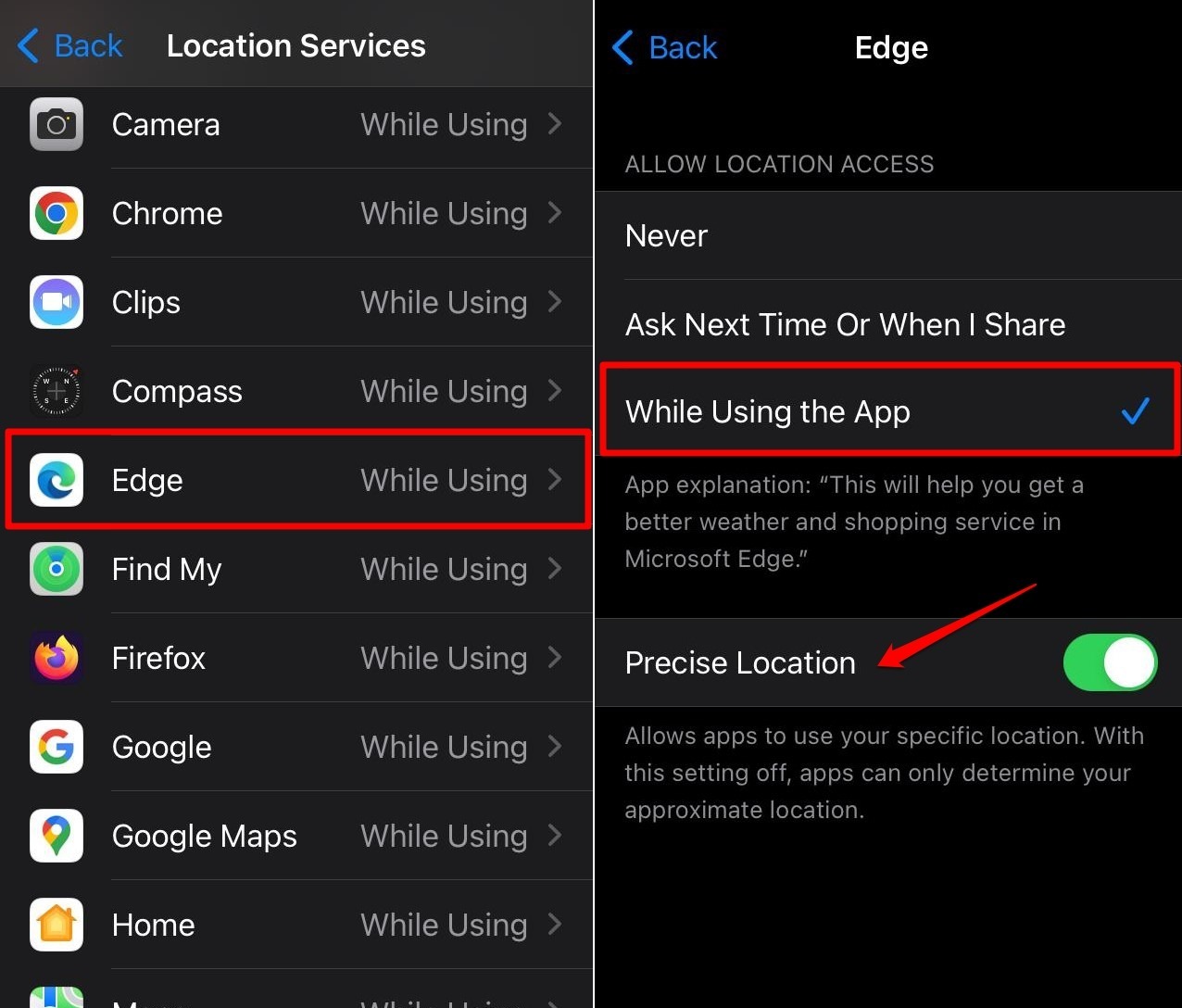
Edge shares your location data while you’re actively using the app. It stops when you close Edge, but if you leave the app in your recent list, location access may continue.

If you don’t terminate the app and keep it active in the Recent Apps, it will continue to access your location data.
Block Access to Your Location
You can block geolocation in two ways: turn off Location Services for everything, or deny Edge’s access only.
To turn off all location sharing:
- Open the Settings app.
- Go to Privacy & Security > Location Services.
- Press the toggle beside Location Services to turn it off.
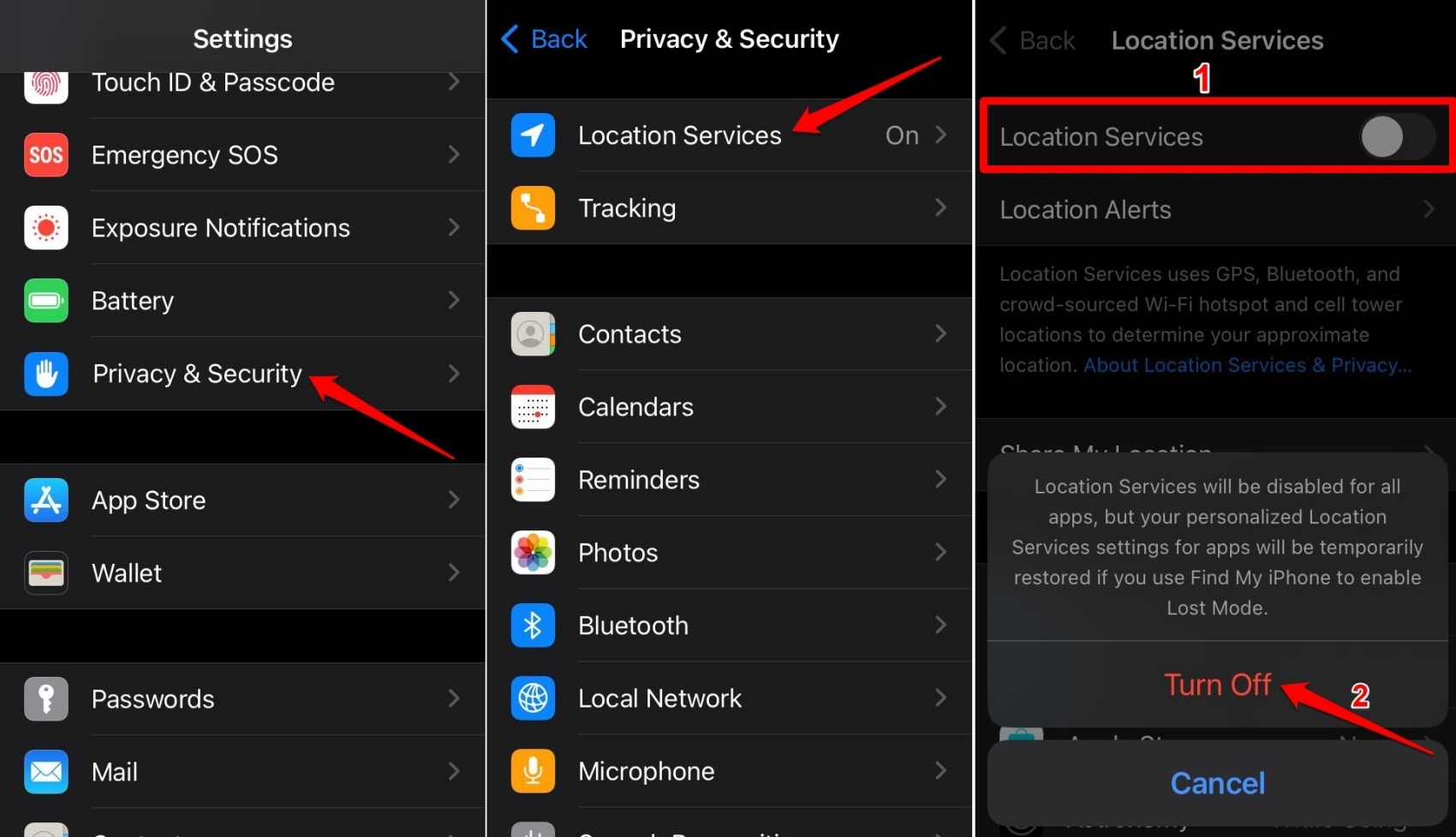
Turning off Location Services globally will disable location-based features in maps, ride-sharing, and delivery apps.
To block Edge only:
- Launch the iOS Settings app.
- Go to Privacy & Security > Location Services.
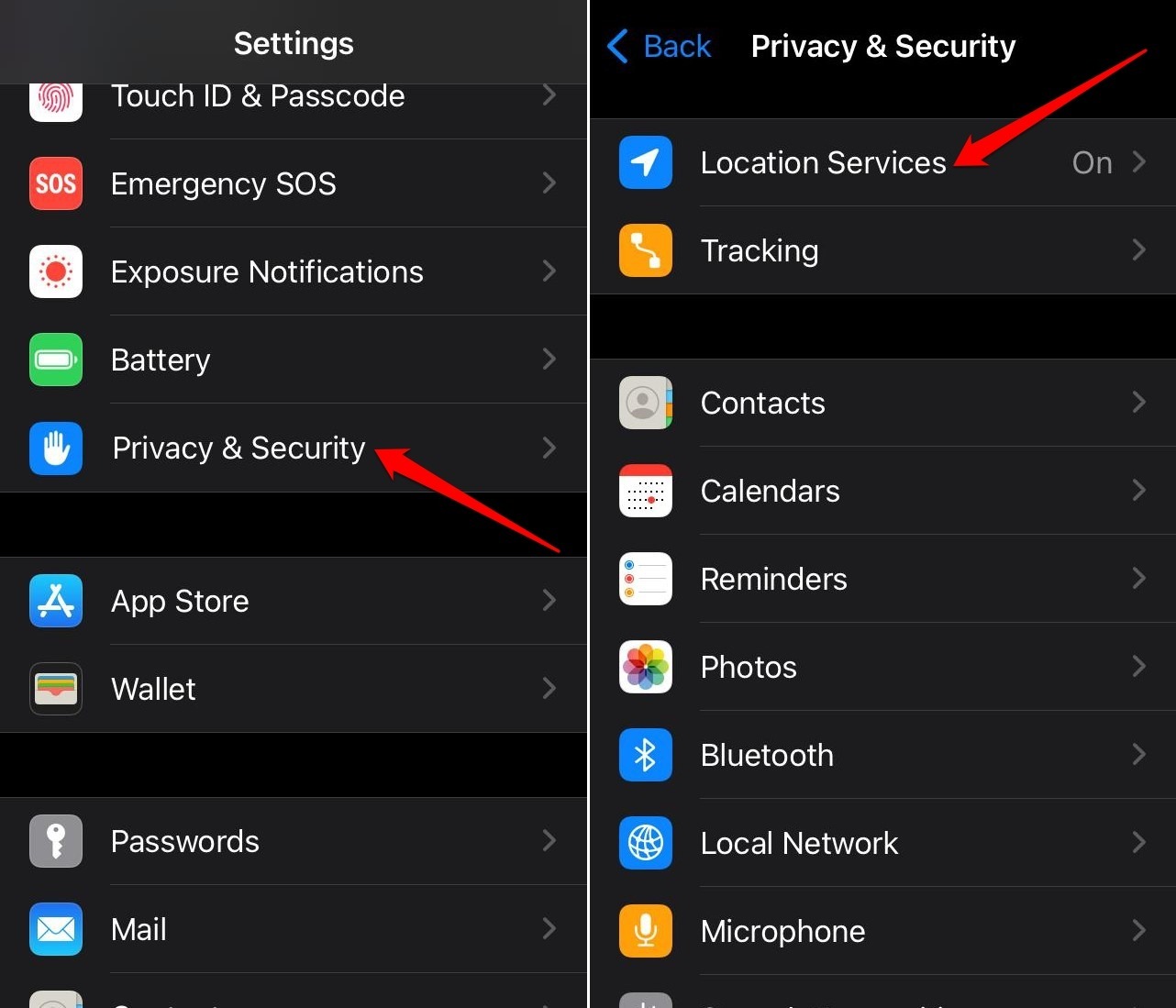
- Access the location settings for Edge.
- Select Never under Allow Location Access.
Bottom Line
Blocking geolocation keeps untrusted sites from knowing where you are. iOS lets you control location sharing for each app separately, so you can allow it only when you’re using Edge. For maximum privacy, set Edge to Never or keep Location Services off entirely.