Mozilla has rolled out Firefox 153 with a Preview of Containers, a built-in feature that lets users keep parts of their online life logged in side by side inside one window. Each container keeps cookies and trackers isolated from the others.
The Preview is rolling out in phases, so it may take a little time to appear for everyone. Here’s what the feature does and how to update Firefox on computer and mobile.
In this guide, I have shared written instruction about:
Firefox 153 Adds a Containers Preview
According to the official announcement, Firefox 153 ships a Preview of Containers, a new built-in feature that lets you keep separate parts of your online life, such as work, shopping, personal, and banking, logged into different accounts in the same browser window. Each container stores its own cookies and isolates ad tracking from the others, so activity in one tab group does not bleed across.
What the Containers Preview Does
The Preview puts a thin wall between tab groups. Cookies, site storage, and the trackers used by sites opened in one container stay scoped to that container. You can sign in to two accounts on the same service at the same time, without logging out, switching profiles, or opening a second browser window.
The idea is not new to Firefox. The Multi-Account Containers extension has offered a similar setup for years. The difference in Firefox 153 is that the Preview is built directly into the browser, so no add-on install is needed before your first container tab.
Availability and Rollout
Mozilla describes the feature as a Preview, which means it is being released gradually and may not appear for every install on day one.

If you do not see Containers yet after updating to Firefox 153, wait for the rollout to reach your profile or check the experimental features area in Firefox settings. The update itself uses Firefox’s normal phased release, so some installs will receive version 153 before others.
How to Update Firefox on Computer
Open Firefox on Windows, Mac, or Linux and trigger a manual update check, or follow the steps below.
- Open the Firefox browser app on your computer.
- Click on the More

 menu and select the Settings menu.

- Scroll down to the Firefox Updates section within the General tab, and click the button.


- Firefox will check for updates and download them. It may ask to restart to complete the installation of the update.

 The browser will be updated to the latest version.
Relaunch Firefox when prompted and confirm that the About Firefox page reports version 153. If you are already on version 153, no further action is required.
How to Update Firefox on Android
Android users can pick up Firefox 153 from the Play Store or through the in-app updater.
- Open the Google Play Store on your Android device.
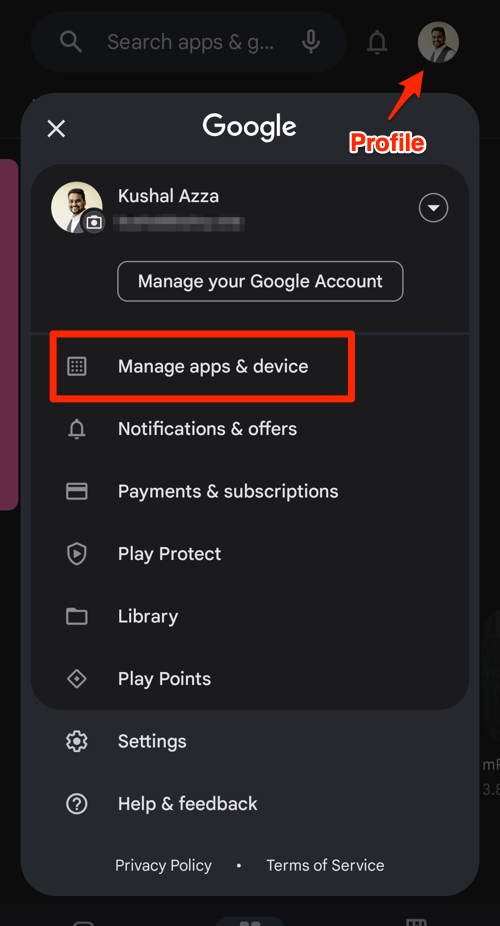
- Tap the Profile icon from the top right corner, and select the Manage apps & device menu.

- Tap on the See details command under the Updates available menu.
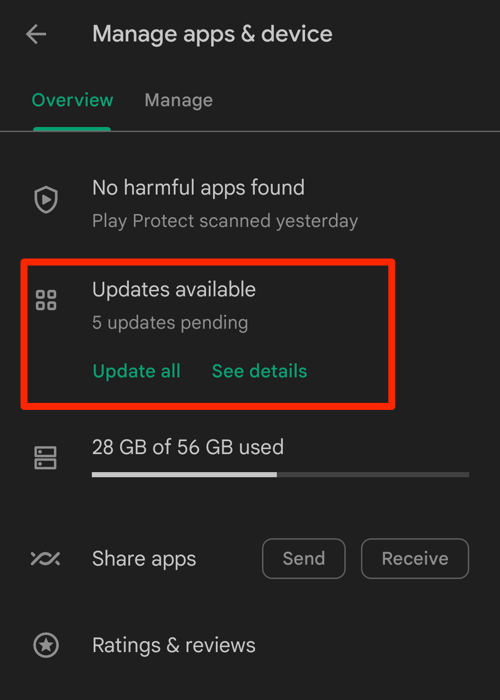

- If Firefox is on the list of apps with available updates, tap on next to it.
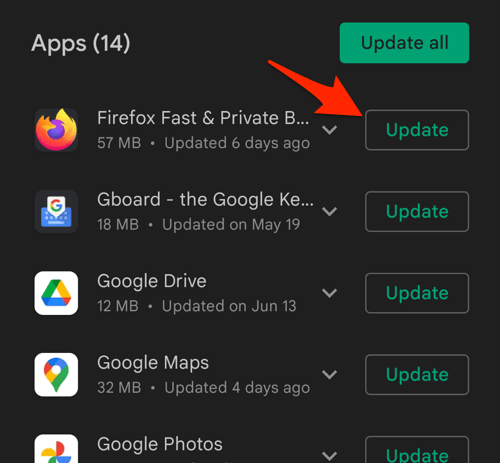

Open Firefox after the update, tap the menu, then About Firefox to confirm the build number.
How to Update Firefox on iPhone
iPhone and iPad users can grab Firefox 153 through the App Store or the in-app updater below.
- Open the App Store on your iPhone.
- Tap on your Profile icon in the top right corner.
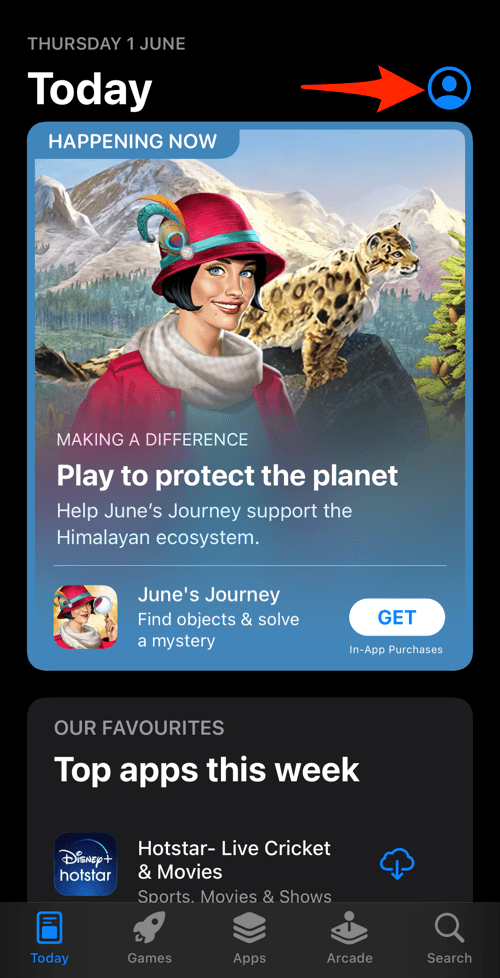

- Scroll down to the Available Updates section.
- If an update for Firefox is available, tap on next to it.
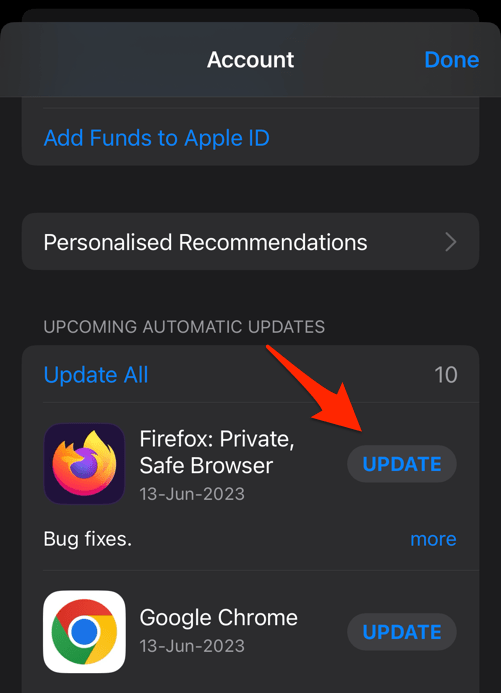
 The browser will complete the update in the background.
Relaunch Firefox after the update and check the version on the settings screen. The Preview is rolling out on desktop first, so iOS users may not see the Containers UI right away even after updating to 153.
Lastly, if you've any thoughts or feedback, then feel free to drop in below comment box. You can also report the outdated information.