Opera shipped a new stable release, version 134.0.5954.56, to its desktop channel. The official announcement points readers to the full changelog for the list of highlights and fixes.
The update is rolling out in phases across Windows, macOS, and Linux. The Android build follows the same staged approach. This guide covers how to check your current version and update Opera manually.
In this guide, I have covered:
Contents
Opera 134.0.5954.56 Stable Rolls Out
Opera pushed a new stable release to its desktop channel, bumping the browser to version 134.0.5954.56. The official announcement keeps the post brief and directs you to the changelog for the full list of highlights and fixes.

Like every stable bump, this release is distributed in phases. Your machine may take a few hours to a few days before the update becomes visible. Do not panic if you do not see it immediately.
What Is New in Opera 134
The announcement itself keeps the feature list short and points users at the changelog rather than enumerating items in the post body. Expect a typical mix of stability fixes, security patches, and small refinements across the browser with any regular stable bump.

TIP: Open the official changelog from inside Opera using Help > About Opera or directly at the Opera desktop blog to read the full notes for this build.
Platforms Affected by This Update
Opera 134.0.5954.56 targets the desktop Stable channel first, covering Windows, macOS, and Linux installations. The Android build follows the same staged distribution once it reaches the Play Store listing. The iPhone build tracks the same upstream Chromium bumps on its own schedule.
How to Check Your Current Opera Version
Before updating, confirm which build you are running. On desktop, click the red O menu in the top-left corner and head to Update & Recovery. You can also open Help > About Opera to see your version and trigger a manual update check. On Android, tap the  icon and choose Settings > About to view the version number.
How to Update Opera on Computer
If the automatic update has not reached your PC or Mac yet, force the latest stable build using the steps below.
- Open the Opera browser on your computer.
- Click on the Opera menu on macOS or the Opera icon on Windows, and select Update & Recovery from the drop-down menu.
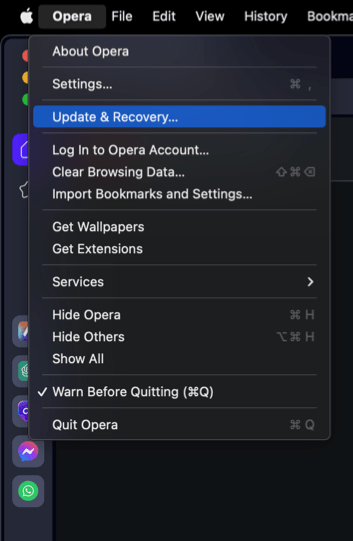 In the Address bar, you can also visit opera://update. It will open the update and recovery page.
 - Opera will automatically check for updates. If any are available, they will be downloaded and installed.
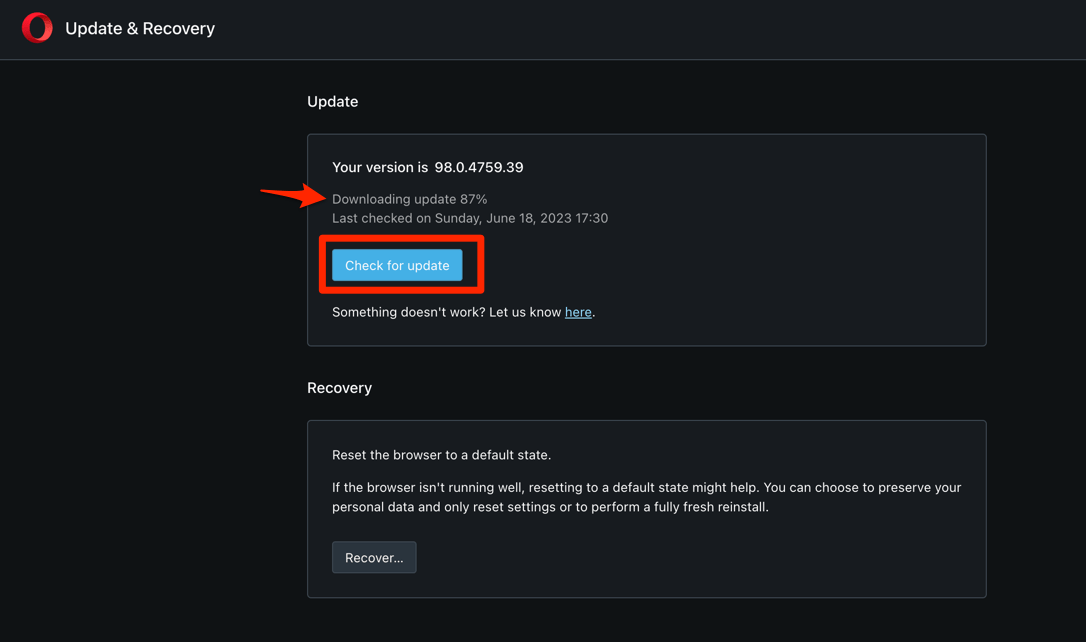
- After downloading, the browser might also ask to hit on to complete the update process.
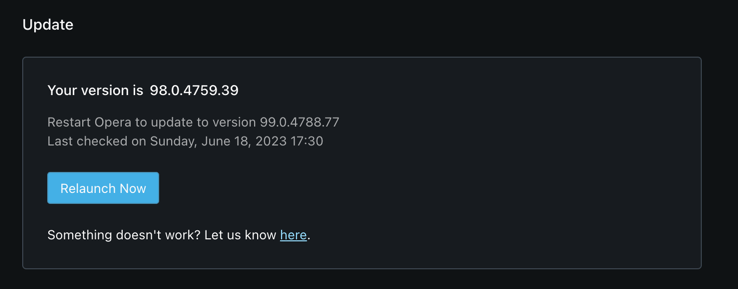 The browser will complete the update.
Relaunch Opera when prompted and confirm the new build on the About Opera page. If no update appears, give it a few hours. Desktop rollouts are phased.
How to Update Opera on Android
On Android, the standard update path through the Play Store applies. If the new build is not yet visible on your device, use the steps below to refresh the listing and install the latest version.
- Open the Google Play Store on your Android device.
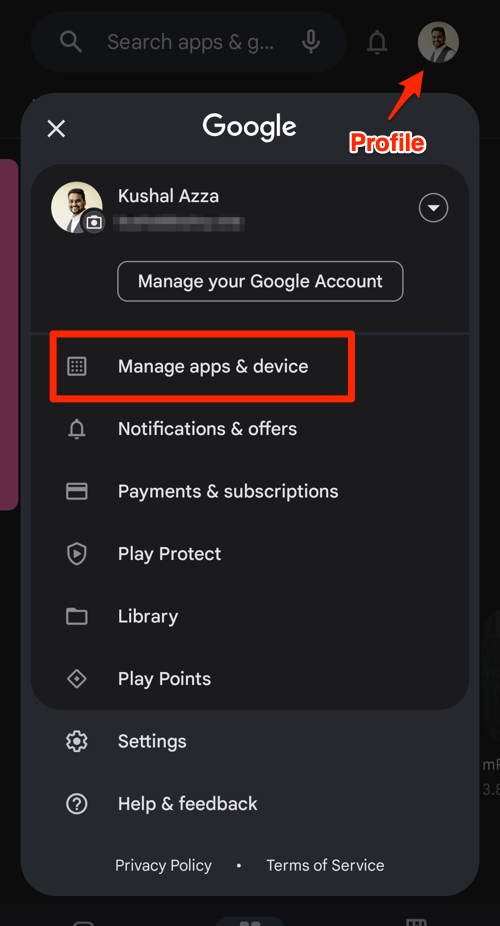
- Tap the Profile icon from the top right corner, and select the Manage apps & device menu.
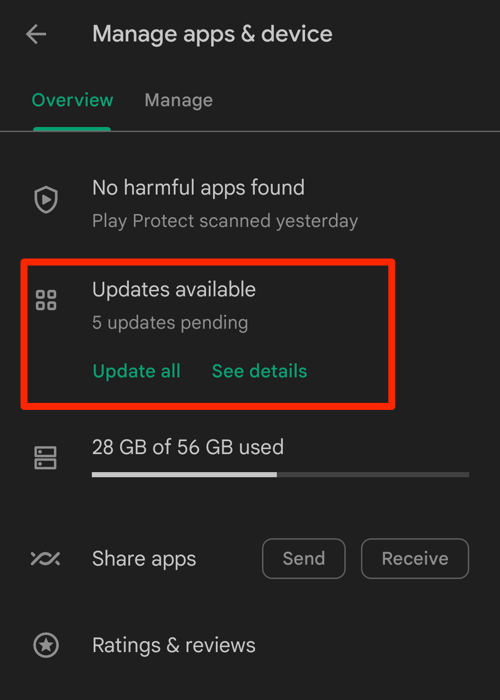
- Tap on the See details command under the Updates available menu.
- If Opera is on the list of apps with available updates, tap on next to it.
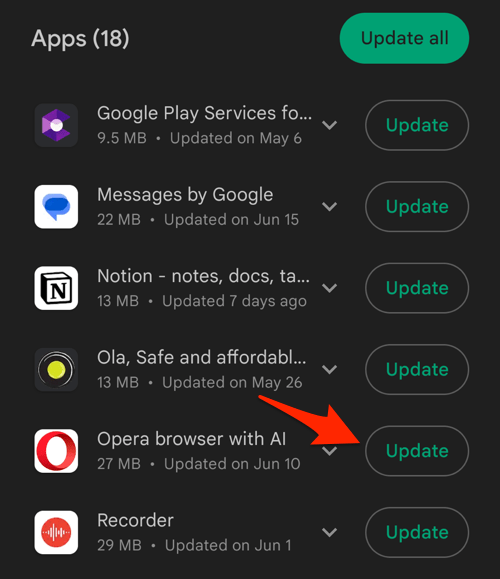 It will complete the browser update on your Android device.
Open Opera after the update installs and confirm the version under Settings > About to verify the new release is active on your phone.