Opera for Android version 101 is rolling out on the Google Play Store, delivering a picture-in-picture mode that lets you pop videos into a floating window while you switch apps or scroll other tabs.
The update also introduces live match highlights for sports fans, surfacing key moments from ongoing fixtures without leaving the browser. The release is phased, so it may take a few days to reach every device. Here's what changed and how to update.
In this guide, I have covered:
Contents
What’s new in Opera for Android 101
According to the official announcement, Opera for Android has moved to version 101, and the headline addition is a picture-in-picture mode. With this feature active, you can pop a video out of its web page and keep watching in a floating window while you switch apps or scroll other tabs.
Alongside PiP, Opera is rolling out live match highlights, which surface key moments from ongoing sports fixtures without leaving the browser. The pair of additions turns Opera into a small companion window for both casual video and sports updates on Android.
Opera for Android 101 brings picture-in-picture video and live match highlights.How to update Opera on Android
If your phone has not pulled the new build yet, you can trigger the update manually from the Play Store or through the browser’s own update screen.
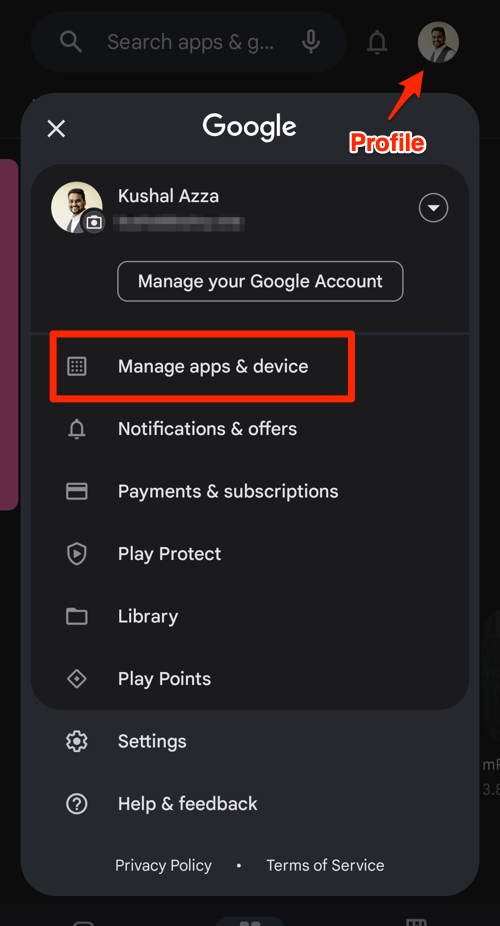
- Open the Google Play Store on your Android device.
- Tap the Profile icon from the top right corner, and select the Manage apps & device menu.
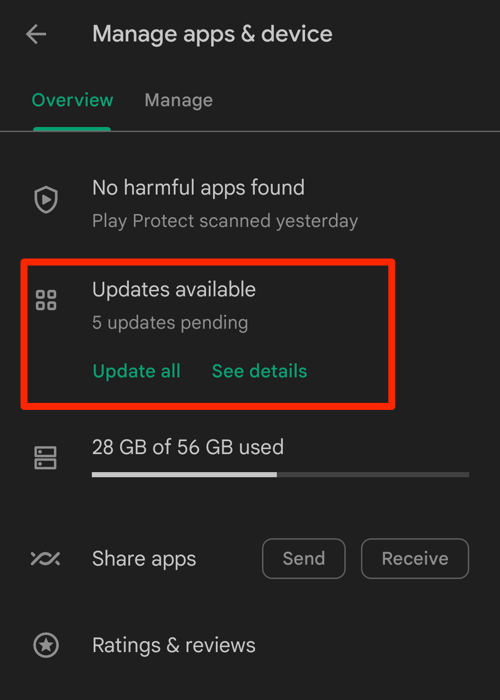
- Tap on the See details command under the Updates available menu.
- If Opera is on the list of apps with available updates, tap on next to it.
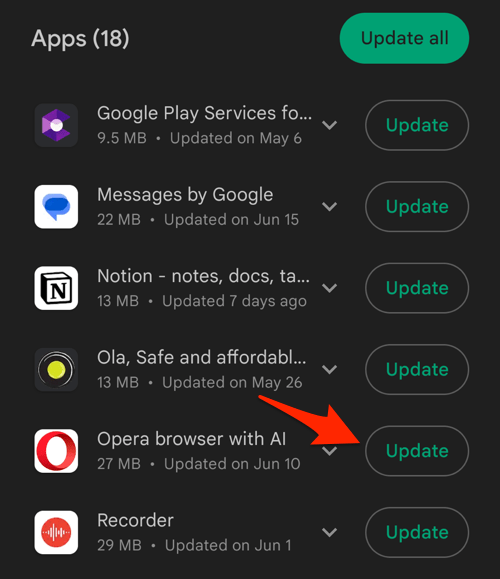 It will complete the browser update on your Android device.
After updating, fully close and reopen Opera so the new picture-in-picture and live match highlights features register correctly on your device.
How to check your Opera version on Android
To confirm version 101 is installed, open Opera, tap the  menu at the bottom of the screen, then tap the
  settings icon and scroll down to About. The version number should read 101.x once the rollout has reached your account.

Opera pushes browser updates in phases through the Play Store. If the new version is not showing on your device, wait a day or two and check the listing again before troubleshooting.