Opera 139.0.6053.38 has landed in the Stable channel for desktop, and the official post says little beyond the build number itself.
Check the version under About Opera first. If your copy still shows an older build, run the manual update check and give the phased rollout a little more time before you try again.
In this guide, I have covered:
Contents
Opera 139.0.6053.38 is out on Stable: what the announcement covers
You saw a new version number, opened the announcement, and expected a list of changes. There isn’t one. Opera pushed version 139.0.6053.38 to the Stable channel on November 4, 2026, and the official Opera announcement confirms the desktop build.
The post names no features, fixes, or security patches. It points readers to the full changelog instead, so the useful questions here are availability, the version sitting on your machine, and how to pull the update by hand.
Which platform gets this build?
If you run Opera on a laptop or desktop, this release is aimed at you. The announcement comes from the Opera Desktop team and covers Opera Desktop only.
No matching Android or iPhone release appears alongside version 139.0.6053.38 in the source. Don’t read this build number as a mobile rollout.
Is the Opera 139 update rolling out in phases?
Your copy of Opera may still show an older build while someone else already has 139.0.6053.38. That’s expected. Opera gives no fixed timetable for Stable delivery, so treat availability as a phased rollout, not a single moment when every installation updates together.

If the update has not appeared, allow time for Stable delivery and check again before repeating the update process.
How to check your Opera version
Before you reinstall or restart anything, find out which build you’re actually running. Open the About page and compare the number with 139.0.6053.38.
- Open Opera on your computer.
- Open the Opera menu.
- Choose Help.
- Choose About Opera.
- Compare the version number shown with 139.0.6053.38.
Matching numbers mean the build is already installed. A lower number means your computer is still on an older release, so use the manual update steps next.

TIP: In a hurry? Type opera://about in the address bar and press to jump straight to the version page.
How to update Opera 139.0.6053.38 manually
Stuck on an older build? Run Opera’s own update check first, before you consider a reinstall. The step-by-step download and update guide for Opera walks through the full path if you want more detail than the steps below.
- Open the Opera browser on your computer.
- Click on the Opera menu on macOS or the Opera icon on Windows, and select Update & Recovery from the drop-down menu.
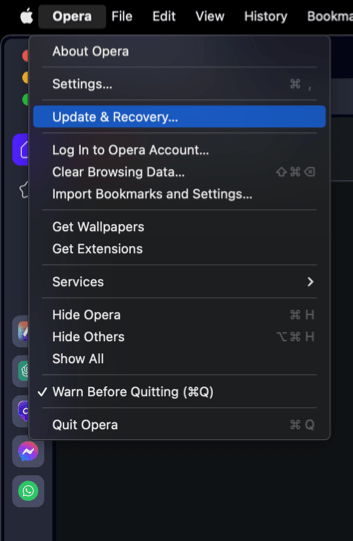 In the Address bar, you can also visit opera://update. It will open the update and recovery page.
- Opera will automatically check for updates. If any are available, they will be downloaded and installed.
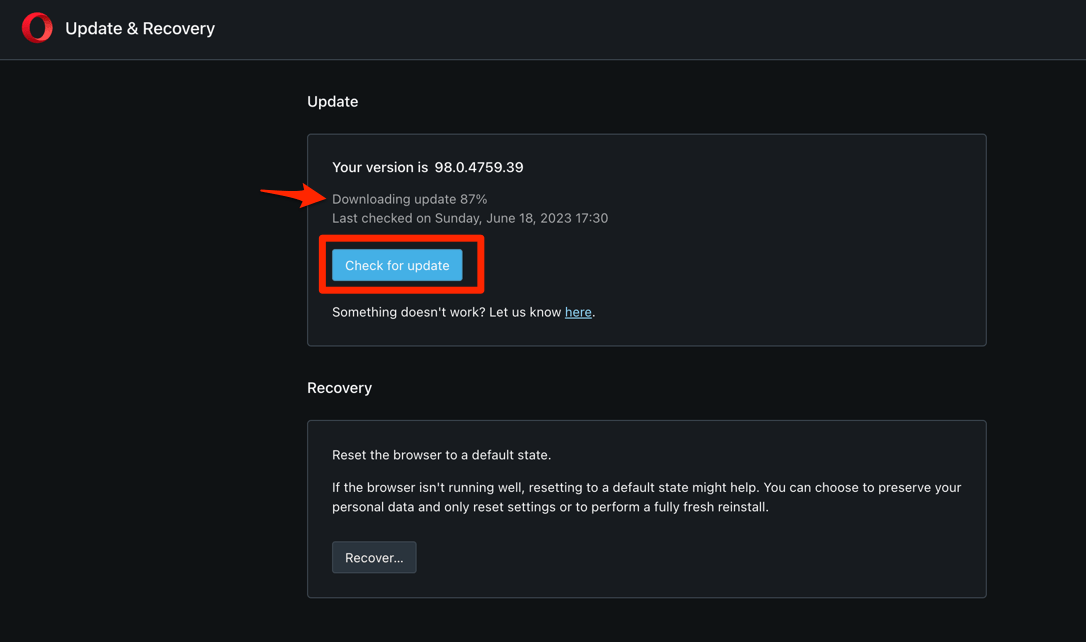
- After downloading, the browser might also ask to hit on to complete the update process.
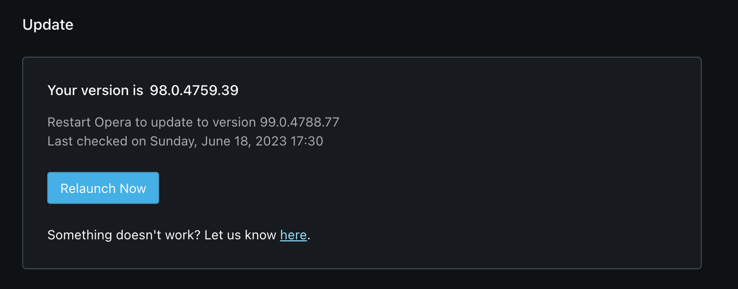 The browser will complete the update.
You’ll know it worked when About Opera shows 139.0.6053.38 after the restart. Reopen that page and read the number again if you’re not sure the install finished.
If the new version still does not appear, wait for the phased Stable delivery and run the update check again later.

Frequently Asked Questions
You probably just want to know whether this build applies to you and whether anything changed. The answers below stick to what Opera’s announcement actually says.
What is the newest Opera Stable version announced?
Version 139.0.6053.38 is the new Stable release named in the official desktop announcement.
Is Opera 139.0.6053.38 available for Android or iPhone?
This announcement covers Opera Desktop. It gives no separate Android or iPhone version number.
What changed in this Opera update?
The announcement directs readers to the full changelog but does not identify individual features or fixes in its own text. The changelog linked from that post is where the itemized list lives.
Why is Opera 139.0.6053.38 not showing on my computer?
The source gives no fixed rollout timetable. Your installation may simply not have been reached yet, so wait, check again later, or run the manual update process.
How do I confirm that the update is installed?
Open About Opera and look for 139.0.6053.38. If an older number is still there, the computer is on a previous build and the manual update check is your next step.