Opera has pushed version 137.0.6036.63 to the Stable channel. It is a maintenance release, not a feature drop, so expect fixes rather than a redesign.
Emergency Session Restore now runs on all Opera streams, so your open tabs return after an unexpected shutdown. The build also patches WebCodecs H.264 encoder errors that broke video playback in some web apps.
In this guide, I have covered:
Contents
Opera 137 Update: What’s New in 137.0.6036.63
If Opera updated itself to 137.0.6036.63, you are looking at a maintenance release rather than a feature drop. Per the official announcement, this build targets stability and site compatibility.
The headline change is Emergency Session Restore, now switched on across all Opera streams. If the browser closes unexpectedly, your open tabs come back the next time you launch Opera.
There is a fix on the playback side too. The update patches WebCodecs H.264 encoder errors that were breaking video in some web apps.

Opera Stable rollouts are phased. Some installs see the update within hours, and others may wait a couple of days before it arrives.
How to Update Opera on Computer
If the update has not reached your install yet, you can pull it from inside the browser. If you are installing Opera for the first time, or cleaning up an older build, start with our guide to downloading Opera and updating it to the latest version.
- Open the Opera browser on your computer.
- Click on the Opera menu on macOS or the Opera icon on Windows, and select Update & Recovery from the drop-down menu.
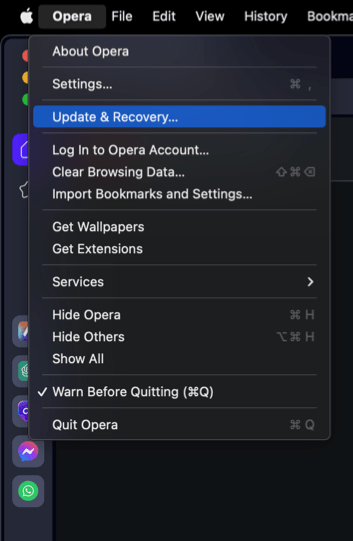 In the Address bar, you can also visit opera://update. It will open the update and recovery page.
 - Opera will automatically check for updates. If any are available, they will be downloaded and installed.
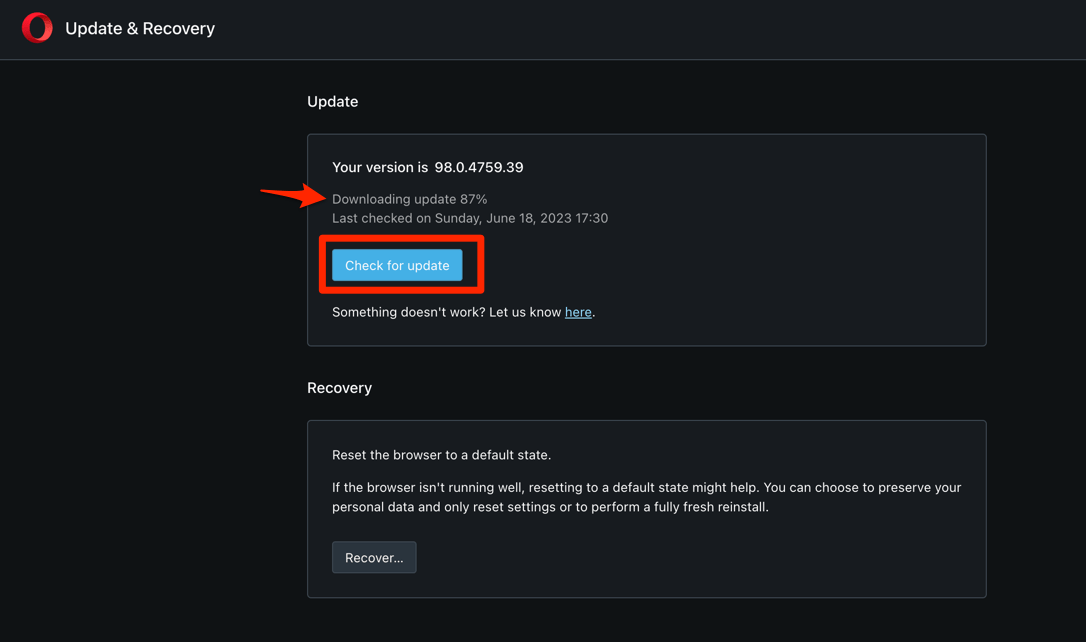
- After downloading, the browser might also ask to hit on to complete the update process.
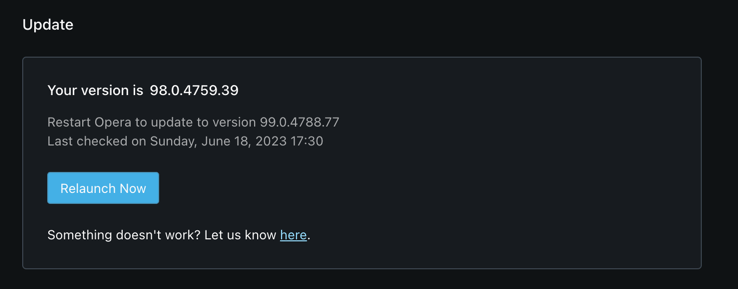 The browser will complete the update.
You’ll know it worked when the About page reports 137.0.6036.63. If the number has not moved, give it a day. The rollout is staged, and your install may simply be later in the queue.

TIP: In a hurry? Type opera://about in the address bar to open the About page directly instead of going through the menu.

Frequently Asked Questions About the Opera 137 Update
Here are short answers to the questions this update raises.
What is Emergency Session Restore in Opera?
Emergency Session Restore brings your open tabs back automatically the next time you launch Opera after an unexpected shutdown. It is enabled on all Opera streams as of the 137.0.6036.63 Stable release.
What does the WebCodecs H.264 fix change?
The update patches WebCodecs H.264 encoder errors that interfered with video playback in certain web apps. If a service or a browser-based video tool failed on the older build, test it again now.
If it still will not play, try clearing the cache and storage in Opera for that site and reload before you blame the update.
How do I check which Opera version I am running?
Open the Opera menu in the top-left corner of the window, then choose Update & Recovery. The About page lists your current build number. You can also type opera://about in the address bar to jump straight there.
Will Opera 137 also reach Android and iPhone?
The 137.0.6036.63 announcement covers the desktop Stable channel only. Mobile builds follow their own release schedule through the Play Store and App Store. If you run Opera on Android or iPhone, check for an update in the store you installed it from.
For desktop users, the build worth watching for is 137.0.6036.63. Once the About page shows that number, you are on the current release, and there is nothing else to do.