Google has promoted Chrome 152 to the stable channel for Windows, Mac, and Linux. The desktop rollout ships as 152.0.7977.64 on Linux and 152.0.7977.64/.65 on Windows and Mac, bringing a fresh round of fixes and improvements.
Distribution is phased over the coming days and weeks, so some users will see the update before others. This guide covers how to check your current Chrome version and how to force the update manually on each platform.
In this guide, I have covered:
Contents
Chrome 152 Rolls Out to the Stable Channel
Google has promoted Chrome 152 to the stable channel for desktop. According to the official Chrome Releases post, the build is 152.0.7977.64 on Linux and 152.0.7977.64/.65 on Windows and Mac. As with every Chrome stable push, the rollout is phased over the coming days and weeks, so not every desktop will see the update at the same time.
The release notes point to the standard change log for the full list of fixes and improvements, and note that separate Chrome and Chromium blog posts will cover the bigger features shipping in 152 in the days ahead.
Chrome 152 is rolling out now to Windows, Mac, and Linux as 152.0.7977.64 (and .65 on Windows and Mac), with a phased rollout over the coming days and weeks.How to Check Your Current Chrome Version
Before you try to force the update, it helps to confirm which build your browser is on so you can tell whether 152 has reached you.
- Launch the Google Chrome on your computer.
- Click on More
 for the options list, and select the Settings menu.
- Switch to the About Chrome tab in the left sidebar pane.
 The browser should automatically start looking for the latest updates.
 - Hit on the button.
 It will complete the Chrome browser update process.
The same About Chrome screen tells you which version is installed and shows the download progress if an update is in flight. Once the build number matches 152.0.7977.64 (Linux) or 152.0.7977.64/.65 (Windows and Mac), click to finish applying it.
How to Update Chrome on Android
Chrome 152 desktop is the headline, but the same version cycle eventually reaches mobile too. If you want to keep your Android browser in sync, you can trigger the update from the Play Store.
- Open the Google Play Store on your Android device.
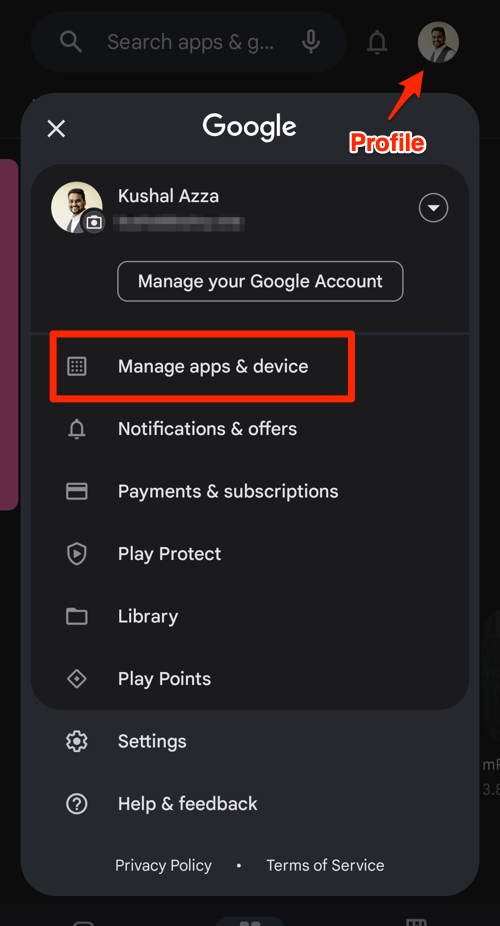
- Tap the Profile icon from the top right corner, and select the Manage apps & device menu.
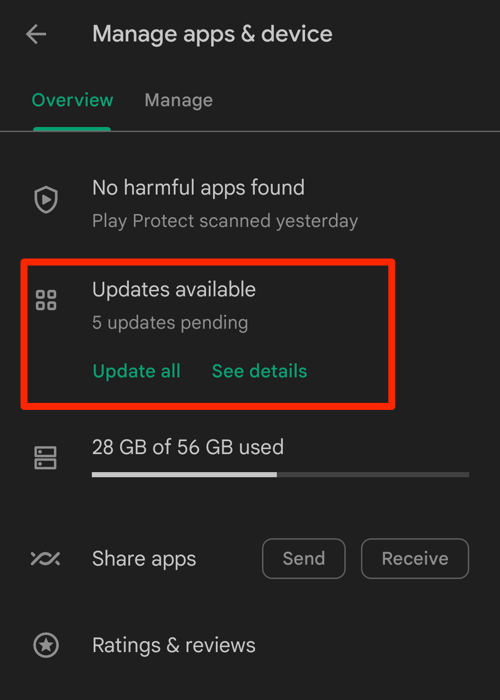
- Tap on the See details command under the Updates available menu.
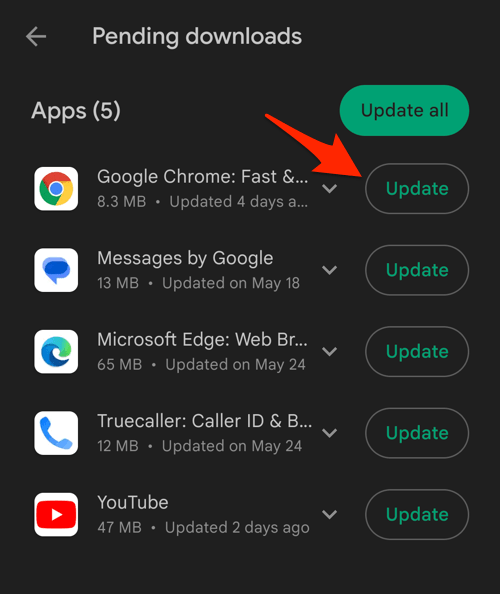
- If Chrome is on the list of apps with available updates, tap on next to it.
Open Chrome on Android afterwards and confirm the new build under Settings, then About Chrome. If the version has not bumped yet, your device is likely still in the wait window for the phased rollout.
How to Update Chrome on iPhone
iPhone and iPad users get Chrome through the App Store, so the update flow there is the familiar one used for any iOS app.
- Open the App Store on your iPhone.
- Tap on your Profile icon in the top right corner.
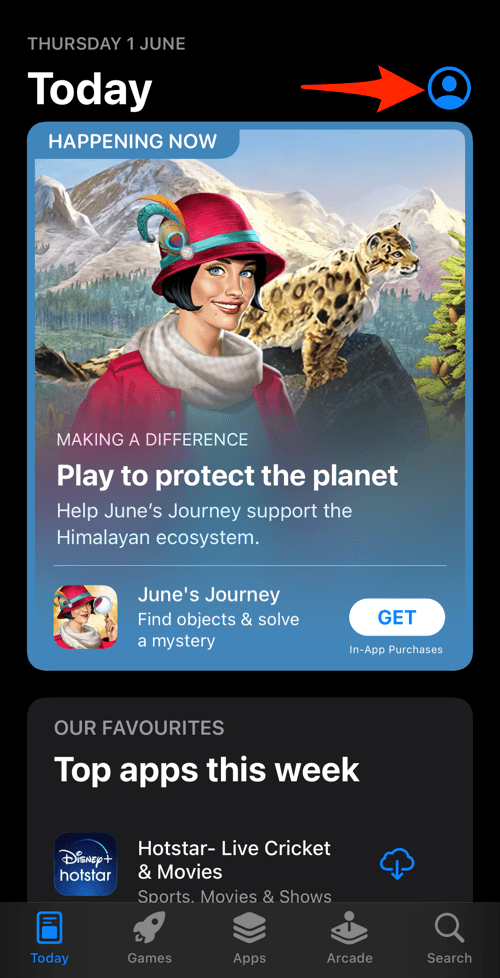
- Scroll down to the Available Updates section.
- If an update for Chrome is available, tap on next to it.
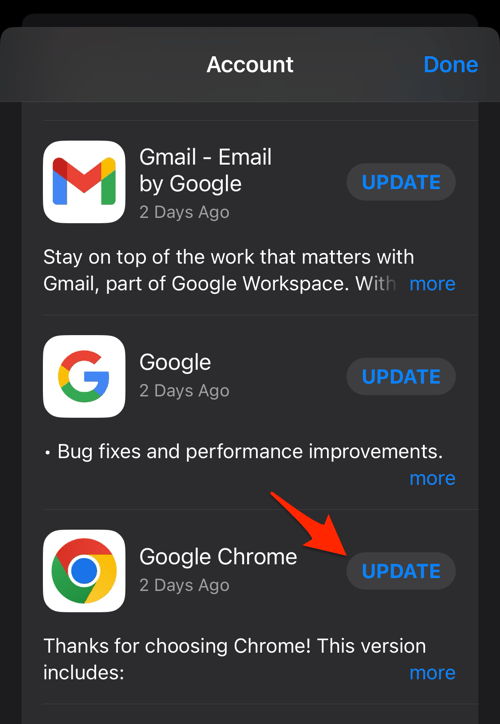
After updating, open Chrome on your iPhone and head to Settings, then About Chrome to confirm the new build is live. If the number has not changed, Apple may still be holding the release in its own phased rollout queue.
Security Notes for Chrome 152
The stable announcement also references the usual security fixes that ship with every Chrome release, with the customary note that access to bug details and links may be restricted until a majority of users have updated. The safest move is to install 152 as soon as it reaches your device rather than waiting for the phased rollout to finish on its own.

Chrome desktop updates are staged, so a fresh install of 152.0.7977.64 on one machine does not guarantee the same build for everyone else on your network. If the About Chrome page still shows an older version, give it a few hours and check again.