If Chrome keeps reverting to Yahoo every time you set a new default, a browser hijacker is rewriting your settings on your PC. The usual causes are a misbehaving extension, a leftover Yahoo search entry, a hijacked Chrome shortcut, or a Windows-level hijacker installed by free software.
This guide covers every fix in order: changing the search engine, removing bad extensions, cleaning the shortcut, resetting Chrome, and running a malware scan. Most readers fix the issue in under fifteen minutes.
In this guide, I have covered:
Contents
Why Chrome Keeps Switching Back to Yahoo
You changed the search engine, confirmed Google, closed the settings tab, and felt done. Then you open Chrome an hour later and Yahoo is back. Something on your PC is rewriting the setting after you change it.
On Windows, the usual causes are a misbehaving extension, a leftover Yahoo entry in Chrome’s search list, a Chrome shortcut with a Yahoo URL appended to it, or a Windows-level browser hijacker installed by free software.
Chrome stores the default search engine separately from the Windows-level default browser. Both can be flipped back without the other. That is why changing it works for an hour, then Yahoo returns.
What the Hijack Looks Like
Before changing anything, confirm which layer is being overwritten. The list below maps the most common symptoms to the cause.
- If only address bar searches go to Yahoo, the in-Chrome search engine was changed.
- If links from email or chat open in the wrong browser, the Windows default browser was changed.
- If a Yahoo page loads as your homepage or new tab page, an extension or shortcut is forcing it.
Both layers can be hijacked at the same time. The steps below fix each one in order, starting with the most common cause.
Change Chrome’s Default Search Engine
Start by manually resetting Chrome’s default search engine. Then delete every Yahoo entry left behind in Chrome’s search list.
- Click the three dots menu
 at the top right of Chrome and choose Settings.
 - In the left sidebar, click Search engine.
- Next to "Search engine used in the address bar," click Change and pick Google (or another trusted engine).
- Click Manage search engines and site search to open the full list.
- Find any entry mentioning Yahoo, click the three dots next to it, and choose Delete.
- Repeat for every Yahoo entry, then close the tab.
For a second reference, see Chrome’s search engine settings help page. If Yahoo returns after a restart, move to the next section.
Remove Suspicious Chrome Extensions
Most Yahoo hijacks come from an extension you installed weeks ago, or one that was bundled with a free download. The symptom appears later, when the extension quietly changes your search settings.
Quick check: open an Incognito window in Chrome. Extensions are disabled there by default. If Yahoo does not appear in search, an extension is the culprit.
- Launch the Google Chrome on your computer.
- Click on the More for the list menu.
- Hover on the More Tools menu and choose the Extensions sub-menu.
 It will open the Chrome Extensions Manager page with the list of installed extensions.
 - Toggle the switch to Disable the extension.

Disable every extension, confirm Yahoo stops coming back, then re-enable them one at a time. Restart Chrome after each one until Yahoo returns. Delete that extension permanently and do not re-enable it.
You’ll know it worked when Yahoo stays gone after a full restart.
Check the Chrome Shortcut Target
Some hijackers append a Yahoo URL to the end of the Chrome shortcut’s Target field. Any launch through that shortcut loads Yahoo as the homepage. Fix it in Windows.
- Right-click the Chrome shortcut you normally use (Desktop, taskbar, or Start menu).
- Choose Properties.
- On the Shortcut tab, look at the Target field.
- The target should end with chrome.exe only. If anything follows it, especially a URL with "yahoo" in it, delete the extra text.
- Click Apply, then OK.
- Repeat for every Chrome shortcut on your PC: Desktop, taskbar pinned icon, and Start menu.
Launch Chrome from the cleaned shortcut and confirm Yahoo no longer loads as the homepage. If the Target field keeps reverting, the hijacker is reinstalling itself. Jump to the malware scan section below.
Reset Chrome Settings to Default
If Yahoo keeps coming back, a full settings reset wipes any hijacker preference that slipped past your manual changes. Your bookmarks and saved Chrome passwords are kept.
- Launch the Chrome browser on the computer.
- Click on the More for menu list, and select the Settings menu.
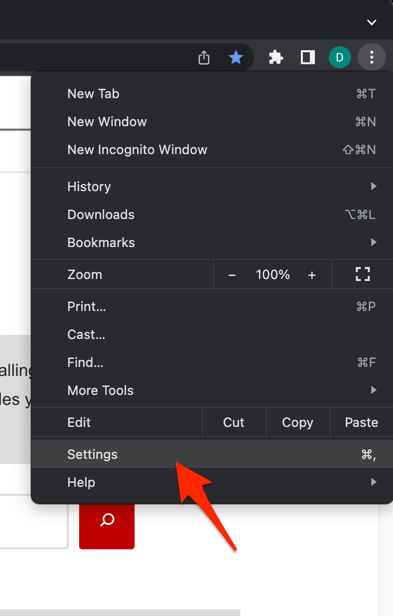 It will open the Chrome browser's Settings page.
 - Switch to the Reset settings tab in the left sidebar, and select Restore settings to their original defaults option.
- Finally, hit the command button.
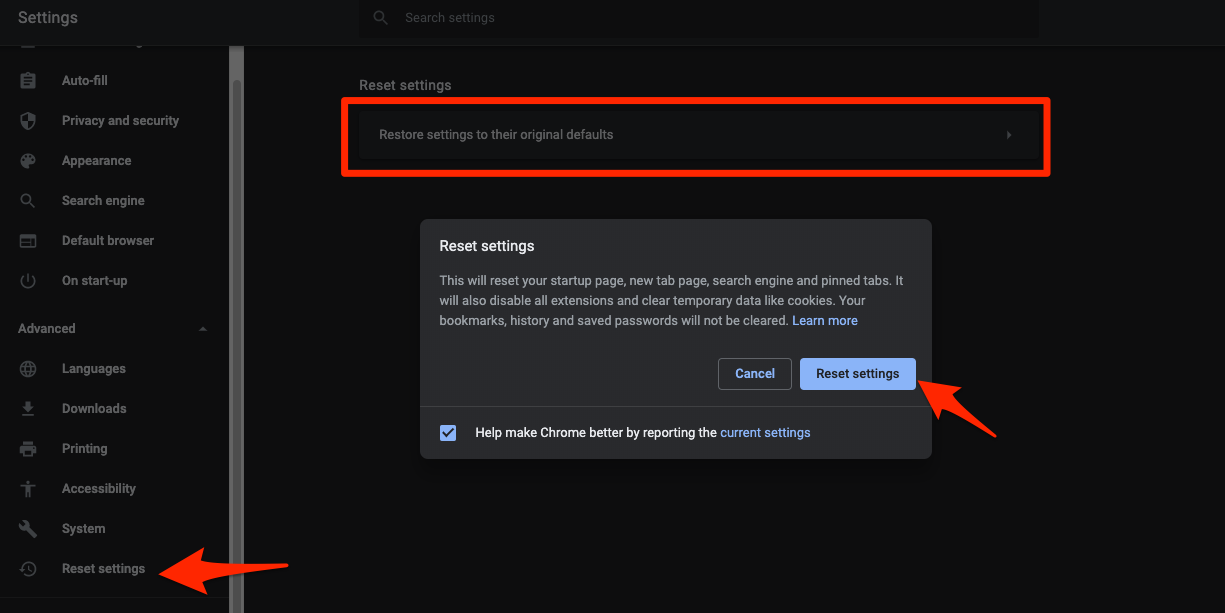 It will reset the Chrome browser settings, clear temporary data, and disable all extensions.
After Chrome relaunches, set your default search engine again and revisit your most-used extensions. Chrome also runs an automatic reset on launch when it detects hijacked settings. Read more on the Chrome cleanup tool help page.

The reset changes your default search engine, homepage, new tab page, pinned tabs, content settings, cookies, extensions, and themes. It does not delete bookmarks or saved passwords.
Set Chrome as the Windows Default Browser
Some hijackers also flip the Windows-level default app. Links from other programs then open in Edge or a different browser. Re-set it from Windows Settings.
- Click on the Start menu and select the Settings option.
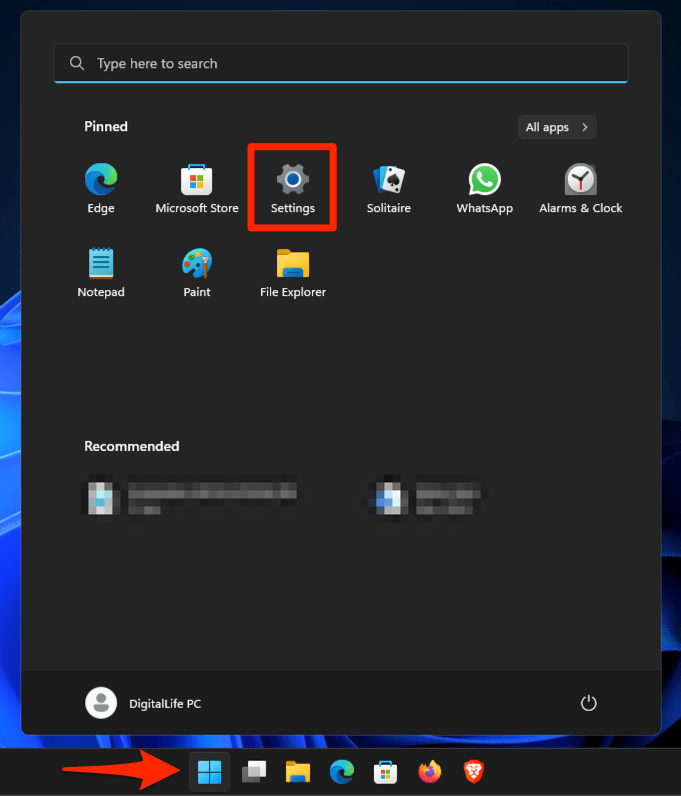 It will open the Windows System settings window.
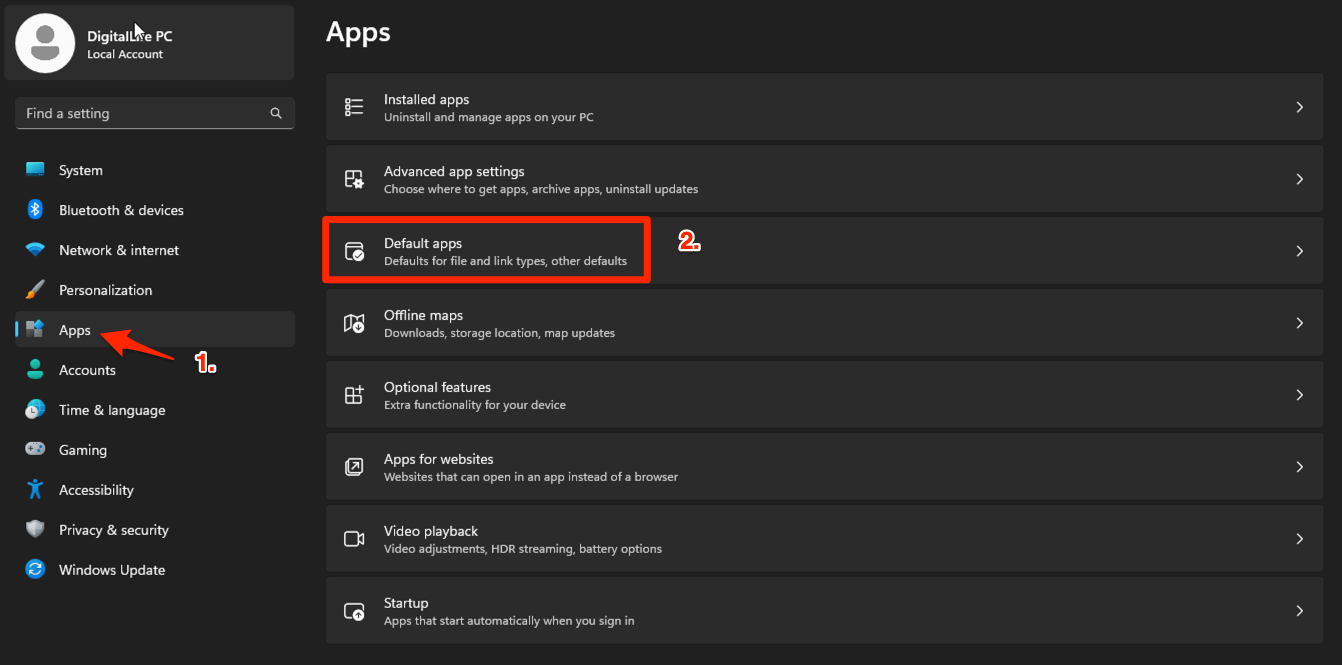
 - Switch to the Apps menu from the left sidebar and then select the Default apps in the right pane.
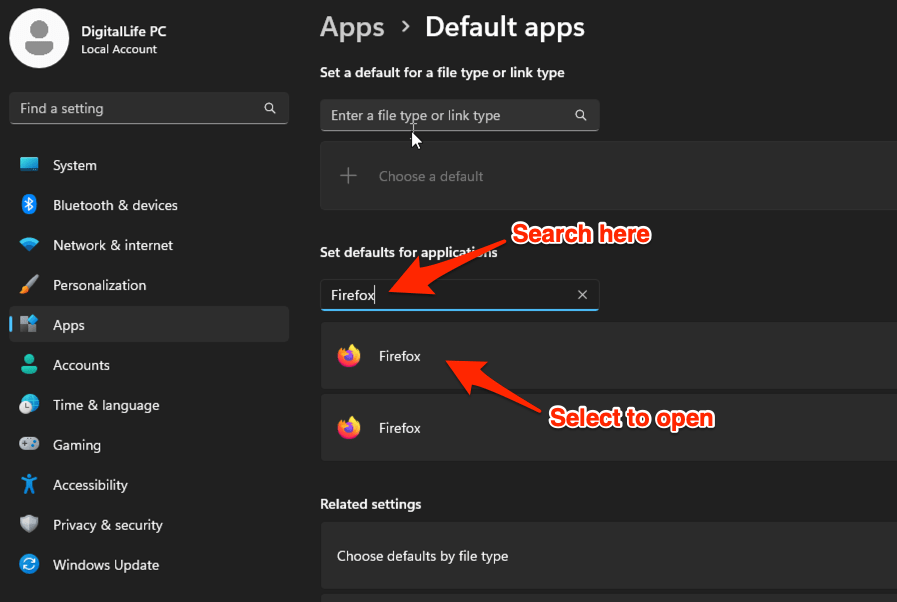
- Under the Set defaults for applications, search and select the desired browser (say, Firefox or Chrome) to open.
- Click the button at the top.
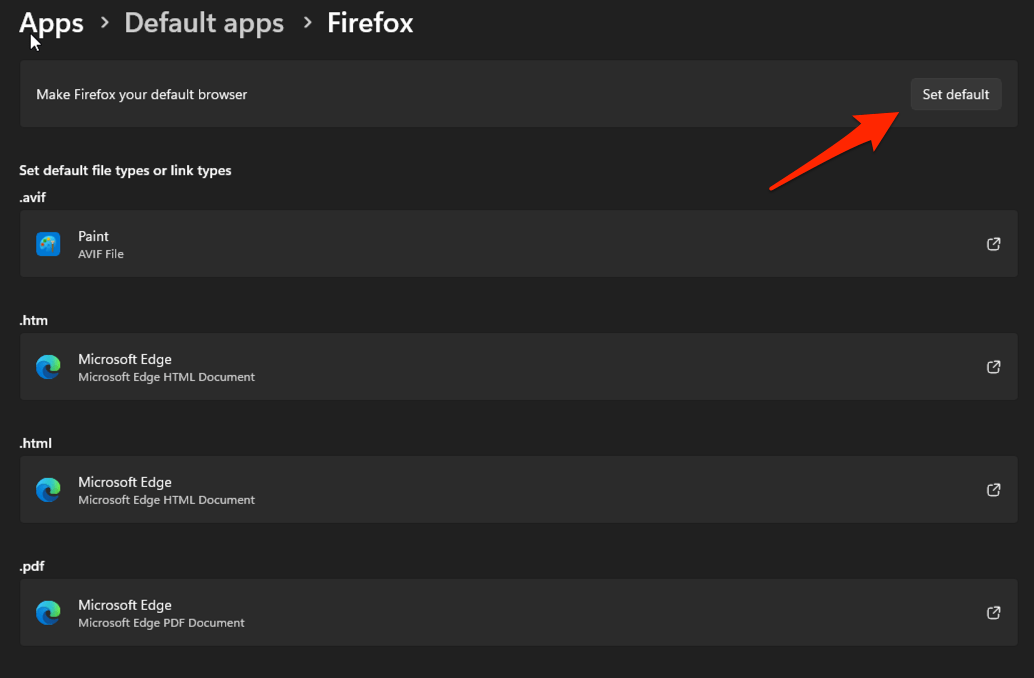 The desired browser will be set as the default app.
Open a link from another app, such as email or chat, to confirm Chrome now opens it.
Remove Suspicious Programs From Windows
If extensions, shortcuts, and Chrome settings are all clean but Yahoo still comes back, the hijacker is sitting at the Windows level. Uninstall anything you do not recognize.
- Open the Start menu and click Settings
 .
. - Go to Apps, then Installed apps.
- Sort by Date installed and look for anything installed around the time the problem started.
- Click the suspicious app and choose Modify or Uninstall.
- Follow the prompts and reboot Windows when finished.
After Windows restarts, confirm Yahoo is finally gone from Chrome.
Watch for “search protectors,” toolbars, “system optimizers,” and anything with Yahoo in the name. These almost always are the hijacker or its helper app.
Clear Chrome’s DNS Cache
Old DNS entries can occasionally route lookups through a Yahoo proxy. Flushing Chrome’s in-browser DNS forces fresh lookups the next time you start the browser.
- Launch Google Chrome on your Computer.
- Type in chrome://net-internals/#dns in the address bar, and hit key.
It will open the Chrome DNS network page. - Hit the command button.
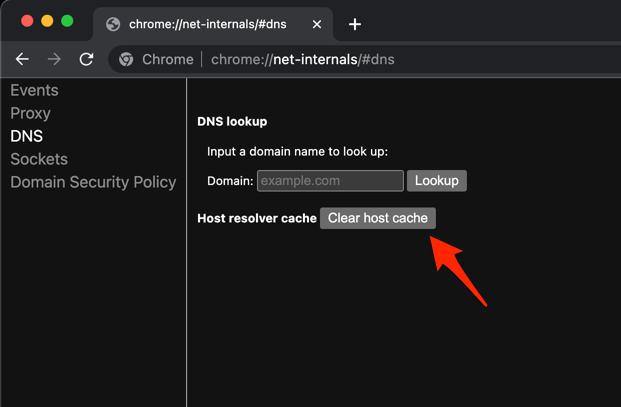
- Relaunch the Chrome browser.
It will clear the Chrome DNS host cache.
After flushing, restart Chrome once and run a search. Confirm the results come from the engine you picked.
Run a Malware Scan
If nothing above sticks, the cause is almost certainly a browser hijacker or potentially unwanted application (PUA). Run a full system scan.
- Open the Start menu and click Settings .
- Go to Privacy & security, then Windows Security.
- Click Virus & threat protection, then Scan options.
- Choose Full scan and click Scan now.
- Quarantine or remove anything Windows Defender flags.
- Restart Windows when the scan finishes and test Chrome again.

TIP: Two anti-malware engines rarely miss the same hijacker. After Windows Defender finishes, install a free second-opinion scanner such as Malwarebytes Free and run a full scan to catch anything Defender missed.
Reinstall Chrome as a Last Resort
When nothing above removes the hijack, a clean reinstall wipes every trace of the old installation. That includes leftover service entries and registry tweaks.
- Uninstall Chrome through Settings → Apps → Installed apps.
- If the profile folder remains at %LOCALAPPDATA%GoogleChromeUser Data, delete it manually.
- Restart Windows.
- Download a fresh copy of Chrome and install it.
- Set Chrome as your default browser, then set your default search engine again.
For a detailed walkthrough, see our guide to uninstalling Chrome and wiping its data. Before doing a full reinstall, rule out a corrupted local profile with our Chrome cookies and cache cleanup guide.

Frequently Asked Questions
Why does Yahoo keep coming back even after I change the default search engine?
Something is rewriting the setting on every Chrome launch. The usual culprits are an extension that re-applies Yahoo, a Chrome shortcut whose Target field points to Yahoo, or a Windows-level hijacker. Work through the sections above in order. The shortcut check alone fixes a surprising share of cases.
Is the Yahoo hijacker a virus?
It is classified as a browser hijacker or potentially unwanted application (PUA). It is not usually destructive like a classic virus, but it changes settings without clear consent and can open the door to more aggressive malware. Treat it as something to remove rather than ignore.
Will resetting Chrome delete my bookmarks and saved passwords?
No. Chrome’s built-in reset only restores settings such as search engine, homepage, extensions, content settings, and cookies. Bookmarks and saved passwords stay intact. See Chrome’s reset settings help page for the full list of what is and is not affected.
How do I find which extension is causing the hijack?
Disable every extension, confirm Yahoo stops coming back, then re-enable them one at a time. After each one is on, restart Chrome and wait a few minutes. The extension whose activation coincides with Yahoo returning is the offender. Delete it and do not re-enable it.
Can this problem affect other browsers too?
Yes, on the same machine. A Windows-level hijacker can rewrite defaults for Edge, Firefox, or any other browser, and the same shortcut trick works against them. If you use another browser alongside Chrome, run the cleanup steps for it as well, then lock Windows default apps through Settings.